Connecting through SSH with PuTTY
These instructions could be valid for other remote terminal clients
The instructions in this appendix may be centered around PuTTY on Windows, but most clients of this kind will require the same (or a very similar) configuration to connect with your PVE node. Therefore, these instructions could also be somehow valid for them.
Generating a .ppk file from a private key
You need to convert the private key of your root or mgrsys user into a .ppk file that PuTTY (and other Windows-based clients) can read:
Open the
Putty Key Generatorutility (PuTTYgen) and choose theConversions > Import keyoption: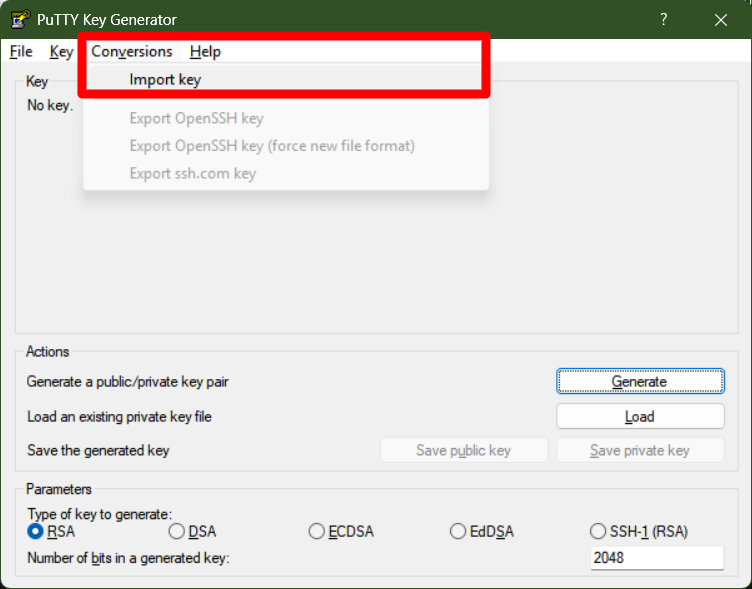
PuTTYgen Import key option It will show you a explorer window where you have to locate the user’s
id_ed25519private key file you should have recovered already from the PVE node after generating it: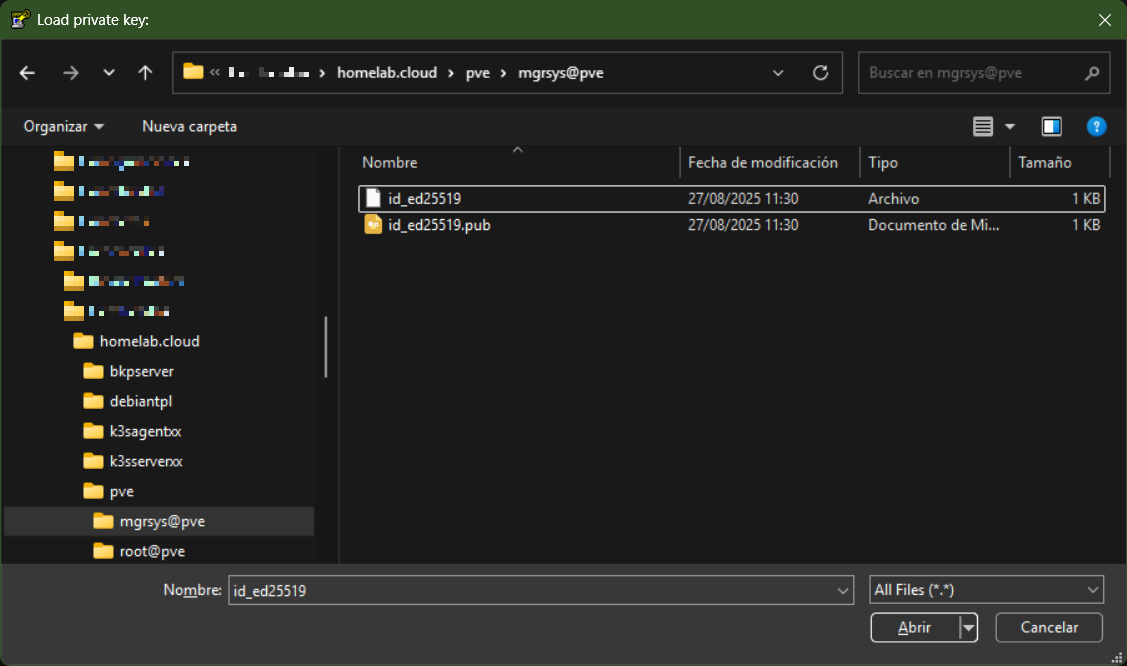
Importing id_rsa private key file into PuTTYgen With the private key loaded in the PuTTYgen utility, now you can convert it into a
.ppkfile. Just press on theSave private keybutton and PuTTYgen will ask you where you want to save the.ppkfile: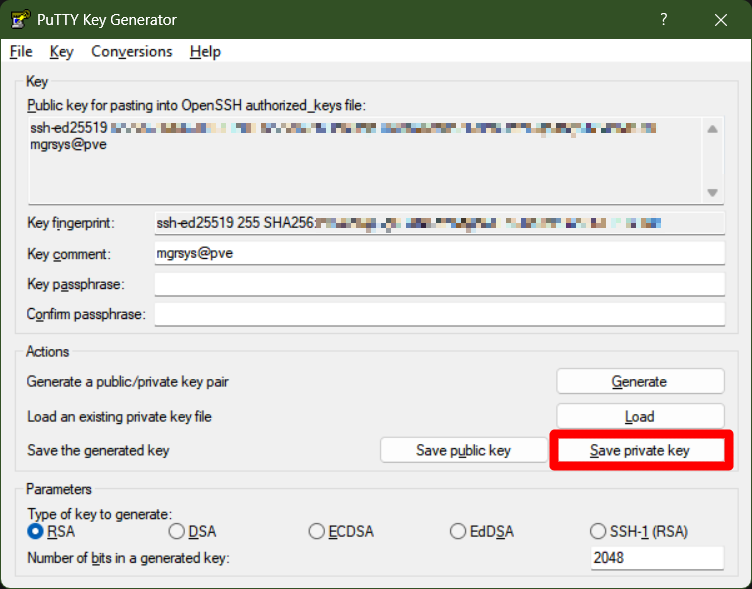
Saving private key as .ppk file The key-pair changes if you add a passphrase
When you save the private key, PuTTYgen will raise a warning if the private key does not have a key passphrase. Careful with this, since if you added a passphrase now, the private key and its public counterpart would change!
Save the file with the name
id_ed25519.ppkin the same folder you have the other keys already stored in your system. This way you keep everything together in the same place.Saving the public key makes little difference
You could also use the
Save public keybutton, but this will store the same public key you got from the pve node. The only difference will be in the content format and in theNewlinecharacter used (it will be the Windows one).
Configuring the connection to the PVE node
The PuTTY interface is “old school”, which makes setting up a remote SSH connection in it somewhat counterintuitive:
Start PuTTY and you will see its main window:
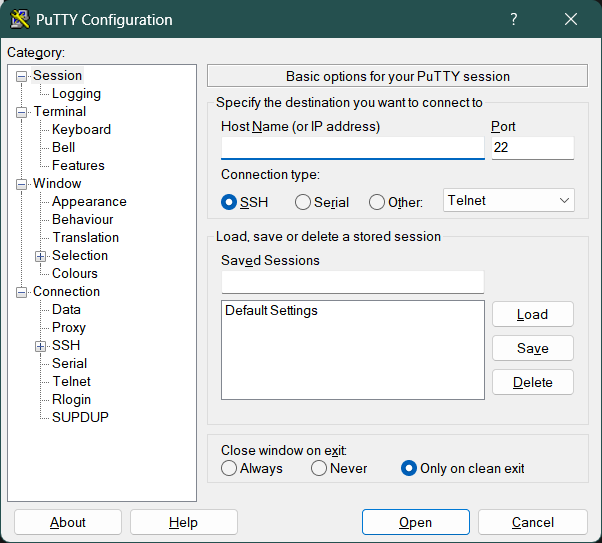
PuTTY session basic options section In this window you just need to set a few parameters:
Host Name
Put here the IP address of the remote system you want to connect to, like your homelab’s Proxmox VE server.Port
The default value22here is the correct one, which is the default port for SSH connections.Saved Sessions
Here you must enter a name for this session to save the configuration and use it later. Put something meaningful likeusername@servername.domain.name. For saving a connection configuration for themgrsysuser in the Proxmox VE server built in this guide, the name would bemgrsys@pve.homelab.cloud.
Once you have configured those values, press on
Saveand this new session will appear in the list ofSaved Sessions, right under theDefault Settingsentry: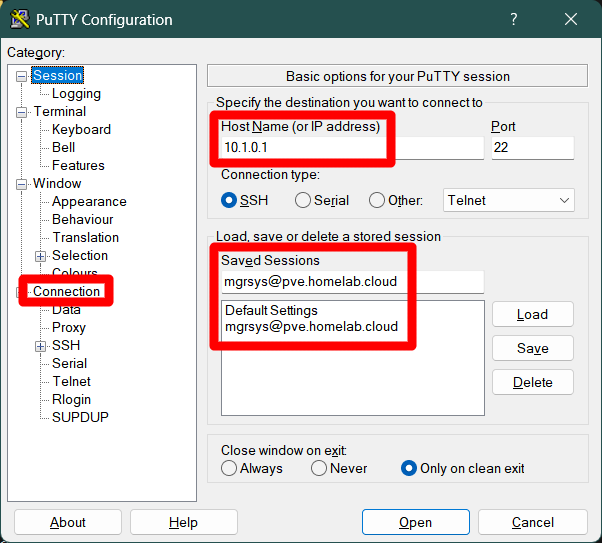
PuTTY session basic options session mgrsys@pve.homelab.cloud saved Next to do is to configure the SSH certificate and other extra parameters. In PuTTY, click on the
Connectionbranch in the options tree: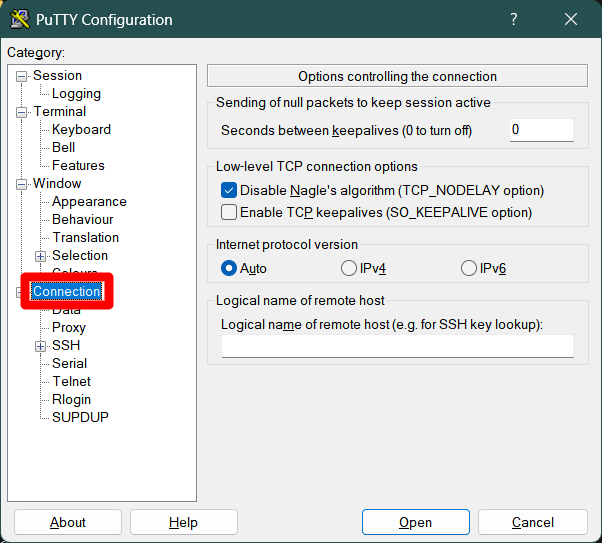
PuTTY connection configuration section In the screen above, you have options to avoid the killing of your session due to inactivity by the remote server you connect to. In other words, you can keep your session alive automatically, although remember that this session killing is a security measure:
Seconds between keepalives
Value in seconds that indicates when a putty session has to send a keepalive package to the other end. Please put a reasonable number of seconds here, something between 60 and 300.Enable TCP keepalives
Check this option on to enable the keepalive feature.
After applying this keepalive configuration, this window would look like this:
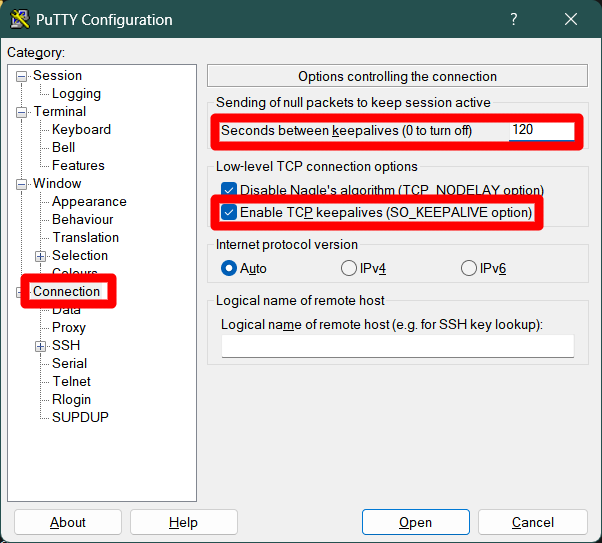
PuTTY connection configuration section with keepalive enabled Go to the
Connection > Datasubmenu: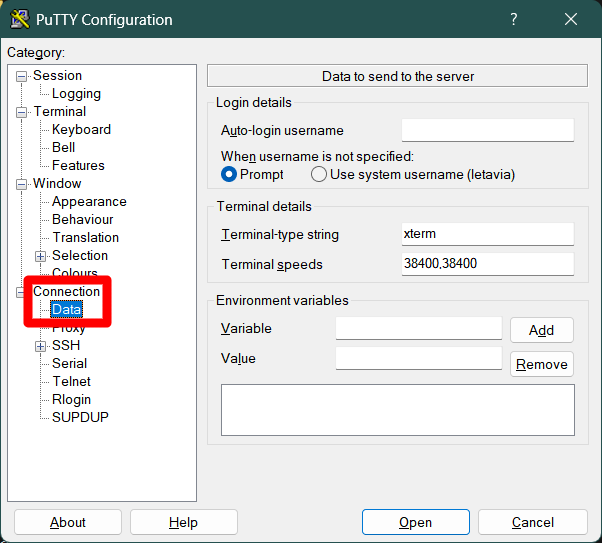
PuTTY connection data configuration subsection Here, and just for convenience, set the
Auto-login usernamefield with your user’s username. This way, you will not ever need to type it for the sessions opened with this configuration. For instance, to login with themgrsysuser: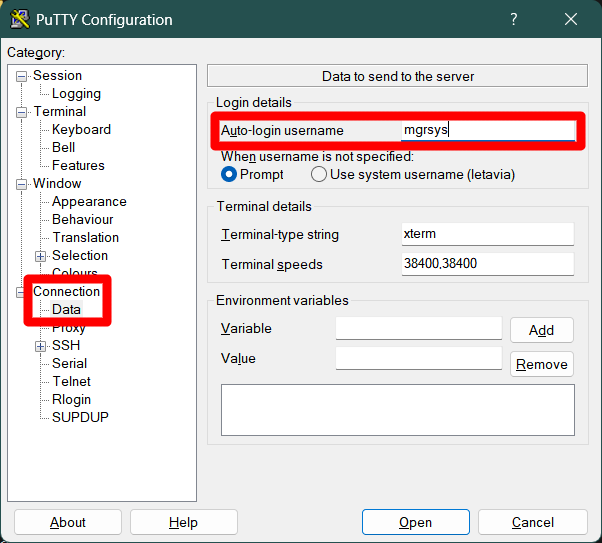
PuTTY connection data configuration subsection Click on the
Connection > SSHsubmenu: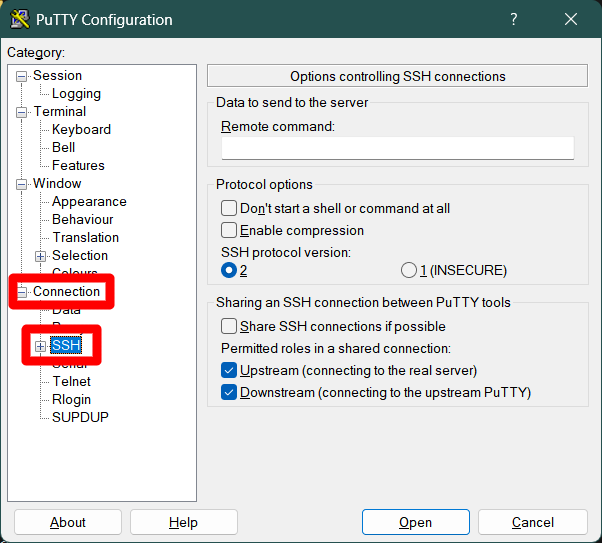
PuTTY connection SSH configuration subsection There are two options here that you might find useful to enable:
Enable compression
This will compress the data transmitted between the client and the server.Share SSH connections if possible
Enable this to avoid login again when you already have an open session with a certain user. This way you can open several different remote terminal sessions under the same login.
With these options enabled, the window looks like this:
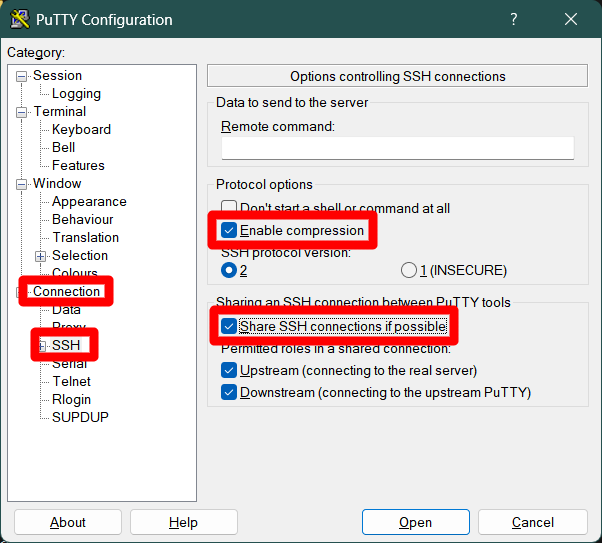
PuTTY connection SSH configuration with compression and connection sharing Unfold and click on the
Connection > SSH > Auth > Credentialssubmenu. Here is where you must locate your user’s.ppkprivate key file: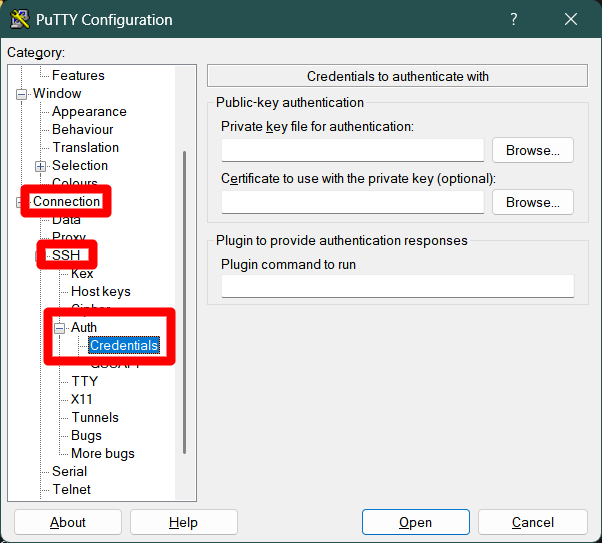
PuTTY connection SSH Auth Credentials section Press the
Browsebutton next to thePrivate key file for authenticationand locate your private key there. There is no need to change anything else in this screen: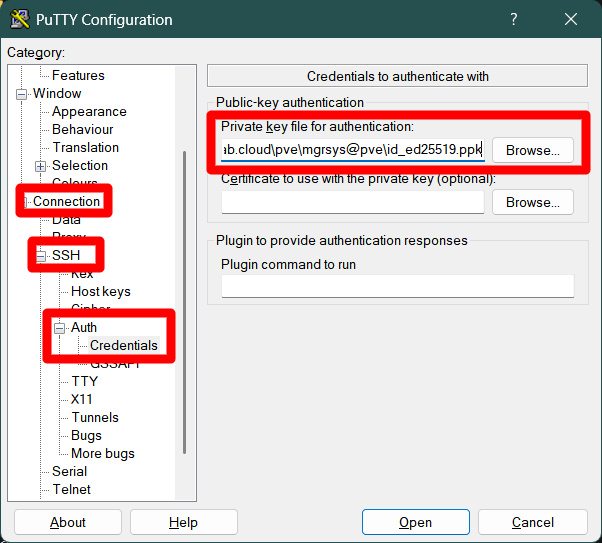
PuTTY connection SSH Auth Credentials with private key located for mgrsys user Return to the
Sessionmenu:
PuTTY session configuration section with saved session still loaded It should still have loaded the details of the session you saved earlier. Press on the
Savebutton to save all the changes made to this session configuration.Finally, click on the
Openbutton present at the bottom of the PuTTY window, next to theCancelone: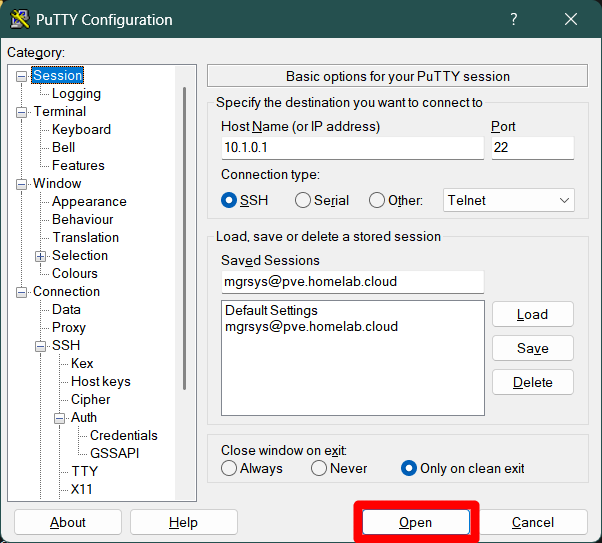
PuTTY session configuration section open button This will connect you to the remote server you may have configured. In this example, it is the Proxmox VE server of this guide’s homelab setup. The first time you connect to the remote server, PuTTY will raise the following security alert:
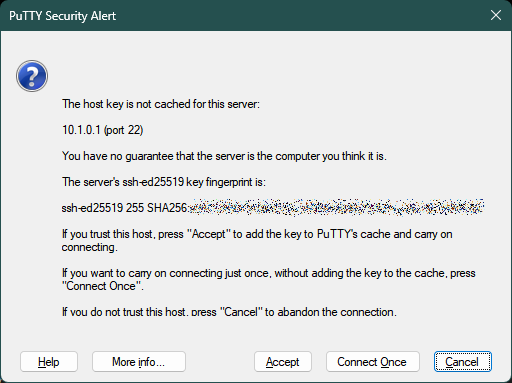
PuTTY security alert about server fingerprint This is PuTTY telling you that it does not know the SSH fingerprint of the server it is connecting to and is asking you to recognize and accept it so PuTTY can remembering it for future connections. If you are sure about the server you are connecting to, press on
Acceptand you should finally get into the shell: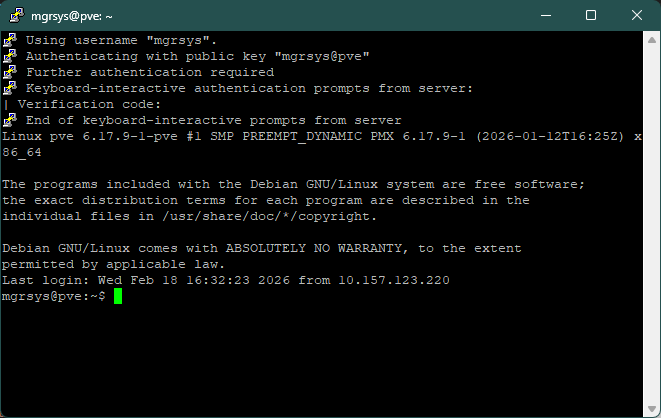
Connection established as mgrsys with pve node