Handling VM or VM template volumes
VM hard disks are disk images
The hard disks attached to a virtual machine or a VM template are, in fact, VM disk images. In the case of the first Debian VM created in the guide, its hard disk is an image that has been created as a LVM light volume within a thinpool. This way, the disk image is not just a file, but a virtual storage device that contains the VM’s entire filesystem. How to locate and, when necessary, handle such an image in your Proxmox VE server?
Installing the libguestfs-tools package
The Proxmox VE web console only gives you a very limited range of actions, like creation or size enlargement, to perform over any VM’s hard disks. Also, there is in your system the qemu-img command to manipulate these images, but it is also kind of limited. A much more powerful command toolkit for handling VM disk images is the one provided by the libguestfs-tools package:
The
libguestfs-toolspackage does not come installed in the Proxmox VE server. Open a remote shell in your PVE server and install it withapt:$ sudo apt install -y libguestfs-toolsThis package’s installation will execute a considerable number of actions and install several dependencies, so you’ll see a lot of output lines on this process.
Installing
libguestfs-toolspackage does quite a lot of things in your Proxmox VE host. Better reboot your system right after the installation is finished:$ sudo reboot
The libguestfs-tools package comes with a big set of commands enabling you to handle VM disk images in complex ways. Check them out in the documentation available at libguestfs’ official page.
Locating and checking a VM or VM template’s hard disk volume
To obtain information of your VMs’ hard disk volumes, you can use the Proxmox VE web console and the other tools the server already had. But, to go deeper you will need to use the libguestfs toolkit.
Getting information about your VMs’ hard disk volumes with already available tools
First, locate and learn about a VM or VM template hard disk volume with the tools you already had in your Proxmox VE host:
In the Proxmox VE web console, go to a VM template’s
Hardwareview (in this case, thedebiantplone), and read theHard Diskline: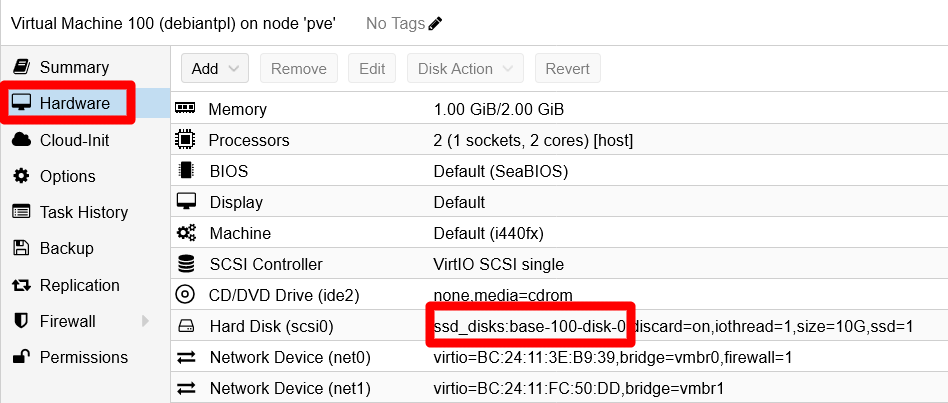
VM template's Hardware view Remember the
ssd_disks:base-100-disk-0string, it is the name of the hard disk volume within your Proxmox VE node.Open a remote terminal, as your administrator
mgrsysuser, to your Proxmox VE host and execute the followinglvscommand:$ sudo lvs -o lv_full_name,pool_lv,lv_attr,lv_size,lv_path,lv_dm_path LV Pool Attr LSize Path DMPath hddint/hdd_data twi-aotz-- 869.00g /dev/mapper/hddint-hdd_data hddint/hdd_templates -wi-ao---- 60.00g /dev/hddint/hdd_templates /dev/mapper/hddint-hdd_templates hddint/vm-421-disk-0 hdd_data Vwi-aotz-- 20.00g /dev/hddint/vm-421-disk-0 /dev/mapper/hddint-vm--421--disk--0 hddint/vm-422-disk-0 hdd_data Vwi-aotz-- 10.00g /dev/hddint/vm-422-disk-0 /dev/mapper/hddint-vm--422--disk--0 hddusb/hddusb_bkpdata twi-aotz-- <1.27t /dev/mapper/hddusb-hddusb_bkpdata hddusb/hddusb_bkpvzdumps -wi-ao---- 560.00g /dev/hddusb/hddusb_bkpvzdumps /dev/mapper/hddusb-hddusb_bkpvzdumps hddusb/vm-431-disk-0 hddusb_bkpdata Vwi-aotz-- 250.00g /dev/hddusb/vm-431-disk-0 /dev/mapper/hddusb-vm--431--disk--0 pve/root -wi-ao---- <50.00g /dev/pve/root /dev/mapper/pve-root pve/swap -wi-ao---- 12.00g /dev/pve/swap /dev/mapper/pve-swap ssdint/base-100-disk-0 ssd_disks Vri---tz-k 10.00g /dev/ssdint/base-100-disk-0 /dev/mapper/ssdint-base--100--disk--0 ssdint/base-101-disk-0 ssd_disks Vri---tz-k 10.00g /dev/ssdint/base-101-disk-0 /dev/mapper/ssdint-base--101--disk--0 ssdint/ssd_disks twi-aotz-- 867.00g /dev/mapper/ssdint-ssd_disks ssdint/vm-411-disk-0 ssd_disks Vwi-aotz-- 10.00g /dev/ssdint/vm-411-disk-0 /dev/mapper/ssdint-vm--411--disk--0 ssdint/vm-421-disk-0 ssd_disks Vwi-aotz-- 10.00g /dev/ssdint/vm-421-disk-0 /dev/mapper/ssdint-vm--421--disk--0 ssdint/vm-421-disk-1 ssd_disks Vwi-aotz-- 10.00g /dev/ssdint/vm-421-disk-1 /dev/mapper/ssdint-vm--421--disk--1 ssdint/vm-421-disk-2 ssd_disks Vwi-aotz-- 2.00g /dev/ssdint/vm-421-disk-2 /dev/mapper/ssdint-vm--421--disk--2 ssdint/vm-422-disk-0 ssd_disks Vwi-aotz-- 10.00g /dev/ssdint/vm-422-disk-0 /dev/mapper/ssdint-vm--422--disk--0 ssdint/vm-422-disk-1 ssd_disks Vwi-aotz-- 10.00g /dev/ssdint/vm-422-disk-1 /dev/mapper/ssdint-vm--422--disk--1 ssdint/vm-422-disk-2 ssd_disks Vwi-aotz-- 10.00g /dev/ssdint/vm-422-disk-2 /dev/mapper/ssdint-vm--422--disk--2 ssdint/vm-431-disk-0 ssd_disks Vwi-aotz-- 10.00g /dev/ssdint/vm-431-disk-0 /dev/mapper/ssdint-vm--431--disk--0In the
lvsoutput above, you can see your VM template’s hard disk volume named asssdint/base-100-disk-0. This means that it is a volume within thessdintLVM volume group created in the host’s SSD drive. Not only that, in thePoolcolumn you see the namessd_disks, which refers to the LVM thinpool also created in the host’s SSD drive. The nextAttrcolumn gives you some information about the volume itself:Vindicates that the volume is virtual.rmeans that this volume is read-only.irefers to the storage allocation policy used in this volume, in this case is inherited.tmeans that this volume uses the thin provisioning driver as kernel target.zindicates that newly-allocated data blocks are overwritten with blocks of (z)eroes before use.kis a flag to make the system skip this volume during activation.
The
Attrcolumn has more valuesThe values in the
Attrcolumn are calledlv_attrbits. Check them out in the Notes section of thelvsmanual (commandman lvs).Next to the
Attrcolumn, you can see the size assigned to the volume, 10 GiB in this case, although this number is just logical.And what about the columns
Pathand theDMPathof thelvsoutput? They are the paths to the handler files (symbolic links) used by the system to manage the light volumes. You can see them with thelscommand, except the ones used for thebase-100-disk-0volume. Since this volume is not active (remember thekflag in theAttrcolumn), you will not find the corresponding files present in the system.In conclusion, with the storage structure you have setup in your system, mostly based on LVM thinpools, all of your VMs hard disk volumes will be virtual volumes within LVM thinpools. In the case of your VM template’s sole hard disk, the concrete LVM location is as follows:
- Volume Group
ssdint. - Thinpool
ssd_disks. - Light Volume
base-100-disk-0.
Remember that, in this scenario, the
ssdintVG corresponds to an entire physical LVM volume set within the/dev/sda4PV. This PV shares the real underlying ssd unit with the/dev/sda3PV, the one containing thepvevolume group for the Proxmox VE system volumes (root and swap).
Learn more about your VMs’ hard disk volumes with libguestfs
You have seen the LVM side of the story, but you can get more information about the VM disk image by using some libguestfs commands. In fact, you can even get inside the filesystem within the disk image. To do so, first you have to activate the disk image as light volume, since when you turned the VM into a template, its hard disk is now disabled and read-only for LVM to avoid further modifications:
Reactivate the volume with the following
lvchangecommand:sudo lvchange -ay -K ssdint/base-100-disk-0Since the previous command does not give back any output in success, use the lvs command to verify it’s status:
$ sudo lvs ssdint/base-100-disk-0
  LV              VG     Attr       LSize  Pool      Origin Data%  Meta%  Move Log Cpy%Sync Convert
  base-100-disk-0 ssdint Vri-a-tz-k 10.00g ssd_disks        18.23
Notice the
aamong the values under theAttrcolumn, that means the volume is now active. Other command to check out what light volumes are active islvscan:$ sudo lvscan ACTIVE '/dev/ssdint/ssd_disks' [867.00 GiB] inherit ACTIVE '/dev/ssdint/base-100-disk-0' [10.00 GiB] inherit inactive '/dev/ssdint/base-101-disk-0' [10.00 GiB] inherit ACTIVE '/dev/ssdint/vm-411-disk-0' [10.00 GiB] inherit ACTIVE '/dev/ssdint/vm-421-disk-0' [10.00 GiB] inherit ACTIVE '/dev/ssdint/vm-422-disk-0' [10.00 GiB] inherit ACTIVE '/dev/ssdint/vm-422-disk-1' [10.00 GiB] inherit ACTIVE '/dev/ssdint/vm-421-disk-1' [10.00 GiB] inherit ACTIVE '/dev/ssdint/vm-421-disk-2' [2.00 GiB] inherit ACTIVE '/dev/ssdint/vm-422-disk-2' [10.00 GiB] inherit ACTIVE '/dev/ssdint/vm-431-disk-0' [10.00 GiB] inherit ACTIVE '/dev/hddusb/hddusb_bkpdata' [<1.27 TiB] inherit ACTIVE '/dev/hddusb/hddusb_bkpvzdumps' [560.00 GiB] inherit ACTIVE '/dev/hddusb/vm-431-disk-0' [250.00 GiB] inherit ACTIVE '/dev/pve/swap' [12.00 GiB] inherit ACTIVE '/dev/pve/root' [<50.00 GiB] inherit ACTIVE '/dev/hddint/hdd_data' [869.00 GiB] inherit ACTIVE '/dev/hddint/hdd_templates' [60.00 GiB] inherit ACTIVE '/dev/hddint/vm-422-disk-0' [10.00 GiB] inherit ACTIVE '/dev/hddint/vm-421-disk-0' [20.00 GiB] inheritThis command shows you the state of all the present light volumes, active or inactive. Also notice that it shows the full handler path to the volumes. Above, the one activated in the previous step is listed as
/dev/ssdint/base-100-disk-0.With the
base-100-disk-0volume now active, you can check out the status of the filesystem it contains with the libguestfs commandvirt-df:$ sudo virt-df -h -a /dev/ssdint/base-100-disk-0 Filesystem Size Used Available Use% base-100-disk-0:/dev/sda1 730M 123M 554M 17% base-100-disk-0:/dev/debiantpl-vg/root 8.5G 1.1G 6.9G 13%The
virt-dfcommand takes a moment to return its outputGive the command a few seconds so it can read the volume and return its information.
This
virt-dfcommand is very similar to thedf, and gives you a view of how the storage space is used in the filesystem contained in the volume. Remember that this is the filesystem of your Debian VM template, and it also has a swap volume although thevirt-dfcommand does not show it.Another command you might like to try and get a much more complete picture of the filesystem within the
base-100-disk-0volume isvirt-filesystems:$ sudo virt-filesystems -a /dev/ssdint/base-100-disk-0 --all --long --uuid -h Name Type VFS Label MBR Size Parent UUID /dev/sda1 filesystem ext4 - - 730M - b29ff166-60bd-4593-a63a-a856b6942d5a /dev/debiantpl-vg/root filesystem ext4 - - 8.5G - e10f9658-5090-4143-b12f-e60d686013db /dev/debiantpl-vg/swap_1 filesystem swap - - 544M - 181e115a-1eb3-4d74-a406-e1fee2797caf /dev/debiantpl-vg/root lv - - - 8.7G /dev/debiantpl-vg hywPfR-Klxo-kLiP-s7HA-nAh4-3ZMZ-U6c92K /dev/debiantpl-vg/swap_1 lv - - - 544M /dev/debiantpl-vg E4inDP-0vGZ-NlkI-53Rx-t0sd-WzKY-9hencw /dev/debiantpl-vg vg - - - 9.3G /dev/sda5 zeUUIJMDdbUBug7flFWFqmx1bB2CuRUC /dev/sda5 pv - - - 9.3G - 2yDqyamOF2kQ58FzrxwtPQ9shCt6Na0p /dev/sda1 partition - - 83 759M /dev/sda - /dev/sda2 partition - - 0f 1.0K /dev/sda - /dev/sda5 partition - - 8e 9.3G /dev/sda - /dev/sda device - - - 10G - -The
virt-filesystemscommand takes a moment to return its outputGive the command a few seconds so it can read the volume and return its information.
See how not only this command returns info about the two LVM light volumes (root and swap_1), but also shows the
sdapartitions and the LVM physical volumesda5.After you have finished checking the
base-100-disk-0volume, it is better if you deactivate it. For this, uselvchangeagain:$ sudo lvchange -an ssdint/base-100-disk-0Verify its inactive status directly with the
lvscancommand.$ sudo lvscan ACTIVE '/dev/ssdint/ssd_disks' [867.00 GiB] inherit inactive '/dev/ssdint/base-100-disk-0' [10.00 GiB] inherit inactive '/dev/ssdint/base-101-disk-0' [10.00 GiB] inherit ACTIVE '/dev/ssdint/vm-411-disk-0' [10.00 GiB] inherit ACTIVE '/dev/ssdint/vm-421-disk-0' [10.00 GiB] inherit ACTIVE '/dev/ssdint/vm-422-disk-0' [10.00 GiB] inherit ACTIVE '/dev/ssdint/vm-422-disk-1' [10.00 GiB] inherit ACTIVE '/dev/ssdint/vm-421-disk-1' [10.00 GiB] inherit ACTIVE '/dev/ssdint/vm-421-disk-2' [2.00 GiB] inherit ACTIVE '/dev/ssdint/vm-422-disk-2' [10.00 GiB] inherit ACTIVE '/dev/ssdint/vm-431-disk-0' [10.00 GiB] inherit ACTIVE '/dev/hddusb/hddusb_bkpdata' [<1.27 TiB] inherit ACTIVE '/dev/hddusb/hddusb_bkpvzdumps' [560.00 GiB] inherit ACTIVE '/dev/hddusb/vm-431-disk-0' [250.00 GiB] inherit ACTIVE '/dev/pve/swap' [12.00 GiB] inherit ACTIVE '/dev/pve/root' [<50.00 GiB] inherit ACTIVE '/dev/hddint/hdd_data' [869.00 GiB] inherit ACTIVE '/dev/hddint/hdd_templates' [60.00 GiB] inherit ACTIVE '/dev/hddint/vm-422-disk-0' [10.00 GiB] inherit ACTIVE '/dev/hddint/vm-421-disk-0' [20.00 GiB] inheritRemember that when the volume is inactive, the handler file (a symbolic link) does not exist in the system. Also, know that there is a corresponding
/dev/mapperhandler file (another symbolic link) for each volume. For yourbase-100-disk-0volume, the full path would be/dev/mapper/ssdint-base--100--disk--0.
Relevant system paths
Directories on Proxmox VE host
/dev/dev/mapper/dev/ssdint
Files on Proxmox VE host
/dev/mapper/ssdint-base--100--disk--0/dev/ssdint/base-100-disk-0
References
Tools for handling of VM disk images
Contents about handling of VM disk images
- Richard WM Jones. virt-resize –shrink now works
- GitHub. smurugap. shrink virtual disk size of VM
- Linux and DevOps with Vijay. How to shrink KVM/qemu partition and image size
- RootUsers. LVM Resize – How to Decrease an LVM Partition
- 2DayGeek. How to Extend Logical Volume (LVM) in Linux
- Tecmint. How to Extend/Reduce LVM’s (Logical Volume Management) in Linux – Part II