Resizing a root LVM volume
Resize a VM’s root LVM volume if you find it too small
All of the VMs created in this guide are based in a VM template that has a 10 GiB bootdisk. What if you need a VM that needs more space for its root filesystem?
You can resize a VM’s bootdisk through the Proxmox VE web console, then extend the root LVM filesystem inside of it over the new space. The procedure is not hard but, since it manipulates the root LVM filesystem while it is active, you must be careful when going through it.
As an example, this appendix will show you how to give 5 GiB more to the root filesystem of the UrBackup server.
Backup the VM whose root filesystem you will resize
The procedure explained here has a non-trivial amount of danger for the root filesystem involved.
Play it safe and make a backup of the VM before you start resizing its bootdisk.
Resizing the storage drive on Proxmox VE
You can expand any hard disk attached to a VM easily on Proxmox VE:
Get into your Proxmox VE server’s web console and select the VM, then shut it down:
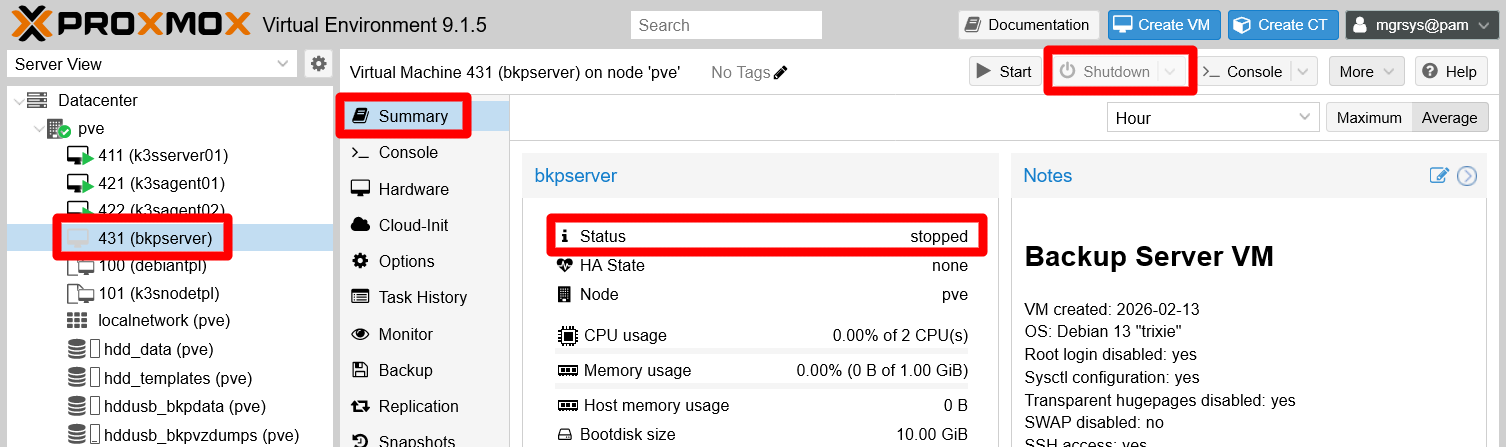
bkpserver VM shown stopped in its summary view In this example, the VM to stop is
bkpserver. Ensure it is stopped by checking both its activity icon on the sidetree and in itsSummaryview as highlighted above.With the VM stopped, get into its
Hardwaretab, select the hard disk containing the VM’s root filesystem (this is the bootdisk for Proxmox VE) and then press onResize disk: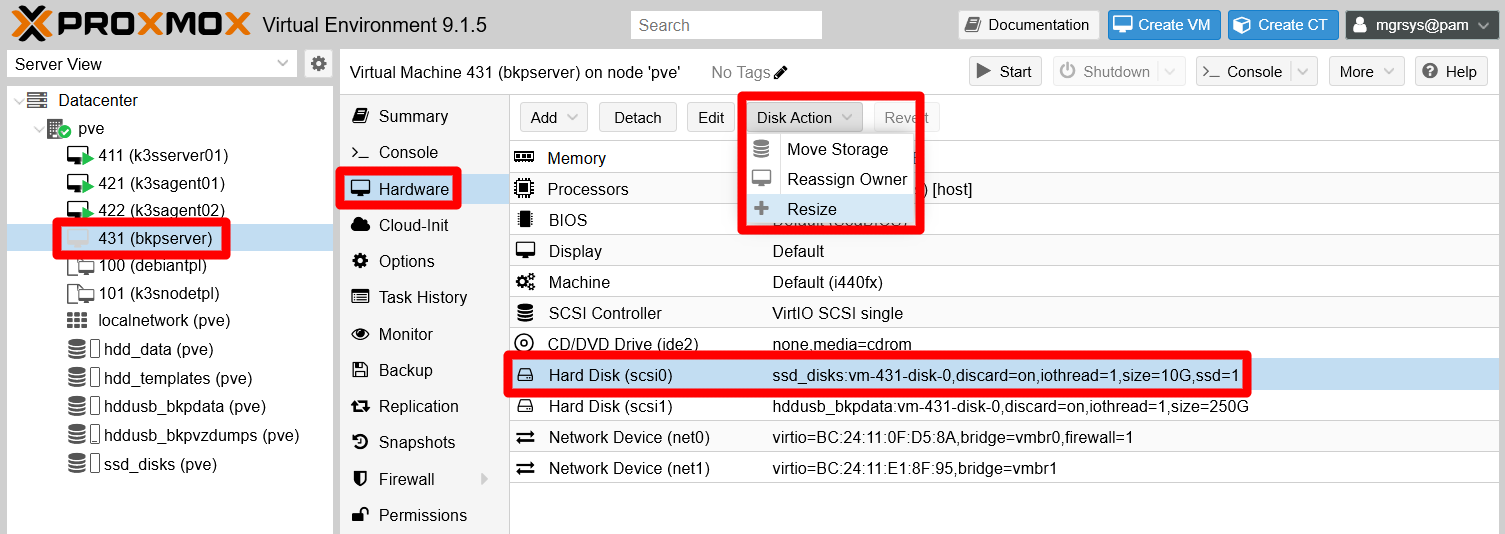
Disk actions menu enabled for chosen bkpserver hard disk scsi0 The hard disk containing the root filesystem of the
bkpserverVM is the one identified as thescsi0unit for Proxmox VE and has 10 GiB of capacity.After clicking on the
Resizeoption of theDisk Actionmenu, the next form will appear:
Resize disk form The
Diskfield identifies the hard disk you are about to resize which, in this case, is thebkpserver’sscsi0unit. TheSize Increment (GiB)field is where you indicate by how many gibibytes you want to increase the size of this particular hard disk.Proxmox VE’s web console only supports INCREASING hard disks sizes, not reducing them.
Type the size increment, in gibibytes, to apply to the hard disk and click on
Resize Disk:
Resize disk form set with 5 GiB increment for bkpserver hard disk scsi0 In this example, the
bkpserver’sscsi0unit will be made 5 GiB bigger.Proxmox VE will apply the resize almost immediately after showing you a quick progress window that will close itself. Then, you will be able to see the new size shown in the hard disk description:
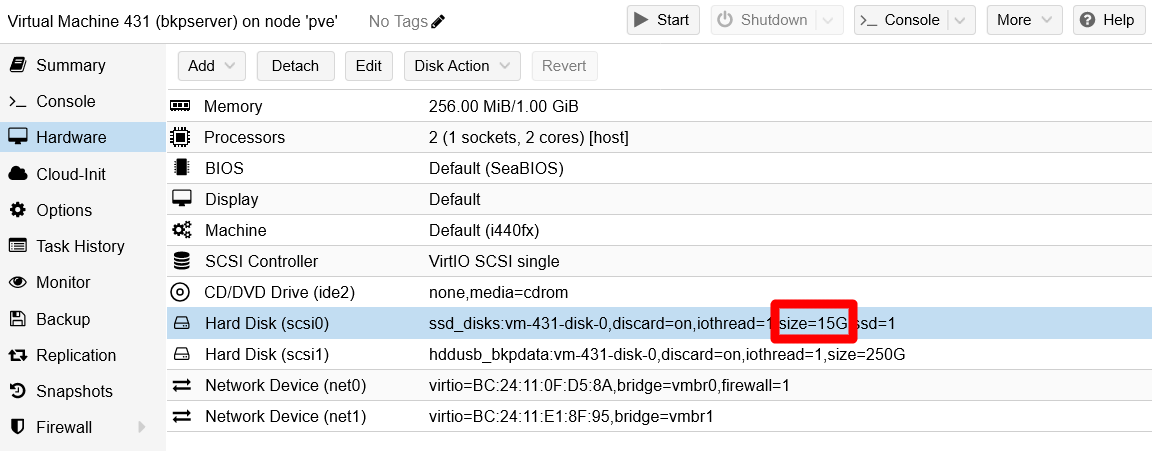
bkpserver hard disk scsi0 resized The
bkpserver’sscsi0hard disk unit now has a total of 15 GiB, from an initial capacity of 10 GiB.
Extending the root LVM filesystem on a live VM
The hard disk is bigger now, but the VM’s root filesystem is not using that extra space yet. You need to extend it over the newly available storage. Continuing with the example, here you will see how to extend the root filesystem of the bkpserver VM while it is running. Therefore, start the VM and proceed with the remainder of this procedure:
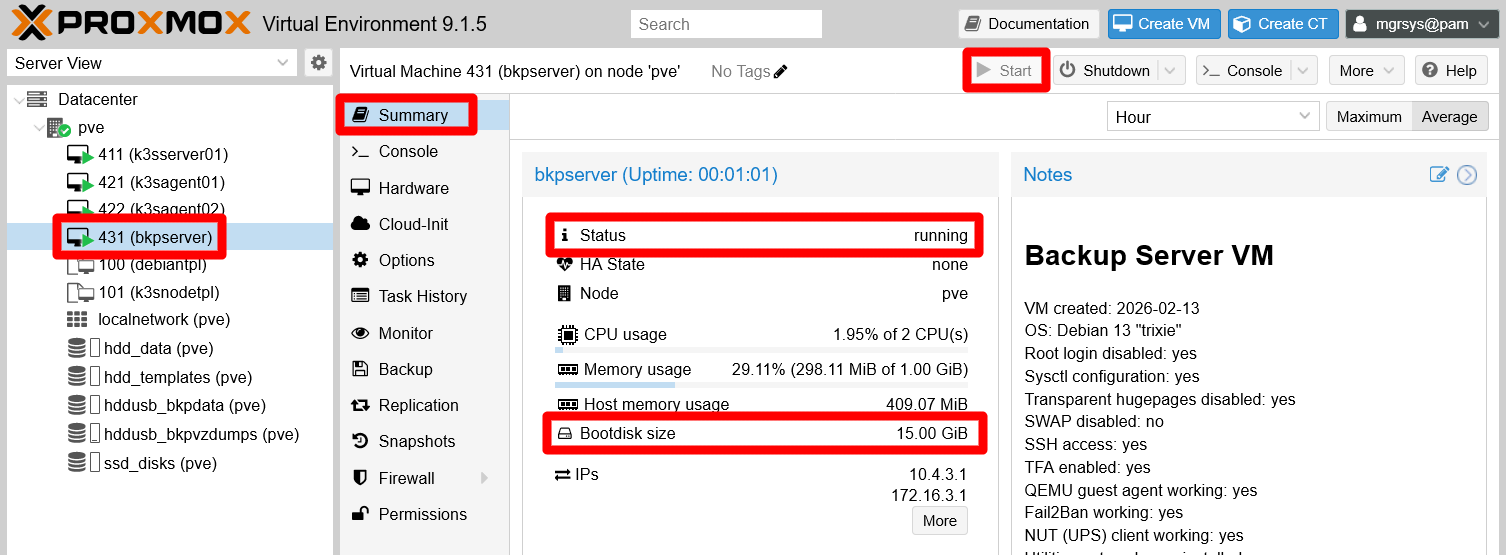
By the way, notice in the Summary view of the VM how the Bootdisk size also reflects the new size of the hard disk scsi0.
Applying this procedure is dangerous!
The following procedure could make your VM’s filesystem (and the VM itself) unusable if you are not careful!
If you have not done a backup of the VM yet, this is the moment to do so.
Resizing the related partitions
Before you can extend the root LVM volume, you need to resize the partition in which it is found:
Open a remote shell into the VM with
mgrsysuser, then check withfdiskif the system truly sees the full size of the disk:$ sudo fdisk -l Disk /dev/sda: 15 GiB, 16106127360 bytes, 31457280 sectors Disk model: QEMU HARDDISK Units: sectors of 1 * 512 = 512 bytes Sector size (logical/physical): 512 bytes / 512 bytes I/O size (minimum/optimal): 512 bytes / 512 bytes Disklabel type: dos Disk identifier: 0x5dc9a39f Device Boot Start End Sectors Size Id Type /dev/sda1 * 2048 1556479 1554432 759M 83 Linux /dev/sda2 1558526 20969471 19410946 9.3G f W95 Ext'd (LBA) /dev/sda5 1558528 20969471 19410944 9.3G 8e Linux LVM Disk /dev/sdb: 250 GiB, 268435456000 bytes, 524288000 sectors Disk model: QEMU HARDDISK Units: sectors of 1 * 512 = 512 bytes Sector size (logical/physical): 512 bytes / 512 bytes I/O size (minimum/optimal): 512 bytes / 512 bytes Disk /dev/mapper/bkpserver--vg-root: 8.69 GiB, 9328132096 bytes, 18219008 sectors Units: sectors of 1 * 512 = 512 bytes Sector size (logical/physical): 512 bytes / 512 bytes I/O size (minimum/optimal): 512 bytes / 512 bytes Disk /dev/mapper/bkpserver--vg-swap_1: 544 MiB, 570425344 bytes, 1114112 sectors Units: sectors of 1 * 512 = 512 bytes Sector size (logical/physical): 512 bytes / 512 bytes I/O size (minimum/optimal): 512 bytes / 512 bytesNotice the
Disk /dev/sdaline, it says that thesdahard disk has the expected 15 GiB. Also see how insidesdathere are three partitions:sda1,sda2andsda5. Thesda5partition is the one you want to spread over the extra storage space available, since it is the one that contains therootLVM volume (and also the swap volume). But thissda5partition is inside theW95 Ext'd (LBA)sda2one, so you need to expand first thesda2partition to the end of thesdadrive.Now you’re going to install another partition tool that will help you resize the
sda2andsda5partitions easily. The tool isparted:$ sudo apt install -y partedLaunch
partedover the/dev/sdadrive:$ sudo parted /dev/sdaYou will get in the
partedshell:GNU Parted 3.6 Using /dev/sda Welcome to GNU Parted! Type 'help' to view a list of commands. (parted)Execute
printto check howpartedsees thesdapartitions:(parted) print Model: QEMU QEMU HARDDISK (scsi) Disk /dev/sda: 16.1GB Sector size (logical/physical): 512B/512B Partition Table: msdos Disk Flags: Number Start End Size Type File system Flags 1 1049kB 797MB 796MB primary ext4 boot 2 798MB 10.7GB 9938MB extended lba 5 798MB 10.7GB 9938MB logical lvmNotice that the
Numberis what identifies each partition: thesda2is shown just as number2, andsda5as5.Resize the partition
2with the followingresizecommand:Using
partedon a live root filesystem is dangerous!The
partedprogram applies the changes in the partition table immediately, unlikefdiskthat works first on a temporal table on memory.(parted) resizepart 2 -1sIt will not return any output. Check with
printthat parted has resized the partition2:(parted) print Model: QEMU QEMU HARDDISK (scsi) Model: QEMU QEMU HARDDISK (scsi) Disk /dev/sda: 16.1GB Sector size (logical/physical): 512B/512B Partition Table: msdos Disk Flags: Number Start End Size Type File system Flags 1 1049kB 797MB 796MB primary ext4 boot 2 798MB 16.1GB 15.3GB extended lba 5 798MB 10.7GB 9938MB logical lvmNow, apply the resizing to partition
5:(parted) resizepart 5 -1sAgain, use
printto verify the resizing of the partition5:(parted) print Model: QEMU QEMU HARDDISK (scsi) Disk /dev/sda: 16.1GB Sector size (logical/physical): 512B/512B Partition Table: msdos Disk Flags: Number Start End Size Type File system Flags 1 1049kB 797MB 796MB primary ext4 boot 2 798MB 16.1GB 15.3GB extended lba 5 798MB 16.1GB 15.3GB logical lvmType
quitor just use Ctrl+C to exitparted:(parted) quit Information: You may need to update /etc/fstab.Notice that, when exiting,
partedwill warn you about updating the/etc/fstabfile. In this case it will not be necessary.
Extending the root LVM volume
With the real partitions updated, now you can extend the root LVM filesystem in the newly available space:
First you must extend the physical volume that corresponds to the
sda5partition. Check withpvsits current state:$ sudo pvs PV VG Fmt Attr PSize PFree /dev/sda5 bkpserver-vg lvm2 a-- 9.25g 36.00mNotice that its
PSizeis 9.25 GiB.Use
pvresizeto expand thesda5PV:$ sudo pvresize /dev/sda5 Physical volume "/dev/sda5" changed 1 physical volume(s) resized or updated / 0 physical volume(s) not resizedThen verify with
pvsthat the resizing has been done:$ sudo pvs PV VG Fmt Attr PSize PFree /dev/sda5 bkpserver-vg lvm2 a-- 14.25g <5.04gAbove you can see that
PSizeis now 14.25 GiB, from which 5.04 GiB are free (PFreecolumn).Now you can resize the
rootLV itself. First, check its current status:$ sudo lvs LV VG Attr LSize Pool Origin Data% Meta% Move Log Cpy%Sync Convert root bkpserver-vg -wi-ao---- <8.69g swap_1 bkpserver-vg -wi-ao---- 544.00mIts
LSizeis 8.69 GiB and, below it, you can see the swap volume (swap_1) taking up about 544 MiB.Use the following
lvextendcommand to extend therootvolume over all the available free space in thesda5PV:$ sudo lvextend -r -l +100%FREE bkpserver-vg/root File system ext4 found on bkpserver-vg/root mounted at /. Size of logical volume bkpserver-vg/root changed from <8.69 GiB (2224 extents) to 13.72 GiB (3513 extents). Extending file system ext4 to 13.72 GiB (14734589952 bytes) on bkpserver-vg/root... resize2fs /dev/bkpserver-vg/root resize2fs 1.47.2 (1-Jan-2025) Filesystem at /dev/bkpserver-vg/root is mounted on /; on-line resizing required old_desc_blocks = 2, new_desc_blocks = 2 The filesystem on /dev/bkpserver-vg/root is now 3597312 (4k) blocks long. resize2fs done Extended file system ext4 on bkpserver-vg/root. Logical volume bkpserver-vg/root successfully resized.The command not only has resized the LV, but also has resized the
ext4filesystem inside (the-roption called theresize2fscommand). Check again withlvsthe new status of therootLV:$ sudo lvs LV VG Attr LSize Pool Origin Data% Meta% Move Log Cpy%Sync Convert root bkpserver-vg -wi-ao---- 13.72g swap_1 bkpserver-vg -wi-ao---- 544.00mNow its
LSizeis 13.72 GiB, and the swap volume has been unaffected by the whole procedure.As a final test, reboot the VM to verify that the changes have not messed up with the system in a bad way. This is something you may detect in the VM’s boot sequence, although you can see a VM’s boot sequence only through a noVNC shell, never through an ssh connection:
$ sudo reboot
Final note
You can apply this procedure to extend any non-root LVM filesystems kept in a Proxmox VE hard disk.
References
About resizing LVM storage
- RootUsers. How to Increase the size of a Linux LVM by expanding the virtual machine disk
- RootUsers. LVM Resize – How to Increase an LVM Partition
- VBonhomme. Extend a LVM partition after increasing its virtual disk on VirtualBox
- Theducks.org. Expanding LVM Partitions in VMware, on the fly
- StackExchange. Unix & Linux. How to resize LVM disk in Debian 8.6 without losing data
- StackExchange. Unix & Linux. How do I extend a partition with a LVM and the contained physical volume and logical volume?
- ServerFault. How to extend a Linux PV partition online after virtual disk growth