Proxmox VE backup job
Backup your VMs in Proxmox VE
Back in the chapter about turning the Debian VM into a template, you learned how to do a manual backup of a VM template in Proxmox VE, which is the same manual process available to do a VM backup. With that experience in mind, this chapter covers how to schedule in Proxmox VE an automated job that backups periodically the virtual machines used as nodes of your K3s cluster.
What gets covered with the backup job
The backup job explained here covers the three virtual machines acting as nodes of the K3s Kubernetes cluster deployed in previous guides. This means that each VM is going to be completely copied in its own backup, including all the virtual storage drives they may have attached at the moment the backup is executed.
Therefore, you are treating these VMs like you did with your Proxmox VE system and Clonezilla in the previous chapter, because that is what they are: the VMs are the hosts of your Kubernetes cluster and all the applications deployed in it, together with their data. The difference is that you control the backup procedure in a more friendly way thanks to the capabilities Proxmox VE offers in this regard.
Why scheduling a backup job
You might think, if I already do Clonezilla backups regularly, why doing these?
These backups are only about the VMs, not the whole Proxmox VE setup
By having these VM backups, you can restore each VM independently when required, not your whole Proxmox VE system.The Proxmox backup jobs are really easy to schedule and leave on their own
Once you have scheduled them, you do not have to remember to execute them: Proxmox does that for you.
How it affects the K3s Kubernetes cluster
Since a VM backup copies the entire virtual machine, the VM must be stopped so the backup process can be executed on it. Of course, this implies that your K3s Kubernetes cluster will not be available for as long as the backup takes to finish. Bear in mind that this unavailability is not symmetric (so to speak):
When the backup job starts executing the backup of the K3s server node of your Kubernetes cluster, the entire K3s cluster is taken down. This means that you cannot reach it with
kubectl. The agent nodes keep on running but waiting for their server to come back.When the backup executed is on one of the K3s agent nodes, the K3s cluster remains available to your
kubectlcommands, but anything running in the stopped agent node is taken down until the backup finishes and the VM boots up again.
The Proxmox VE automated backup system is able to stop and start the affected VMs on its own. You do not have to worry about manually restart them after the backup job is done.
When to do the backup job
On one hand, your VMs are the host platform for your Kubernetes cluster. This means that you’ll want to have their backups ready at hand before you apply updates or relevant configuration changes on them, or just to be ready in case harmful events happen to those VMs. On the other hand, each VM (in particular the ones serving as K3s agent nodes) holds application and user data, and such contents can change daily.
Taking into account those two perspectives, at least a weekly backup of each VM would be the bare minimum to have, although it would be much better if you do it daily.
Scheduling the backup job in Proxmox VE
Scheduling backup jobs is rather easy on Proxmox VE. Just log in the Proxmox VE web console with the mgrsys user and follow the procedure described next:
After login in the PVE web console, go to the
Datacenter > Backuppage: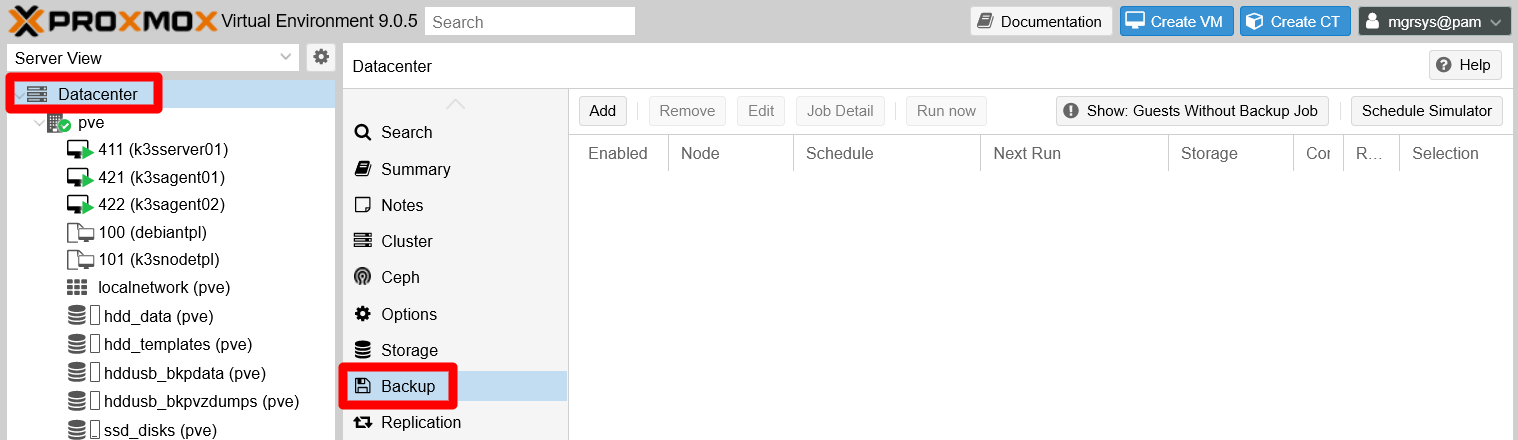
PVE Datacenter Backup page Here you can schedule backups for a Proxmox VE cluster. Of course, in your case, you have to prepare backups only for the VMs in your standalone PVE node.
Notice the warning message next to the action buttons available in this page:
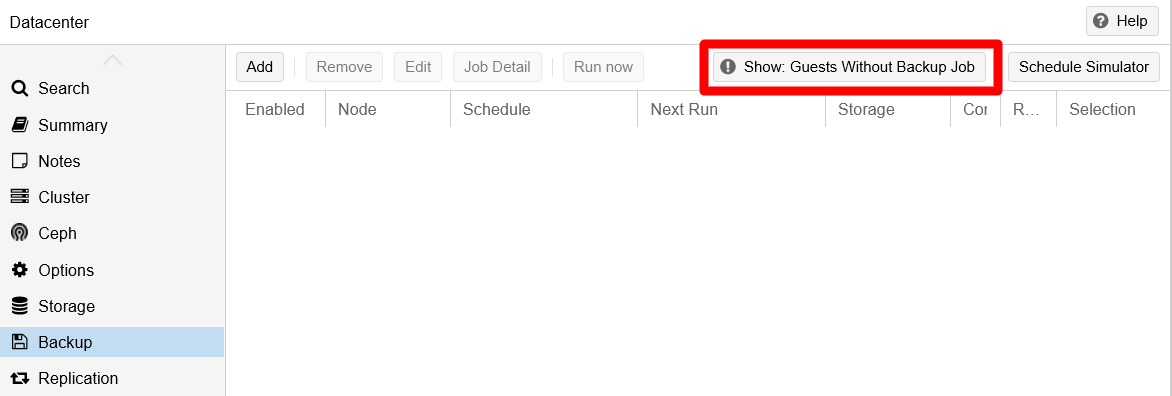
Warning guests not covered by backup job It warns about VMs (the “guests” for Proxmox VE) not being covered by any backup job. The warning itself is a button, so press it to see which guests are considered not covered:
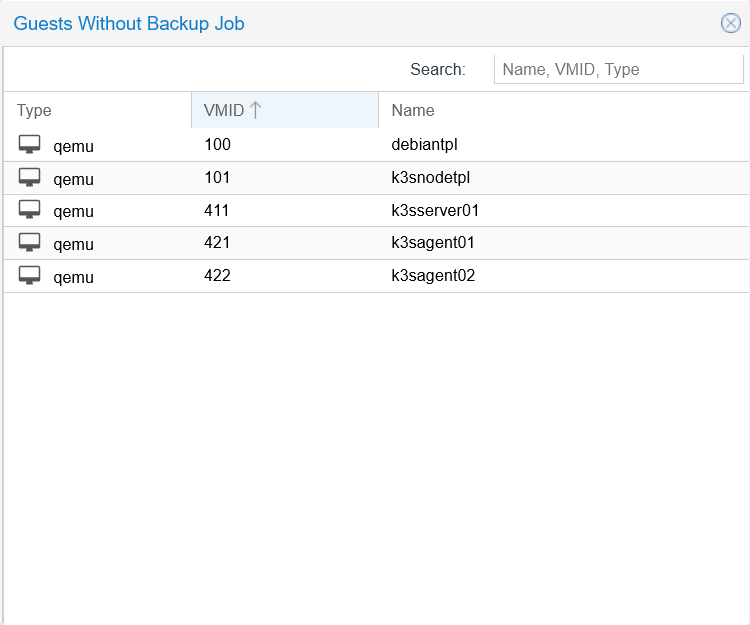
Guests without backup job window Notice that lists all the existing VMs in the system, but also the VM templates. Remember that VM templates are just forever frozen-in-time VMs, so them appearing in this listing is not wrong technically speaking.
Return to the main
Backuppage and click on theAddbutton: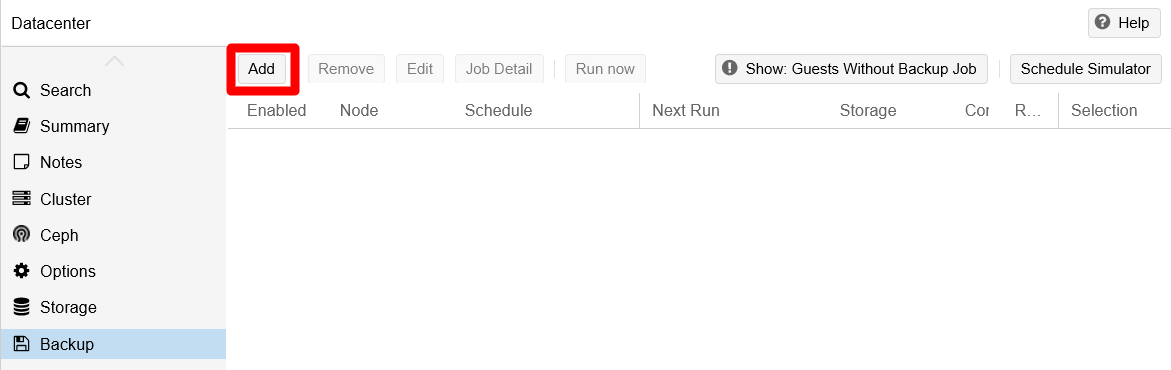
Add button on Backup page You get into a new window where you can schedule a backup job:

General tab in Create backup job window This window has several tabs, and you start in the
Generalone by default. This tab gives you the parameters to configure how the backup job’s is executed:Node: default isAll.
In a Proxmox VE cluster environment, with several nodes available, you would be able to choose on which node to run the backup job. Although this is not explained in the official Proxmox VE documentation, when you choose a node, the list of VMs (and containers if you’re also using those) shown in this window will change to list only those running in that PVE node. Also, the documentation doesn’t tell if its possible to choose more than one node at the same time.Storage: default is the first backup storage available in the PVE system.
Specifies where to store the backups generated by the job. In this guide there is only one backup storage enabled, thehddusb_bkpvzdumps, so that is the one being offered by default.Schedule: empty by default. In this field you specify the schedule you want for the backup. You can enter a predefined schedule from the list offered by the field:
Schedule list at General tab in Create backup job window The option you choose fills the
Schedulefield as a string you can edit later:
Schedule filled at General tab in Create backup job window The schedule set above is a daily one that is executed at 21:00, but you can change it to suit your needs.
Mind the time format
The time is always set in 24H format.
Selection mode: default isInclude selected VMs.
Allows to choose in which mode the list of VMs (or containers) below is processed. You can only apply one of these four modes:Include selected VMs
Only the VMs selected will have their backup done in this job.All
All the VMs in the list will have the backup done.Exclude selected VMs
Only the VMs NOT selected in the list will have their backup done.Pool based
If you have organized your VMs in pools, you can just indicate which pool to backup and the job will only backup those VMs within that pool.
Compression: default isZSTD (fast and good).
Offers the possibility of compressing or not the backup of your VM or container. In a scenario with very limited storage like the one used in this guide, it is mandatory to compress the dumps as much as possible. The defaultZSTDoption is not only the fastest algorithm of the three offered, but it is also multi-threaded.Mode: default isSnapshot.
Indicates how you want to execute the backup on each VM. There are three modes available.Snapshot:
Allows you to make backups of VMs that are running. This mode is the riskiest regarding data inconsistency, but this issue is reduced thanks to the use of the Qemu guest agent (installed in your VMs by default by their underlying Debian 11 OS) that allows Proxmox VE to suspend the VM while doing the backup.Suspend:
Does essentially the same asSnapshot, but the official documentation recommends usingSnapshotmode rather than this one.Stop:
Executes an orderly shutdown of the VM, then makes the backup. After finishing the backup, it restarts the affected VM. This mode provides the highest data consistency in the resulting backup.The backup modes do not work exactly the same for containers
The behavior of these backup modes for containers is very similar but not totally equivalent to how they work for VMs. Check the Proxmox VE help to see the differences.
Enable: default is checked.
Enables or disables the backup job.Job Comment: default is empty.
Just a comment string.List of VMs and containers: default is none selected.
The list where you choose which VMs (or containers) you want to backup with this job. Remember that this list changes depending on whatNodeorSelection modeare selected.
After learning about the
Generaltab, you can understand the configuration shown in this snapshot:
General tab set in Create backup job window Notice that the following fields have changed:
Nodeset to the only node available, thepvenode.Scheduleconfigures this job to execute daily at14:20.Job Commenthas a short line as a reminder of what is being backed up by this job.At the VMs list, only the VMs of the K3s Kubernetes cluster are chosen. The VM templates already have their own backup made manually, and does not make sense either to run a backup job on them since VM templates cannot be modified (well, except their Proxmox VE configuration which you usually should not touch again).
Do not click on
Createjust yet!There are more tabs to review in this backup job configuration window.
Click on the
Notificationstab to open the window below: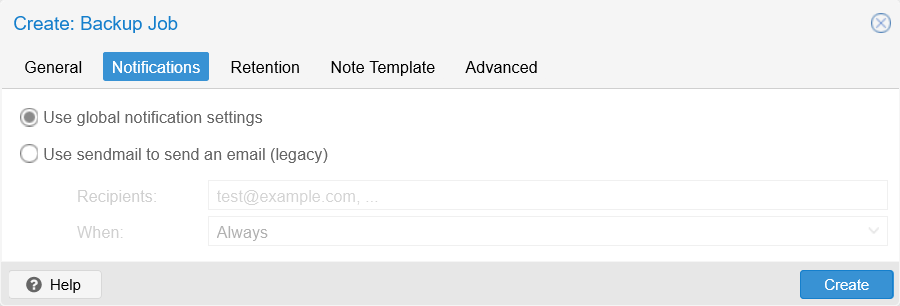
Notifications tab in Create backup job window As you can see, this tab exists only to maintain the legacy option of sending email notifications regarding the backup job through a sendmail server. Just leave the default option and proceed to the next tab.
In the
Retentiontab you have a scheduling grid:
Retention tab in Create backup job window This tab is where you define the retention policy applied to the backups generated by this backup job. In other words, is the policy that cleans up old backups following the scheduling criteria you specify here. The parameters available in this form all come blank or disabled by default.
Keep all backups
Keeps all the backups generated from this backup job, so enabling it disables or nullifies all the other parameters.Keep Last
Keeps the last “N” of backups, with “N” being an integer number. So, if you tell it to keep the 10 most recent backups, the oldest 11th will be removed automatically.Keep Hourly/Daily/Weekly/Monthly/Yearly
Keeps only one backup for each of the last “N” hours/days/etc. If in an hour/day/etc happened to be more than one backup present, just the most recent is kept.
Backup jobs process these retention options in a certain order
First goes the
Keep Lastoption, thenHourly,Daily, etc. In other words, each option is a level of restriction that supersedes the previous one.For example, if you set the job to keep the
Last30 backups, but also to keep only the ones from the last 5 hours, theHourlyrestriction will apply to the 30 backups left by theLastrule.Also notice the warning found almost at the window’s bottom. It tells you that, if you do not specify anything in this tab, the retention policy applied in this backup job will be the one specified in the backup storage, or the one set in some
vzdump.confconfiguration file supposedly found in “the node” (it is not clear which one if you have chosen the optionAlland you have a Proxmox VE cluster with several of them).After learning what the
Retentiontab is, you can set a retention policy for this backup job:
Retention set in Create backup job window The configuration above means the following:
- Only one backup shall be kept from each day.
- From all the dailies, only the last one from each week will be kept.
- From all the weeklies, only the last one from each month will be preserved.
- When a year is over, only the most recent monthly one will remain.
Click on the next tab,
Note Template:
Note Template tab in Create backup job window This tab allows you to customize the notes that go with each backup. For instance, you could set custom notes as a reminder of these backups being for the K3s nodes of your Kubernetes cluster:

Note Template customized in Create backup job window Notice how the customized note uses most of the template variables indicated at the window’s bottom to make it more informative.
Press on the remaining
Advancedtab: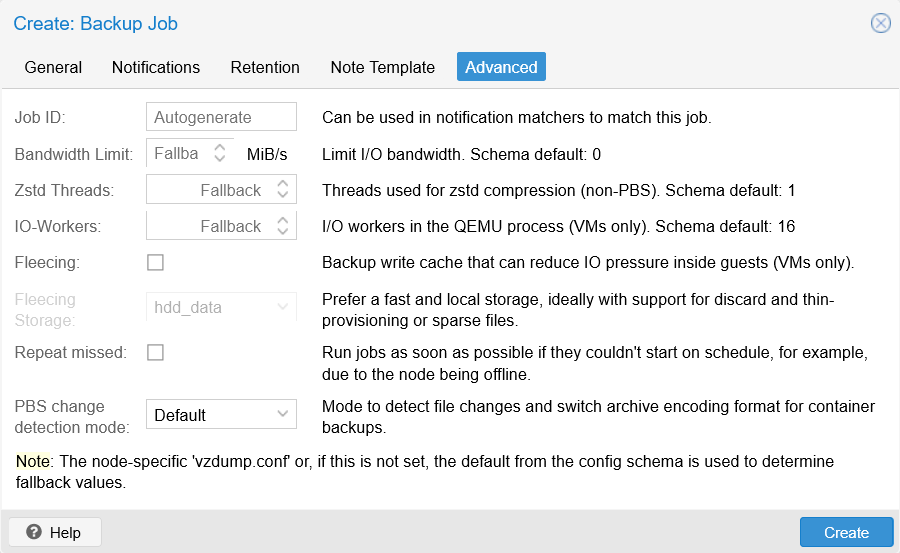
Advanced tab in Create backup job window This tab offers you some advanced options to better tune the performance of your backups and how they affect your system. For this guide’s homelab setup, the default configuration of these advanced options is good enough.
If you are content with this backup job’s configuration, click on the
Createbutton found at the window’s bottom: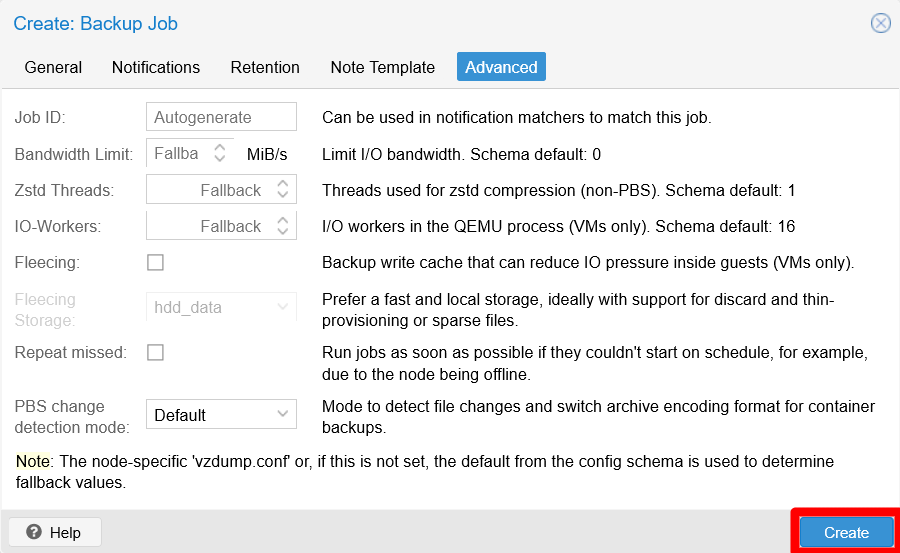
Create button in Create backup job window After clicking on the
Createbutton, theCreate: backup jobwindow closes itself and you see almost immediately the new scheduled job in the mainBackuppage:
Backup job listed on Backup page See how some of the details of the new backup job appear in the list, such as its schedule, storage location, and VMs selected (listed just by their IDs). Also see how the warning message about “guests not covered” is still present due to the VM templates being left out of the backup job.
Testing the backup job
With your first backup job ready, you do not have to wait for its scheduled next eun to see how it goes. Also there are other actions related to the management of backup jobs that you should get familiar with:
Select the new job to enable the other actions available in this
Backuppage: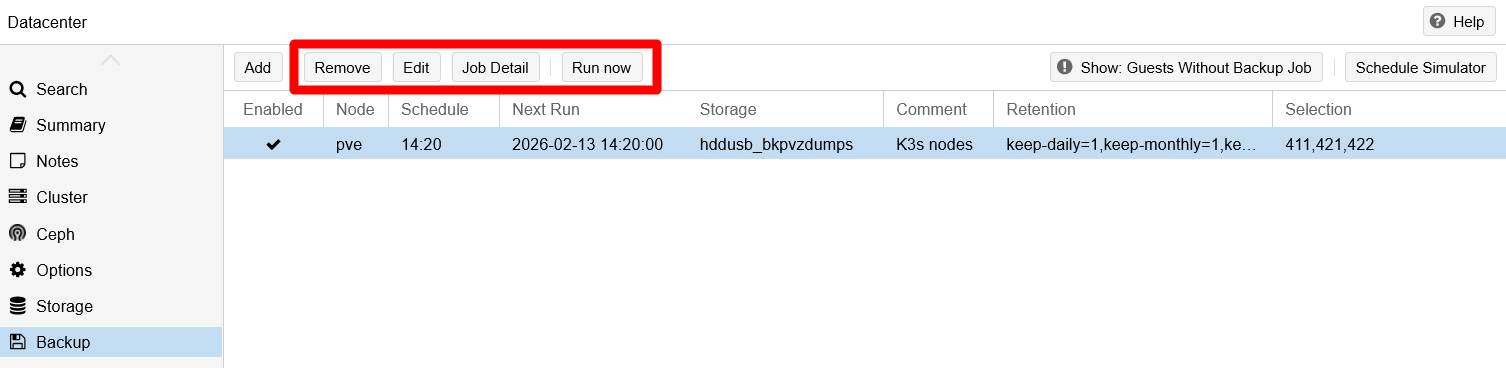
Buttons enabled for job on Backup page The enabled actions have explicit names:
Remove
Removes the selected backup job after requesting your confirmation.Edit
Allows you to edit the backup job with the same form used for creating it.Job Detail
Shows you all the details of the selected backup job.Run now
Allows you to execute the selected backup job when you press it. You will use it to test your job a few steps later.
Click on the
Job Detailbutton to raise this window: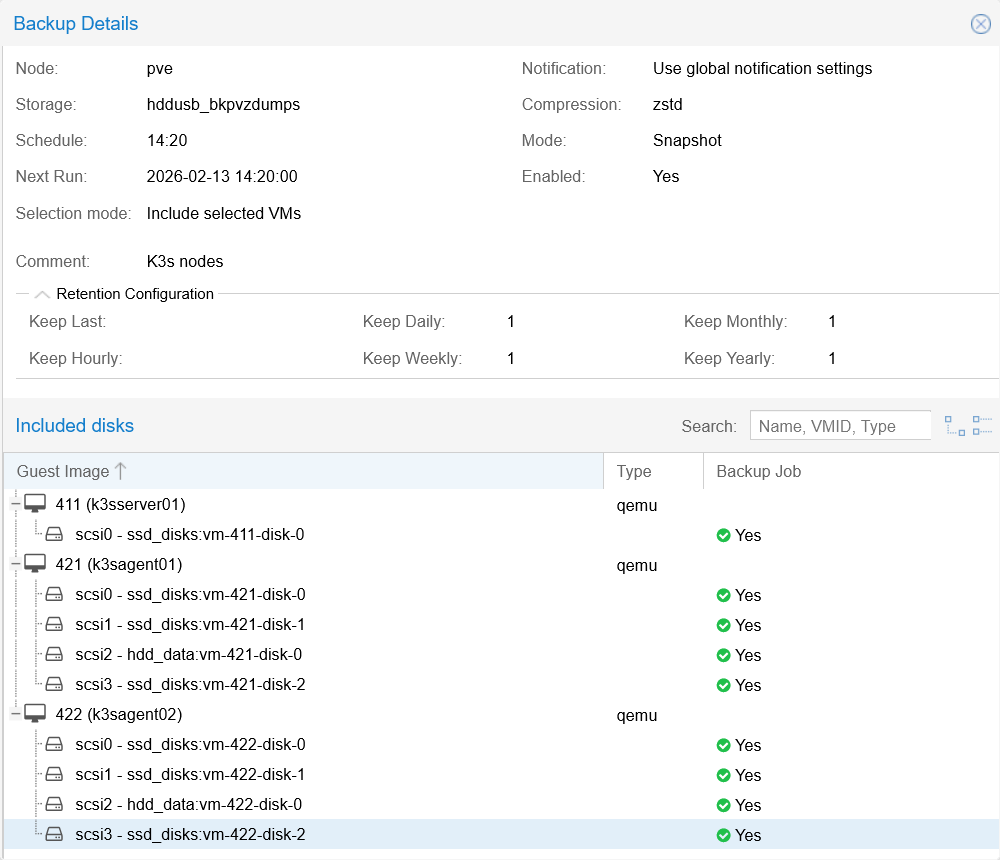
Backup Job Detail window Here you can see the configuration set in the
General,NotificationandRetentiontabs of the window where you created the backup job. In theIncluded diskbox are listed all the virtual disks included in the backup, which are all the ones currently attached to the VMs selected in this job’s configuration. Notice that this is a read-only screen, so you cannot change anything here.At last, lets make a test run of your new backup job. Be sure of keeping the job selected and then click on
Run nowabove: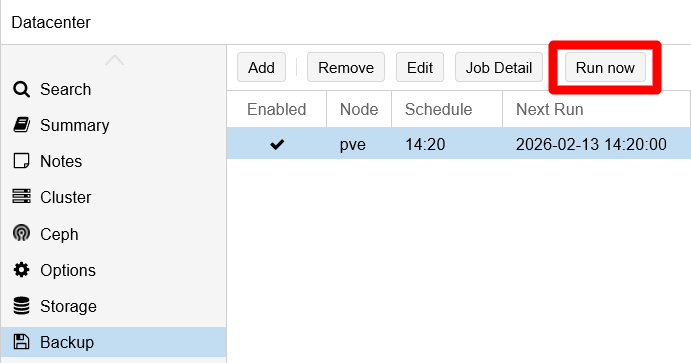
Backup job Run now button This action requires your confirmation to be executed:
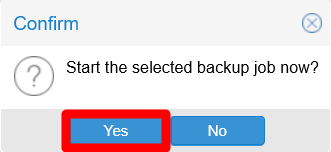
Backup job Run now confirmation Click on
Yesto allow the backup job to proceed.Unlike other operations done in the Proxmox VE web console, the backup job one does not have a progress window. You have to unfold the
Tasksconsole found at the bottom of the page to see the backup job running: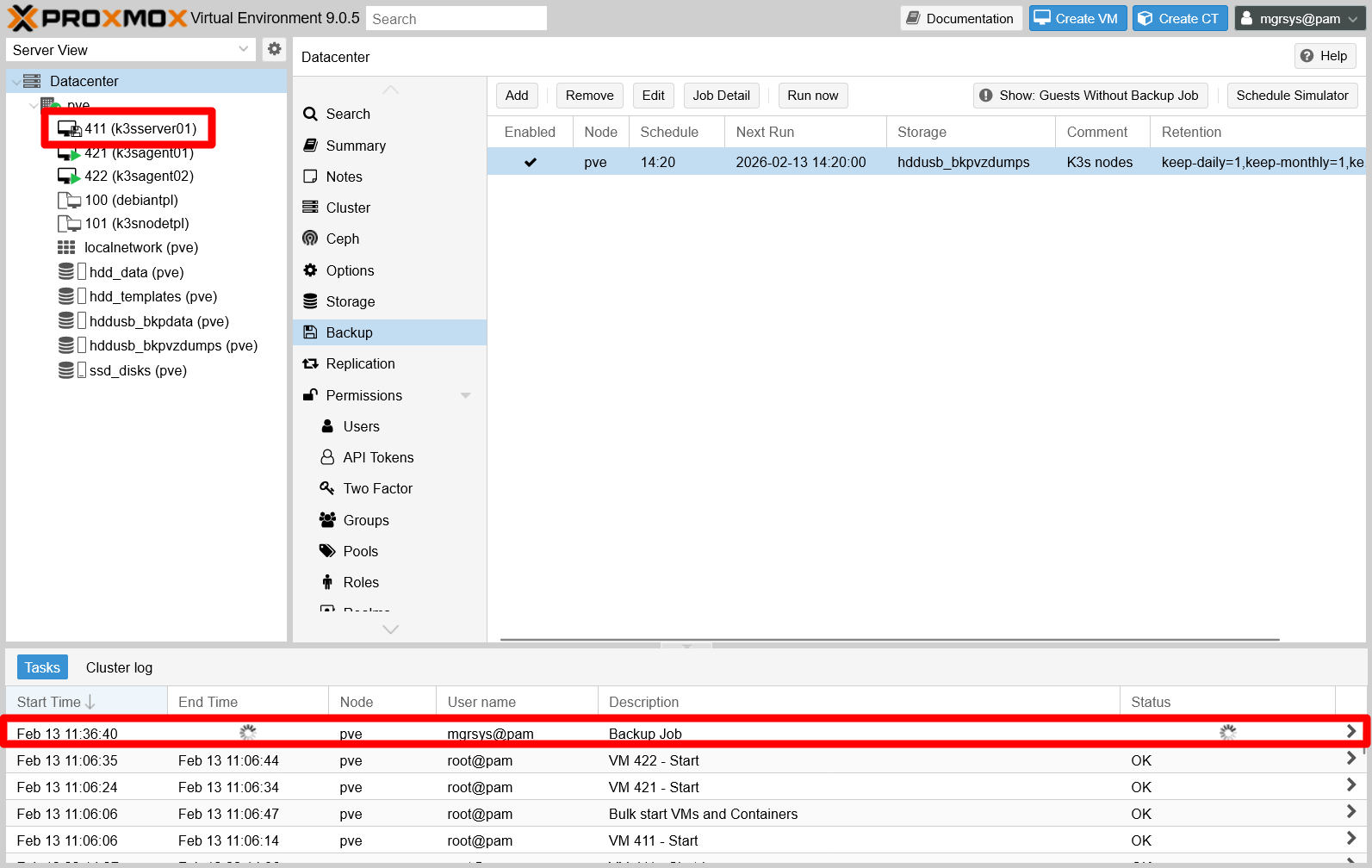
Backup job running shown in Tasks console Notice the entry with the
Backup jobdescription and the animated “running” icons. Also, in the sidebar showing all your VMs, see how the VM being backed up currently has its icon changed to something else, indicating that it is going under the procedure.On the other hand, if you go to the
Cluster logtab, you find there a log entry also related to this backup job:
Backup job task start in Cluster log Internally for Proxmox VE, the backup job is a task with an hexadecimal identifier called UPID. See how the log message says “
starting task UPID:pve” and, after the UPID code itself, you should see the string “vzdump::mgrsys@pam:” identifying the user executing the job.After a while, the backup job ends but you will probably notice it first in the
Tasksconsole: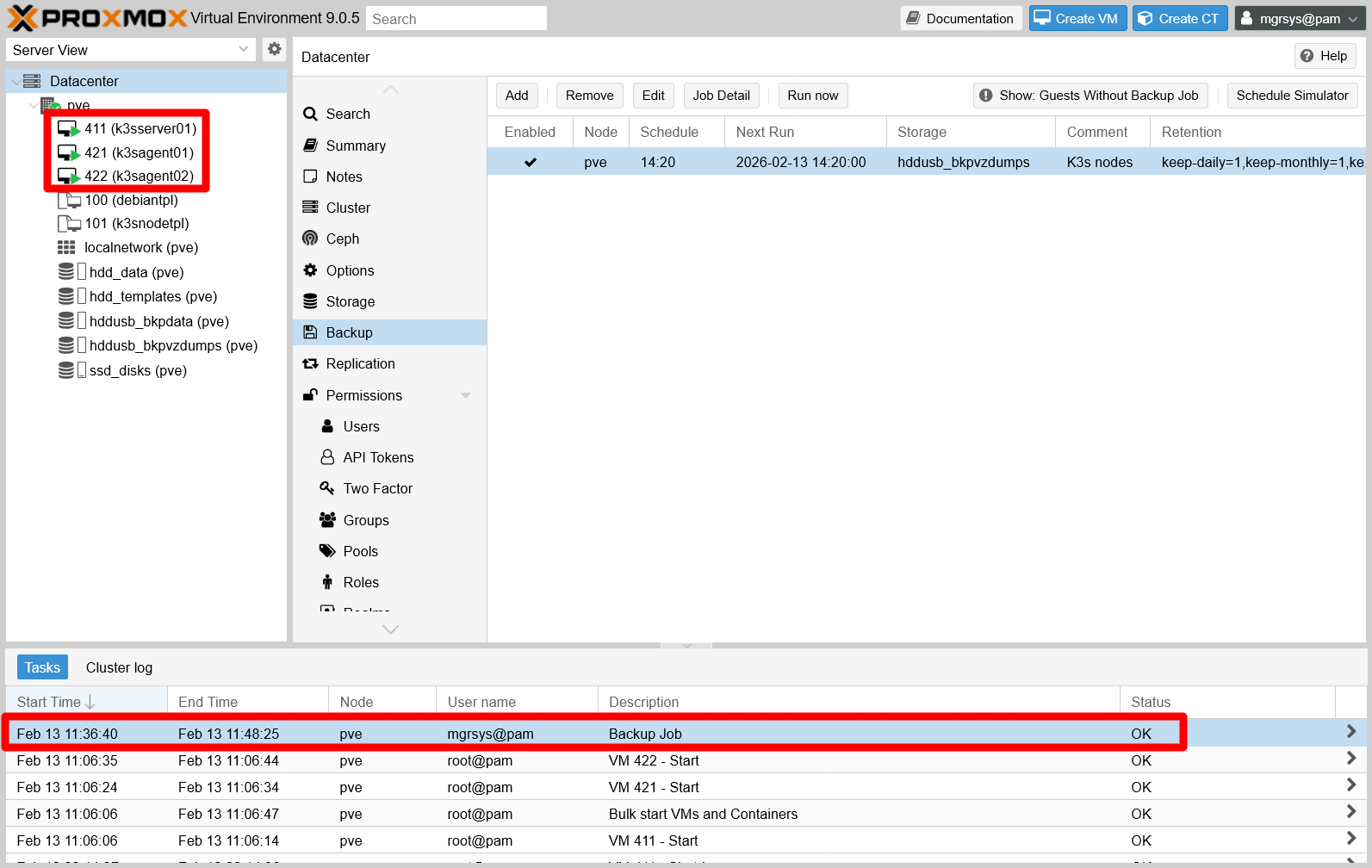
Backup job shown finished in Task console The finished task has an
End Timeset and aOKin itsStatusfield, replacing the animated running icon from before. In the sidebar, all the affected VMs will appear with their running icon.In the
Cluster logtab, you can see a new log entry referred to the end of the task:
Backup job task end in Cluster log Wit the job finished, you can check the backups it has produced. Since each backup is associated with a particular VM, go to each VM’s backup page and find their corresponding backup there:
Backup page of the
k3sserver01VM: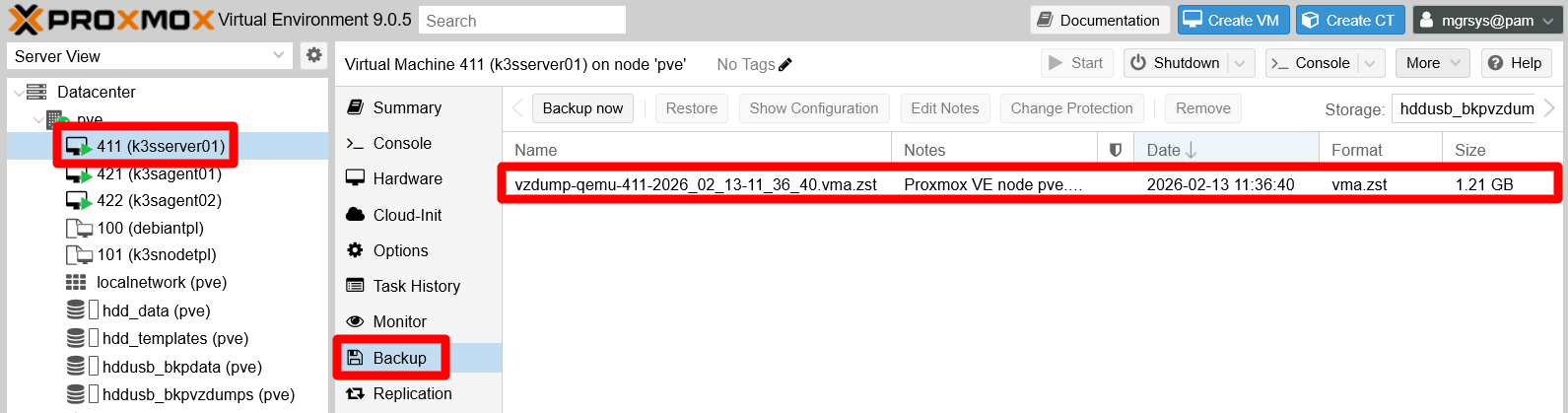
Backup page of k3sserver01 VM Backup page of the
k3sagent01VM.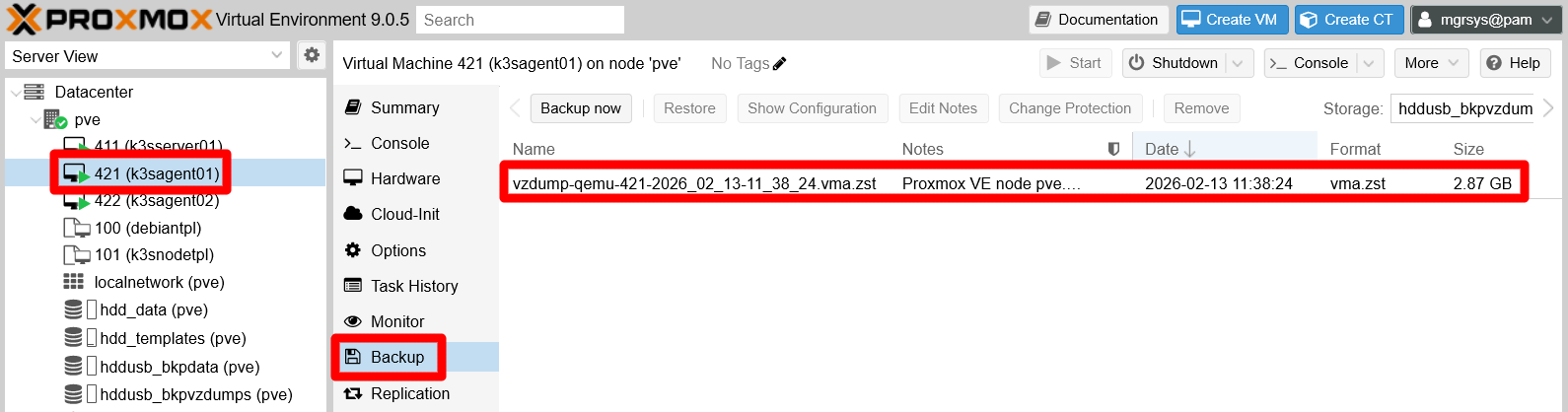
Backup page of k3sagent01 VM Backup page of the
k3sagent02VM.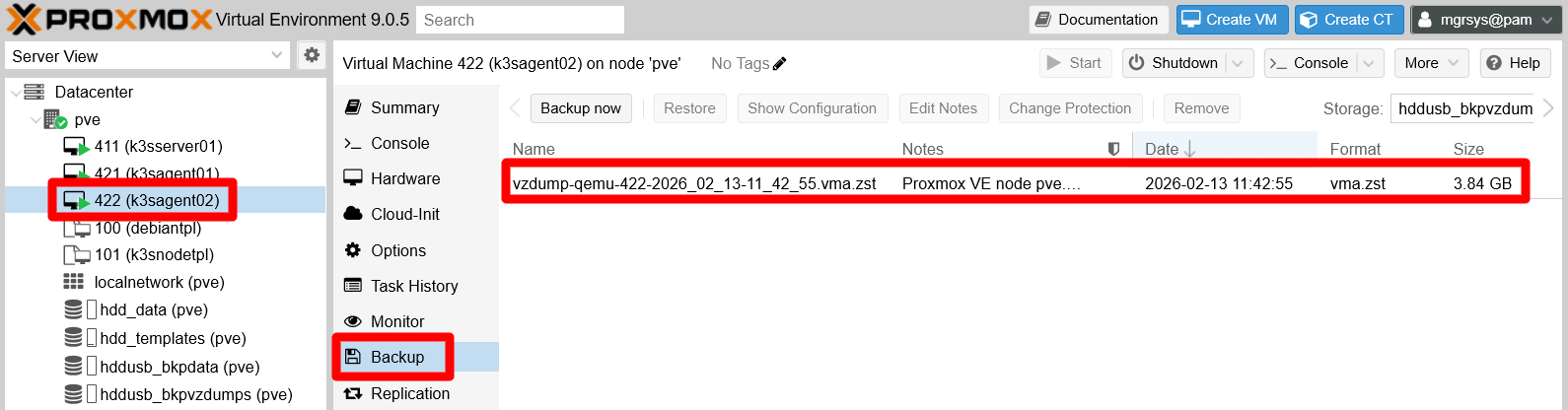
Backup page of k3sagent02 VM
Each backup has a different size, and the one for the
k3sserver01VM is noticeable smaller than the ones for the K3s agent node VMs. This makes perfect sense since the agent nodes are where several virtual storage drives have been attached, and where the Ghost and Forgejo platforms are deployed in the K3s Kubernetes cluster.There is another place where you can see all those backups, plus others, in one single place. It is the page of the storage configured as the space where all the backups are dumped, the partition prepared in the external USB HDD drive and named
hddusb_bkppvzdumpswithin Proxmox VE. Browse there and be sure to start in theSummarytab: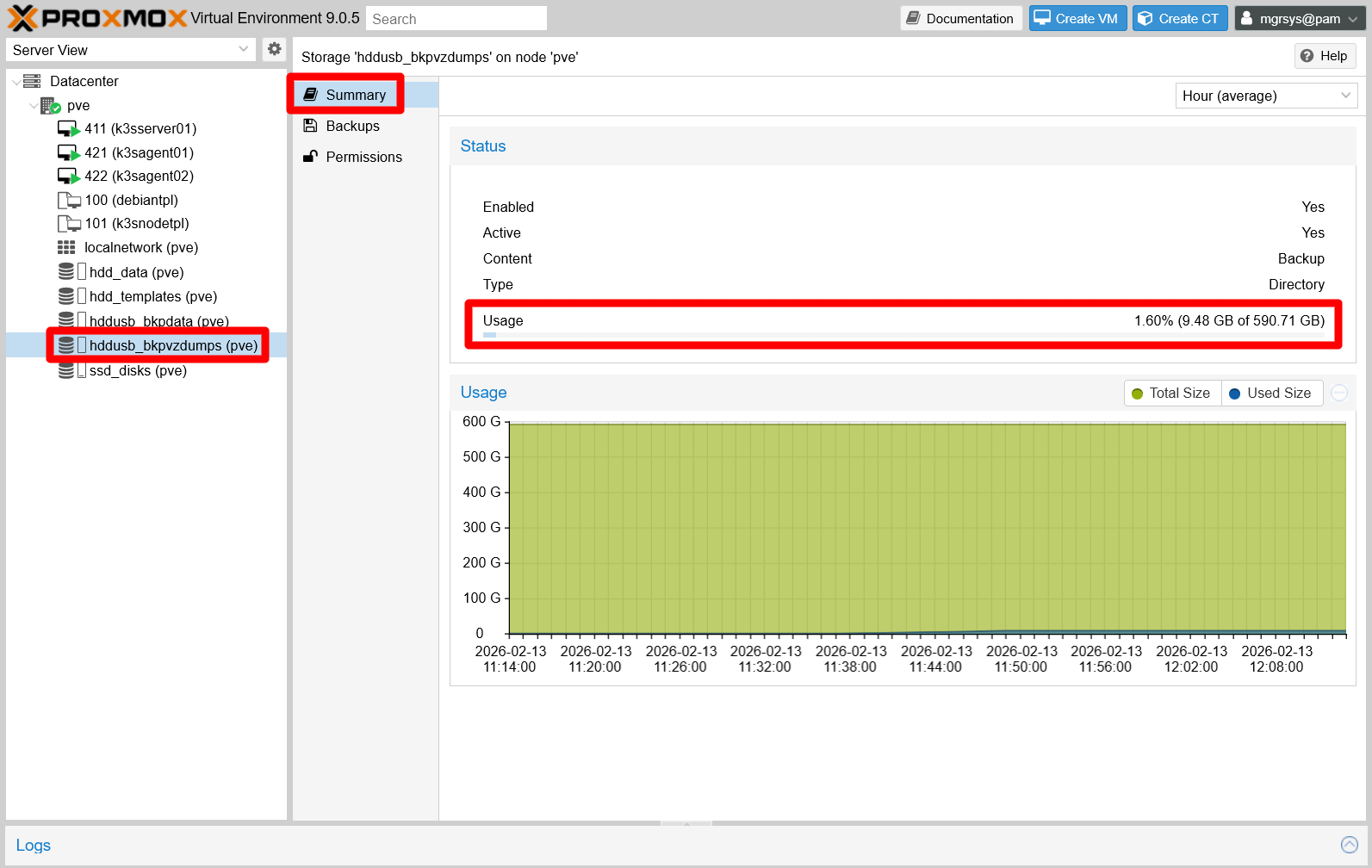
hddusb_bkppvzdumps storage page summary tab In this view you can see how much space you have used. Check out this usage frequently to avoid running out of storage space for your backups.
Remaining in the same page, now click on the
Backupstab: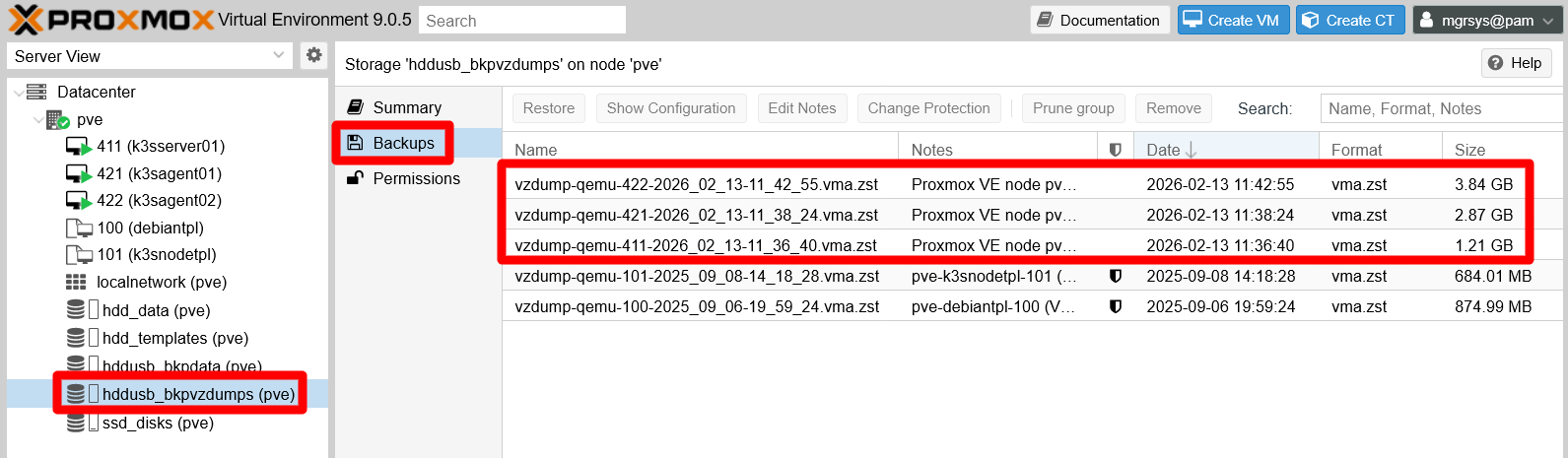
hddusb_bkppvzdumps storage page backups tab In this case, this page not only lists your newest backups, but also the dumps you already did for the VM templates.
After validating the backup job’s execution, do not forget to verify:
- If the job launches at the time you programmed it.
- If the pruning of older backups follows your job’s retention policy correctly.
Restoring a backup in Proxmox VE
You have already seen in the guide a detailed explanation about how to restore a backup. So, what else is to say about this process? A couple of things more in fact.
Generating new VMs from backups
You can generate new VMs (or containers) from backups, if you execute the restoration process from the Backup tab of the storage that keeps them. So, in this guide’s homelab setup you would do the following:
Login as
mgrsysin your Proxmox VE web console, then go to theBackuptab of thehddusb_bkppvzdumpsstorage: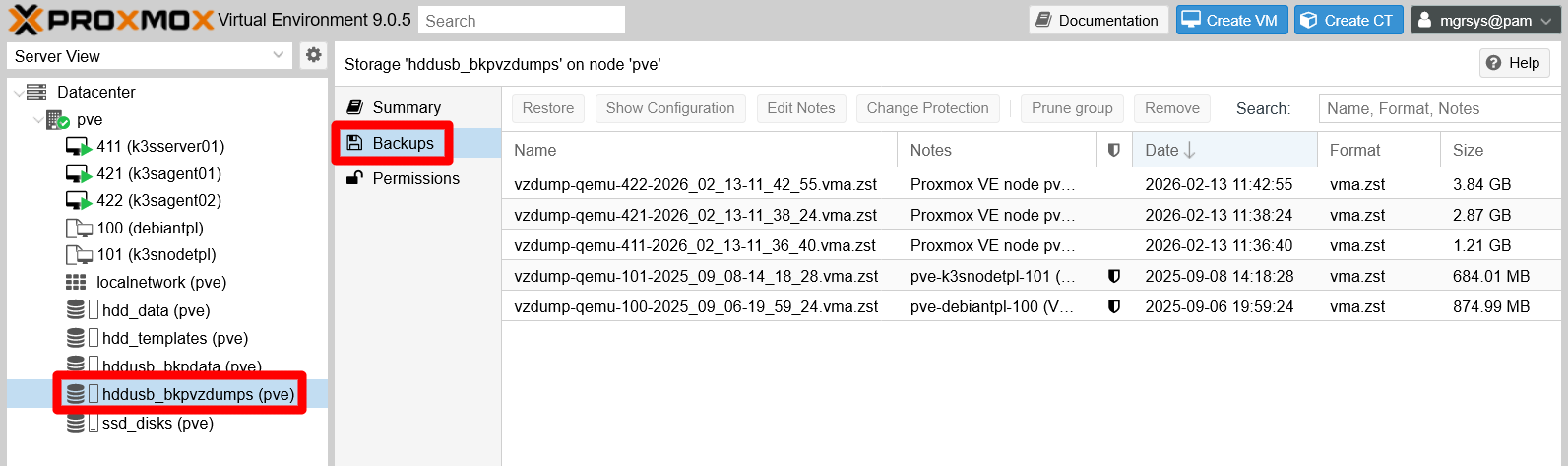
hddusb_bkppvzdumps storage page backups tab Select one of the backups listed there, for instance one from the K3s agent node VMs:

Backup of K3s agent node VM chosen With the actions buttons enabled, press on
Restore.The
Restorewindow appears. It is a bit different to the one you get in theBackuptab of any of your VMs’ management page: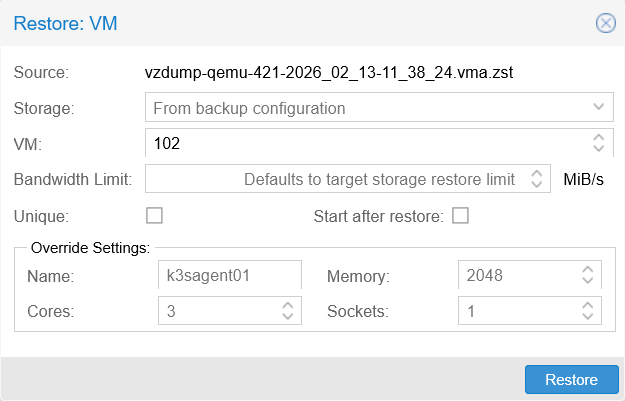
Restore VM window Pay particular attention to these fields from the window shown above:
The
VMfield is editable here, so you can assign any identifier to the new VM generated from this restoration process.See how by default it already puts the lowest identifier available, in this case
102. Remember that this ID cannot be lower than100.You cannot put an ID already in use. If you do, the field will be highlighted in red and the
Restorebutton will be disabled. It does not matter if the ID is the same as the VM from which the backup was made, as shown below.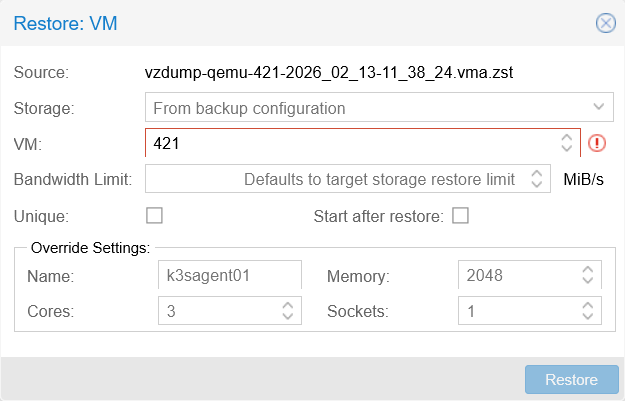
Restore window with wrong configuration
The
Uniquecheckbox is to make certain internal properties of the VM, like the MAC addresses of its network cards, unique. In other words, by enabling this option, the new VM won’t have the same values in those internal properties as the original VM.- Enabling this
Uniqueoption is very convenient to create copies of a VM, but not when you are planning to replace the original VM with the restored one.
- Enabling this
The
Override Settingsbox allows you to make the name and performance capacities different to the original VM dumped in the backup to be restored.
Since this is just a demonstration, set the
VMID to a high value that does not follow the same criteria applied to the other VMs. Also, enable theUniqueoption but leave disabled theStart after restoreoption. It could mess up your K3s Kubernetes cluster by having two identical K3s agents running at the same time. Finally, change theNameof the restored VM to something else to tell it apart from the existing K3s agent nodes: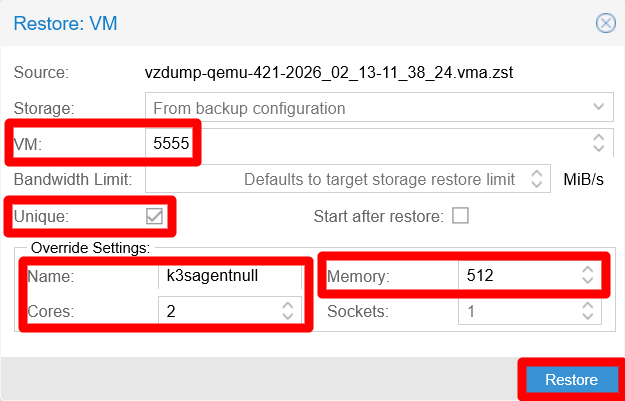
Restore window with good configuration See that the number of
CoresandMemorycapacity have been also readjusted, and that theRestorebutton remains enabled since the configuration is proper.Click on
Restoreand the task starts right away, without asking you for confirmation. Then, you are redirected into aTask viewerwindow showing the progress of the restoration process: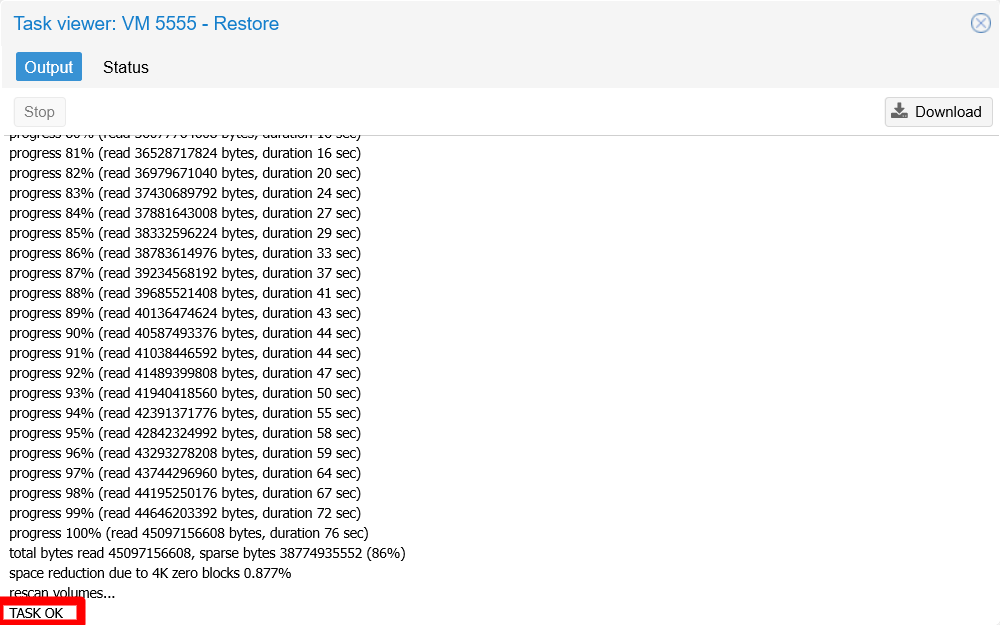
Restore process progress window When you see the log line
TASK OK, you will know the restoration process is over.Close the
Task viewerand look for the newly generated VM in the sidebar: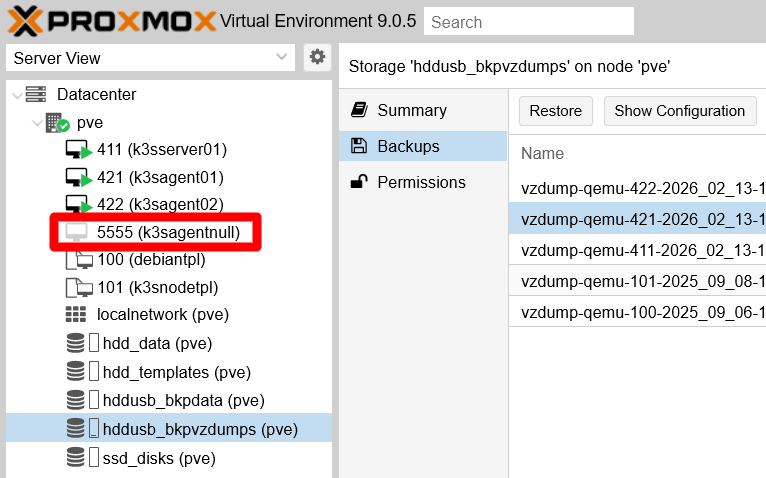
Generated VM present in sidebar tree As expected, it appears as stopped with the VM ID and name set previously in the
Restorewindow.Browse into the management page of the new VM, then go to its
Hardwaretab: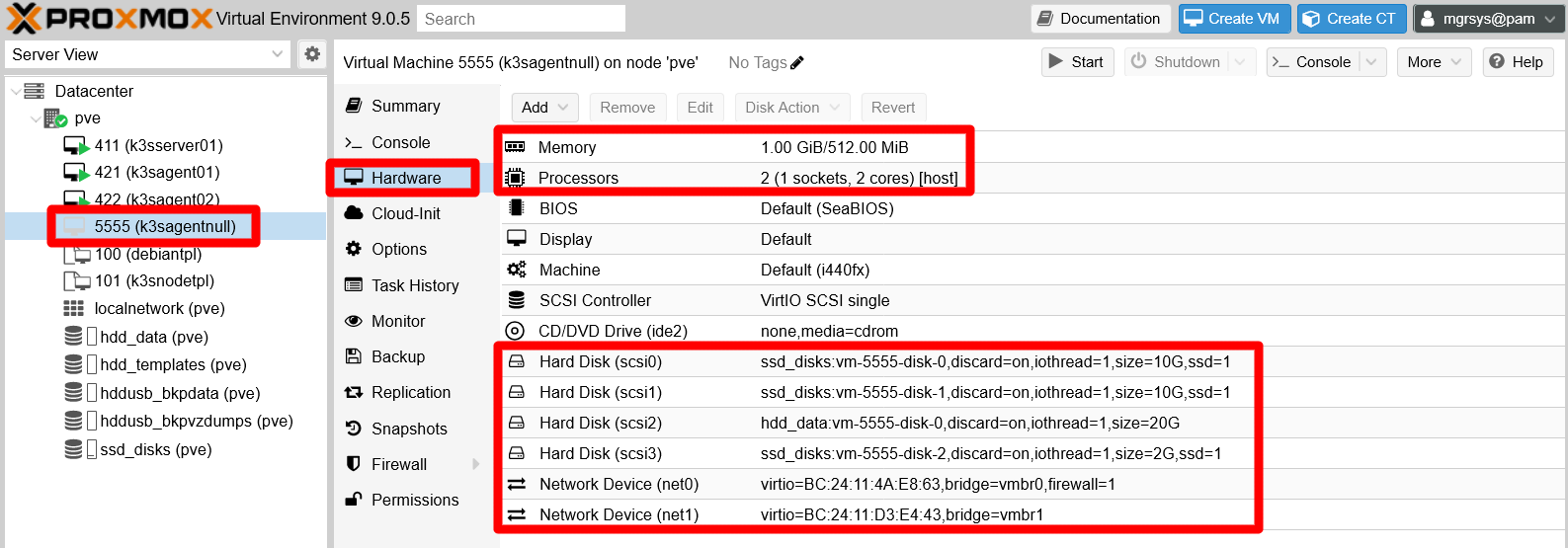
Hardware tab of new VM See that this VM has the same arrangement in hard disks and network devices as the original
k3sagent01, although the network devices have different MACs than the original ones. Also see how theMemoryandProcessorsfields correspond to what has been specified in the restoration window. In particular, notice how theMemoryfield has a mistake. If you edit it you can see that it is wrong:
Editing Memory field from Hardware tab of new VM The form is warning about a mismatch between the maximum amount of memory allowed to this VM (512 MiB), and the minimum memory requested (1021 MiB) which keeps the same value it had in the original VM. This has happened because, if you remember, this minimum memory cannot be edited in the configuration for VM restoration. It is not clear if this is on purpose or just a bug of the Proxmox VE version used at the time of writing this (9.0.5). Just remember to always review the hardware of a restored VM to detect problems like this one.
Since this is just a demonstration, delete this VM by unfolding the
Moremenu then clicking onRemove: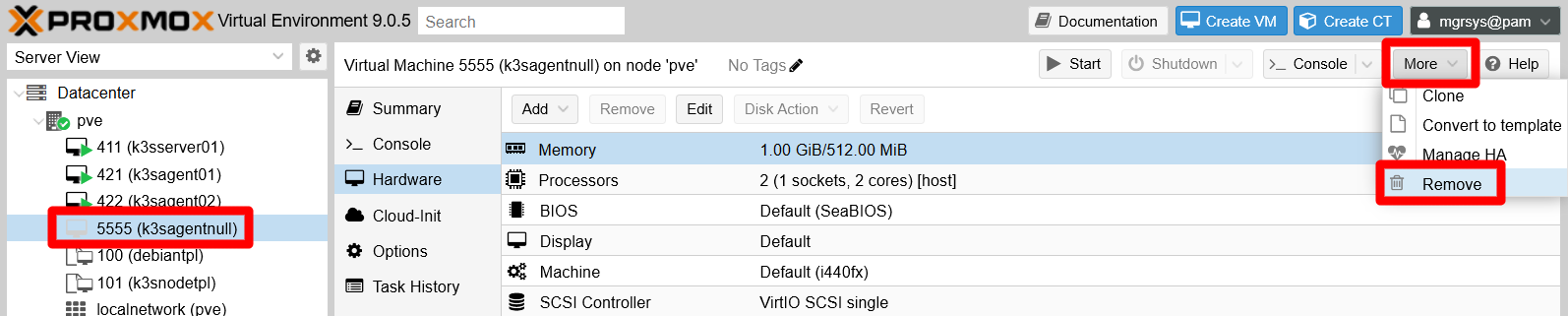
Removing the new VM Proxmox VE asks you to confirm the remove action in the corresponding
Confirmwindow:
VM removal confirmation window Pay attention to the options this window offers:
Purge from job configurations
Means that if this VM is included in a backup or other kind of jobs within Proxmox VE, it will be delisted from all of them. Since this particular VM is not in any job, you would not need to enable this one in this case.Destroy unreferenced disks owned by guest
Refers to those virtual storage drives that are associated with the VM but are not attached to it. With this option on, you can ensure that all virtual storages related to the VM will be removed. Enable this option to be sure that no virtual storage remains from this VM in your Proxmox VE server after its removal.
Input the VM ID of the virtual machine you are about to remove to confirm the action. Also check both options on just to be sure the removal is thorough:

VM removal confirmation window filled The
Removebutton gets enabled, so click on it. Unfold theTasksconsole to see the process progress, which should finish in a rather short time:
VM removal task done OK
You cannot restore a live VM
Imagine that, for some reason, you want or need to restore the k3sagent02 VM, and you somehow forget that is still running. Find out what would happen following the steps next:
Go to the
Backuptab of yourk3sagent02VM, choose the most recent backup available and pressRestore: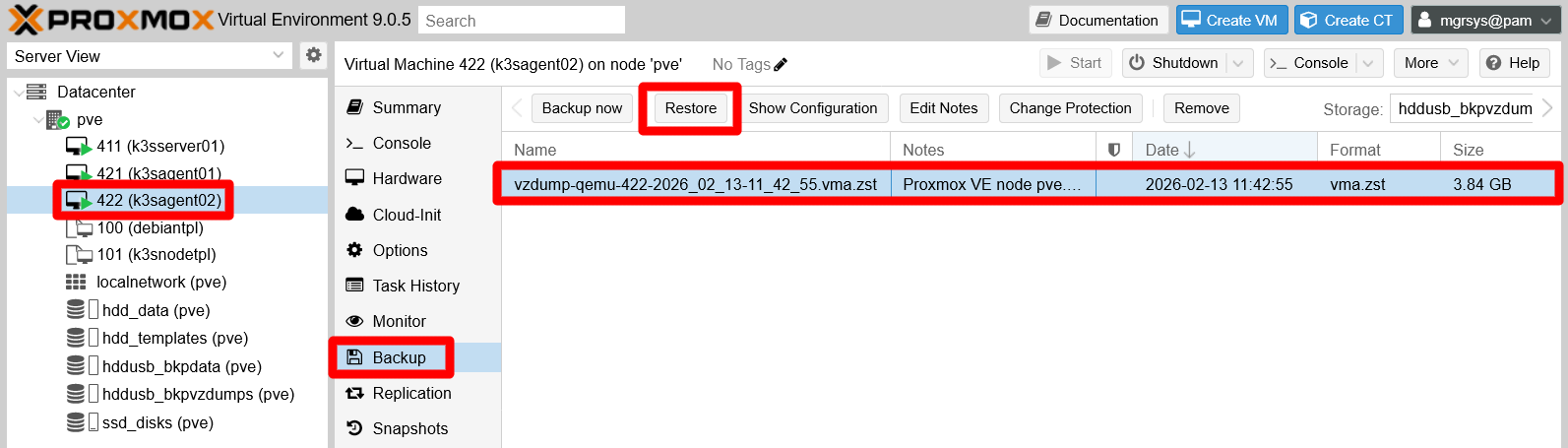
Choosing recent backup of live VM In the
Restorewindow that appears, you may want to make the VM start right after being restored. Therefore, you just enable that option while you leave the rest as it is: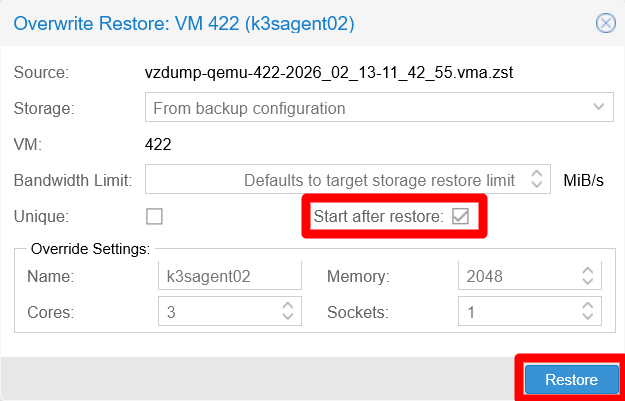
Restore window of live VM's backup A confirmation window asks you to accept the restore action, warning you that any non-backed-up data in the VM’s current instance will be permanently erased (meaning lost):
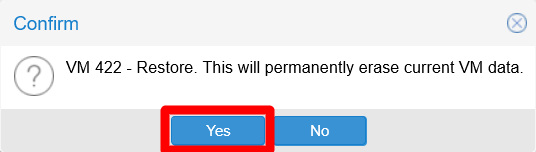
Restore VM data warning Since you know that the backup you have chosen to restore is very recent, you are sure of not losing anything important, so you press
Yes.Proxmox VE’s web console raises a
Task viewerwindow, showing you the output of this process. To your surprise, it informs you that the task has failed:
Restore VM task error VM is running In short, the log messages shown in the
Outputtab tells you that you cannot execute a restoration on a VM that is currently running.
You might wonder why the web console does not block the Restore action right away for running VMs. Since nothing is broken, take this as just one of the many idiosyncrasies within the Proxmox VE software, and hope that they improve this and other things in future releases.
Location of the backup files in the Proxmox VE system
The VM (or container) backups are just compressed dump files, perfectly accessible as any other file in the underlying Debian system. But, to reach them, first you need to know where they are. The storage where you have the backups, the hddusb_bkpvzdumps one, is one of the two LVs you setup as directories in the Proxmox VE host, which both you mounted under the /mnt path.
Open a shell in your Proxmox VE as
mgrsys, then do anlsto/mnt:$ ls -al /mnt total 16 drwxr-xr-x 4 root root 4096 Sep 2 13:26 . drwxr-xr-x 19 root root 4096 Aug 20 14:09 .. drwxr-xr-x 5 root root 4096 Sep 2 16:39 hdd_templates drwxr-xr-x 4 root root 4096 Sep 2 16:34 hddusb_bkpvzdumpsThe folder you are looking for is the
hddusb_bkpvzdumpsone. Remember thathdd_templatesis for storing the ISOs of the operative systems to be installed in your VMs.Do
lsof thathddusb_bkpvzdumpsfolder:$ ls -al /mnt/hddusb_bkpvzdumps total 28 drwxr-xr-x 4 root root 4096 Sep 2 16:34 . drwxr-xr-x 4 root root 4096 Sep 2 13:26 .. drwxr-xr-x 2 root root 4096 Feb 13 11:48 dump drwx------ 2 root root 16384 Sep 2 13:26 lost+foundThe important folder here is
dump, while at this point you should now thatlost+foundis filesystem-related.Now execute
ls -alhon thatdumpfolder, being aware that thehoption gives you the weight of the files in a more human-readable format:$ ls -alh /mnt/hddusb_bkpvzdumps/dump total 8.9G drwxr-xr-x 2 root root 4.0K Feb 13 11:48 . drwxr-xr-x 4 root root 4.0K Sep 2 16:34 .. -rw-r--r-- 1 root root 3.1K Sep 6 20:00 vzdump-qemu-100-2025_09_06-19_59_24.log -rw-r--r-- 1 root root 835M Sep 6 20:00 vzdump-qemu-100-2025_09_06-19_59_24.vma.zst -rw-r--r-- 1 root root 31 Sep 6 20:00 vzdump-qemu-100-2025_09_06-19_59_24.vma.zst.notes -rw-r--r-- 1 root root 0 Sep 6 20:00 vzdump-qemu-100-2025_09_06-19_59_24.vma.zst.protected -rw-r--r-- 1 root root 2.8K Sep 8 14:19 vzdump-qemu-101-2025_09_08-14_18_28.log -rw-r--r-- 1 root root 653M Sep 8 14:19 vzdump-qemu-101-2025_09_08-14_18_28.vma.zst -rw-r--r-- 1 root root 32 Sep 8 14:19 vzdump-qemu-101-2025_09_08-14_18_28.vma.zst.notes -rw-r--r-- 1 root root 0 Sep 8 14:19 vzdump-qemu-101-2025_09_08-14_18_28.vma.zst.protected -rw-r--r-- 1 root root 4.4K Feb 13 11:38 vzdump-qemu-411-2026_02_13-11_36_40.log -rw-r--r-- 1 root root 1.2G Feb 13 11:38 vzdump-qemu-411-2026_02_13-11_36_40.vma.zst -rw-r--r-- 1 root root 68 Feb 13 11:38 vzdump-qemu-411-2026_02_13-11_36_40.vma.zst.notes -rw-r--r-- 1 root root 5.5K Feb 13 11:42 vzdump-qemu-421-2026_02_13-11_38_24.log -rw-r--r-- 1 root root 2.7G Feb 13 11:42 vzdump-qemu-421-2026_02_13-11_38_24.vma.zst -rw-r--r-- 1 root root 67 Feb 13 11:42 vzdump-qemu-421-2026_02_13-11_38_24.vma.zst.notes -rw-r--r-- 1 root root 5.8K Feb 13 11:48 vzdump-qemu-422-2026_02_13-11_42_55.log -rw-r--r-- 1 root root 3.6G Feb 13 11:48 vzdump-qemu-422-2026_02_13-11_42_55.vma.zst -rw-r--r-- 1 root root 67 Feb 13 11:48 vzdump-qemu-422-2026_02_13-11_42_55.vma.zst.notesThere you can see all the backups currently kept in this
hddusb_bkpvzdumpsstorage. Also notice that, for each backup present, there are three files:- A
.logfile where Proxmox VE has written the progress log of its related dump. - A
.vma.zstfile which is the compressed dump file itself. - A
.vma.zst.notestext file with the notes associated to the compressed dump.
- A
Therefore, you can connect through SSH with a tool like WinSCP and copy those files to another storage for better safe keeping. What this guide cannot tell you is how Proxmox VE keeps track of those files to associate them with their proper VMs, although one could suspect it just looks to the VM ID annotated right after the vzdump-qemu- string in the file name.
Relevant system paths
Directories on Proxmox VE
/mnt/mnt/hddusb_bkpvzdumps/mnt/hddusb_bkpvzdumps/dump