UrBackup server setup
Use UrBackup to preserve specific directories
With UrBackup you can schedule backups of specific directories rather than whole systems, as you have done in the two previous chapters. But first you need to deploy an UrBackup server and install the corresponding UrBackup clients in the target systems which, in this case, is going to be your K3s node VMs.
The UrBackup server could be deployed in your K3s Kubernetes cluster (there is a Docker image available of the UrBackup server), but usually you should have the backup server on a completely different system for safety. Of course, for this guide there is only one physical system, so this chapter teaches you how to run a UrBackup server on a small Debian VM acting as that external system.
Setting up a new VM for the UrBackup server
You already have a suitable VM template from which you can clone a new Debian VM, the first one you created with the name debiantpl. The resulting VM will require some adjustments, in the same way you had to reconfigure the VMs that became K3s nodes. Since how to do all those changes is already explained in earlier chapters, the following subsections just indicate what to change and why while also pointing you to the proper sections in previous chapters.
Create a new VM based on the Debian VM template
Clone a new VM from the debiantpl VM template, as explained here. The cloning parameters adjusted for generating this chapter’s VM were set as follows:
VM ID:431.
As you did with the K3s node VMs, give your new VM an ID correlated to the IPs it is going to have. So, for this guide, this new VM will have the ID431, which corresponds to the IPs assigned later in this chapter.Name:bkpserver.
The VM name should be something meaningful likebkpserver. Be aware that this name will also be the VM’shostnamewithin Debian.Mode:Linked Clone.
Links this VM to the VM template, instead of duplicating it.
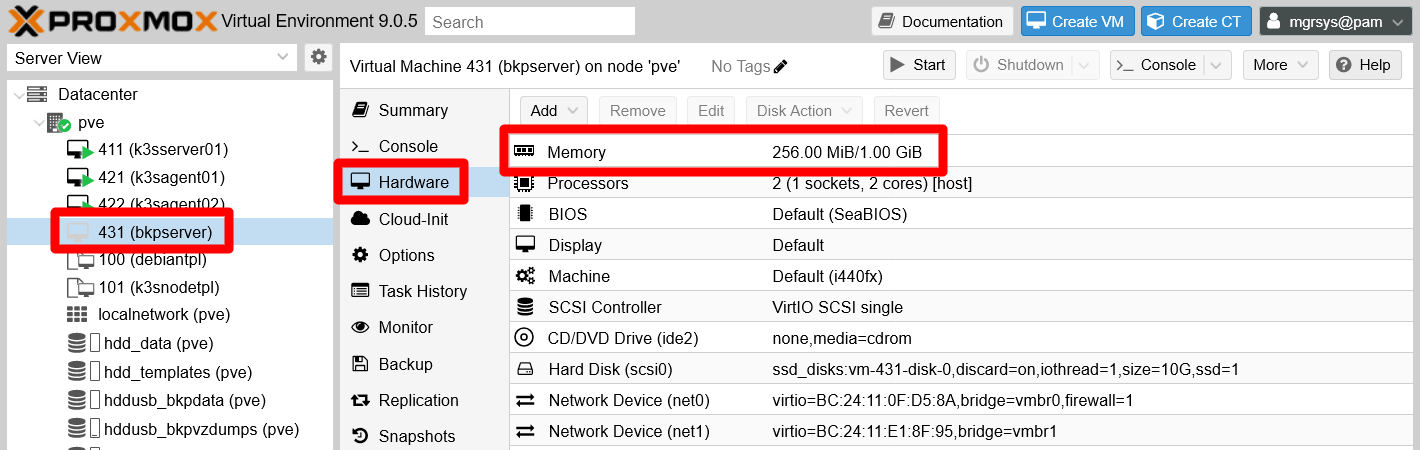
After the new VM is cloned, DO NOT start it. You still need to take a look to its assigned hardware capabilities. If you have the same kind of limited hardware as the one used in this guide, and also having a K3s Kubernetes cluster already running in the system, you must be careful of how much RAM and CPU you assign to any new VM. So, in this chapter, the new VM will have the same hardware setup as the VM template except on the memory department. It will require a minimum of 256 MiB and have an upper limit of 1 GiB.
In the capture below, you can see how the Hardware tab looks for this new VM:
On the other hand, do not forget to modify the Notes section in the Summary tab of this VM. For instance, you could enter something like the following:
# Backup Server VM
VM created: 2026-02-13\
OS: Debian 13 "trixie"\
Root login disabled: yes\
Sysctl configuration: yes\
Transparent hugepages disabled: yes\
SWAP disabled: no\
SSH access: yes\
TFA enabled: yes\
QEMU guest agent working: yes\
Fail2Ban working: yes\
NUT (UPS) client working: yes\
Utilities apt packages installed: yes\
Backup server software: UrBackup
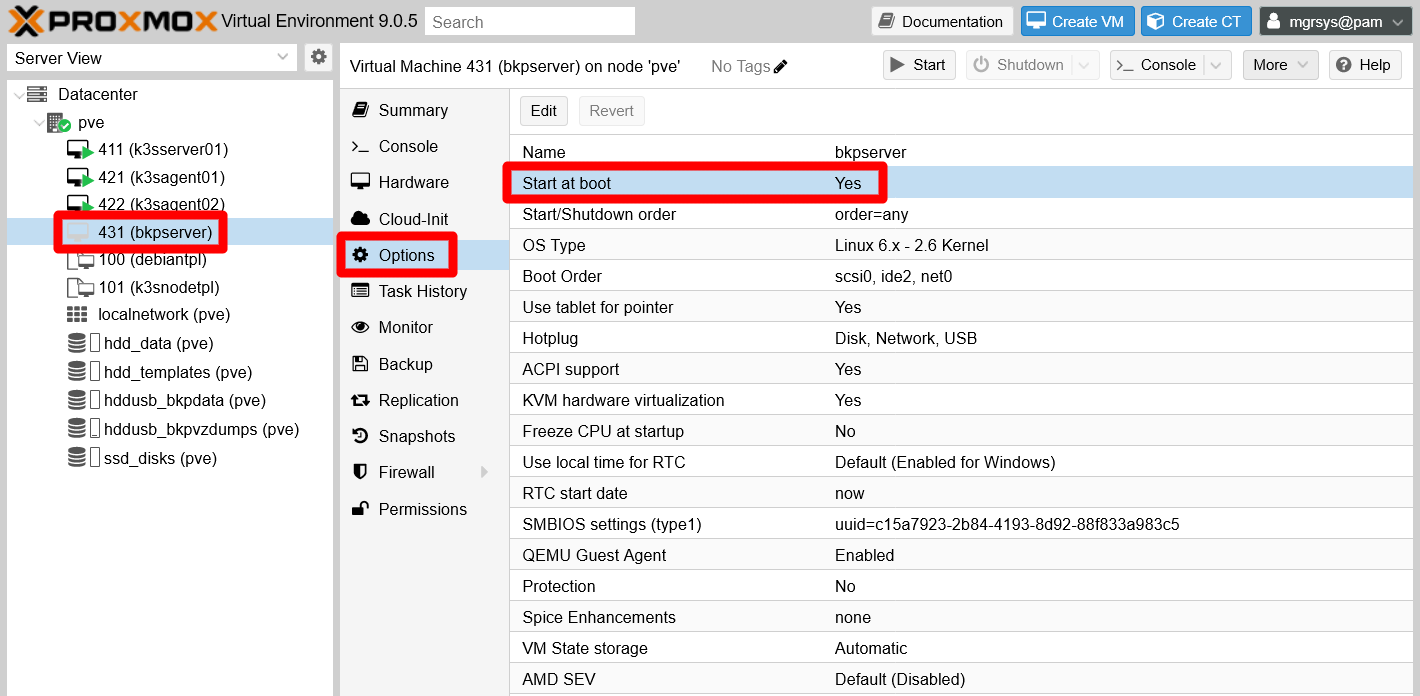
A final detail to adjust at this point is to set to Yes the parameter Start at boot found in the Options tab. This makes Proxmox VE boot up the VM after the host system itself has started.
Set an static IP for the main network device (net0)
To facilitate your remote access to the VM, set up a static IP for its net0 network device in your router or gateway, as you have done for the other VMs. Remember that you can see the MAC of the network device in the Hardware tab of your new VM.
In this guide, the VM has the IP 10.4.3.1, and notice how the 4.3.1 part corresponds with this VM’s ID.
System adjustments
Boot up your bkpserver VM, then connect to it through remote SSH shell and login as mgrsys.
Use the Debian template credentials to access this new VM
At this point, to access your bkpserver VM you have to use the same credentials set up in the Debian VM template.
Setting a proper hostname string
The very first thing you have to do is to change the VM’s hostname to match its name on Proxmox VE. So, to set the string bkpserver, do as it was already explained in this chapter.
Changing the LVM VG’s name
The LVM filesystem structure of this VM retains the same names as the VM template, and this could be confusing. In particular, it is the VG (volume group) that should be changed to something related to this VM, such as bkpserver-vg. But this is not a trivial change, in particular because this VM has a SWAP partition active. So, tread carefully while following these instructions:
First, temporarily disable the active SWAP of this VM with the
swapoffcommand below:$ sudo swapoff -aVerify that the command has been successful by checking the
/proc/swapsfile:$ cat /proc/swaps Filename Type Size Used PriorityIf there is nothing listed in the output, like above, you are good to go.
Now, follow closely the instructions specified here, although bearing in mind that the new VG name is
bkpserver-vgin this guide.Finally, you need to edit the file
/etc/initramfs-tools/conf.d/resumeand again find and change the stringdebiantplfor the corresponding one,bkpserverin this guide. After the change, the line should look as below:RESUME=/dev/mapper/bkpserver--vg-swap_1Careful when doing a backup of this
resumefileDo not make a
.origbackup of thisresumefile, or not in the very same directory the original is. Debian reads all files within the directory!
Setting up the second network card
The second network device, or virtual Ethernet card, in the new VM is disabled by default. You have to enable it and assign it a proper IP, so later it can communicate directly with the secondary virtual NICs of your K3s node VMs. Do this by following the instructions specified here, but configuring an available IP within the same range as the K3s nodes (172.16.x.x). In this guide, the IP for this secondary NIC will be 172.16.3.1.
Changing the password of mgrsys
You should change the password of the mgrsys user, since it is the same one it had in the VM template. To do so, execute the passwd command as mgrsys and it asks you the old and new password for the account:
$ passwd
Changing password for mgrsys.
Current password:
New password:
Retype new password:
passwd: password updated successfully
Changing the TOTP code for mgrsys
As you have done with the mgrsys password, now you must change its TOTP to make it unique for this bkpserver VM. Just execute the google-authenticator command, and it overwrites the current content of the .google_authenticator file in the $HOME directory of your current user. In this guide, for this VM the command is as below:
$ google-authenticator -t -d -f -r 3 -R 30 -w 3 -Q UTF8 -i bkpserver.homelab.cloud -l mgrsys@bkpserverSave your TOTP codes
Export and save all the codes and even the .google_authenticator file in a password manager or by any other secure method.
Changing the SSH key pair of mgrsys
To connect through SSH to the VM, you are using the key pair originally meant just for the Debian VM template. The proper thing to do is to change it for a new pair meant only for this bkpserver VM. You already did this change for the K3s node VMs, a procedure already detailed in this guide. Follow those instructions, but set the comment (the -C option at the ssh-keygen command) in the new key pair to a meaningful string like bkpserver.homelab.cloud@mgrsys.
Adding a virtual storage drive to the VM
Since main purpose of this new VM is to store backups, you need to attach a more spacious virtual storage drive (a hard disk in Proxmox VE) to the bkpserver VM.
Attaching a new hard disk to the VM
Get into your Proxmox VE web console and:
Go to the
Hardwaretab of yourbkpserverVM. There add a newhard diskwith a configuration like in the snapshot below: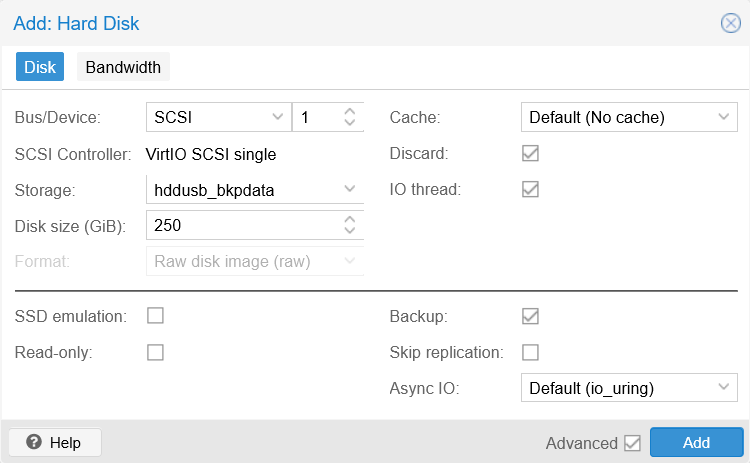
New hard disk setup for bkpserver VM The parameters tweaked above are configured for a big enough external storage drive:
Storage
Is the partition enabled ashddusb_bkpdata, specifically reserved for storing data backups, which is found in the external USB storage drive attached to the Proxmox VE physical host.Disk size
Set here to 250 GiB as an example, but you can input anything you want. Yet be careful of not going over the real capacity of the storage you have selected.Discard
Left enabled because the feature is supported by the underlying filesystem.Rest of parameters
Left with their default settings.
After adding the new hard disk, it should almost immediately appear listed in the
Hardwaretab among the VM’s other devices:
New hard disk listed on Hardware tab Next, connect with a remote terminal as
mgrsysto thebkpserverVM. Then, check withfdiskthat the new storage is available:$ sudo fdisk -l Disk /dev/sda: 10 GiB, 10737418240 bytes, 20971520 sectors Disk model: QEMU HARDDISK Units: sectors of 1 * 512 = 512 bytes Sector size (logical/physical): 512 bytes / 512 bytes I/O size (minimum/optimal): 512 bytes / 512 bytes Disklabel type: dos Disk identifier: 0x5dc9a39f Device Boot Start End Sectors Size Id Type /dev/sda1 * 2048 1556479 1554432 759M 83 Linux /dev/sda2 1558526 20969471 19410946 9.3G f W95 Ext'd (LBA) /dev/sda5 1558528 20969471 19410944 9.3G 8e Linux LVM Disk /dev/mapper/bkpserver--vg-root: 8.69 GiB, 9328132096 bytes, 18219008 sectors Units: sectors of 1 * 512 = 512 bytes Sector size (logical/physical): 512 bytes / 512 bytes I/O size (minimum/optimal): 512 bytes / 512 bytes Disk /dev/mapper/bkpserver--vg-swap_1: 544 MiB, 570425344 bytes, 1114112 sectors Units: sectors of 1 * 512 = 512 bytes Sector size (logical/physical): 512 bytes / 512 bytes I/O size (minimum/optimal): 512 bytes / 512 bytes Disk /dev/sdb: 250 GiB, 268435456000 bytes, 524288000 sectors Disk model: QEMU HARDDISK Units: sectors of 1 * 512 = 512 bytes Sector size (logical/physical): 512 bytes / 512 bytes I/O size (minimum/optimal): 512 bytes / 512 bytesThe newly attached storage appears at the bottom of the
fdiskoutput as the/dev/sdbdisk.
BTRFS storage set up
Btrfs, which stands for B-tree file system, is a filesystem with specific advanced capabilities that UrBackup can take advantage of for optimizing its backups. Modern Debian versions supports btrfs, but you need to install the package with tools for handling this filesystem:
$ sudo apt install -y btrfs-progsWith the tools available, now you can turn your /dev/sdb drive into a btrfs filesystem:
Start by adding the
/dev/sdbto a new labelled multidevice btrfs configuration with the correspondingmkfs.btrfscommand:$ sudo mkfs.btrfs -d single -L bkpdata-hdd /dev/sdb btrfs-progs v6.14 See https://btrfs.readthedocs.io for more information. Performing full device TRIM /dev/sdb (250.00GiB) ... NOTE: several default settings have changed in version 5.15, please make sure this does not affect your deployments: - DUP for metadata (-m dup) - enabled no-holes (-O no-holes) - enabled free-space-tree (-R free-space-tree) Label: bkpdata-hdd UUID: b24d4575-42d2-4e0b-81a6-dcfb824194a3 Node size: 16384 Sector size: 4096 (CPU page size: 4096) Filesystem size: 250.00GiB Block group profiles: Data: single 8.00MiB Metadata: DUP 1.00GiB System: DUP 8.00MiB SSD detected: no Zoned device: no Features: extref, skinny-metadata, no-holes, free-space-tree Checksum: crc32c Number of devices: 1 Devices: ID SIZE PATH 1 250.00GiB /dev/sdbLet’s analyze the command’s output above:
The command has created a btrfs volume labeled
bkpdata-hdd.This volume is multidevice, although currently it only has one storage drive.
The volume works in
singlemode, meaning that:- The metadata will be mirrored in all the devices in the volume.
- The data is allocated in “linear” fashion all along the devices in the volume.
Never build a multidevice volume with drives of different capabilities
So do not put in the same volume SSD devices with HDD ones, for instance. Always be sure that they all are of the same kind and have the same I/O capabilities.
With the btrfs volume configured this way, when you are running out of space in it, you can add another storage device to it. Check out how in the official btrfs wiki.
You need a mount point for the btrfs volume, so create one under the standarde
/mntfolder:$ sudo mkdir /mnt/bkpdata-hddMount the btrfs volume in the mount point created before. To do the mounting, you can invoke in the
mountcommand any of the devices used in the volume. In this case, there is only/dev/sdb:$ sudo mount /dev/sdb /mnt/bkpdata-hddTo make that mounting permanent, you have to edit the
/etc/fstabfile and add the corresponding line there. First, make a backup of thefstabfile:$ sudo cp /etc/fstab /etc/fstab.bkpThen append to the
fstabfile these lines below:# Backup storage /dev/sdb /mnt/bkpdata-hdd btrfs defaults,nofail 0 0Reboot the VM:
$ sudo rebootLog back into a shell in the VM, then check with
dfthat the volume is mounted:$ df -h Filesystem Size Used Avail Use% Mounted on udev 462M 0 462M 0% /dev tmpfs 97M 556K 97M 1% /run /dev/mapper/bkpserver--vg-root 8.5G 1.2G 6.9G 14% / tmpfs 484M 0 484M 0% /dev/shm tmpfs 5.0M 0 5.0M 0% /run/lock tmpfs 1.0M 0 1.0M 0% /run/credentials/systemd-journald.service tmpfs 470M 0 470M 0% /tmp /dev/sdb 250G 5.8M 248G 1% /mnt/bkpdata-hdd /dev/sda1 730M 111M 566M 17% /boot tmpfs 1.0M 0 1.0M 0% /run/credentials/getty@tty1.service tmpfs 84M 8.0K 84M 1% /run/user/1000See above how the
/dev/sdbdevice appears in the list of filesystems.
Updating Debian in the VM
This VM is based on a VM template that could be at this point out of date. You should then use apt to update the Debian in this VM:
$ sudo apt update
$ sudo apt upgrade
If the upgrade affects many packages, or critical ones, you should reboot after applying the upgrade:
$ sudo rebootDeploying UrBackup
With the bkpserver VM ready, you can proceed with the deployment of the UrBackup server in it.
Installing UrBackup server
To install UrBackup server in your Debian VM, you just need to install one .deb package following these official hints. At the time of writing this, the latest non-beta version of UrBackup server is the 2.5.35, and you can find it in the official UrBackup download page:
In a shell as
mgrsys, usewgetto download in thebkpserverVM the package for UrBackup version2.5.35:$ wget https://hndl.urbackup.org/Server/2.5.35/urbackup-server_2.5.35_amd64.debInstall the downloaded
urbackup-server_2.5.35_amd64.debpackage withdpkg:$ sudo dpkg -i urbackup-server_2.5.35_amd64.debThe output of this
dpkgcommand may warn you of unsatisfied dependencies that have left the package installation unfinished. This is something you will correct in the next step withapt.Apply the following
aptcommand to properly finalize the installation of the UrBackup package:$ sudo apt install -fA few seconds later, this
aptcommand launches a text-based window asking where your UrBackup server should store its backups: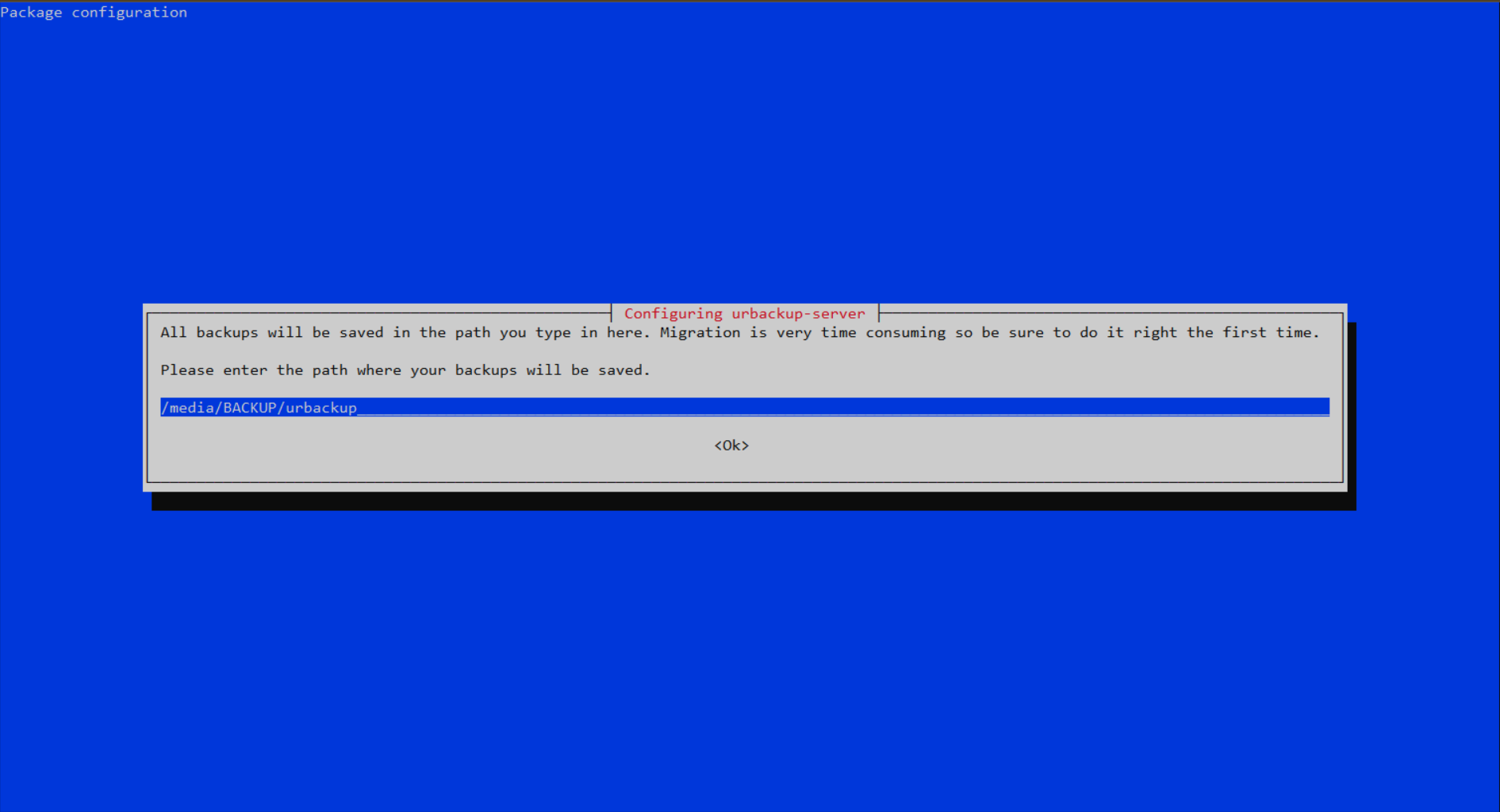
UrBackup server default backups path Change the suggested path for the one where the btrfs volume is mounted. In this guide is
/mnt/bkpdata-hdd:
UrBackup server changed backups path After setting the correct path, press enter and the installation finishes.
Enabling a domain name for the UrBackup server in your network
Remember to enable a domain name for your UrBackup server in your network, either by hosts files or configuring it in your local network router. This guide uses the domain bkpserver.homelab.cloud for the 10.4.3.1 IP, to make reaching the web interface easier to remember.
Testing your UrBackup server
UrBackup server is installed in your VM, so now you can browse into its web console. Remember to associate its main IP to a domain in your LAN. As established previously, the domain for this UrBackup server is bkpserver.homelab.cloud:
Access the UrBackup server through an http (unsecured!) connection to the port
55414. For this guide’s VM, the whole URL would behttp://bkpserver.homelab.cloud:55414/. The first page you see is theStatustab of your new UrBackup server: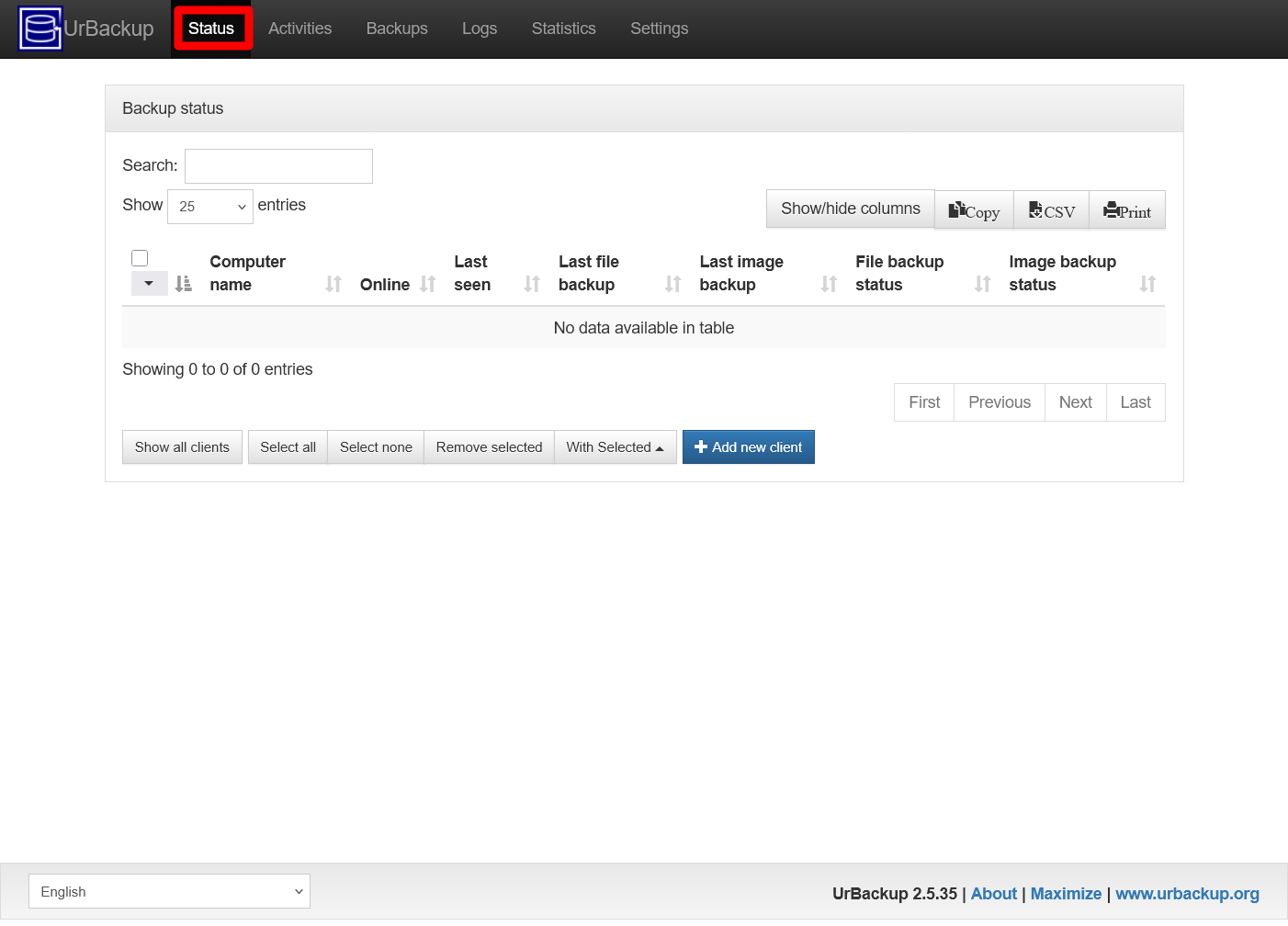
UrBackup server Status page Notice that you have gotten here without going through any kind of authentication process. This security hole is one of several things you have to adjust in the following sections.
On the other hand, open a remote terminal on the
bkpserverVM and list the contents of the/mnt/bkpdata-hdd:$ ls -al /mnt/bkpdata-hdd/ total 20 drwxr-xr-x 1 urbackup urbackup 50 Feb 14 18:42 . drwxr-xr-x 3 root root 4096 Feb 14 18:09 .. drwxr-x--- 1 urbackup urbackup 0 Feb 14 18:42 clients drwxr-x--- 1 urbackup urbackup 0 Feb 14 18:42 urbackup_tmp_filesSee that UrBackup is already using this storage, and with its own
urbackupuser no less. This confirms you that the backup path configuration set to UrBackup is correct.There is a test you should do to confirm that your UrBackup server is able to use the btrfs features of the chosen backup storage. Execute the following
urbackup_snapshot_helpercommand in yourbkpserverVM:$ urbackup_snapshot_helper test Testing for btrfs... Create subvolume '/mnt/bkpdata-hdd/testA54hj5luZtlorr494/A' Create snapshot of '/mnt/bkpdata-hdd/testA54hj5luZtlorr494/A' in '/mnt/bkpdata-hdd/testA54hj5luZtlorr494/B' Delete subvolume 258 (commit): '/mnt/bkpdata-hdd/testA54hj5luZtlorr494/A' Delete subvolume 259 (commit): '/mnt/bkpdata-hdd/testA54hj5luZtlorr494/B' BTRFS TEST OKNotice two things:
The
urbackup_snapshot_helpercommand does not requiresudoto be executed.At the end of its output it informs of the test result which, in this case, is the expected
BTRFS TEST OK.
Know that the UrBackup server is installed as a service that you can manage with
systemctlcommands:$ sudo systemctl status urbackupsrv.service ● urbackupsrv.service - LSB: Server for doing backups Loaded: loaded (/etc/init.d/urbackupsrv; generated) Active: active (running) since Sat 2026-02-14 18:38:42 CET; 13min ago Invocation: 2ad0f267af414895a3b164ad472daadc Docs: man:systemd-sysv-generator(8) Process: 10680 ExecStart=/etc/init.d/urbackupsrv start (code=exited, status=0/SUCCESS) Tasks: 26 (limit: 1107) Memory: 144.8M (peak: 145.3M) CPU: 5.346s CGroup: /system.slice/urbackupsrv.service └─10687 /usr/bin/urbackupsrv run --config /etc/default/urbackupsrv --daemon --pidfile /var/run/urbackupsrv.pid Feb 14 18:38:42 bkpserver systemd[1]: Starting urbackupsrv.service - LSB: Server for doing backups... Feb 14 18:38:42 bkpserver systemd[1]: Started urbackupsrv.service - LSB: Server for doing backups. Feb 14 18:42:21 bkpserver urbackupsrv[10687]: Login successful for anonymous from 10.157.123.220 via web interface Feb 14 18:47:09 bkpserver urbackupsrv[10687]: Login successful for anonymous from 10.157.123.220 via web interfaceAfter validating the UrBackup server installation, you can remove the
urbackup-server_2.5.35_amd64.debpackage file from thebkpserverVM system:$ rm urbackup-server_2.5.35_amd64.deb
Securing the user access to your UrBackup server
At this point, your UrBackup server allows anonymous access to anyone browsing into its web console and also grants them the capacity of managing all the backups. This is not good at all; you must add an administrator user to your UrBackup server at once:
In the UrBackup server’s web interface, browse to the
Settingstab. In the resulting page, click onUsers: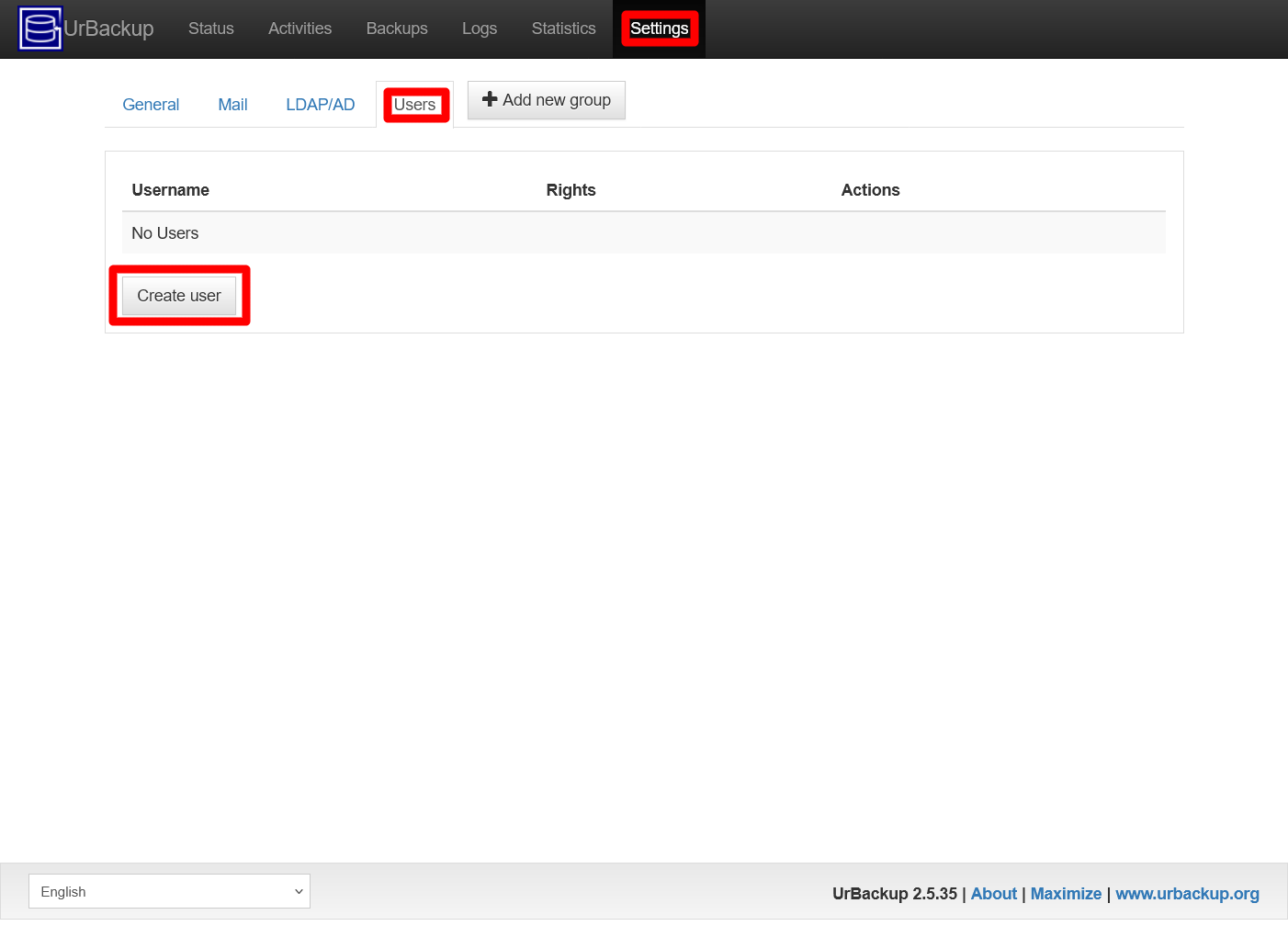
UrBackup server Users view Click on the
Create userbutton also highlighted in the screenshot above.After pressing on the
Create userbutton, the following form appears: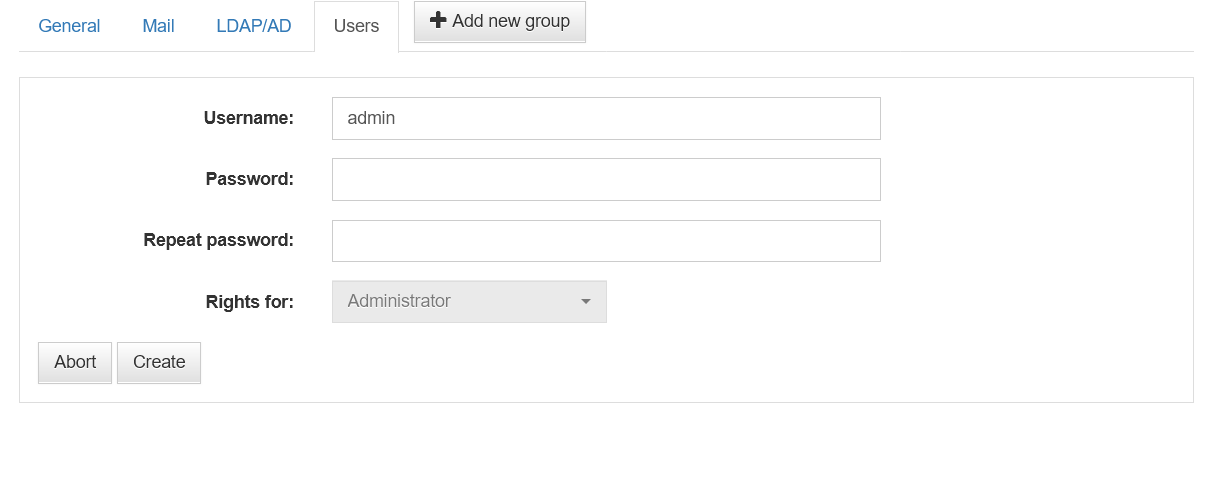
UrBackup server Users view Create user form There are a couple of thing to realize from this form:
It only allows you to create an administrator user, since the
Rights forunfoldable list is greyed out.You can change the default
adminusername to something else.
Fill the form, then press on
Create: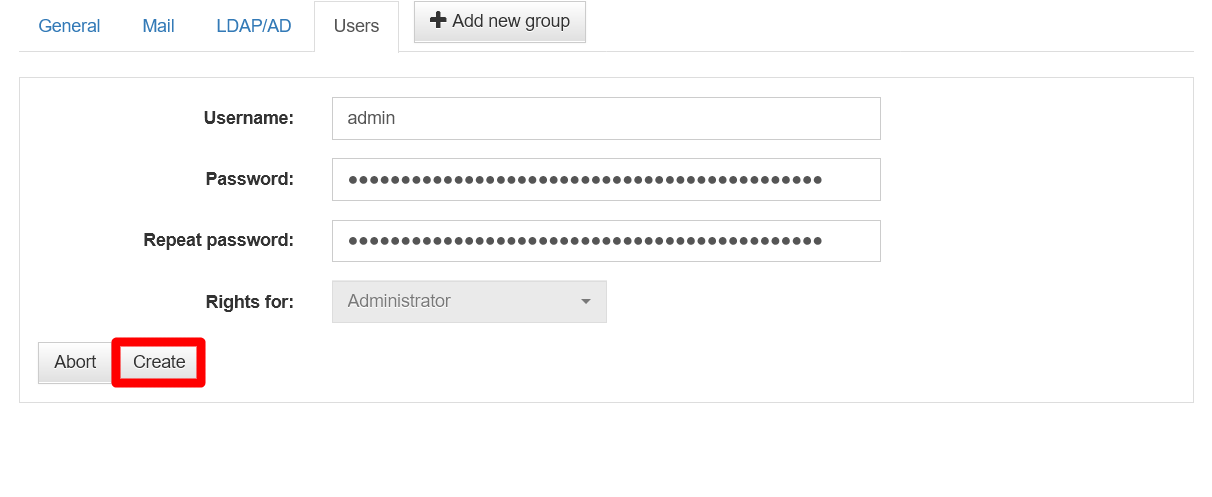
UrBackup server Users view Create user form filled The creation is immediate and sends you back to the updated
Usersview: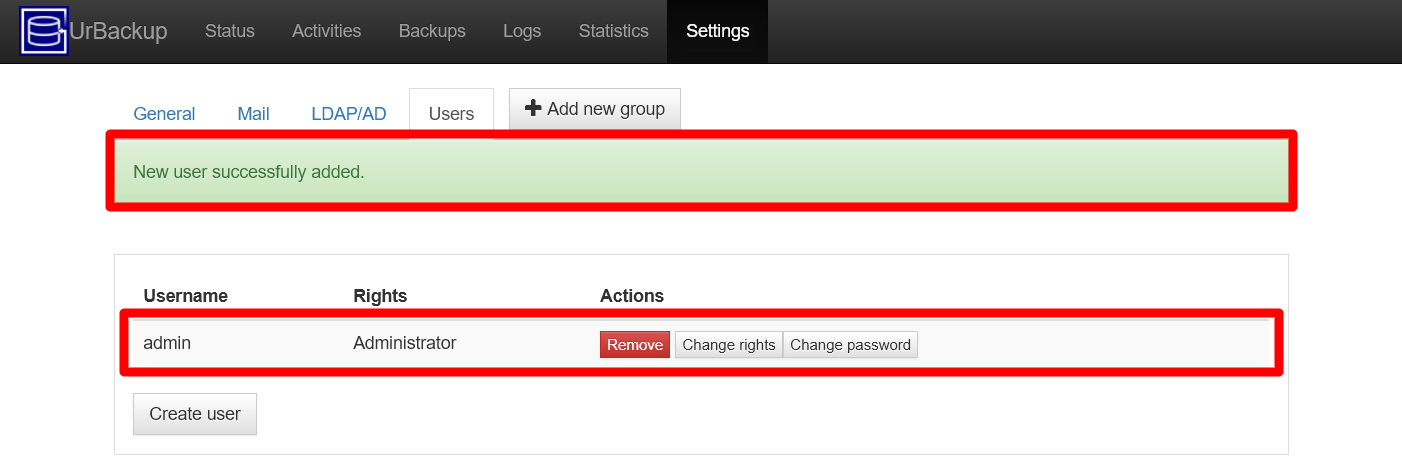
UrBackup server Users view administrator added The web interface warns you of the new user added successfully, while you can also see your new administrator listed in the users list.
Refresh the page in your browser and the web interface asks for your new administrator user’s password:
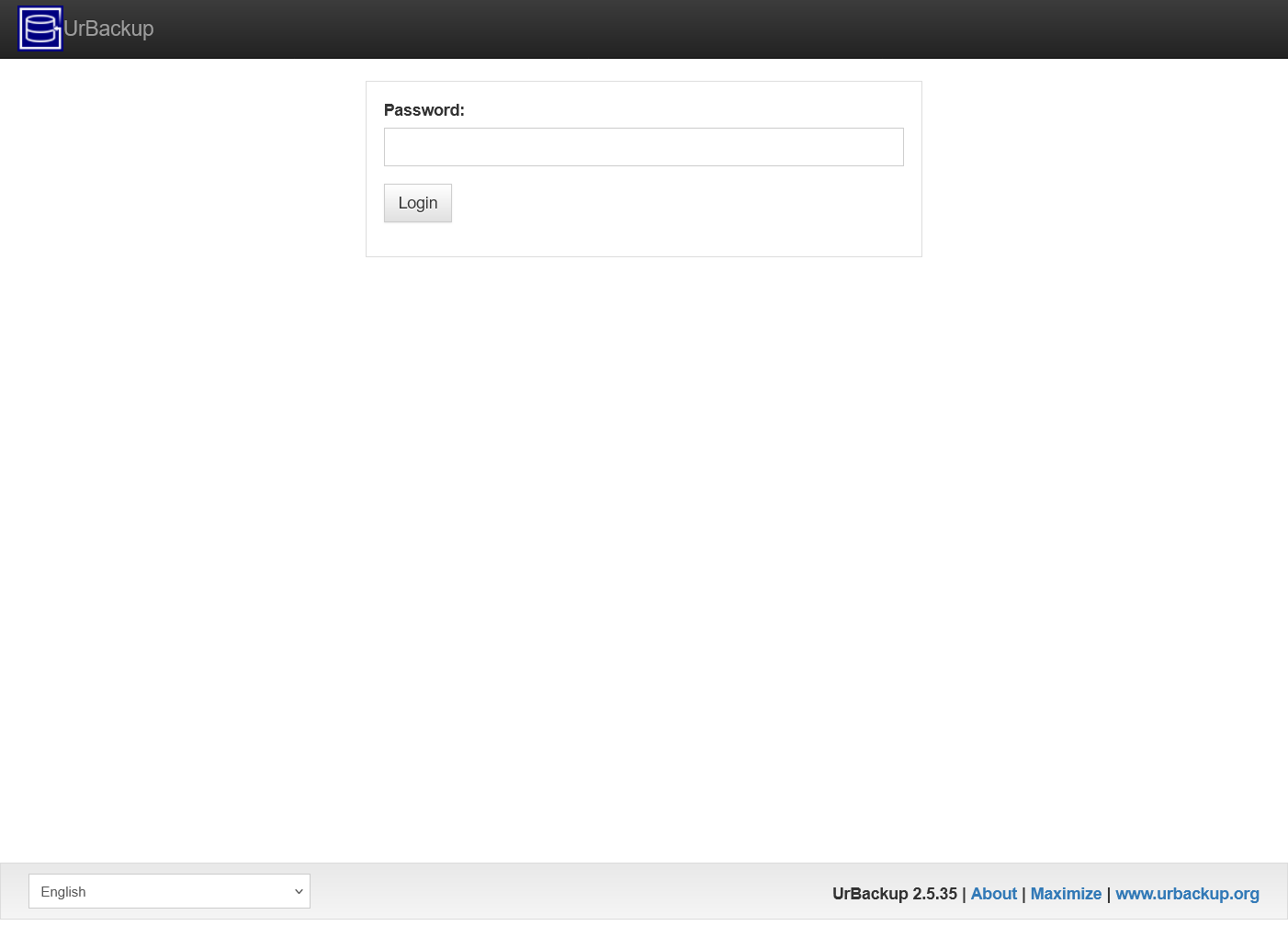
UrBackup server password page See that it only asks you for the password, not the username.
UrBackup’s web interface does not have a logout or disconnect button
To force the logout, manually refresh the page in your browser to get back to this password page.
Enabling SSL access to the UrBackup server
UrBackup server does not come with SSL/TLS support so, to secure the connections to the web interface, you have to put a reverse proxy in front of it. This chapter shows you how to do this with an nginx server, slightly adapting what is explained in this guide:
Open a remote terminal as
mgrsysto yourbkpserverVM, then install nginx withapt:$ sudo apt install -y nginxWith the
opensslcommand, create a self-signed TLS certificate for encrypting the HTTPS connections:$ sudo openssl req -x509 -nodes -days 3650 -newkey ec -pkeyopt ec_paramgen_curve:P-521 -subj "/O=Urb Security/OU=Urb/CN=Urb.local/CN=Urb" -addext "subjectAltName=DNS:bkpserver.homelab.cloud" -keyout /etc/ssl/certs/urb-cert.key -out /etc/ssl/certs/urb-cert.crtThe resulting key-pair generated by the openssl command above is encrypted with the ECDSA algorithm using the P-521 curve, just like the certificates generated for the Ghost, Forgejo and monitoring stack deployments already explained in this guide.
Create an empty file in the path
/etc/nginx/sites-available/urbackup.conf:$ sudo touch /etc/nginx/sites-available/urbackup.confEdit the new
urbackup.conffile so it has the following content:# Make UrBackup webinterface accessible via HTTPS server { # Define your listening https port listen 443 ssl; server_name bkpserver.homelab.cloud; # SSL configuration ssl_certificate /etc/ssl/certs/urb-cert.crt; ssl_certificate_key /etc/ssl/certs/urb-cert.key; # SSL configuration # Set the root directory and index files root /usr/share/urbackup/www; index index.htm; # This location we have to proxy the "x" file # to the running UrBackup FastCGI server location /x { include fastcgi_params; fastcgi_pass 127.0.0.1:55413; } # If requests reach the site using HTTP, redirect them to HTTPS error_page 497 https://$host:$server_port$request_uri; # Disable logs access_log off; error_log off; }Notice the
server_nameparameter with the domain for the UrBackup serverDo not forget to switch it with the one you are using in your homelab setup.
With this configuration, nginx listens for HTTPS requests on the standard HTTPS port
443to redirect them towards the UrBackup server which is listening in the55413port.Mind NOT specifying UrBackup server’s web console
55414portFor the redirection to work, ensure to point it towards the
55413port where UrBackup is also listening. Otherwise, the access to the web console will not work properly.You need to enable the UrBackup configuration in nginx:
$ sudo ln -s /etc/nginx/sites-available/urbackup.conf /etc/nginx/sites-enabled/urbackup.confDisable the
defaultconfiguration that nginx got enabled in its standard installation:$ sudo rm /etc/nginx/sites-enabled/defaultAt last, restart the nginx service to make it refresh its configuration:
$ sudo systemctl restart nginx.serviceTry to browse through HTTPS to your UrBackup server. For the configuration proposed in this guide, the correct HTTPS url is
https://bkpserver.homelab.cloud.
Firewall configuration on Proxmox VE
As you previously did for your K3s node VMs, you have to apply some firewall rules on Proxmox VE to increase the protection on your UrBackup server. In particular, you want this VM reachable only through the ports 22 (for SSH) and 443 (for HTTPS) on its net0 network device:
At the
Datacenterlevel, go toFirewall > Alias. There, add a new alias for thebkpservermain IP (the one for the first network device, namednet0in Proxmox VE):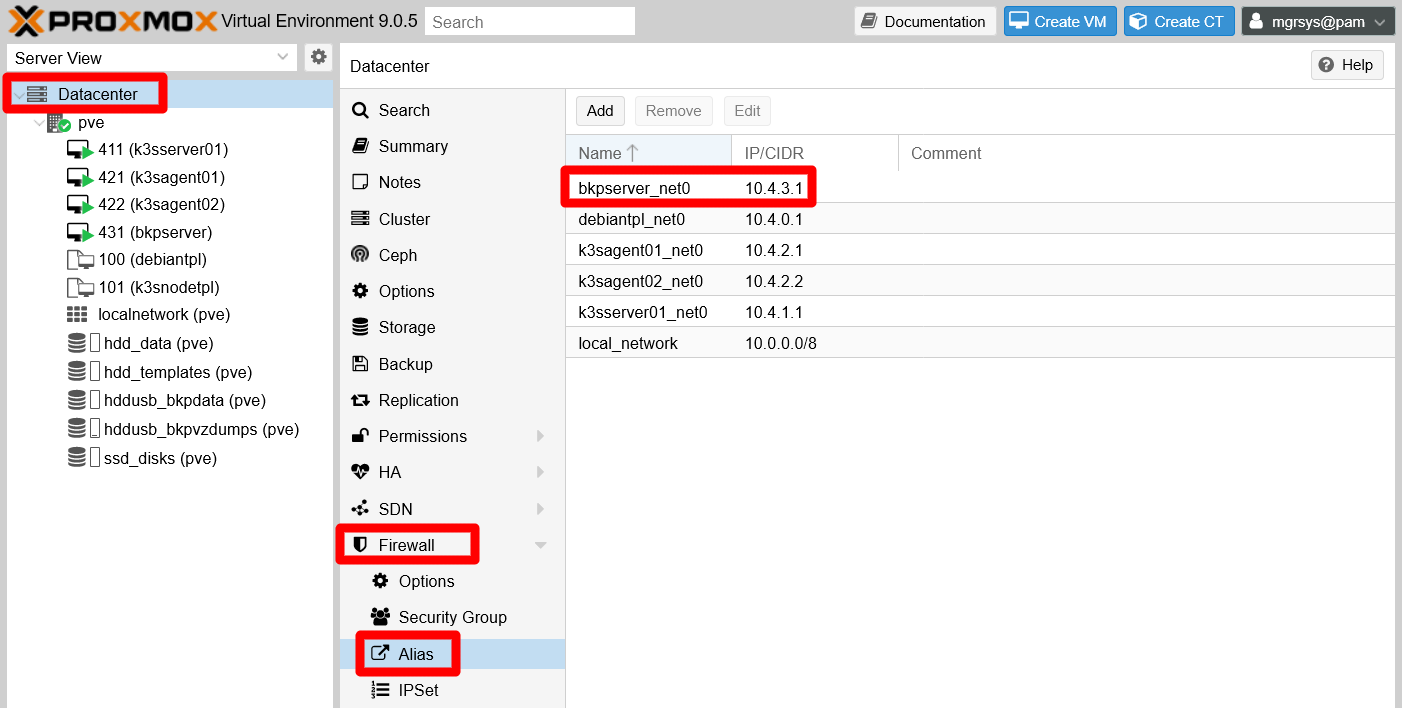
PVE Datacenter Firewall Alias bkpserver See above how the alias
bkpserver_net0is named after the VM is related to.Browse to the
Firewall > IPSettab. There create a new ipset that only includes thebkpserver_net0alias created before: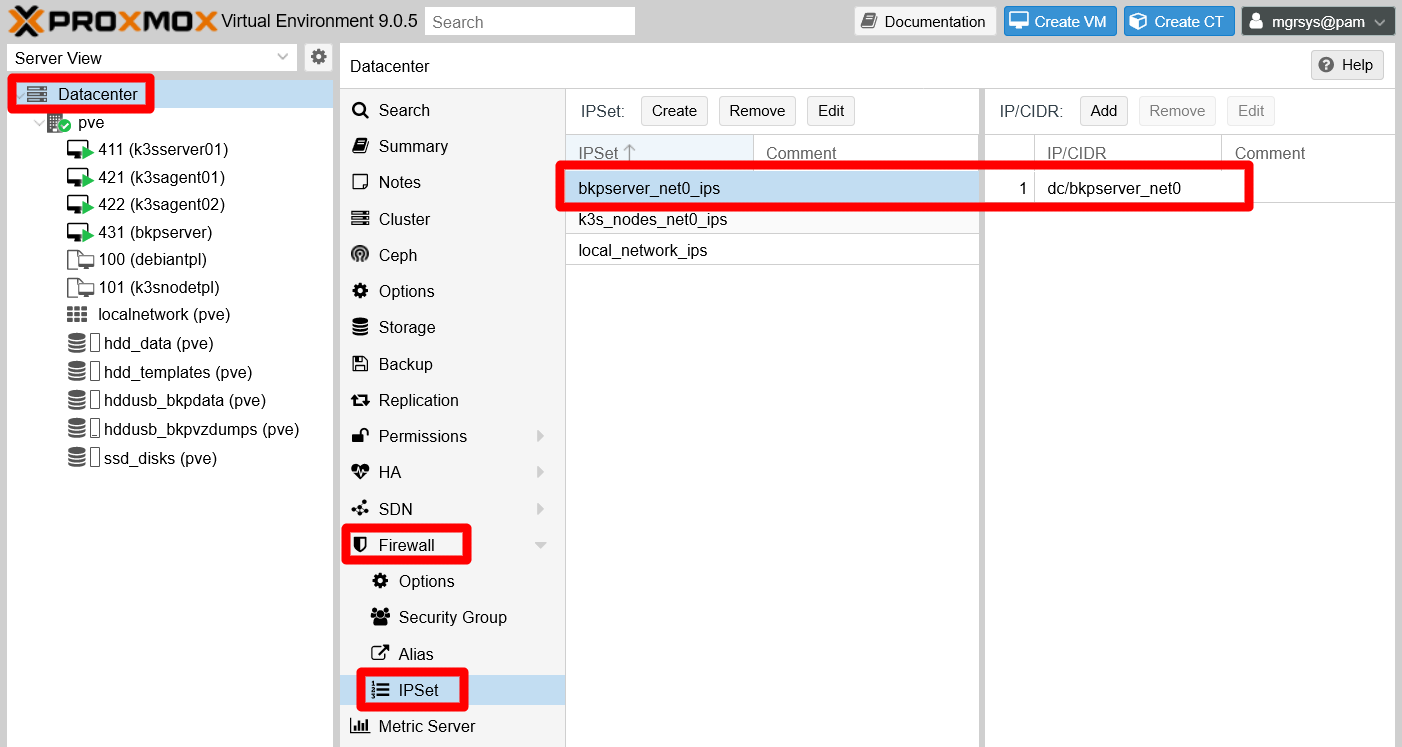
PVE Datacenter Firewall IPSet bkpserver Give this ipset a name related to the VM, like
bkpserver_net0_ips.Now go to the
Firewall > Security Group, where you should create a security group with a name such asbkpserver_net0_incontaining just the following rules:bkpserver_net0_in:- Rule 1: Type
in, ActionACCEPT, Protocoltcp, Sourcelocal_network_ips, Dest. port22, CommentSSH standard port open for entire local network. - Rule 2: Type
in, ActionACCEPT, Protocoltcp, Sourcelocal_network_ips, Dest. port443, CommentHTTPS standard port open for entire local network.
- Rule 1: Type
In the PVE web console, your new security group should look like in the snapshot below:
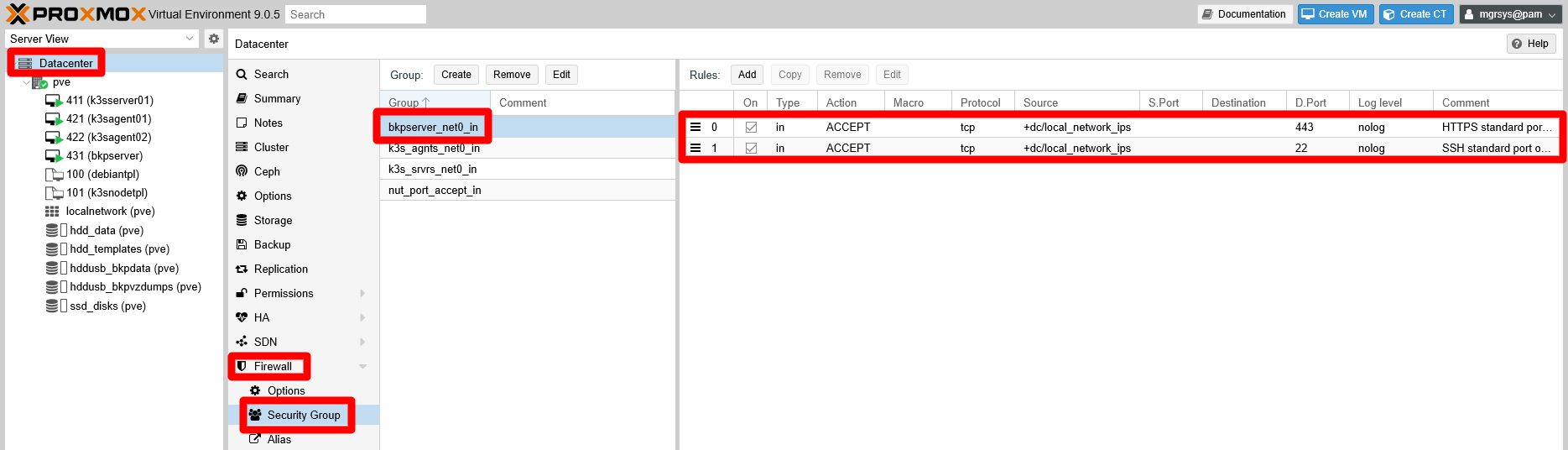
PVE Datacenter Firewall Security Group bkpserver Do not forget to enable these rules when you create them
Revise the
Oncolumn and check the ones you may have left disabled.Browse to the
Firewallpage of thebkpserverVM. Here you must press theInsert: Security Groupto apply the new security group on this VM: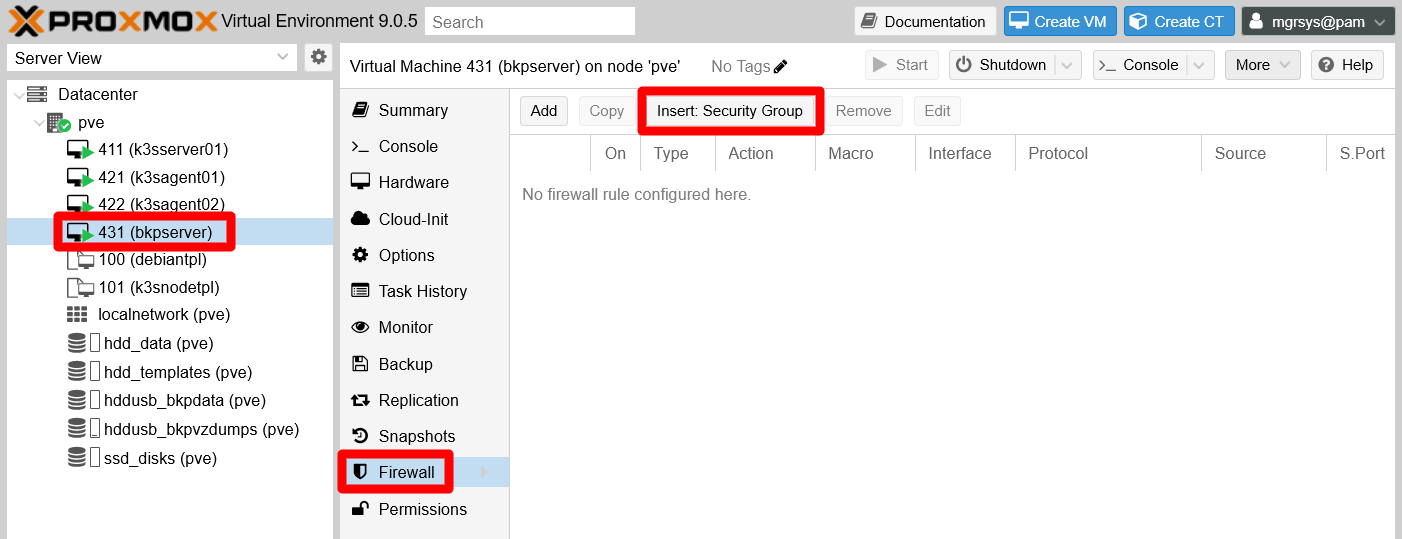
PVE VM Firewall empty bkpserver In the form that appears, be sure of choosing the security group related to this VM (
bkpserver_net0_inin this guide). Also specify the correct network interface on which the security group must be applied (net0), and do not forget to leave the rule enabled!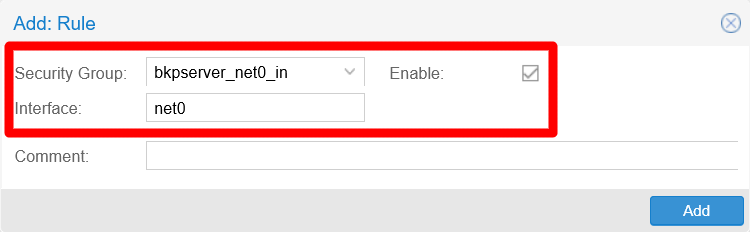
PVE VM Firewall bkpserver rule The security group rule should appear now in the
bkpserverVM firewall: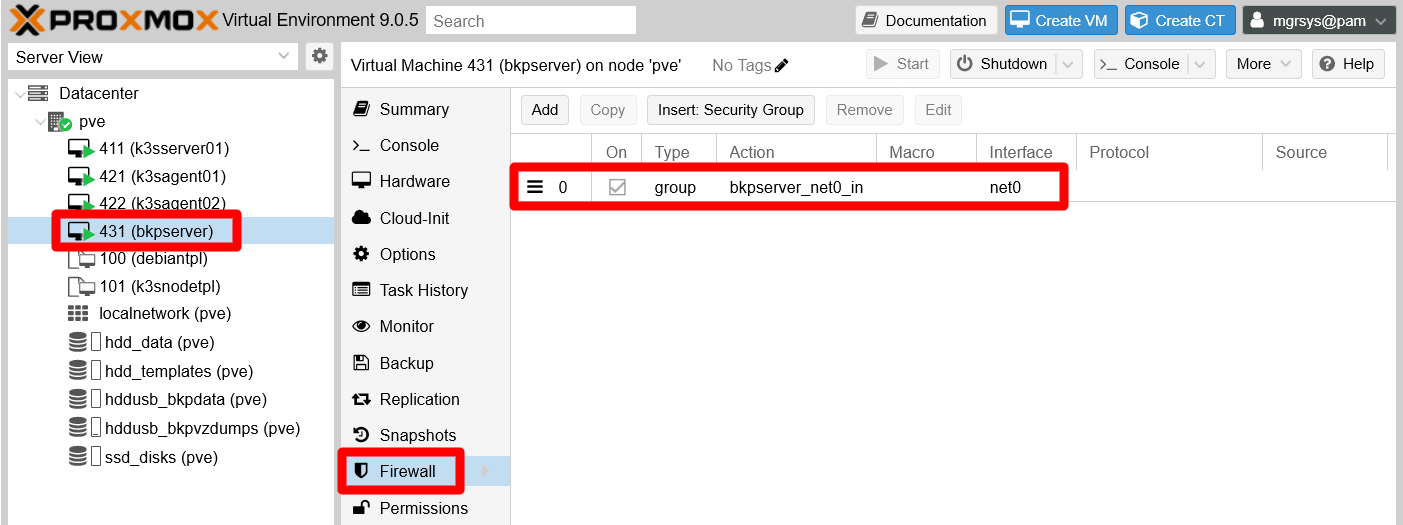
PVE VM Firewall bkpserver with security group rule Go to the
Firewall > IPsetsection of the VM, where you have to add an IP set for the IP filter you will enable later on thenet0network device of this VM. Remember that the IP set name must begin with the stringipfilter-, then followed by the network device’s name (net0here), otherwise the ipfilter will not work. As shown below, this IP set must contain only the alias of this VM main network device’s IP (bkpserver_net0in this case):
PVE VM Firewall IPSet for bkpserver ipfilter To enable the firewall on this VM, click on the
Firewall > Optionstab. There you have to adjust the options as shown in the following snapshot: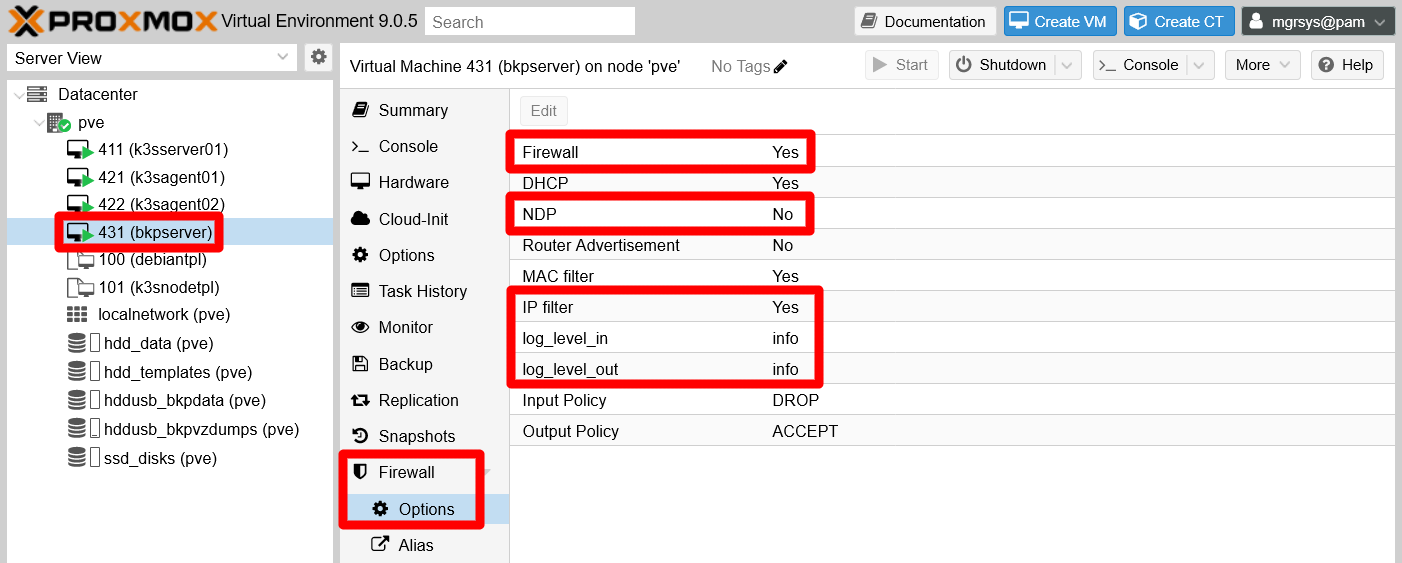
PVE VM Firewall Options bkpserver The options that have been changed are highlighted in red:
The
NDPoption is disabled because is only useful for IPv6 networking, which is not active in your VM.The
IP filteris enabled, which helps to avoid IP spoofing.Enabling the
IP filteroption is not enoughYou need to specify the concrete IPs allowed on the network interface in which you want to apply this security measure, something you have just done in the previous step.
The
log_level_inandlog_level_outoptions are set toinfo, enabling the logging of the firewall on the VM. This allows you to see, in theFirewall > Logview of the VM, any incoming or outgoing traffic that gets dropped or rejected by the firewall.
As a final verification, try now browsing to your UrBackup server web interface on the HTTPS url, but also on the HTTP one. Only the HTTPS one should work, while trying to connect with unsecured HTTP should return a time-out or similar error.
On the other hand, also try to connect with your preferred SSH client. If any of these checks fails, go over this procedure again to find what you might have missed!
Adjusting the UrBackup server configuration
Like any other software, the UrBackup server comes with a default configuration that requires some retouching to better fit your circumstances. In particular, you will see in this section how to adjust relevant general options.
Specifying the server URL for UrBackup clients
To enable to UrBackup clients the capacity of accessing and restoring the backups stored in the server, you need to specify the concrete server URL they have to reach to do so:
Browse to the
Settingstab of yor UrBackup server’s web interface. By default, this page puts you on theGeneral > Serveroptions view. There, you can see the empty parameterServer URL for client file/backup access/browsing: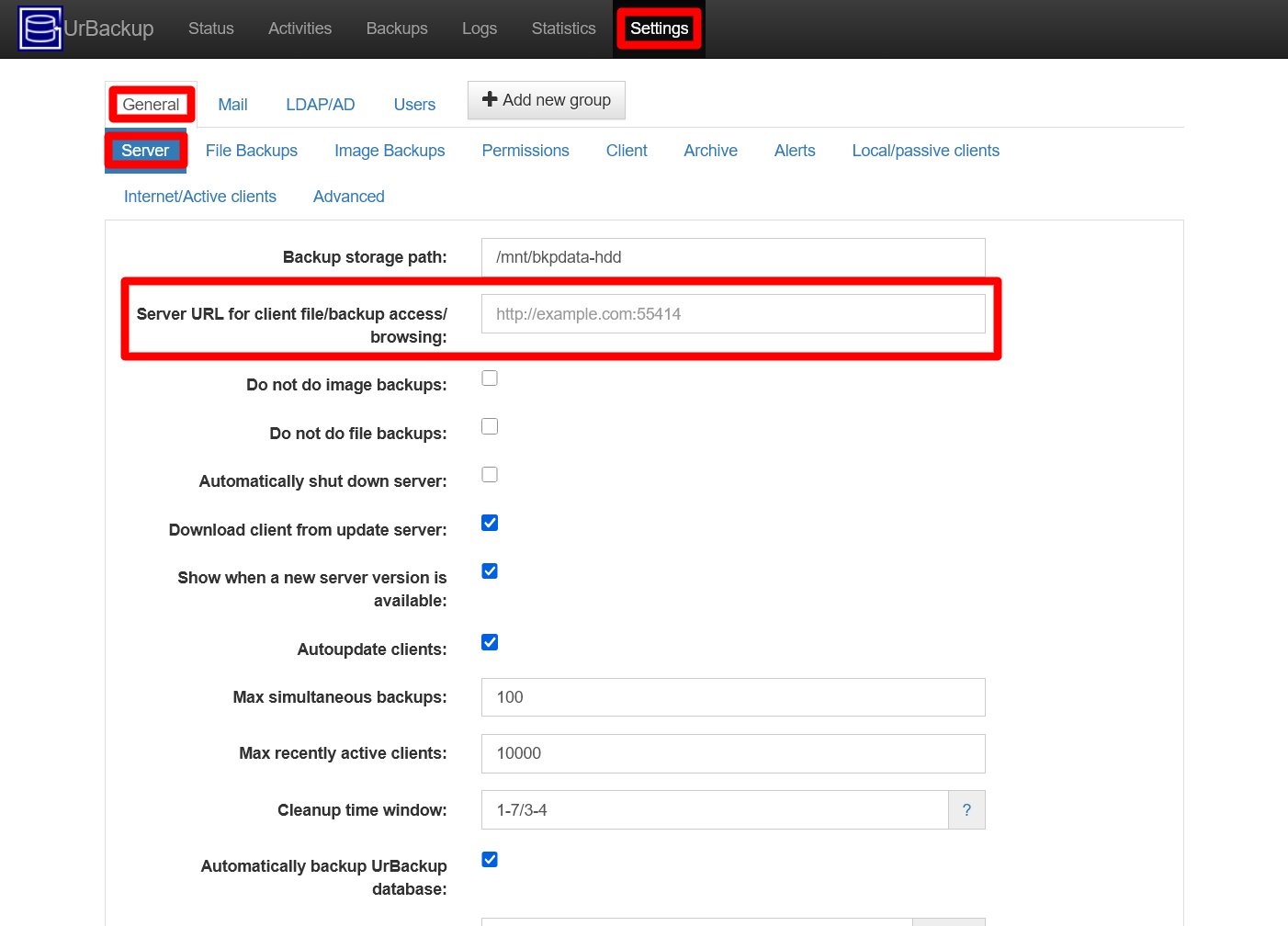
UrBackup server Settings General Server view By default, that
Server URLparameter is empty. You have to specify here the secondary network device IP (172.16.3.1in this guide) plus the UrBackup server port (55414), and all of this preceded by thehttpprotocol. So, the URL in this guide ishttp://172.16.3.1:55414, as shown in the next snapshot: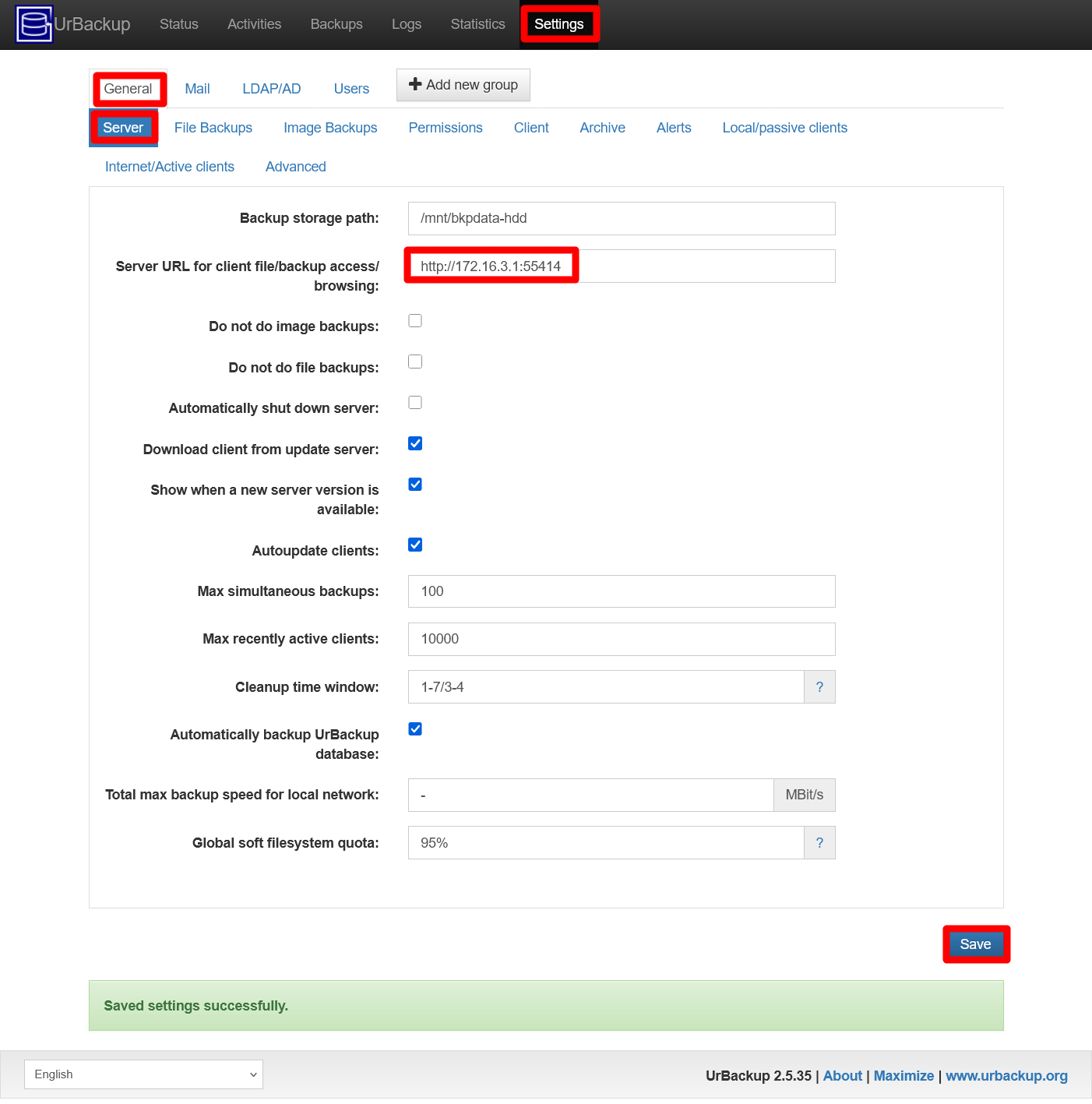
UrBackup server Settings General Server URL set Press on
Saveto apply the change, which should show you a success message at the bottom of the page: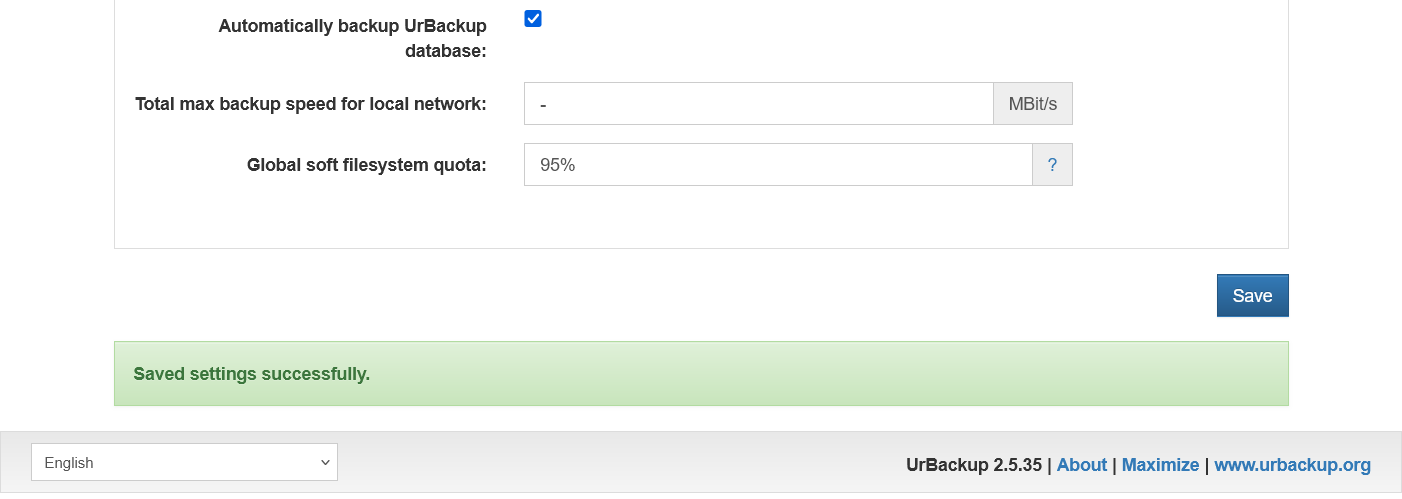
UrBackup server Settings General Server URL set success message Now click on the
General > Internet/Active clientstab. In this page, there is aServer URL clients connect tofield where you also have to specify the same IP and port as before, although respecting theurbackupprotocol string already set there:
UrBackup server Settings General Internet/Active clients Server url empty Type in the
Server URLfield the correct string, which for this guide isurbackup://172.16.3.1:55414, as seen in the capture next:
UrBackup server Settings General Internet/Active clients Server url set Press the
Savebutton to apply the change, which should show you the same success message as before at the bottom of the page.
Disabling the image backups
By default, the UrBackup server automatically executes a full image backup from any client it is connected to. Since you already have full images done by Proxmox VE, you do not need to do the same thing again with UrBackup.
On the other hand, this procedure would fail with your K3s node VMs because the tool UrBackup uses in the clients to create the images is incompatible with the ext2 filesystem used in the boot partition used on all your Debian VMs.
With all this in mind, the best thing to do in this homelab scenario is to disable, in your UrBackup server, the full image backups feature altogether:
Return to the
Settings > General > Serveroptions view of your UrBackup server’s web interface. There you find the optionDo not do image backupsunchecked: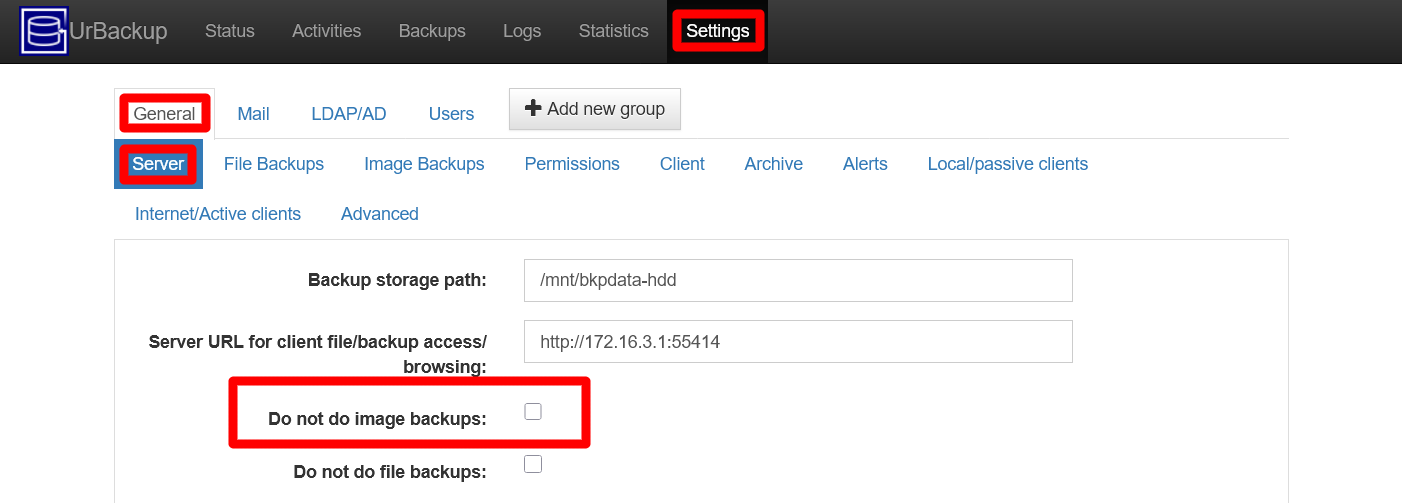
UrBackup server Settings General Server images backup enabled Check the
Do not do image backupsoption and then press theSavebutton: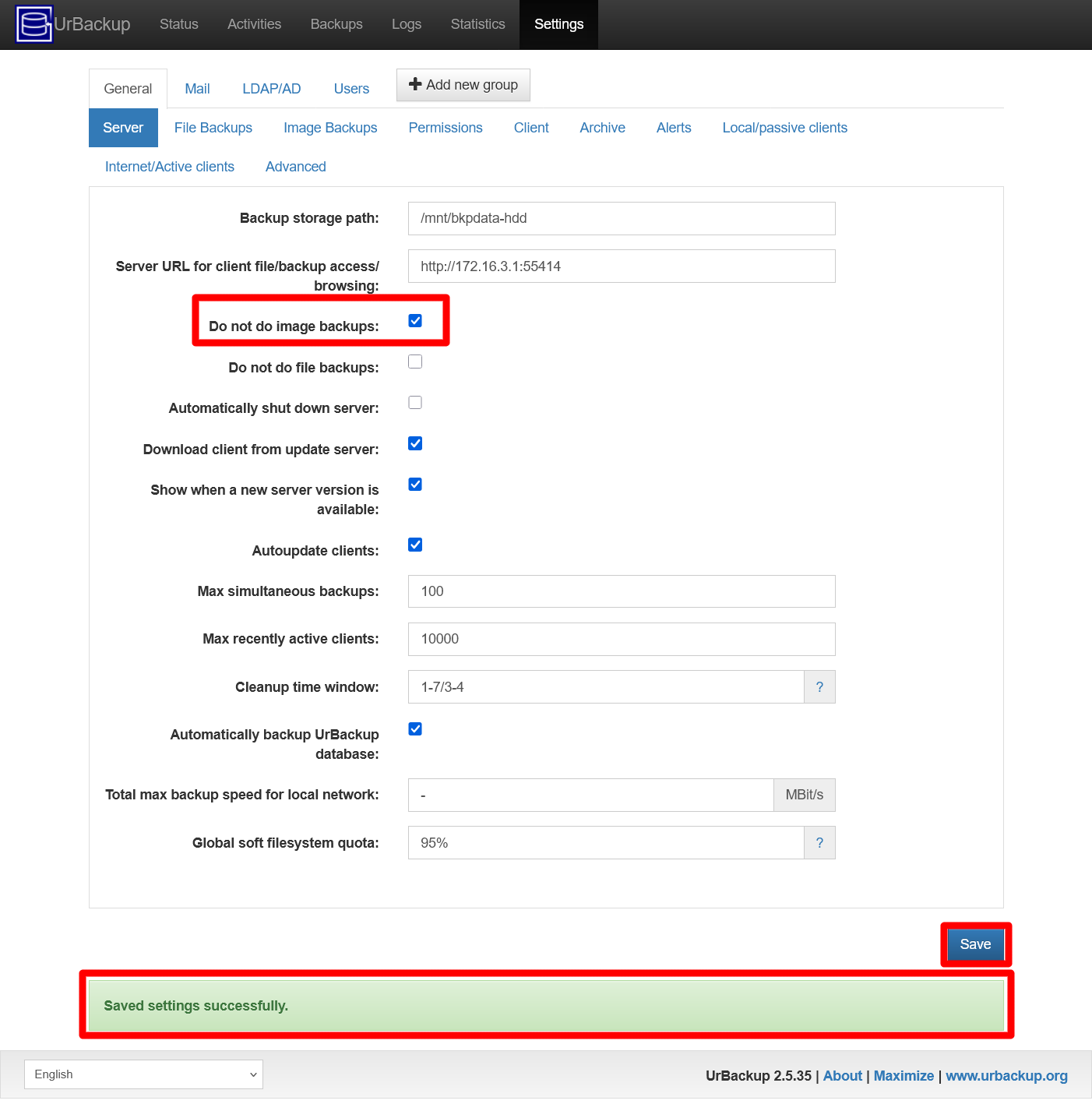
UrBackup server Settings General Server images backup disabled Again, due to a bug in the UrBackup server’s web interface, you can still see the success message from the previous change. Because of this, after pressing
Save, the same success warning just stays there.
UrBackup server log file
Like other services, the UrBackup server has a log file found in the /var/log directory. It’s full path is /var/log/urbackup.log.
This log is rotated, and its default rotation configuration is set in the file /etc/logrotate.d/urbackupsrv.
About backing up the UrBackup server VM
You may consider to schedule in Proxmox VE a job to backup this VM, as it was done for the K3s node VMs. If you want to do this, please bear in mind the following concerns:
Remember that the backup job copies and compresses all the storages attached to the VM. This is important since the storage drive where UrBackup stores its backups is not only big, but also uses the btrfs filesystem that may not agree well with the Proxmox VE backup procedure.
Careful with the storage space you have for backups within Proxmox VE, because the images of this VM may eat that space faster than the backups of other VMs.
Do not include the UrBackup server VM in the same backup job with other VMs. You want it apart from the others so you can schedule it at a different and more convenient time.
Relevant system paths
Directories on Debian VM
$HOME$HOME/.ssh/etc/etc/initramfs-tools/conf.d/etc/nginx/etc/nginx/sites-available/etc/nginx/sites-enabled/etc/ssl/certs/mnt/mnt/bkpdata-hdd/proc/var/log
Files on Debian VM
$HOME/.google_authenticator$HOME/.ssh/authorized_keys$HOME/.ssh/id_rsa$HOME/.ssh/id_rsa.pub/etc/fstab/etc/initramfs-tools/conf.d/resume/etc/nginx/sites-available/urbackup.conf/etc/nginx/sites-enabled/default/etc/nginx/sites-enabled/urbackup.conf/etc/ssl/certs/urb-cert.crt/etc/ssl/certs/urb-cert.key/proc/swaps/var/log/urbackup.log