Outlining setup and arranging storage
Outlining Forgejo’s setup
As you did with Ghost, you must figure out first how to set up all the components to become part of your Forgejo setup:
Database
PostgreSQL with its data saved in a local SSD storage drive.Cache server
Valkey instance configured to persist its database for faster startup in a local SSD storage drive.Forgejo’s application data folder
Persistent volume prepared on a local SSD storage drive.Forgejo users’ repositories
Persistent volume prepared on a local HDD storage drive.Forgejo’s Git Large File Storage (LFS)
Forgejo is able to use the LFS extensión of Git to handle large files like audios or videos. In this Forgejo setup, those files are going to be stored in the same persistent volume reserved for the users’ repositories.
The whole Forgejo setup is going to run on the same K3s agent node, which will be also the one providing the persistent storage needed for the Forgejo components.
Choosing the K3s agent
The K3s agent chosen for the Ghost setup was the k3sagent02 VM. To balance the workload in the cluster, better deploy Forgejo in the k3sagent01 VM instead.
Setting up new storage drives in the K3s agent
The first thing to setup is the storage, which has to be arranged in the k3sagent01 agent node in a very similar way as you did for the Ghost deployment:
- One virtual SSD drive containing three LVM volumes.
- One virtual HDD drive holding one LVM volume.
Adding the new storage drives to the K3s agent node’s VM
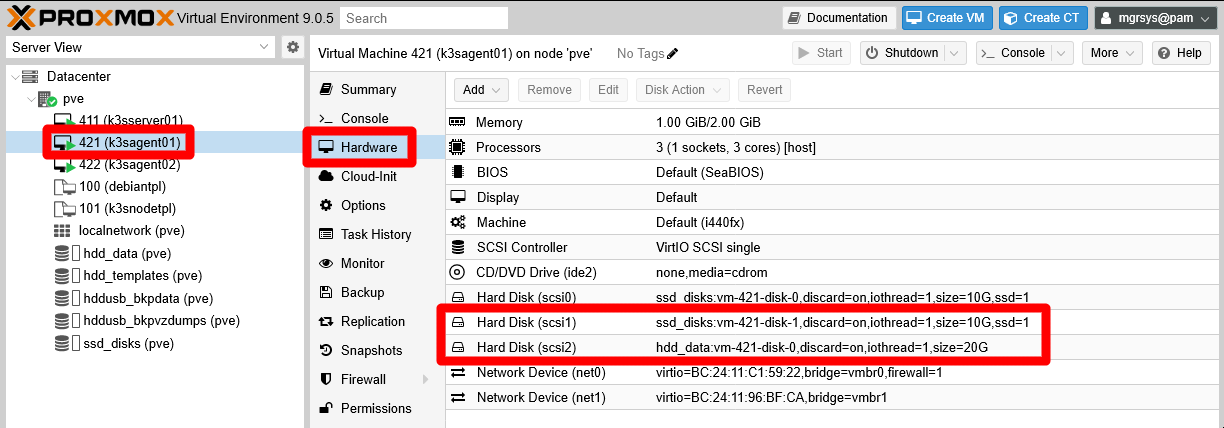
Go to the Hardware tab of your k3sagent01 VM and add two hard disks with the following characteristics:
SSD drive
Storagessd_disks, DiscardENABLED, Disk size10 GiB, SSD emulationENABLED, IO threadENABLED, rest of options left with their default values.HDD drive
Storagehdd_data, DiscardENABLED, Disk size20 GiB, SSD emulationDISABLED, IO threadENABLED, rest of options left with their default values.
These new storage drives should appear as Hard Disks in the Hardware list of the k3sagent01 VM.
LVM storage set up
Since the two new storage drives are already active in your k3sagent01 VM, you can create the necessary LVM volumes in them:
Open a shell into your VM and check with
fdiskthe new drives:$ sudo fdisk -l Disk /dev/sda: 10 GiB, 10737418240 bytes, 20971520 sectors Disk model: QEMU HARDDISK Units: sectors of 1 * 512 = 512 bytes Sector size (logical/physical): 512 bytes / 512 bytes I/O size (minimum/optimal): 512 bytes / 512 bytes Disklabel type: dos Disk identifier: 0x5dc9a39f Device Boot Start End Sectors Size Id Type /dev/sda1 * 2048 1556479 1554432 759M 83 Linux /dev/sda2 1558526 20969471 19410946 9.3G f W95 Ext'd (LBA) /dev/sda5 1558528 20969471 19410944 9.3G 8e Linux LVM Disk /dev/mapper/k3snode--vg-root: 9.25 GiB, 9936306176 bytes, 19406848 sectors Units: sectors of 1 * 512 = 512 bytes Sector size (logical/physical): 512 bytes / 512 bytes I/O size (minimum/optimal): 512 bytes / 512 bytes Disk /dev/sdb: 10 GiB, 10737418240 bytes, 20971520 sectors Disk model: QEMU HARDDISK Units: sectors of 1 * 512 = 512 bytes Sector size (logical/physical): 512 bytes / 512 bytes I/O size (minimum/optimal): 512 bytes / 512 bytes Disk /dev/sdc: 20 GiB, 21474836480 bytes, 41943040 sectors Disk model: QEMU HARDDISK Units: sectors of 1 * 512 = 512 bytes Sector size (logical/physical): 512 bytes / 512 bytes I/O size (minimum/optimal): 512 bytes / 512 bytesThe two new drives are the disks named
/dev/sdband/dev/sdc.Create a new GPT partition on each of the new storage drives with
sgdisk:$ sudo sgdisk -N 1 /dev/sdb $ sudo sgdisk -N 1 /dev/sdcCheck with
fdiskthat now you have a new partition on each storage drive:$ sudo fdisk -l /dev/sdb /dev/sdc Disk /dev/sdb: 10 GiB, 10737418240 bytes, 20971520 sectors Disk model: QEMU HARDDISK Units: sectors of 1 * 512 = 512 bytes Sector size (logical/physical): 512 bytes / 512 bytes I/O size (minimum/optimal): 512 bytes / 512 bytes Disklabel type: gpt Disk identifier: 7A2C3D0A-F4E2-428B-A84B-B1EC39731206 Device Start End Sectors Size Type /dev/sdb1 2048 20971486 20969439 10G Linux filesystem Disk /dev/sdc: 20 GiB, 21474836480 bytes, 41943040 sectors Disk model: QEMU HARDDISK Units: sectors of 1 * 512 = 512 bytes Sector size (logical/physical): 512 bytes / 512 bytes I/O size (minimum/optimal): 512 bytes / 512 bytes Disklabel type: gpt Disk identifier: 72272E78-E280-4B3F-9F22-EC34DC3F92BE Device Start End Sectors Size Type /dev/sdc1 2048 41943006 41940959 20G Linux filesystemNow you have the partitions
/dev/sdb1and/dev/sdc1on their respective drives.With
pvcreate, make a new LVM physical volume with each partition:$ sudo pvcreate --metadatasize 10m -y -ff /dev/sdb1 $ sudo pvcreate --metadatasize 20m -y -ff /dev/sdc1For the metadata size, remember that this guide uses the rule of thumb of allocating 1 MiB per 1 GiB present in the PV.
Check with
pvsthat the PVs have been created:$ sudo pvs PV VG Fmt Attr PSize PFree /dev/sda5 k3snode-vg lvm2 a-- 9.25g 0 /dev/sdb1 lvm2 --- <10.00g <10.00g /dev/sdc1 lvm2 --- <20.00g <20.00gNext, assign a volume group to each PV, being aware of the following:
- The two drives are running on different storage hardware, so you must clearly differentiate their storage space.
- Forgejo’s cache and database data will be stored in
/dev/sdb1, on the SSD drive. - Forgejo’s application data files will be also stored in
/dev/sdb1, on the SSD drive. - Forgejo’s users git repositories and Git LFS will be kept in
/dev/sdc1, on the HDD drive.
Knowing that, create two volume groups with
vgcreate:$ sudo vgcreate forgejo-ssd /dev/sdb1 $ sudo vgcreate forgejo-hdd /dev/sdc1With
pvscheck that each PV is assigned to their corresponding VG:$ sudo pvs PV VG Fmt Attr PSize PFree /dev/sda5 k3snode-vg lvm2 a-- 9.25g 0 /dev/sdb1 forgejo-ssd lvm2 a-- 9.98g 9.98g /dev/sdc1 forgejo-hdd lvm2 a-- <19.98g <19.98gAlso check with
vgsthe current status of the VGs:$ sudo vgs VG #PV #LV #SN Attr VSize VFree forgejo-hdd 1 0 0 wz--n- <19.98g <19.98g forgejo-ssd 1 0 0 wz--n- 9.98g 9.98g k3snode-vg 1 1 0 wz--n- 9.25g 0Create the required light volumes on each VG with
lvcreate. Remember the purpose of each LV and give them meaningful names:$ sudo lvcreate -l 30%FREE -n cache forgejo-ssd $ sudo lvcreate -l 70%FREE -n db forgejo-ssd $ sudo lvcreate -l 100%FREE -n data forgejo-ssd $ sudo lvcreate -l 100%FREE -n git forgejo-hddRemember what the
%FREEpercentage in thelvcreatecommand meansThe
%FREEnumber indicates the percentage thelvcreatecommand takes from what is currently free (unassigned) in the volume group to create the light volume.In the shell snippet above:
- The first
lvcreatecommand takes 30% of the 10GiB available in theforgejo-ssdVG at that moment. - The second
lvcreatecommand takes the 70% (about 5GiB) of the approximately 7GiB remaining in theforgejo-ssdVG. - The third
lvcreatecommand uses all the remaining (100%) free space left (about 2GiB) in theforgejo-ssdVG. - The last
lvcreatecommand takes up all the free space available in theforgejo-hddVG.
Check with
lvsthe new LVs in your VM:$ sudo lvs LV VG Attr LSize Pool Origin Data% Meta% Move Log Cpy%Sync Convert git forgejo-hdd -wi-a----- <19.98g cache forgejo-ssd -wi-a----- 2.99g data forgejo-ssd -wi-a----- <2.10g db forgejo-ssd -wi-a----- 4.89g root k3snode-vg -wi-ao---- 9.25gAlso verify with
vgsthat there is no free space left in any of the VGs:$ sudo vgs VG #PV #LV #SN Attr VSize VFree forgejo-hdd 1 1 0 wz--n- <19.98g 0 forgejo-ssd 1 3 0 wz--n- 9.98g 0 k3snode-vg 1 1 0 wz--n- 9.25g 0- The first
Formatting and mounting the new LVs
The new light volumes have to be formatted as ext4 filesystems and mounted:
Get the LVs
/dev/mapperpaths withfdiskandgrep:$ sudo fdisk -l | grep forgejo Disk /dev/mapper/forgejo--ssd-cache: 2.99 GiB, 3212836864 bytes, 6275072 sectors Disk /dev/mapper/forgejo--ssd-db: 4.89 GiB, 5255462912 bytes, 10264576 sectors Disk /dev/mapper/forgejo--ssd-data: 2.1 GiB, 2252341248 bytes, 4399104 sectors Disk /dev/mapper/forgejo--hdd-git: 19.98 GiB, 21449670656 bytes, 41893888 sectorsExecute the
mkfs.ext4command on each of the/dev/mapper/forgejopaths:$ sudo mkfs.ext4 /dev/mapper/forgejo--ssd-cache $ sudo mkfs.ext4 /dev/mapper/forgejo--ssd-db $ sudo mkfs.ext4 /dev/mapper/forgejo--ssd-data $ sudo mkfs.ext4 /dev/mapper/forgejo--hdd-gitCreate a folder tree to mount the LVs in under the
/mntpath:$ sudo mkdir -p /mnt/forgejo-ssd/{cache,db,data} /mnt/forgejo-hdd/gitCheck the directory structure with
tree:$ tree -F /mnt /mnt/ ├── forgejo-hdd/ │ └── git/ └── forgejo-ssd/ ├── cache/ ├── data/ └── db/ 7 directories, 0 filesMount the LVs in their corresponding mount points:
$ sudo mount /dev/mapper/forgejo--ssd-cache /mnt/forgejo-ssd/cache
$ sudo mount /dev/mapper/forgejo--ssd-db /mnt/forgejo-ssd/db
$ sudo mount /dev/mapper/forgejo--ssd-data /mnt/forgejo-ssd/data
$ sudo mount /dev/mapper/forgejo--hdd-git /mnt/forgejo-hdd/git
Check with
dfthat they have been mounted correctly, appearing at the command output’s bottom:$ df -h Filesystem Size Used Avail Use% Mounted on udev 965M 0 965M 0% /dev tmpfs 198M 1.3M 197M 1% /run /dev/mapper/k3snode--vg-root 9.1G 6.8G 1.8G 80% / tmpfs 987M 0 987M 0% /dev/shm tmpfs 5.0M 0 5.0M 0% /run/lock tmpfs 987M 0 987M 0% /tmp tmpfs 1.0M 0 1.0M 0% /run/credentials/systemd-journald.service /dev/sda1 730M 111M 567M 17% /boot tmpfs 1.0M 0 1.0M 0% /run/credentials/getty@tty1.service shm 64M 0 64M 0% /run/k3s/containerd/io.containerd.grpc.v1.cri/sandboxes/b8fbd6c304ba2e7a560a84c37c5aae85ca064291434941c2b2a5059a2cbd798a/shm shm 64M 0 64M 0% /run/k3s/containerd/io.containerd.grpc.v1.cri/sandboxes/c38a99510ae6dfc3c1637ca801c7a97ce5d2667d6cc4c2cc916f0580b9d13952/shm shm 64M 0 64M 0% /run/k3s/containerd/io.containerd.grpc.v1.cri/sandboxes/7cd707481d7a27d2b747eaeec00ab0de1d895bceda06ec89730dbff9c1264a89/shm shm 64M 0 64M 0% /run/k3s/containerd/io.containerd.grpc.v1.cri/sandboxes/d0a34b9060d8f54a749c2533a116afdcc91392287f121d155e0d248d0ea1a60c/shm tmpfs 185M 8.0K 185M 1% /run/user/1000 /dev/mapper/forgejo--ssd-cache 2.9G 788K 2.8G 1% /mnt/forgejo-ssd/cache /dev/mapper/forgejo--ssd-db 4.8G 1.3M 4.5G 1% /mnt/forgejo-ssd/db /dev/mapper/forgejo--ssd-data 2.0G 560K 1.9G 1% /mnt/forgejo-ssd/data /dev/mapper/forgejo--hdd-git 20G 2.1M 19G 1% /mnt/forgejo-hdd/gitMake those mountings permanent, by adding them to the VM’s
/etc/fstabfile. First, backup the file:$ sudo cp /etc/fstab /etc/fstab.bkpThen append the following lines to the
fstabfile:# Forgejo volumes /dev/mapper/forgejo--ssd-cache /mnt/forgejo-ssd/cache ext4 defaults,nofail 0 0 /dev/mapper/forgejo--ssd-db /mnt/forgejo-ssd/db ext4 defaults,nofail 0 0 /dev/mapper/forgejo--ssd-data /mnt/forgejo-ssd/data ext4 defaults,nofail 0 0 /dev/mapper/forgejo--hdd-git /mnt/forgejo-hdd/git ext4 defaults,nofail 0 0
Storage mount points for Forgejo containers
With the LVs mounted, you can create within them the k3smnt folders that will act as mounting points for the Forgejo containers’ persistent volumes:
Use the following
mkdircommand to create ak3smntfolder within each Forgejo storage volume:$ sudo mkdir /mnt/{forgejo-ssd/cache,forgejo-ssd/db,forgejo-ssd/data,forgejo-hdd/git}/k3smntCheck with
treethat the folders have been created where they should:$ tree -F /mnt /mnt/ ├── forgejo-hdd/ │ └── git/ │ ├── k3smnt/ │ └── lost+found/ [error opening dir] └── forgejo-ssd/ ├── cache/ │ ├── k3smnt/ │ └── lost+found/ [error opening dir] ├── data/ │ ├── k3smnt/ │ └── lost+found/ [error opening dir] └── db/ ├── k3smnt/ └── lost+found/ [error opening dir] 15 directories, 0 filesIgnore the
lost+foundfolders, they are created by the system automatically.
The k3smnt folders exist within the already mounted LVM storage volumes!
You cannot create those folders without mounting the light volumes first.
About increasing the size of volumes
If, after a time using and filling up these volumes, you need to increase their size, take a look to the appendix about resizing a root LVM volume. It shows you how to extend a partition and the LVM filesystem within it, although in that case it is done on a LV volume that happens to be also the root filesystem of a VM.
Relevant system paths
Folders in K3s agent node’s VM
/etc/mnt/mnt/forgejo-hdd/mnt/forgejo-hdd/git//mnt/forgejo-hdd/git/k3smnt/mnt/forgejo-ssd/mnt/forgejo-ssd/cache//mnt/forgejo-ssd/cache/k3smnt/mnt/forgejo-ssd/data//mnt/forgejo-ssd/data/k3smnt/mnt/forgejo-ssd/db/mnt/forgejo-ssd/db/k3smnt
Files in K3s agent node’s VM
/dev/mapper/forgejo--hdd-git/dev/mapper/forgejo--ssd-cache/dev/mapper/forgejo--ssd-data/dev/mapper/forgejo--ssd-db/dev/sdb/dev/sdb1/dev/sdc/dev/sdc1/etc/fstab/etc/fstab.bkp