Outlining setup and arranging storage
Outlining Ghost’s setup
You must define how you want to setup Ghost in your cluster, meaning that you have to decide beforehand how to solve the following points:
Ghost can use a cache server. Which one you want to use and will it be exclusive to the Ghost instance?
For storing operation-related data, Ghost requires a database. Which one are you going to use and how you will setup it?
Where in your K3s cluster the data produced by Ghost’s components should be placed?
This guide solves the previous points as follows:
Cache server
Ghost can work with Redis, but this guide rather opts for the compatible alternative Valkey configured to have data persistence on a local SSD storage drive.Database
Ghost’s documentation specifies MySQL as the database of choice, but this guide picks instead the compatible alternative MariaDB with its data saved in a local SSD storage drive.Ghost server
Its contents data will be stored in a persistent volume prepared on a local HDD storage drive.
Also be aware that all the services making up this Ghost platform are going to run in the same K3s agent node. This is because all the local storage is going to be enabled in one agent node, and Kubernetes applies the affinity rule of making pods run in the node that provides their storage.
Choosing the K3s agent node for running Ghost
Your cluster has only two K3s agent nodes, and the two of them are already running services. For running the whole Ghost setup, choose the one that currently has the lowest CPU and RAM usage of the two. The node picked in this guide is the k3sagent02 node.
Setting up new storage drives in the K3s agent node
Given how the K3s cluster has been configured in this guide, the only persistent volumes you can use are local ones. They rely on paths found in the K3s node VM’s host system, but you do not want to use the root filesystem in which the underlying Debian OS is installed. It is better and safer to have separate drives for each persistent volume, and you can create those storage drives directly from your Proxmox VE web console.
Adding the new storage drives to the K3s agent node’s VM
Here you are going to create two virtual storage drives (called “hard disks” in Proxmox), one in the real HDD drive and another in the SSD unit:
Log in your Proxmox VE web console and go to the
Hardwarepage of your chosen K3s agent’s VM. There, click on theAddbutton and then on theHard Diskoption: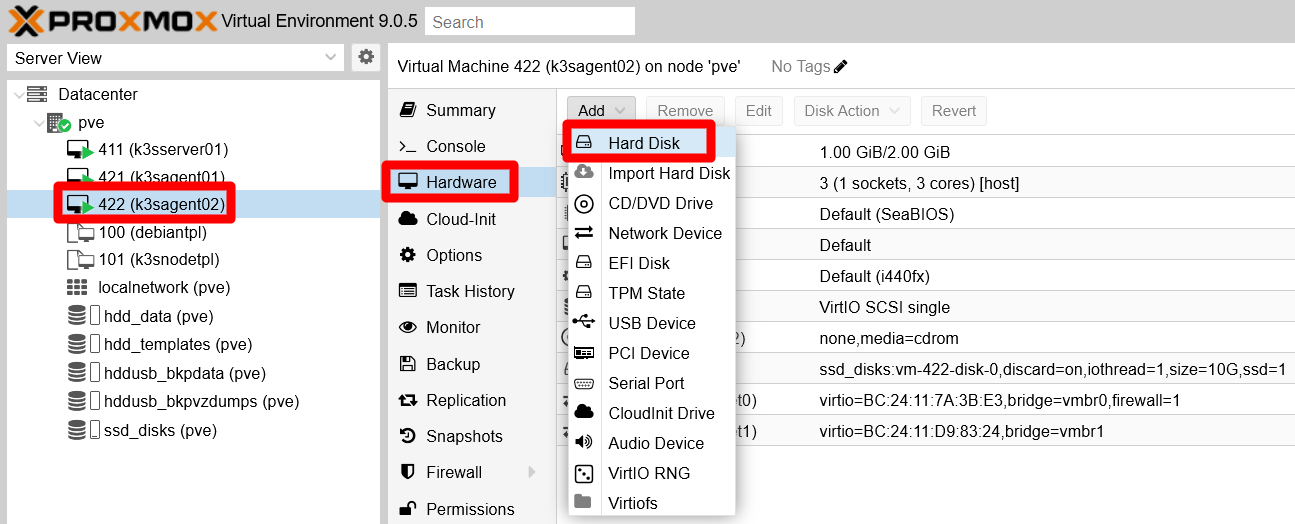
Add Hard Disk option in K3s agent node Use the “Hard Disk” form (already seen in the creation of the first Debian VM) to add two “hard disks” in your VM:
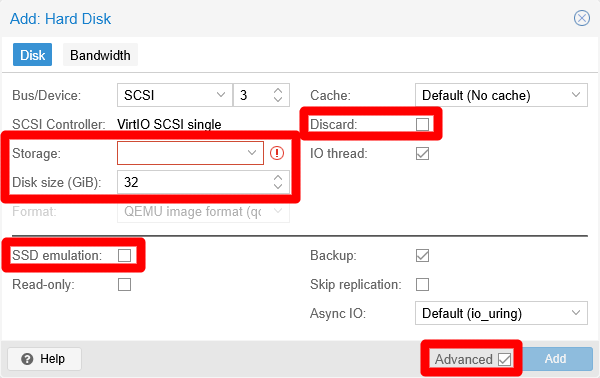
Add Hard Disk window for K3s agent node with advanced options enabled Notice the highlighted elements in the capture above. When creating each hard disk, be sure of having the
Advancedcheckbox enabled and edit only the featured fields as follows:SSD drive
Storagessd_disks, DiscardENABLED, disk size10 GiB, SSD emulationENABLED.HDD drive
Storagehdd_data, DiscardENABLED, disk size10 GiB, SSD emulationDISABLED.
After adding the new storage drives, they should appear in your K3s agent node VM’s hardware list.
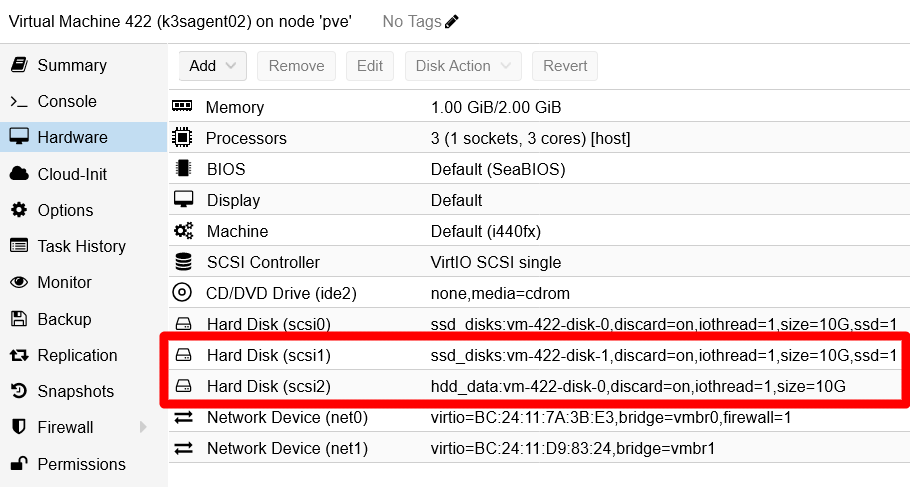
New Hard Disks added to K3s agent node VM Open a shell in your K3s agent node VM and check with
fdiskthat the new drives are already active and running:$ sudo fdisk -l Disk /dev/sda: 10 GiB, 10737418240 bytes, 20971520 sectors Disk model: QEMU HARDDISK Units: sectors of 1 * 512 = 512 bytes Sector size (logical/physical): 512 bytes / 512 bytes I/O size (minimum/optimal): 512 bytes / 512 bytes Disklabel type: dos Disk identifier: 0x5dc9a39f Device Boot Start End Sectors Size Id Type /dev/sda1 * 2048 1556479 1554432 759M 83 Linux /dev/sda2 1558526 20969471 19410946 9.3G f W95 Ext'd (LBA) /dev/sda5 1558528 20969471 19410944 9.3G 8e Linux LVM Disk /dev/mapper/k3snode--vg-root: 9.25 GiB, 9936306176 bytes, 19406848 sectors Units: sectors of 1 * 512 = 512 bytes Sector size (logical/physical): 512 bytes / 512 bytes I/O size (minimum/optimal): 512 bytes / 512 bytes Disk /dev/sdb: 10 GiB, 10737418240 bytes, 20971520 sectors Disk model: QEMU HARDDISK Units: sectors of 1 * 512 = 512 bytes Sector size (logical/physical): 512 bytes / 512 bytes I/O size (minimum/optimal): 512 bytes / 512 bytes Disk /dev/sdc: 10 GiB, 10737418240 bytes, 20971520 sectors Disk model: QEMU HARDDISK Units: sectors of 1 * 512 = 512 bytes Sector size (logical/physical): 512 bytes / 512 bytes I/O size (minimum/optimal): 512 bytes / 512 bytesThe new drives are
/dev/sdband/dev/sdc. Unsurprisingly, they are of the sameDisk modelas/dev/sda:QEMU HARDDISK.
LVM storage set up
Your new storage drives are now available in your K3s agent node VM, but you still have to configure the required LVM volumes within them:
Create a new GPT partition on each of the new storage drives with
sgdisk. Remember that these new drives are the/dev/sdband/dev/sdcdevices you saw before withfdisk:$ sudo sgdisk -N 1 /dev/sdb $ sudo sgdisk -N 1 /dev/sdcCheck with
fdiskthat now you have a new partition on each storage drive:$ sudo fdisk -l /dev/sdb /dev/sdc Disk /dev/sdb: 10 GiB, 10737418240 bytes, 20971520 sectors Disk model: QEMU HARDDISK Units: sectors of 1 * 512 = 512 bytes Sector size (logical/physical): 512 bytes / 512 bytes I/O size (minimum/optimal): 512 bytes / 512 bytes Disklabel type: gpt Disk identifier: 0DF6943D-791B-4D7B-9946-36648735901E Device Start End Sectors Size Type /dev/sdb1 2048 20971486 20969439 10G Linux filesystem Disk /dev/sdc: 10 GiB, 10737418240 bytes, 20971520 sectors Disk model: QEMU HARDDISK Units: sectors of 1 * 512 = 512 bytes Sector size (logical/physical): 512 bytes / 512 bytes I/O size (minimum/optimal): 512 bytes / 512 bytes Disklabel type: gpt Disk identifier: FFC445C4-C09D-4689-9A31-7BB4B0DCFB95 Device Start End Sectors Size Type /dev/sdc1 2048 20971486 20969439 10G Linux filesystemSee above the
/dev/sdb1and/dev/sdc1partitions (“devices” forfdisk) under their respective “disks”.Use
pvcreateto create a new LVM physical volume, or PV, out of each partition:$ sudo pvcreate --metadatasize 10m -y -ff /dev/sdb1 $ sudo pvcreate --metadatasize 10m -y -ff /dev/sdc1To determine the metadata size, this guide uses the rule of thumb of allocating 1 MiB per 1 GiB present in the PV.
Check with
pvsthat the PVs have been created.$ sudo pvs PV VG Fmt Attr PSize PFree /dev/sda5 k3snode-vg lvm2 a-- 9.25g 0 /dev/sdb1 lvm2 --- <10.00g <10.00g /dev/sdc1 lvm2 --- <10.00g <10.00gYou also need to assign a volume group, or VG, to each PV, bearing in mind the following:
- The two drives are running on different storage hardware, so you must clearly differentiate their storage space.
- Ghost’s database and cache data will be stored in
/dev/sdb1, on the SSD drive. - Ghost’s other data will be kept in
/dev/sdc1, on the HDD drive.
Knowing all this, create two VGs with
vgcreate:$ sudo vgcreate ghost-ssd /dev/sdb1 $ sudo vgcreate ghost-hdd /dev/sdc1See how each VG is named related to Ghost and the kind of underlying drive used. Then, with
pvsyou can see how each PV is now assigned to their respective VG:$ sudo pvs PV VG Fmt Attr PSize PFree /dev/sda5 k3snode-vg lvm2 a-- 9.25g 0 /dev/sdb1 ghost-ssd lvm2 a-- 9.98g 9.98g /dev/sdc1 ghost-hdd lvm2 a-- 9.98g 9.98gAlso check with
vgsthe current status of the VGs in your VM.$ sudo vgs VG #PV #LV #SN Attr VSize VFree ghost-hdd 1 0 0 wz--n- 9.98g 9.98g ghost-ssd 1 0 0 wz--n- 9.98g 9.98g k3snode-vg 1 1 0 wz--n- 9.25g 0Now you can create the required light volumes on each VG with
lvcreate. Remember the purpose of each LV and give them meaningful names:$ sudo lvcreate -l 70%FREE -n db ghost-ssd $ sudo lvcreate -l 100%FREE -n cache ghost-ssd $ sudo lvcreate -l 100%FREE -n srv ghost-hddNotice how the
dbLV takes the70%of the currently free space in theghost-ssdVG, and how thecacheLV uses all the remaining space available on the sameghost-ssdVG. On the other hand,datatakes all the storage available in theghost-hddVG. Also see how all the LV’s names are short reminders of what kind of data they will store later.Check with
lvsthe new LVs in your VM:$ sudo lvs LV VG Attr LSize Pool Origin Data% Meta% Move Log Cpy%Sync Convert srv ghost-hdd -wi-a----- 9.98g cache ghost-ssd -wi-a----- <3.00g db ghost-ssd -wi-a----- <6.99g root k3snode-vg -wi-ao---- 9.25gSee how
dbhas the size corresponding to the 70% (6.99 GiB) of the 10 GiB that were available in theghost-ssdVG, whilecachetook the remaining 30% (3.00 GiB).With
vgsyou can verify that there is no space left (VFreecolumn) in the VGs:$ sudo vgs VG #PV #LV #SN Attr VSize VFree ghost-hdd 1 1 0 wz--n- 9.98g 0 ghost-ssd 1 2 0 wz--n- 9.98g 0 k3snode-vg 1 1 0 wz--n- 9.25g 0Notice how the count of LVs in the
ghost-ssdVG is2, while in the rest of them is just1.
Formatting and mounting the new LVs
Your new LVs need to be formatted as ext4 filesystems and then mounted in the K3s agent node’s system:
Before you format the new LVs, you need to see their
/dev/mapper/paths withfdisk. To get only the Ghost related paths, you can filter out their lines withgrepbecause theghoststring is part of their paths:$ sudo fdisk -l | grep ghost Disk /dev/mapper/ghost--ssd-db: 6.99 GiB, 7503609856 bytes, 14655488 sectors Disk /dev/mapper/ghost--ssd-cache: 3 GiB, 3217031168 bytes, 6283264 sectors Disk /dev/mapper/ghost--hdd-srv: 9.98 GiB, 10720641024 bytes, 20938752 sectorsCall the
mkfs.ext4command on their/dev/mapper/ghostpaths:$ sudo mkfs.ext4 /dev/mapper/ghost--ssd-db $ sudo mkfs.ext4 /dev/mapper/ghost--ssd-cache $ sudo mkfs.ext4 /dev/mapper/ghost--hdd-srvCreate a directory structure that provides mount points for the LVs with
mkdir:$ sudo mkdir -p /mnt/ghost-ssd/{cache,db} /mnt/ghost-hdd/srvYou have to use
sudofor creating those folders, because the system will use itsrootuser to mount them later on each boot up. Check, with thetreecommand, that they have been created correctly:$ tree -F /mnt /mnt/ ├── ghost-hdd/ │ └── srv/ └── ghost-ssd/ ├── cache/ └── db/ 6 directories, 0 filesUsing the
mountcommand, mount the LVs in their respective mount points:$ sudo mount /dev/mapper/ghost--ssd-db /mnt/ghost-ssd/db $ sudo mount /dev/mapper/ghost--ssd-cache /mnt/ghost-ssd/cache $ sudo mount /dev/mapper/ghost--hdd-srv /mnt/ghost-hdd/srvVerify with
dfthat they have been mounted in the system. Since you are working in a K3s agent node, you are going to see a bunch of containerd-related filesystems mounted. Your newly mounted LVs appear at the bottom of the list:$ df -h Filesystem Size Used Avail Use% Mounted on udev 965M 0 965M 0% /dev tmpfs 198M 780K 197M 1% /run /dev/mapper/k3snode--vg-root 9.1G 4.3G 4.4G 50% / tmpfs 987M 0 987M 0% /dev/shm tmpfs 5.0M 0 5.0M 0% /run/lock tmpfs 987M 0 987M 0% /tmp tmpfs 1.0M 0 1.0M 0% /run/credentials/systemd-journald.service /dev/sda1 730M 111M 567M 17% /boot tmpfs 1.0M 0 1.0M 0% /run/credentials/getty@tty1.service shm 64M 0 64M 0% /run/k3s/containerd/io.containerd.grpc.v1.cri/sandboxes/42476a81294a94e7af0604956f2f7bf9f3e6250c78221cc5d0b01d560a5809a5/shm tmpfs 198M 8.0K 198M 1% /run/user/1000 /dev/mapper/ghost--ssd-db 6.8G 1.8M 6.5G 1% /mnt/ghost-ssd/db /dev/mapper/ghost--ssd-cache 2.9G 788K 2.8G 1% /mnt/ghost-ssd/cache /dev/mapper/ghost--hdd-srv 9.8G 2.1M 9.3G 1% /mnt/ghost-hdd/srvTo make the mountings permanent, append them to the
/etc/fstabfile of the VM. First, make a backup of thefstabfile:$ sudo cp /etc/fstab /etc/fstab.bkpThen append all these lines to the
fstabfile:# Ghost volumes /dev/mapper/ghost--ssd-db /mnt/ghost-ssd/db ext4 defaults,nofail 0 0 /dev/mapper/ghost--ssd-cache /mnt/ghost-ssd/cache ext4 defaults,nofail 0 0 /dev/mapper/ghost--hdd-srv /mnt/ghost-hdd/srv ext4 defaults,nofail 0 0
Storage mount points for the Ghost pods
Create an inner mount point for pods
Do not use the directories where you have mounted the new storage volumes as mount points for the persistent volumes you will enable later for the Ghost deployment.
Kubernetes pods can change the owner user and group, and also the permissions, applied to those folders. This can cause a failure when, after a reboot, your K3s agent node tries to mount again its storage volumes. The issue happens because it no longer has the right user or permissions to access the mount point folders. The best thing to do then is to create another folder within each storage volume that can be used safely as mount point by the Ghost pods:
For the LVM storage volumes created before, you have to execute a
mkdircommand like this:$ sudo mkdir /mnt/{ghost-hdd/srv,ghost-ssd/cache,ghost-ssd/db}/k3smntAs you did with the mount point folders, these new directories also have to be owned initially by
root. This is because the K3s service is running under that user.Check the updated folder structure with
tree:$ tree -F /mnt /mnt/ ├── ghost-hdd/ │ └── srv/ │ ├── k3smnt/ │ └── lost+found/ [error opening dir] └── ghost-ssd/ ├── cache/ │ ├── k3smnt/ │ └── lost+found/ [error opening dir] └── db/ ├── k3smnt/ └── lost+found/ [error opening dir] 12 directories, 0 filesDo not mind the
lost+foundfolders, they are created by the Linux system automatically.
The k3smnt folders exist within the already mounted LVM storage volumes!
You cannot create those folders without mounting the light volumes first.
About increasing the size of volumes
If, after a time using and filling up these volumes, you need to increase their size, take a look to the appendix explaining how to resize a root LVM volume. It shows you how to extend a partition and the LVM filesystem within it although, in that case, it is done on a LV volume that happens to be also the root filesystem of a VM.
Relevant system paths
Folders in K3s agent node’s VM
/etc/mnt/mnt/ghost-hdd/mnt/ghost-hdd/srv/mnt/ghost-hdd/srv/k3smnt/mnt/ghost-ssd/mnt/ghost-ssd/cache/mnt/ghost-ssd/cache/k3smnt/mnt/ghost-ssd/db/mnt/ghost-ssd/db/k3smnt
Files in K3s agent node’s VM
/dev/mapper/ghost--hdd-srv/dev/mapper/ghost--ssd-cache/dev/mapper/ghost--ssd-db/dev/sdb/dev/sdb1/dev/sdc/dev/sdc1/etc/fstab/etc/fstab.bkp