Apt sources, updates and extra tools
Proxmox VE 9.0 runs on Debian 13 “trixie”
Remember that your Proxmox VE 9.0 runs on a Debian GNU Linux version 13 (trixie). You can check the Debian version in the /etc/os-release file found in the system.
Editing the apt repository sources
Proxmox VE comes with its apt system configured to point at two repositories for enterprise subscriptions, one for Proxmox VE itself while the other is for the Proxmox version of the Ceph distributed storage system. This is a problem because, unless you already have such subscription, you will not be able to perform system updates at all. Look what happens if, in a root shell, you try to execute apt update with the default setup:
$ apt update
Get:1 http://security.debian.org/debian-security trixie-security InRelease [43.4 kB]
Hit:2 http://deb.debian.org/debian trixie InRelease
Get:3 http://deb.debian.org/debian trixie-updates InRelease [47.1 kB]
Get:4 http://security.debian.org/debian-security trixie-security/main amd64 Packages [11.6 kB]
Get:5 http://security.debian.org/debian-security trixie-security/main Translation-en [10.6 kB]
Err:6 https://enterprise.proxmox.com/debian/ceph-squid trixie InRelease
  401  Unauthorized [IP: 51.91.38.34 443]
Err:7 https://enterprise.proxmox.com/debian/pve trixie InRelease
  401  Unauthorized [IP: 51.91.38.34 443]
Error: Failed to fetch https://enterprise.proxmox.com/debian/ceph-squid/dists/trixie/InRelease  401  Unauthorized [IP: 51.91.38.34 443]
Error: The repository 'https://enterprise.proxmox.com/debian/ceph-squid trixie InRelease' is not signed.
Notice: Updating from such a repository can't be done securely, and is therefore disabled by default.
Notice: See apt-secure(8) manpage for repository creation and user configuration details.
Error: Failed to fetch https://enterprise.proxmox.com/debian/pve/dists/trixie/InRelease  401  Unauthorized [IP: 51.91.38.34 443]
Error: The repository 'https://enterprise.proxmox.com/debian/pve trixie InRelease' is not signed.
Notice: Updating from such a repository can't be done securely, and is therefore disabled by default.
Notice: See apt-secure(8) manpage for repository creation and user configuration details.
See the lines like the Err:6 one indicating an error in the process. Without a valid enterprise subscription, your system is Unauthorized to get updates from Proxmox’s enterprise repository.
Changing the apt repositories
You need to disable the enterprise repositories and enable the repository for non-subscribers:
Access your Proxmox VE web console as
root, and browse to yourpvenode’sUpdates > Repositoriessection: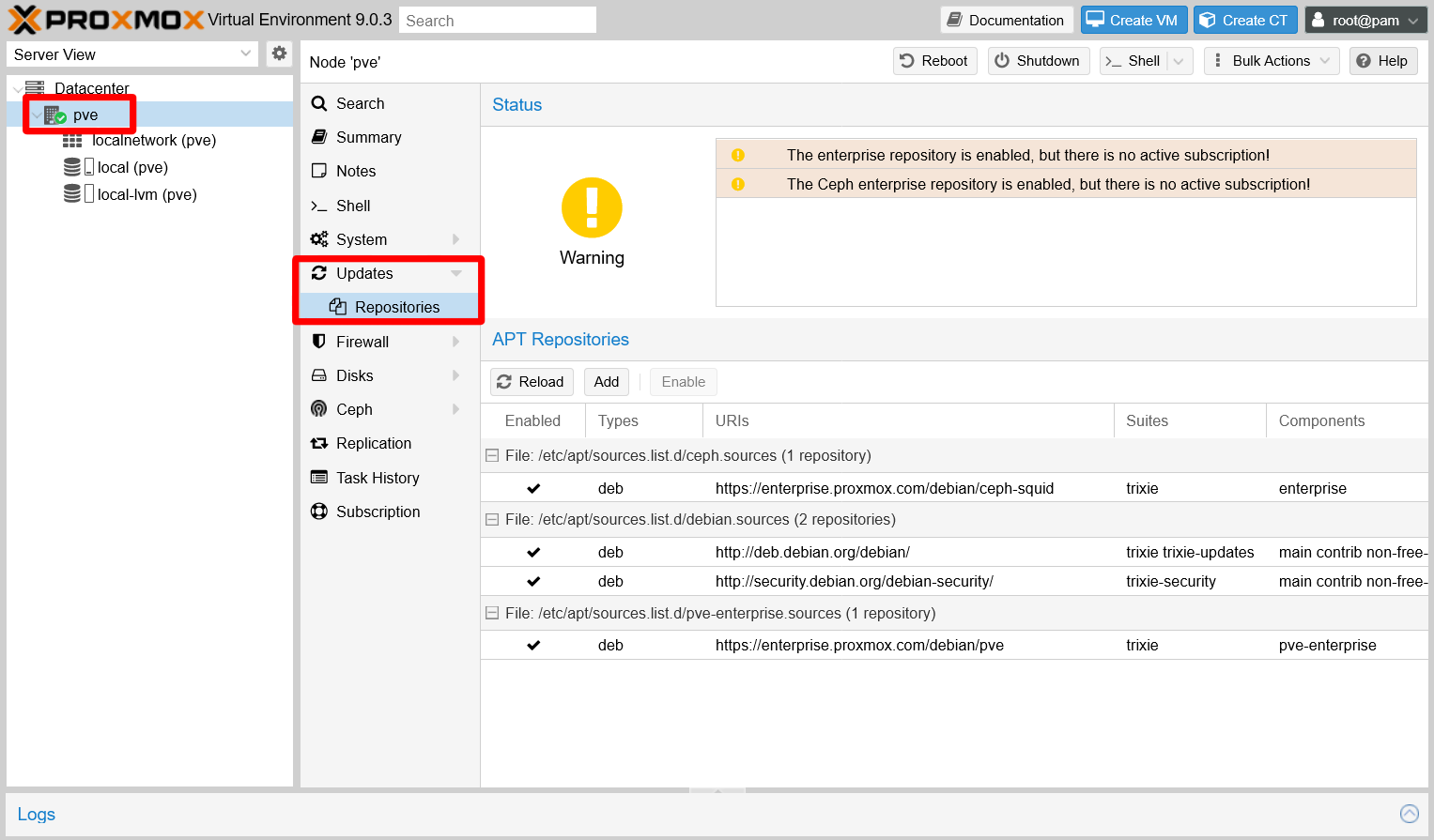
Updates repositories section of pve node Notice the yellow warnings about having the enterprise repositories enabled with no active subscription. This is related to the warning you saw when you logged in the web console.
Notice that there are two enterprise repositories, one for the Ceph distributed storage technology embedded in Proxmox while the other is for Proxmox VE itself. You have to disable both:
Begin with the Ceph enterprise repository, the one with the URI
https://enterprise.proxmox.com/debian/ceph-squid:
Proxmox Ceph enterprise repository selected to be disabled See that the
Disablebutton is now active, so press it to disable the enterprise repository. Then, do the same with the other enterprise repository, the one for Proxmox VE with the URIhttps://enterprise.proxmox.com/debian/pve:
Proxmox VE enterprise repository selected to be disabled With both Proxmox enterprise repositories disabled, the web console warns you that you will not get any updates for your Proxmox VE platform:

Error warning about not having a Proxmox VE repository enabled Click on the
Addbutton now. The web console prompts the same warning you saw when you logged in:
No valid subscription warning Click on
OKto open the window where you can add apt repositories:
Add apt repositories window On that window, choose the
No-Subscriptionoption from theRepositorylist and then press onAdd:
Proxmox No-Subscription repository selected With the
No-Subscriptionrepository added, you see a different status in theRepositoriesscreen: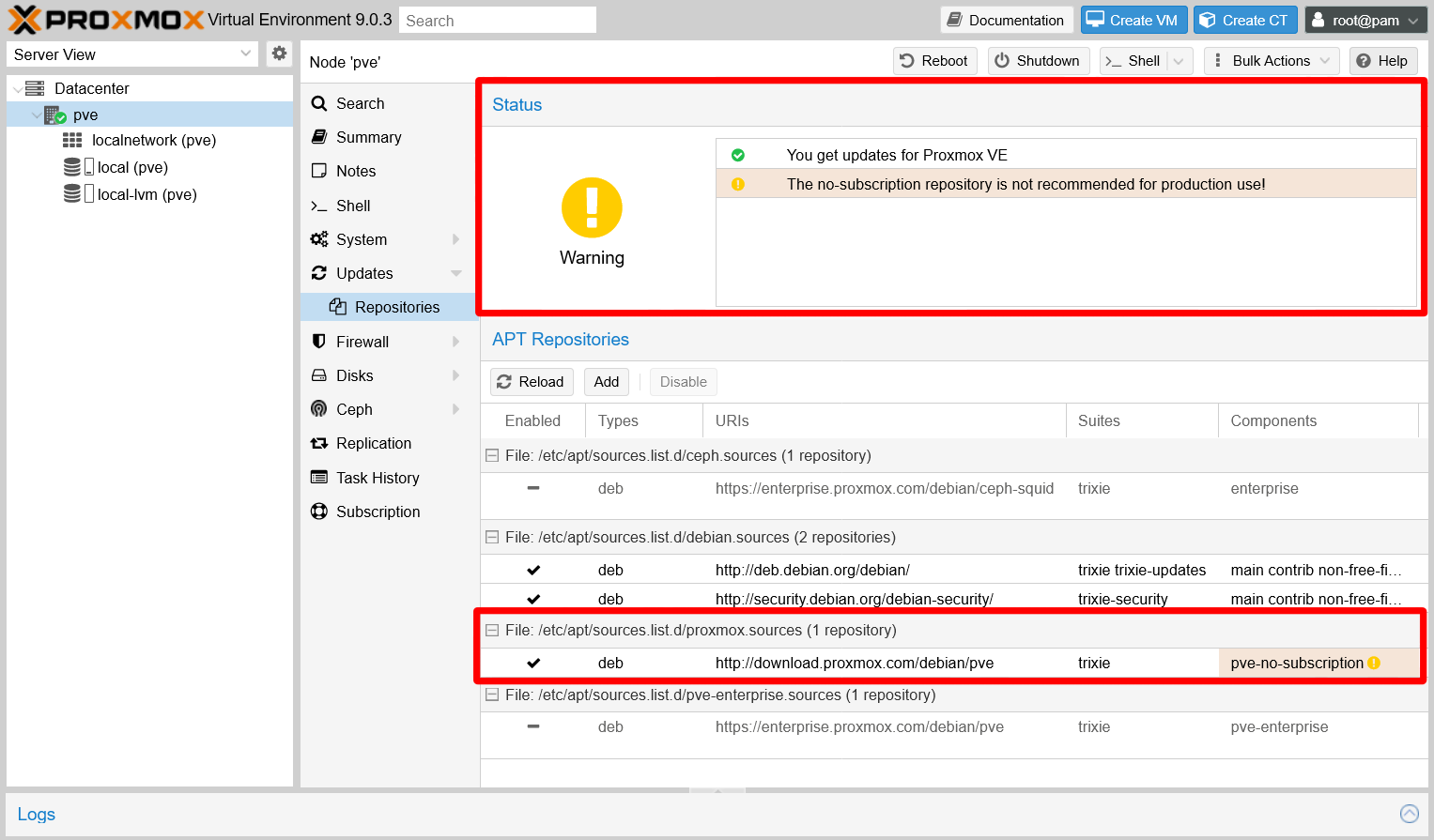
Repositories screen updated What the new warning means is that the no-subscription repository is not the safest one to use for real production use. Regardless, it should be good enough for your personal homelab needs.
Update your system
Now you can browse to the Updates screen and see what is pending:
Browse to the
Updatestab, and click on theRefreshbutton to be sure that you are getting the most recent list of updates: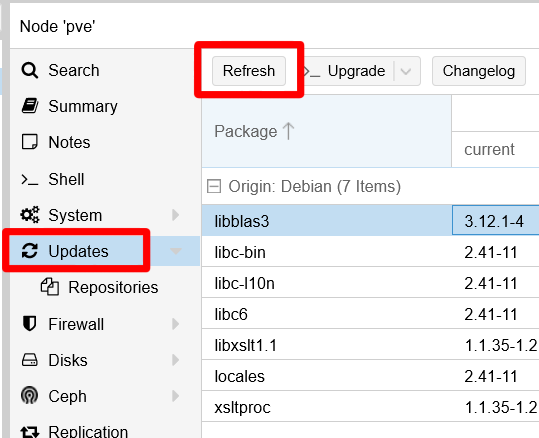
Refresh button on Updates view Pressing the refresh button will launch again the warning window about not having a valid subscription:
No valid subscription warning Close that window and meet a new one in which you can see the
apt updatetask’s progress: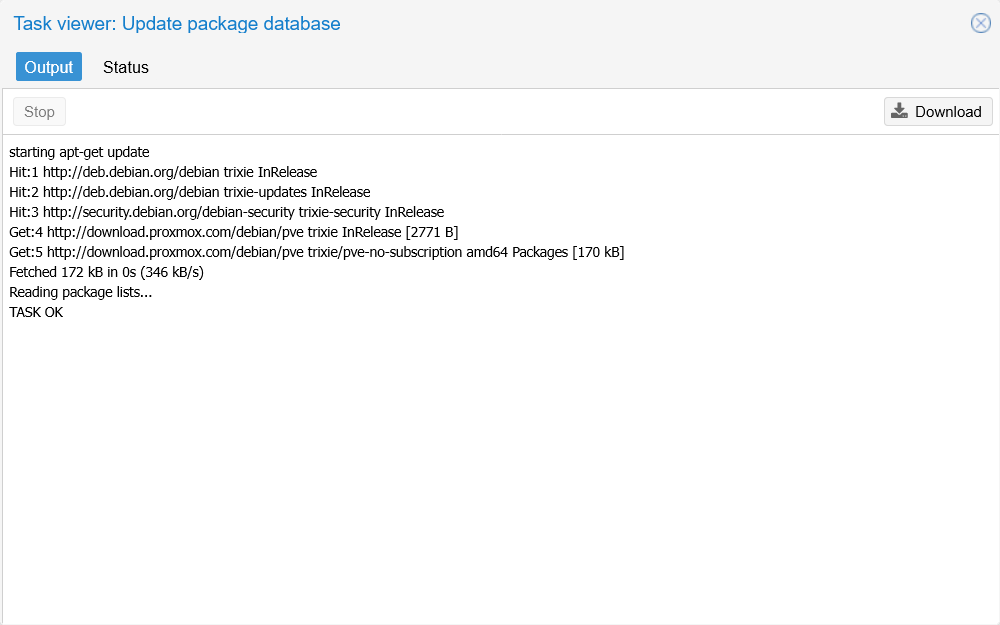
Update package task window When you see the line
TASK OK, close the window to go back to the updates list: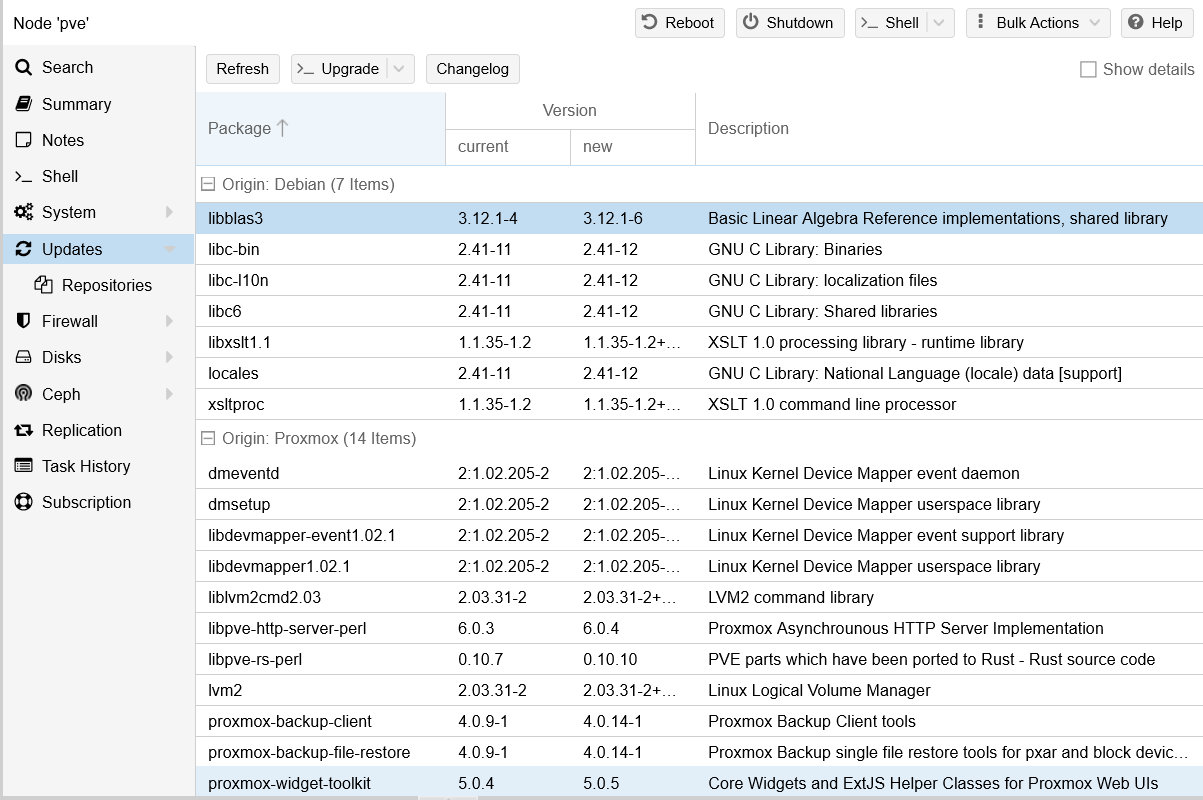
List of updates pending See above that there are a number of updates, from different origins, to be applied. In future attempts, this page will show a different selection of pending packages or none at all.
To apply all the updates, click on the
Upgradebutton: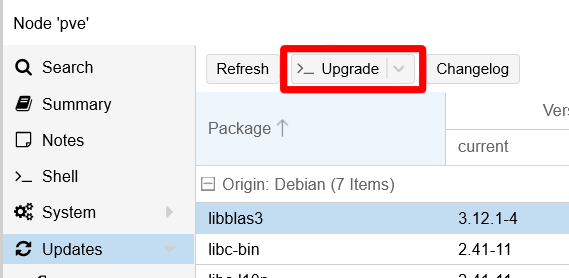
Upgrade button By default, the web console opens a noVNC shell console, using your
rootuser, in which it launches theapt dist-upgradecommand: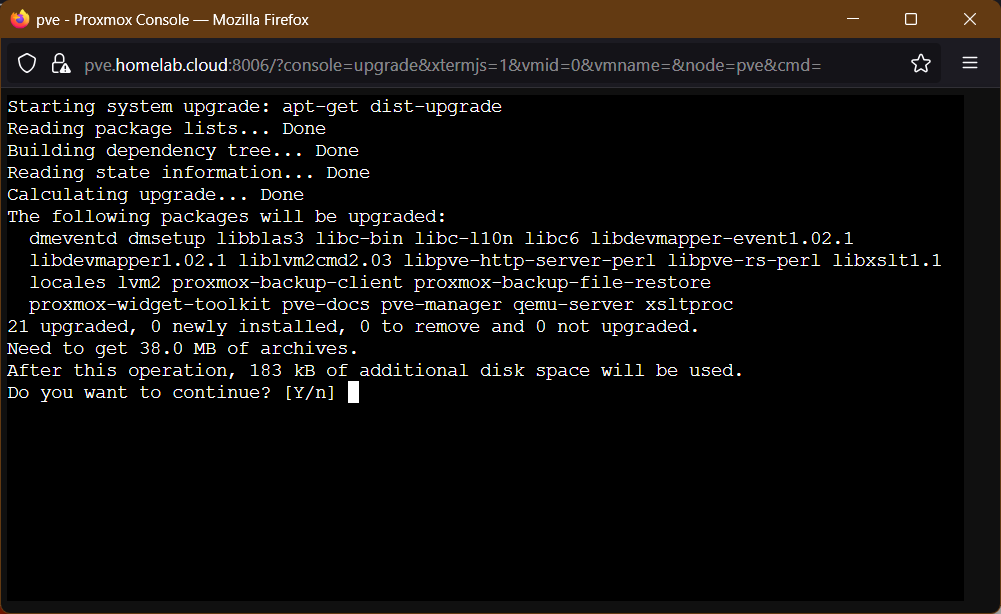
apt upgrade in noVNC shell Pay attention to when the
aptcommand requests your confirmation to proceed!Also, be aware that some packages may require your input for some reason or other.
When the
aptcommand finishes, it returns the control to the prompt within the shell console: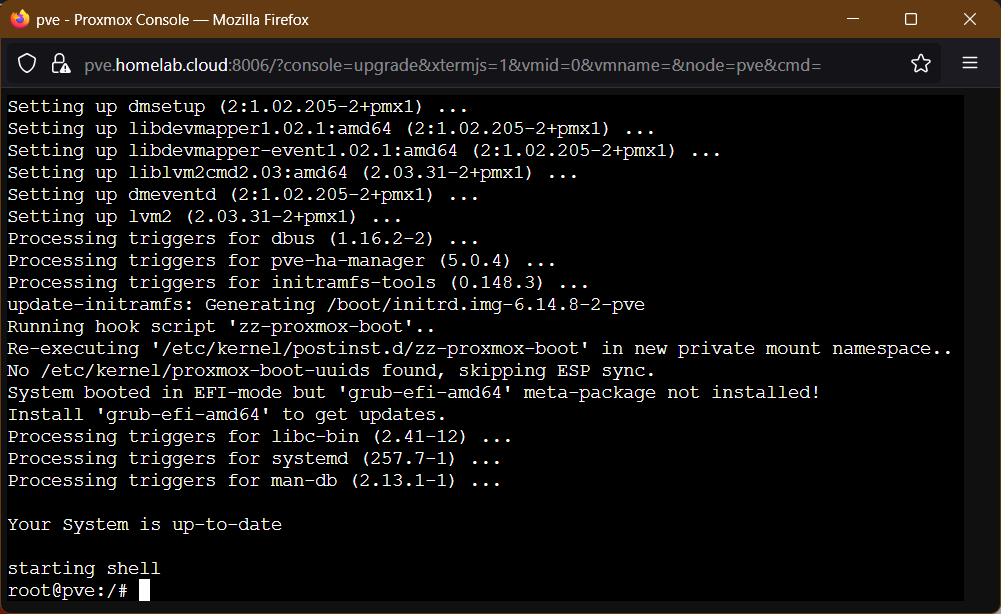
apt upgrade finished Type
exitto logout from the shell console and close its window, or just close the window directly: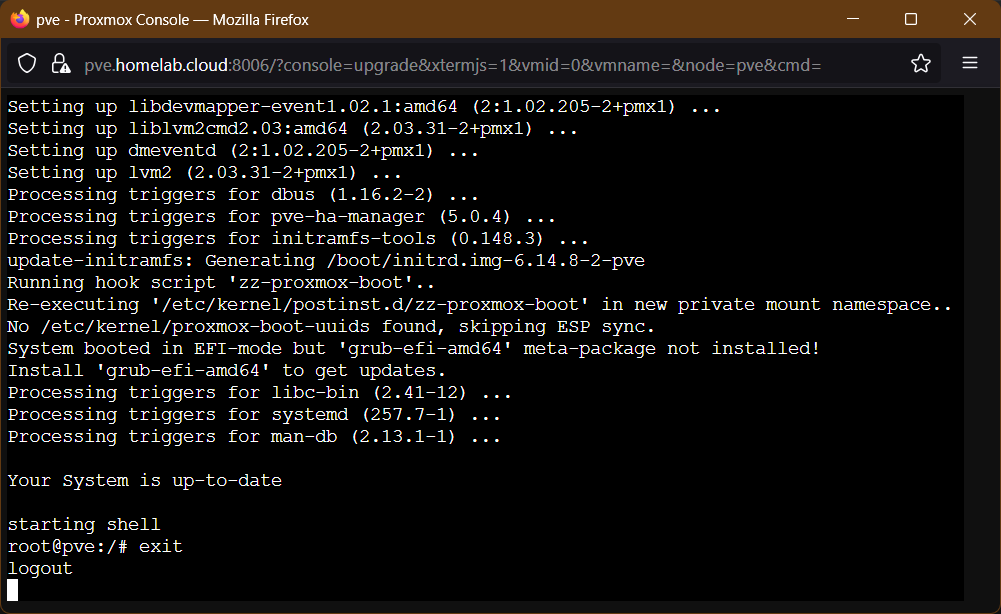
noVNC shell disconnecting Back in the
Updatesview of yourpvenode, see that the updates list has not been refreshed. Press again on theRefreshbutton to update the list: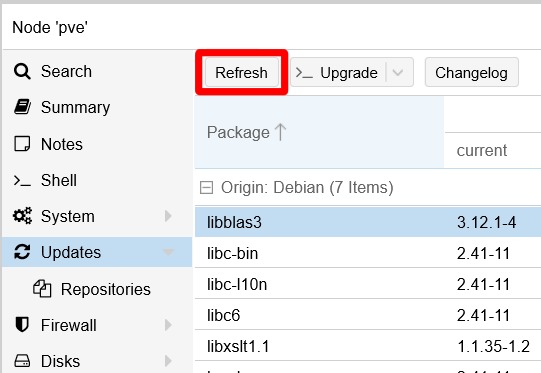
Refresh button on Updates view The
Updatesview may or may not show more updates to apply after refreshing. Keep on applying the upgrades until none appears listed in this page: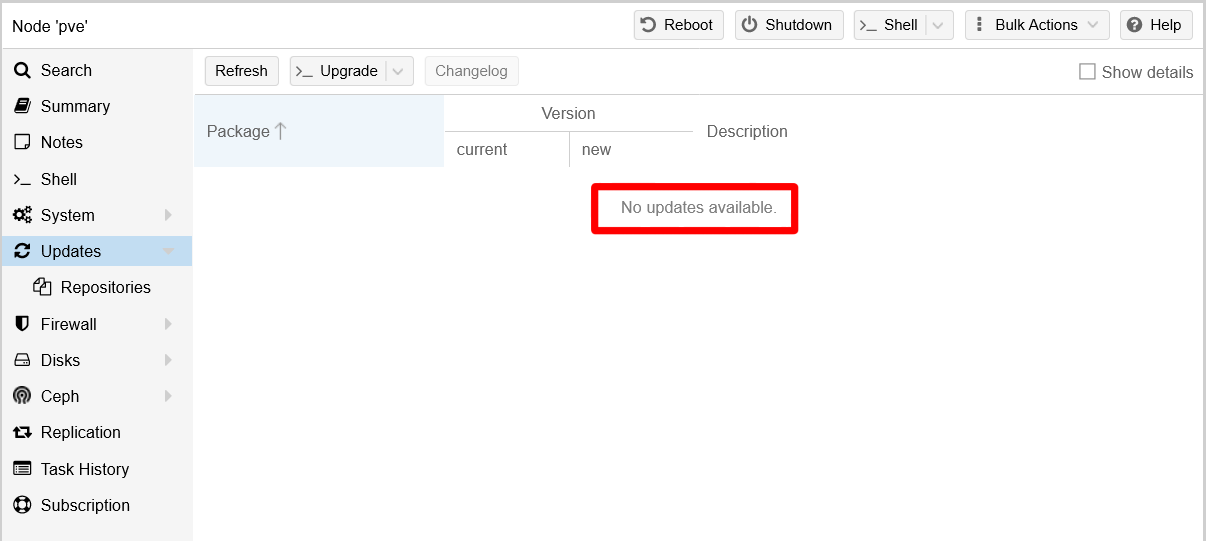
Updates list empty If you have applied many updates, or if some of them were kernel-related, it is better if you reboot the system. Just press on the
Rebootbutton while having yourpvenode selected:
Reboot button in web console The Proxmox VE web console asks your confirmation. Click on
Yesto proceed: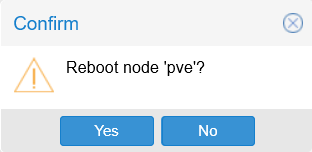
PVE node reboot confirmation After the reboot, just log back in the web console as
rootand check that Proxmox VE still runs fine.
Consideration about upgrades
As you have seen before, you can end having to apply several updates at once in your system. In theory, a good administrator has to be diligent and verify that each update is safe to apply. In reality, trying to do that is not possible. Still, you should at least be aware of the updates that directly affect the Proxmox VE platform, the ones that can update to a more recent minor or major version. Those are the ones that could break things in your setup, specially the major ones (for instance, when going from a version 8.y.z to a 9.y.z one).
Since you only have one standalone node, before you apply such updates, you should make a clone of your only node’s Proxmox VE root filesystem (or the entire drive) with a tool like Clonezilla. This way, if something goes south in the upgrade, you can always go back to the previous stable state.
You can use apt directly
Instead of using the Updates screen in the web console, you can use the apt command directly through an SSH shell or by opening a shell directly from the web console.
Check the appendix about connecting with the PuTTY client
If you want to connect through a SSH client to your servers, you can do it with a client like PuTTY as this appendix explains.
If you prefer to open the shell from the Proxmox VE web console, know that it offers three different options:

The best option is the xterm.js shell, since it allows you to copy and paste, unlike the noVCN one. SPICE does not open you a shell, it gives you a file that you have to use in a special client prepared to use the SPICE protocol.
Installing useful extra tools
Now that you can use the apt command properly, it is time to install some useful tools for different purposes:
htop
Interactive text-based process viewer, similar totopbut much more user friendly and colorful (on terminals that support color).net-tools
Package that includes several useful commands for network management.sudo
A command that allows a system administrator to give limitedrootprivileges to users and log root activity.tree
Is a recursive directory listing command that produces a depth indented listing of files.vim
A more complete version of thevieditor, which includes fancy features like syntax coloring.
To install all of the above at once, open a shell terminal as root and use the following command:
$ apt install -y htop net-tools sudo tree vimUtilities for visualizing sensor information
Any modern computer comes with a bunch of integrated sensors, usually ones that return CPU’s cores temperatures, fan speeds and voltages. Sure you would like to see those values through the shell easily, right? There is a bunch of tools that give such information, but this guide proposes you two quite interesting ones.
The lm_sensors package
The lm_sensors package provides a sensors command that allows you to see the values returned by the sensors integrated in a Linux host like your PVE server.
The lm_sensors package is no longer updated
It still works, in particular with old hardware like the one used in this guide, but do not be surprised if it stops working in the future.
To be able to use the sensors command, you need to install and configure the lm_sensors package as follows:
Open a shell in your main
pvenode asroot(or as asudo-able user if you already got one), then execute the nextaptcommand:$ apt install -y lm-sensorsExecute
sensors-detect. This launches a scan on your system looking for all the sensors available in it, so it can determine which kernel moduleslm_sensorshas to use. This scan is automatic, but the command asks you on every step of the procedure:Some steps might give trouble if executed in your system!
Read the question asked on each step and, in case of doubt, answer
noto the step you feel unsure of.# sensors-detect version 3.6.2 # System: Packard Bell iMedia S2883 # Kernel: 6.14.8-2-pve x86_64 # Processor: Intel(R) Celeron(R) CPU J1900 @ 1.99GHz (6/55/8) This program will help you determine which kernel modules you need to load to use lm_sensors most effectively. It is generally safe and recommended to accept the default answers to all questions, unless you know what you're doing. Some south bridges, CPUs or memory controllers contain embedded sensors. Do you want to scan for them? This is totally safe. (YES/no): Module cpuid loaded successfully. Silicon Integrated Systems SIS5595... No VIA VT82C686 Integrated Sensors... No VIA VT8231 Integrated Sensors... No AMD K8 thermal sensors... No AMD Family 10h thermal sensors... No AMD Family 11h thermal sensors... No AMD Family 12h and 14h thermal sensors... No AMD Family 15h thermal sensors... No AMD Family 16h thermal sensors... No AMD Family 17h thermal sensors... No AMD Family 15h power sensors... No AMD Family 16h power sensors... No Hygon Family 18h thermal sensors... No AMD Family 19h thermal sensors... No Intel digital thermal sensor... Success! (driver `coretemp') Intel AMB FB-DIMM thermal sensor... No Intel 5500/5520/X58 thermal sensor... No VIA C7 thermal sensor... No VIA Nano thermal sensor... No Some Super I/O chips contain embedded sensors. We have to write to standard I/O ports to probe them. This is usually safe. Do you want to scan for Super I/O sensors? (YES/no): Probing for Super-I/O at 0x2e/0x2f Trying family `National Semiconductor/ITE'... No Trying family `SMSC'... No Trying family `VIA/Winbond/Nuvoton/Fintek'... No Trying family `ITE'... Yes Found `ITE IT8772E Super IO Sensors' Success! (address 0xa30, driver `it87') Probing for Super-I/O at 0x4e/0x4f Trying family `National Semiconductor/ITE'... No Trying family `SMSC'... No Trying family `VIA/Winbond/Nuvoton/Fintek'... No Trying family `ITE'... No [...] Next adapter: i915 gmbus dpb (i2c-5) Do you want to scan it? (yes/NO/selectively): yes Next adapter: i915 gmbus dpd (i2c-6) Do you want to scan it? (yes/NO/selectively): yes Next adapter: AUX B/DP B (i2c-7) Do you want to scan it? (yes/NO/selectively): yes Now follows a summary of the probes I have just done. Just press ENTER to continue: Driver `it87': * ISA bus, address 0xa30 Chip `ITE IT8772E Super IO Sensors' (confidence: 9) Driver `coretemp': * Chip `Intel digital thermal sensor' (confidence: 9) To load everything that is needed, add this to /etc/modules: #----cut here---- # Chip drivers coretemp it87 #----cut here---- If you have some drivers built into your kernel, the list above will contain too many modules. Skip the appropriate ones! Do you want to add these lines automatically to /etc/modules? (yes/NO)yes Successful! Monitoring programs won't work until the needed modules are loaded. You may want to run '/etc/init.d/kmod start' to load them. Unloading cpuid... OKA big chunk of the
sensors-detectcommand’s output has been omitted since it resulted to be very long in this guide’s reference hardware. Still, know that all but one of the steps were executed without issues. See how the final question asks for your permission to write some lines in the/etc/modulesfile. Sayyesto it, but bear in mind that, if you uninstall thelm_sensorspackage later, those lines will remain written in/etc/modules.Below you can see the lines
sensors-detectwrote in the/etc/modulesfile of this guide’s PVE host. Bear in mind that these lines may be different in your system:# /etc/modules is obsolete and has been replaced by /etc/modules-load.d/. # Please see modules-load.d(5) and modprobe.d(5) for details. # # Updating this file still works, but it is undocumented and unsupported. # Generated by sensors-detect on Wed Aug 20 10:57:42 2025 # Chip drivers coretemp it87The
/etc/modulesfile has been replaced by the/etc/modules-load.d/directoryNotice the related warning about this change at the beginning of the
/etc/modulesfile. If you check inside the/etc/modules-load.d/directory, you will find amodules.confsymlink file pointing to the/etc/modulesfile ensuring backwards compatibility with packages that still have not adapted to this change likelm_sensors.To ensure that all the modules configured by
sensors-detectare loaded, reboot your system:$ rebootAfter the reboot, open a new shell and try the
sensorscommand:$ sensors soc_dts1-virtual-0 Adapter: Virtual device temp1: +36.0°C it8772-isa-0a30 Adapter: ISA adapter in0: 708.00 mV (min = +2.56 V, max = +1.22 V) ALARM in1: 1.37 V (min = +1.50 V, max = +0.84 V) ALARM in2: 2.06 V (min = +1.69 V, max = +2.46 V) in3: 2.00 V (min = +2.05 V, max = +2.63 V) ALARM in4: 2.03 V (min = +2.27 V, max = +2.18 V) ALARM in5: 2.03 V (min = +1.24 V, max = +0.76 V) ALARM in6: 2.98 V (min = +1.78 V, max = +1.32 V) ALARM 3VSB: 3.36 V (min = +4.66 V, max = +2.90 V) ALARM Vbat: 3.26 V fan2: 0 RPM (min = 32 RPM) ALARM fan3: 1555 RPM (min = 14 RPM) temp1: +31.0°C (low = +61.0°C, high = -11.0°C) ALARM sensor = thermistor temp2: +34.0°C (low = -17.0°C, high = -93.0°C) sensor = thermistor temp3: -70.0°C (low = +127.0°C, high = -2.0°C) sensor = Intel PECI pwm1: 64% (freq = 23437 Hz) MANUAL CONTROL pwm2: 64% (freq = 23437 Hz) pwm3: 58% (freq = 23437 Hz) intrusion0: ALARM acpitz-acpi-0 Adapter: ACPI interface temp1: +37.0°C soc_dts0-virtual-0 Adapter: Virtual device temp1: +35.0°C coretemp-isa-0000 Adapter: ISA adapter Core 0: +34.0°C (high = +105.0°C, crit = +105.0°C) Core 1: +34.0°C (high = +105.0°C, crit = +105.0°C) Core 2: +35.0°C (high = +105.0°C, crit = +105.0°C) Core 3: +35.0°C (high = +105.0°C, crit = +105.0°C)Notice how the command outputs all sorts of information from the system: different temperature measurements from different adapters and interfaces, the speed of the fans present in the host and also some voltage information. Also see how the command has printed
ALARMon several lines, which are warnings of things the command is finding odd. Since this guide’s host is working fine, this is more probably a question of configuring the command so it evaluates the values properly. As you may imagine, the output of this command will be quite different in your machine.
The Stress Terminal UI: s-tui
The Stress Terminal UI, or just s-tui, is a command that gives you a much more graphical vision of the current performance of your hardware. To get it, just install its package with apt:
$ apt install -y s-tuiWith the package installed, just execute the s-tui command:
Execute s-tui with sudo when using a regular user
When using a non-root user, execute this command with sudo so it can access all the system sensors.
$ s-tuiYou should see the main screen of s-tui immediately:
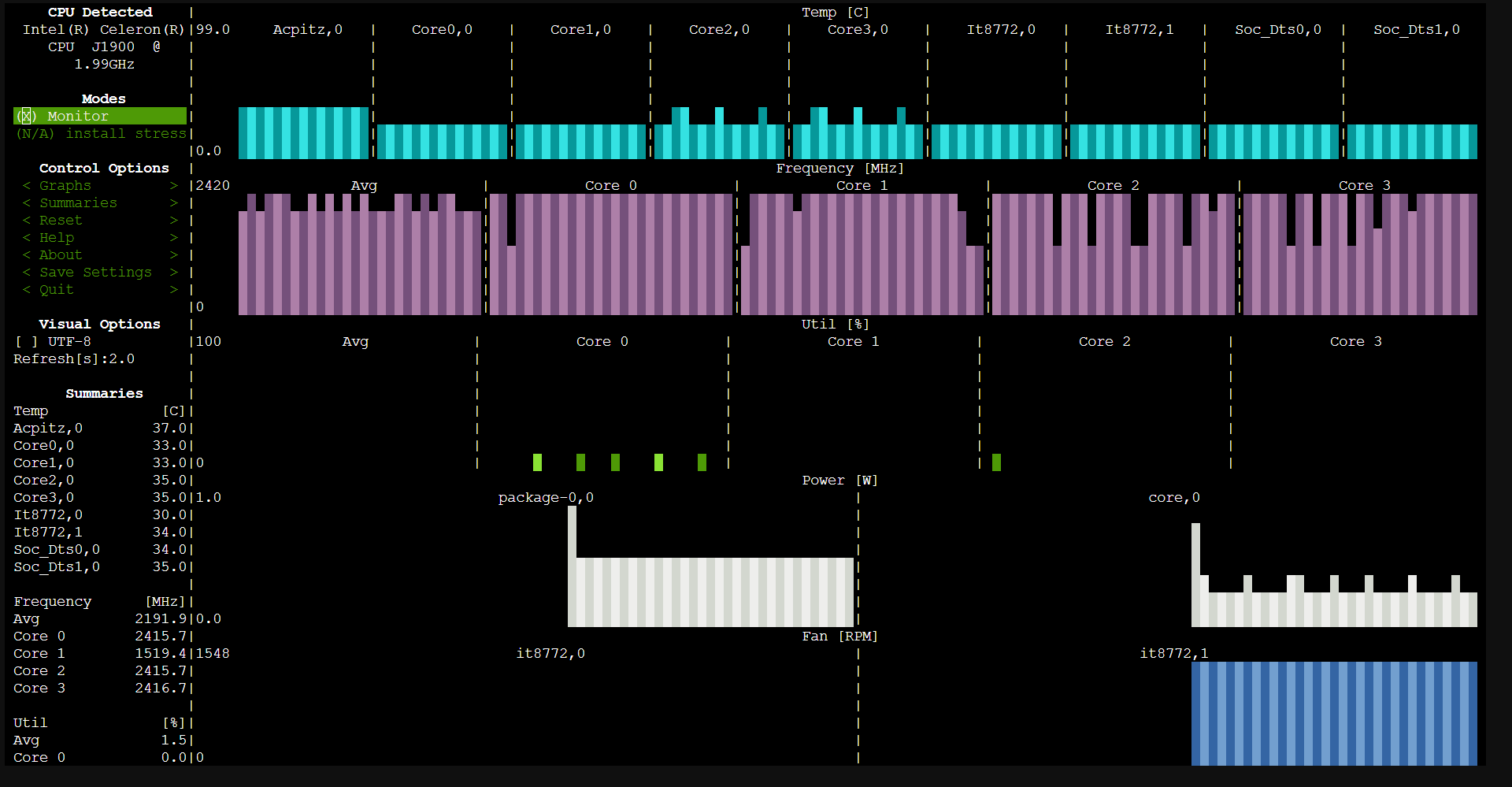
You can use the arrows or the Page Up/Down keys to browse in the left-side menu and even change some options. Going down in the menu, you can see all the sensors this command is able to read. The settings of s-tui are kept in the user’s .config/s-tui folder.
Relevant system paths
Directories
$HOME/.config/s-tui/etc//etc/modules-load.d/
Files
/etc/modules/etc/modules-load.d/modules.conf