LVM storage
Your Proxmox VE server’s storage needs to be reorganized
After installing Proxmox VE with (almost) default settings, the storage is still not ready since it needs some reorganization. As a reminder, the storage available in this guide’s reference hardware is the following:
- One internal, 1 TiB, SSD drive, linked to a SATA 2 port.
- One internal, 1 TiB, HDD drive, linked to a SATA 2 port .
- One external, 2 TiB, HDD drive, linked to a USB 3 port.
Also, keep in mind that:
- The Proxmox VE system is installed in the SSD drive, but it is only using 63 GiB of its available storage space.
- The Proxmox VE filesystem is
ext4.
Initial filesystem configuration (PVE web console)
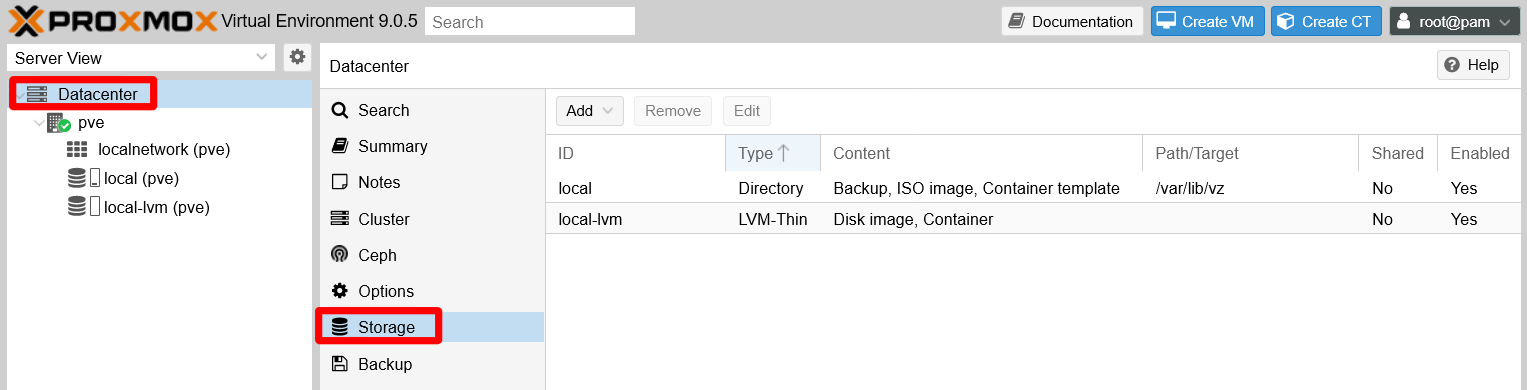
Log in your Proxmox VE’s web console as root. In a recently installed Proxmox VE node, you can see that, at the Datacenter level, the Storage already has an initial configuration:
Meanwhile, at the pve node level you can see which storage drives you have available in your physical system. Remember, one node represents one physical server:
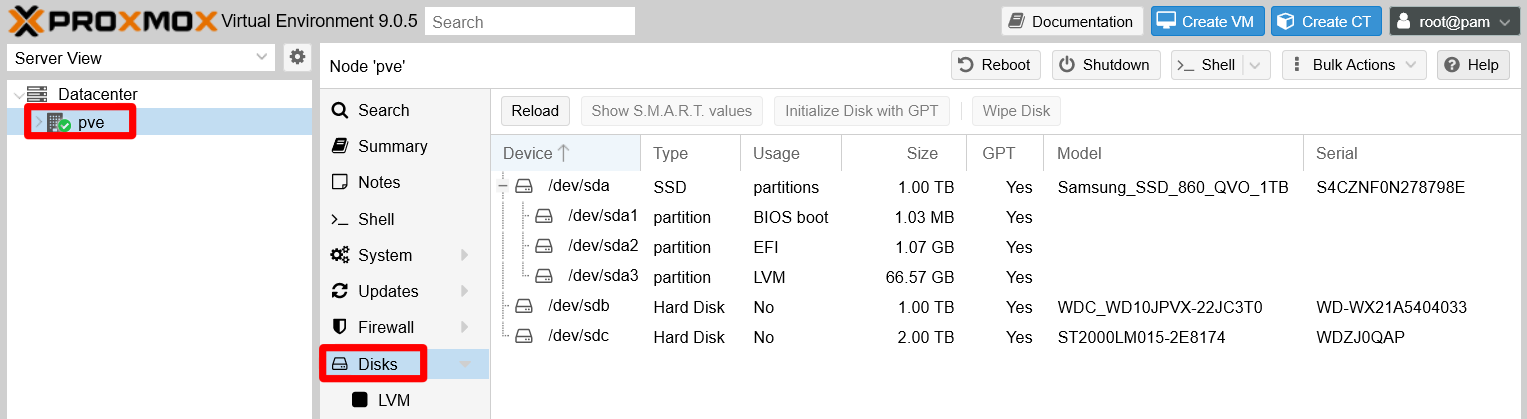
Proxmox shows some technical details from each disk, and also about the partitions present on each of them. At this point, only the /dev/sda ssd drive has partitions, the ones corresponding to the Proxmox VE installation.
On the other hand, be aware that Proxmox VE has installed itself within a LVM structure, but the web console does not show much information about it. Go to the Disks > LVM option at your node level:
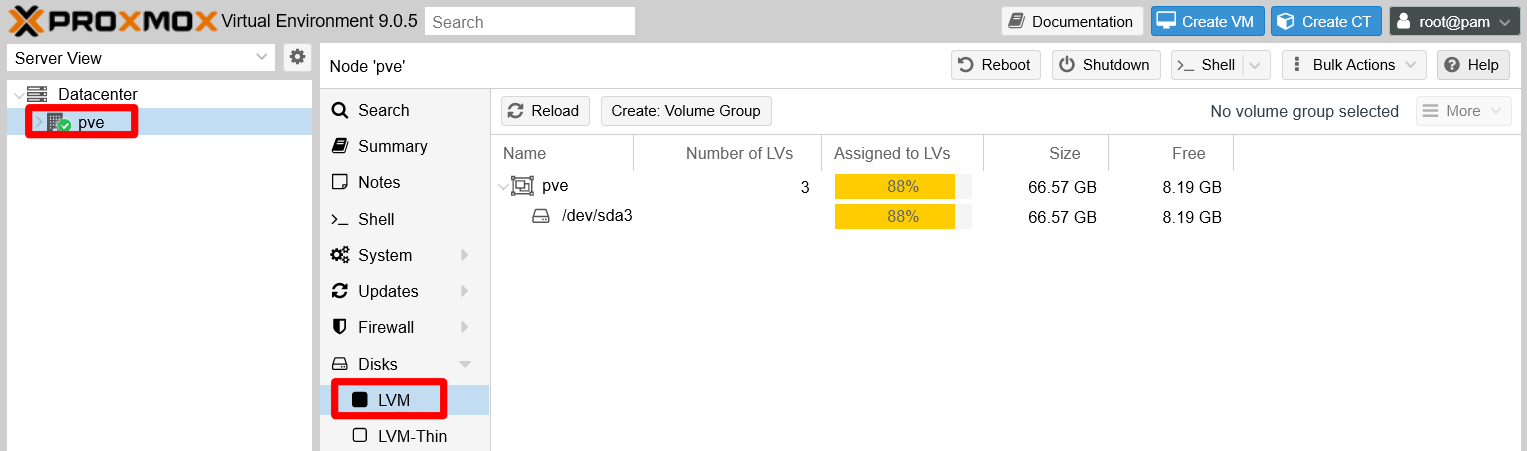
There is a volume group in your sda device which fills most of the space in the SSD drive. But this screen does not show the complete underlying LVM structure.
In the Disks > LVM-Thin screen you can see a bit more information regarding the LVM-Thin pools enabled in the system:
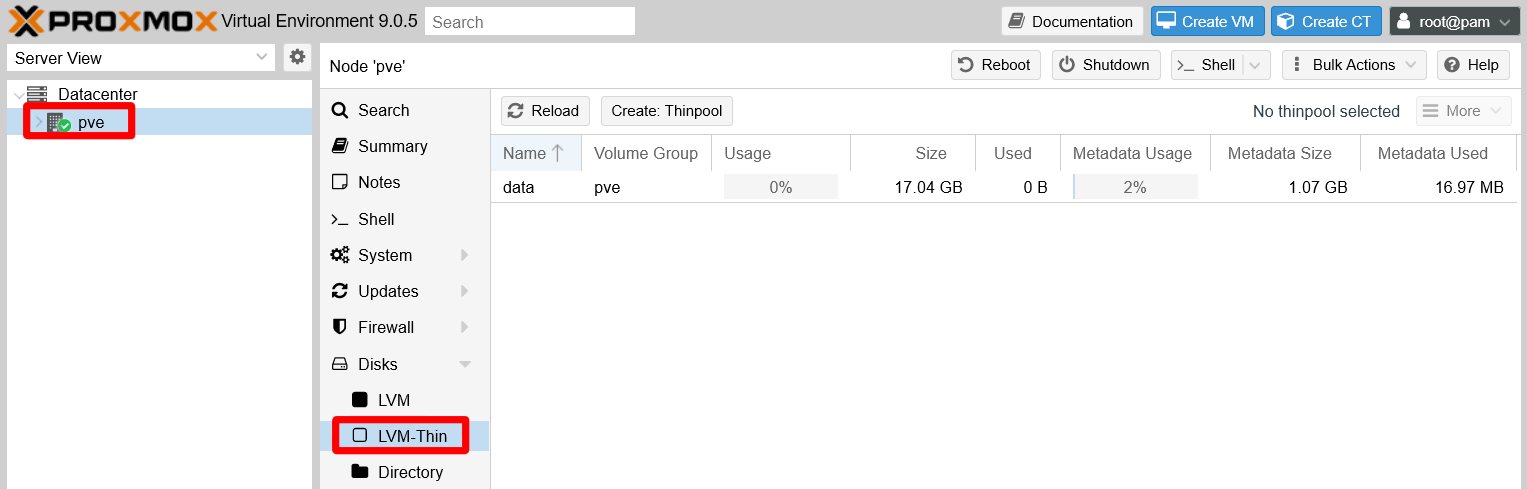
The LVM thinpool created by the Proxmox VE installation is called data and appears unused. In Proxmox VE, a LVM thinpool is were the disk images for the virtual machines and containers can be stored and grow dynamically.
When you unfold the pve node under the Datacenter tree on the left, you can see three leafs. Two of those leafs are the storages shown at the Datacenter level. Clicking on the local (pve) one will show you a screen like the following:
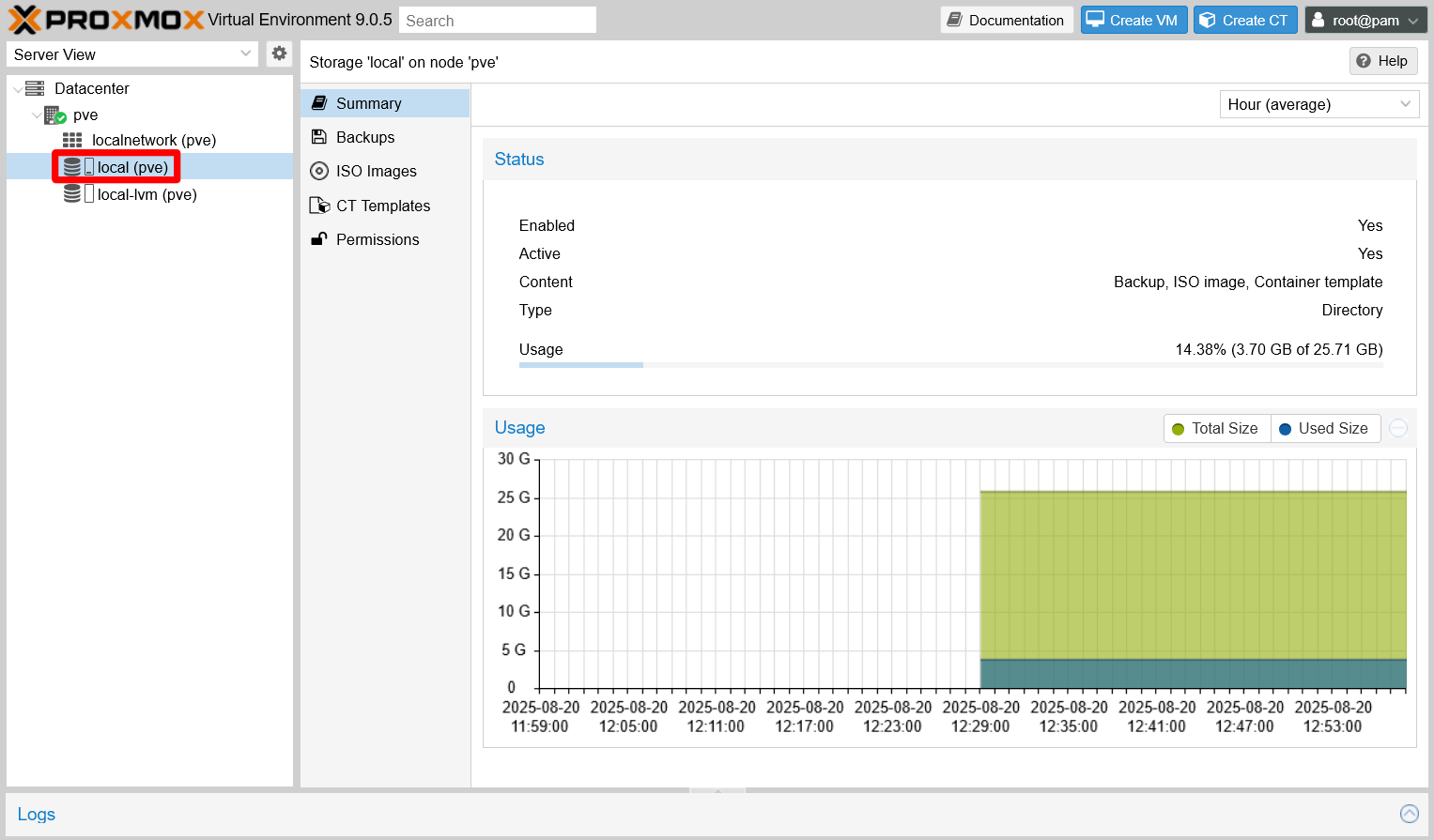
This page offers several tabs like Summary, which is the one shown above. The tabs shown will change depending on the type of storage, and they also depend on what Proxmox VE content types have been enabled on the storage. Notice how the Usage statistic of the Storage 'local' on the node 'pve' indicates a total capacity of 25.71 GiB. This is the main system partition, but it is just a portion of the pve LVM volume group’s total capacity.
The rest of the space is assigned to the LVM-Thin pool, which can be seen by browsing into the local-lvm (pve) leaf:
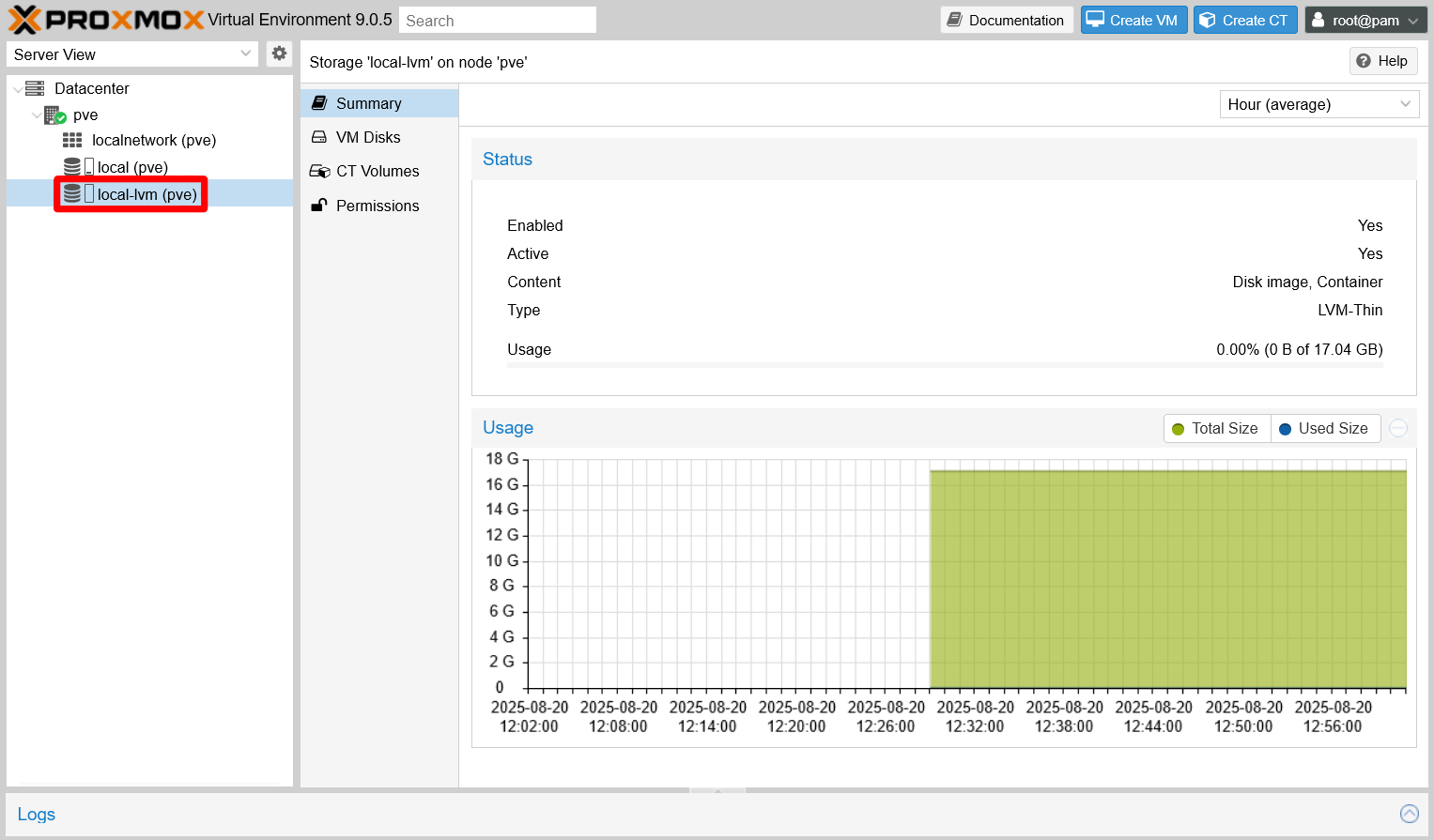
The Storage 'local-lvm' on node 'pve' shows in Usage that this thinpool has a capacity of 17.04 GiB, which is the rest of storage space available in the pve volume group (63 GiB minus the 12 GiB of swap space), and is still empty.
Finally, notice that the web console does not show the 12 GiB swap volume also existing within the LVM structure.
Initial filesystem configuration (shell as root)
To have a more complete idea of how the storage is organized in your recently installed Proxmox VE server, get into the shell as root (either remotely through a client like PuTTY or by using one of the shells provided by the Proxmox web console).
Checking the filesystem with fdisk
The first thing to do is to check the filesystem structure in your available storage drives with fdisk:
$ fdisk -l
Disk /dev/sda: 931.51 GiB, 1000204886016 bytes, 1953525168 sectors
Disk model: Samsung SSD 860
Units: sectors of 1 * 512 = 512 bytes
Sector size (logical/physical): 512 bytes / 512 bytes
I/O size (minimum/optimal): 512 bytes / 512 bytes
Disklabel type: gpt
Disk identifier: DE398227-5837-44FF-9422-173FEFB80BDC

Device       Start       End   Sectors  Size Type
/dev/sda1       34      2047      2014 1007K BIOS boot
/dev/sda2     2048   2099199   2097152    1G EFI System
/dev/sda3  2099200 132120576 130021377   62G Linux LVM


Disk /dev/sdb: 931.51 GiB, 1000204886016 bytes, 1953525168 sectors
Disk model: WDC WD10JPVX-22J
Units: sectors of 1 * 512 = 512 bytes
Sector size (logical/physical): 512 bytes / 4096 bytes
I/O size (minimum/optimal): 4096 bytes / 4096 bytes
Disklabel type: gpt
Disk identifier: 3E558705-367B-2444-949B-F5B848C14B9F


Disk /dev/mapper/pve-swap: 12 GiB, 12884901888 bytes, 25165824 sectors
Units: sectors of 1 * 512 = 512 bytes
Sector size (logical/physical): 512 bytes / 512 bytes
I/O size (minimum/optimal): 512 bytes / 512 bytes


Disk /dev/mapper/pve-root: 24.5 GiB, 26302480384 bytes, 51372032 sectors
Units: sectors of 1 * 512 = 512 bytes
Sector size (logical/physical): 512 bytes / 512 bytes
I/O size (minimum/optimal): 512 bytes / 512 bytes


Disk /dev/sdc: 1.82 TiB, 2000398934016 bytes, 3907029168 sectors
Disk model: 015-2E8174
Units: sectors of 1 * 512 = 512 bytes
Sector size (logical/physical): 512 bytes / 4096 bytes
I/O size (minimum/optimal): 4096 bytes / 4096 bytes
Disklabel type: gpt
Disk identifier: 8E9192A6-1F3F-412A-9B0C-0B1D6CE8B414
The sda device is the 1TiB SSD drive in which Proxmox VE is installed. In its block, below its list of technical capabilities, you can also see the list of the real partitions (the /dev/sda# lines under Device) created in it by the Proxmox VE installation. The sda1 and sda2 are partitions used essentially for booting the system up, and the sda3 is the one that contains the whole pve LVM volume group for Proxmox VE.
Below the sda information block, you can see the details of the sdb and sdc storage devices. In this case, both of them are not partitioned at all and, therefore, completely empty. That is why they do not have a listing of devices like the sda unit.
And do not forget the two remaining devices seen by fdisk, one per each LVM logical volumes (kind of virtual partitions) present in the system. From the point of view of the fdisk command, they are just like any other storage device, although the command gives a bit less information about them. Still, you can notice how these volumes are mounted on a /dev/mapper route instead of hanging directly from /dev, this is something related to their logical nature. Also, notice the following regarding the LVM volumes shown in the previous listing:
- The one called
pve-swapis the swapping partition, as it names implies. - The one called
pve-rootis the one in which the whole Debian system is installed, the so called/filesystem. - There is no mention at all of the LVM-Thin pool called
datayou saw in your PVE web console.
Thanks to the fdisk command, now you really have a good picture of what is going on inside your storage drives, but it is still a bit lacking. There are other commands that will help you visualize better the innards of your server’s filesystem.
Visualizing the filesystem structure with lsblk
With the lsblk command you can see your PVE node’s filesystem structure in branch format:
$ lsblk
NAME               MAJ:MIN RM   SIZE RO TYPE MOUNTPOINTS
sda                  8:0    0 931.5G  0 disk
├─sda1               8:1    0  1007K  0 part
├─sda2               8:2    0     1G  0 part
└─sda3               8:3    0    62G  0 part
  ├─pve-swap       252:0    0    12G  0 lvm  [SWAP]
  ├─pve-root       252:1    0  24.5G  0 lvm  /
  ├─pve-data_tmeta 252:2    0     1G  0 lvm
  │ └─pve-data     252:4    0  15.9G  0 lvm
  └─pve-data_tdata 252:3    0  15.9G  0 lvm
    └─pve-data     252:4    0  15.9G  0 lvm
sdb                  8:16   0 931.5G  0 disk
sdc                  8:32   0   1.8T  0 disk
This command not only sees all the physical storage drives available (TYPE disk) in the system and their partitions (TYPE part that, at this point, are only inside the sda device), it also gives information about the LVM filesystem itself (TYPE lvm).
It correctly shows the pve-swap, the pve-root and their mount points, but also lists the two elements that compose an LVM-Thin pool: its metadata (pve-data_tmeta) and the reserved space itself (pve-data). Although the default branch format is really helpful to see where is what, know that the lsblk command supports a few other output formats as well.
Investigating the LVM system with its own set of commands
With the two previous commands you get the Linux point of view, but you also need to know how the LVM system sees itself. For this, LVM has its own set of commands, and one of them is vgs:
$ vgs
  VG  #PV #LV #SN Attr   VSize   VFree
  pve   1   3   0 wz--n- <62.00g <7.63g
This commands informs about the LVM volume groups present on the system. In the snippet there is only one called pve (also prefix for the light volumes names as in pve-root).
Another interesting command is lvs:
$ lvs
  LV   VG  Attr       LSize   Pool Origin Data%  Meta%  Move Log Cpy%Sync Convert
  data pve twi-a-tz--  15.87g             0.00   1.58
  root pve -wi-ao---- <24.50g
  swap pve -wi-ao----  12.00g
In the output above, the command lists the logical volumes and also the thin-pool. Notice how the names (LV column) have changed: instead of being listed as pve-lv_name, the list shows them indicating their volume group (pve) in a different column (VG). Also, notice how the real available space in the thin data pool is shown properly (15.87 GiB, under the LSize column).
The last command to know about is vgdisplay:
$ vgdisplay
  --- Volume group ---
  VG Name               pve
  System ID
  Format                lvm2
  Metadata Areas        1
  Metadata Sequence No  7
  VG Access             read/write
  VG Status             resizable
  MAX LV                0
  Cur LV                3
  Open LV               2
  Max PV                0
  Cur PV                1
  Act PV                1
  VG Size               <62.00 GiB
  PE Size               4.00 MiB
  Total PE              15871
  Alloc PE / Size       13918 / <54.37 GiB
  Free  PE / Size       1953 / <7.63 GiB
  VG UUID               QLLDZO-5nRt-ye9r-1xtq-KBl9-drYB-iTHKRw
This command outputs details from the volume groups present in the system. In this case, it only shows information from the sole volume group present at this point in the reference setup, the pve group.
See the different parameters shown in the output, and notice how the commands gives you the count of logical (LV) and physical (PV) volumes present in the group. Bear in mind that a LVM physical volume can be either a whole storage drive or just a partition of the drive.
Configuring the unused storage drives
Now that you have the whole picture of how the storage setup is organized in a newly installed Proxmox VE server, you have to rearrange it to a more convenient one. Begin by making the two empty HDDs’ storage available for the LVM system:
Make a partition on each empty storage device that takes the whole space available. You can do this with
sgdisk:$ sgdisk -N 1 /dev/sdb Creating new GPT entries in memory. The operation has completed successfully. $ sgdisk -N 1 /dev/sdc Creating new GPT entries in memory. The operation has completed successfully.The
sgdiskcommand may return lines like in the following snippets:Warning: Partition table header claims that the size of partition table entries is 0 bytes, but this program supports only 128-byte entries. Adjusting accordingly, but partition table may be garbage. Creating new GPT entries in memory. The operation has completed successfully.Warning: The kernel is still using the old partition table. The new table will be used at the next reboot or after you run partprobe(8) or kpartx(8) The operation has completed successfully.Usually, you should expect seeing only the last line but, depending on what has been done to the storage drives previously, you may also see some warning about any possible issue detected by
sgdisk.Check the new partitions with
fdisk -l:$ fdisk -l /dev/sdb /dev/sdc Disk /dev/sdb: 931.51 GiB, 1000204886016 bytes, 1953525168 sectors Disk model: WDC WD10JPVX-22J Units: sectors of 1 * 512 = 512 bytes Sector size (logical/physical): 512 bytes / 4096 bytes I/O size (minimum/optimal): 4096 bytes / 4096 bytes Disklabel type: gpt Disk identifier: 3E558705-367B-2444-949B-F5B848C14B9F Device Start End Sectors Size Type /dev/sdb1 2048 1953525134 1953523087 931.5G Linux filesystem Disk /dev/sdc: 1.82 TiB, 2000398934016 bytes, 3907029168 sectors Disk model: 015-2E8174 Units: sectors of 1 * 512 = 512 bytes Sector size (logical/physical): 512 bytes / 4096 bytes I/O size (minimum/optimal): 4096 bytes / 4096 bytes Disklabel type: gpt Disk identifier: 8E9192A6-1F3F-412A-9B0C-0B1D6CE8B414 Device Start End Sectors Size Type /dev/sdc1 2048 3907029134 3907027087 1.8T Linux filesystemRemember how the
sdbandsdcdevices did not had a listing under their technical details before? Now you see that they have one partition each.Create a physical volume (or PV) with each of those new partitions. Use the
pvcreatecommand for this operation:The
pvcreatecommand will fail if it finds references to a previous LVM structure in the storage drive it is trying to turn into a physical volumeIf
pvcreatereturns a message likeCan't open /dev/sdb1 exclusively. Mounted filesystem?, you’ll need to remove all the LVM structure that might be lingering in your storage device.Follow this guide to know more about this issue.
$ pvcreate --metadatasize 1g -y -ff /dev/sdb1
  Physical volume "/dev/sdb1" successfully created.
$ pvcreate --metadatasize 2g -y -ff /dev/sdc1
  Physical volume "/dev/sdc1" successfully created.
Do not worry about any
Wipinglines returned bypvcreateThe
Wipinglines mean that the command is removing any references, or signatures, of previous filesystems that were used in the storage devices. These lines may look like this:Wiping ntfs signature on /dev/sdb1. Wiping zfs_member signature on /dev/sdc1.See that, in the commands above, and following the rule of thumb of 1 MiB per 1 GiB, it has been assigned 1 GiB on the
sdb1PV and 2 GiB on thesdc1PV as the size for their LVM metadata space. If more is required in the future, this can be reconfigured later.Check your new physical volumes executing
pvs:$ pvs PV VG Fmt Attr PSize PFree /dev/sda3 pve lvm2 a-- <62.00g <7.63g /dev/sdb1 lvm2 --- 931.51g 931.51g /dev/sdc1 lvm2 --- <1.82t <1.82tSee how the new physical volumes,
sdb1andsdc1, appear under the already present one,sda3.The next step is to create a volume group (or VG) for each one of the new PVs. Do this with
vgcreate:$ vgcreate hddint /dev/sdb1 Volume group "hddint" successfully created $ vgcreate hddusb /dev/sdc1 Volume group "hddusb" successfully createdUse
vgdisplayTo check the new VGs:$ vgdisplay --- Volume group --- VG Name hddusb System ID Format lvm2 Metadata Areas 1 Metadata Sequence No 1 VG Access read/write VG Status resizable MAX LV 0 Cur LV 0 Open LV 0 Max PV 0 Cur PV 1 Act PV 1 VG Size <1.82 TiB PE Size 4.00 MiB Total PE 476419 Alloc PE / Size 0 / 0 Free PE / Size 476419 / <1.82 TiB VG UUID 0Yf1Dw-Wjsc-oSr4-RDGY-dgzh-USUZ-Wy9Yia --- Volume group --- VG Name pve System ID Format lvm2 Metadata Areas 1 Metadata Sequence No 7 VG Access read/write VG Status resizable MAX LV 0 Cur LV 3 Open LV 2 Max PV 0 Cur PV 1 Act PV 1 VG Size <62.00 GiB PE Size 4.00 MiB Total PE 15871 Alloc PE / Size 13918 / <54.37 GiB Free PE / Size 1953 / <7.63 GiB VG UUID QLLDZO-5nRt-ye9r-1xtq-KBl9-drYB-iTHKRw --- Volume group --- VG Name hddint System ID Format lvm2 Metadata Areas 1 Metadata Sequence No 1 VG Access read/write VG Status resizable MAX LV 0 Cur LV 0 Open LV 0 Max PV 0 Cur PV 1 Act PV 1 VG Size <930.51 GiB PE Size 4.00 MiB Total PE 238210 Alloc PE / Size 0 / 0 Free PE / Size 238210 / <930.51 GiB VG UUID HABjIK-BEER-NphN-cBML-TwXR-qfXQ-2kBszZA shorter way of checking the volume groups is with the command
vgs:$ vgs VG #PV #LV #SN Attr VSize VFree hddint 1 0 0 wz--n- <930.51g <930.51g hddusb 1 0 0 wz--n- <1.82t <1.82t pve 1 3 0 wz--n- <62.00g <7.63g
Seeing the new storage volumes in Proxmox VE’s web console
If you are wondering if any of this changes appear in the Proxmox web console, just open it and browse to the pve node level. There, open the Disks view:
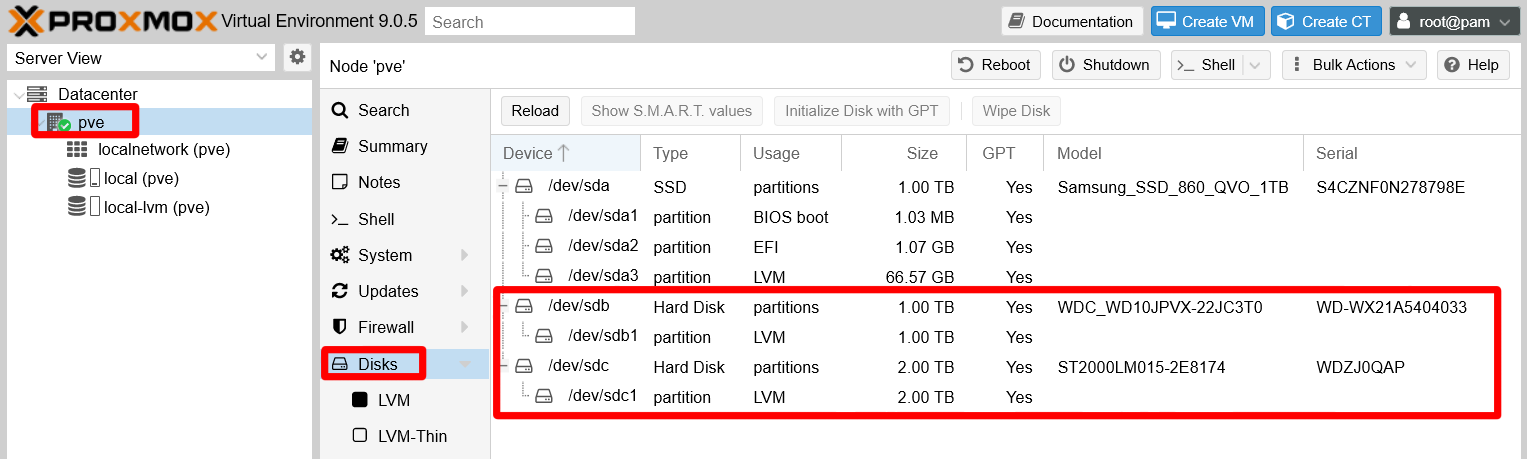
You can see how the sdb and sdc devices now show their new LVM partitions. Meanwhile, in the Disks > LVM section:
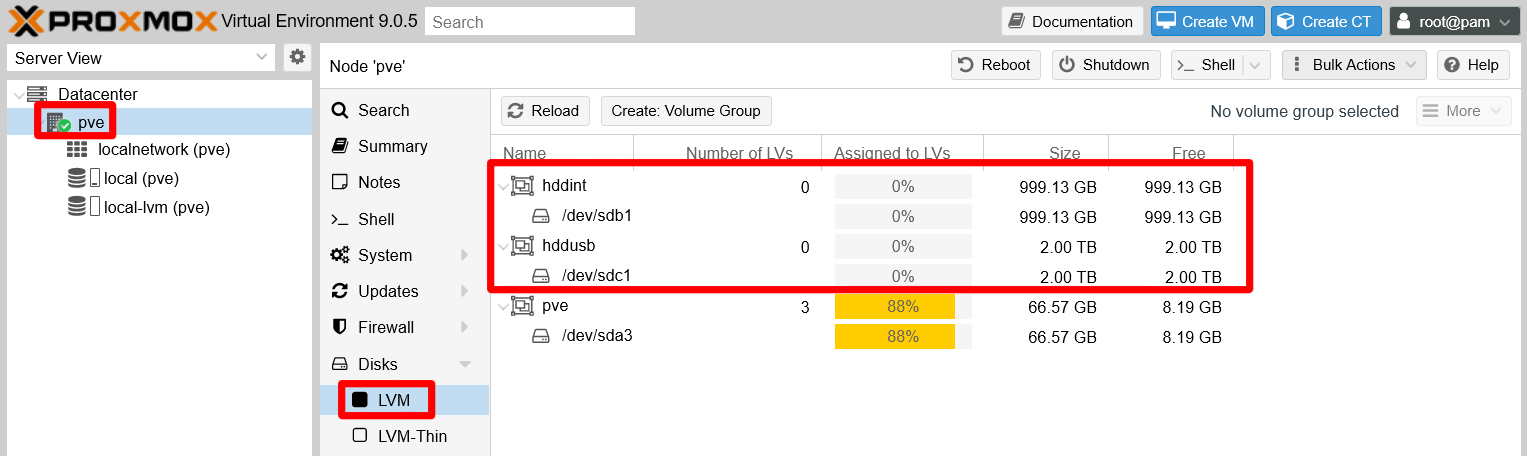
The new volume groups hddint and hddusb appear above the system’s pve one. By default, they appear alphabetically ordered by the Volume Group Name column.
At this point, you have an initial arrangement for your unused storage devices. It is just a basic configuration over which logical volumes and thin-pools can be created later as needed.
LVM rearrangement in the main storage drive
The main storage drive, the SSD unit, has an LVM arrangement that is not optimal for the small server you want to build. Better create a new differentiated storage unit in the SSD drive, one that is not the pve volume group used by the Proxmox VE system itself. This way, you can keep thing separated and reduce the chance of messing anything directly related to your Proxmox VE installation.
Removing the data LVM thin-pool
The installation process of Proxmox VE created a LVM thin-pool called data, which is part of the pve volume group. You need to reclaim this space, so remove this data thin-pool:
On the Proxmox VE web console, go to the
Datacenter > Storageoption and remove thelocal-lvmvolume from the list by selecting it and pressing on theRemovebutton:
Selected local-lvm thin-pool for removal A dialog will ask for your confirmation:

Removal confirmation of the local-lvm thin-pool The volume will be immediately taken out from the storage list:
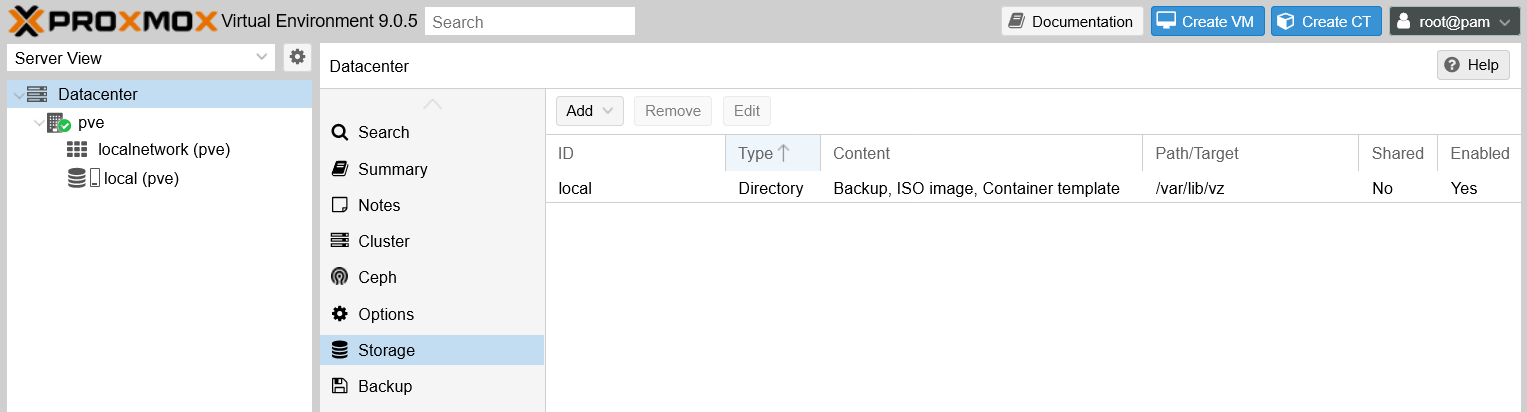
local-lvm thin-pool removed This action has not erased the LVM thinpool volume itself, it only has made the thin-pool unavailable for Proxmox VE.
To remove the
datathinpool volume, get into the shell asrootand do this:$ lvs LV VG Attr LSize Pool Origin Data% Meta% Move Log Cpy%Sync Convert data pve twi-a-tz-- 15.87g 0.00 1.58 root pve -wi-ao---- <24.50g swap pve -wi-ao---- 12.00gThe
datavolume is under thepvevolume group (VG). Knowing this, executelvremoveto delete this logical volume (LV).$ lvremove pve/dataNotice how you have to specify the VG before the name of the LV you want to remove. The command will ask you to confirm the removal. Answer with
y:Do you really want to remove active logical volume pve/data? [y/n]: y Logical volume "data" successfully removed.To verify that the
datavolume does not exist anymore, you can check it with thelvscommand:$ lvs LV VG Attr LSize Pool Origin Data% Meta% Move Log Cpy%Sync Convert root pve -wi-ao---- <24.50g swap pve -wi-ao---- 12.00gOnly two logical volumes are listed now, and with the
pvscommand you can see how much space you have available in the physical volume where thedatathin-pool is present. In this case it is in thesda3unit:$ pvs /dev/sda3 pve lvm2 a-- <62.00g 25.50g /dev/sdb1 hddint lvm2 a-- <930.51g <930.51g /dev/sdc1 hddusb lvm2 a-- <1.82t <1.82tAlso, if you go back to the Proxmox VE web console, you can see there how the thin-pool is not present anymore as a leaf under your
pvenode nor in theDisks > LVM-Thinscreen.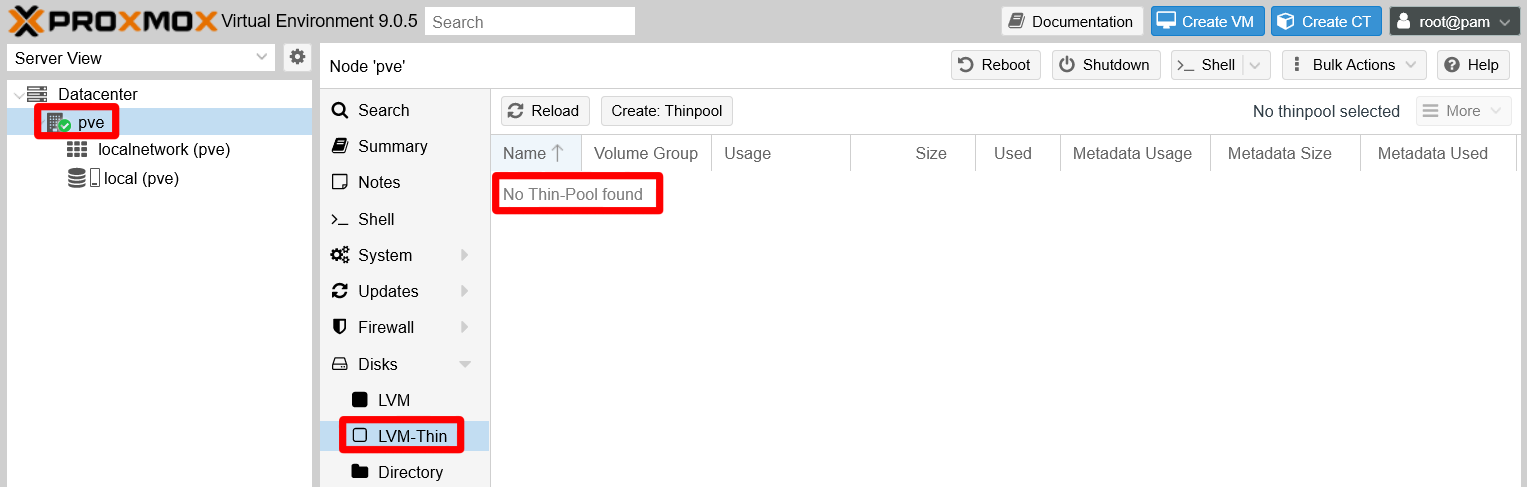
PVE node thin-pool list empty
Extending the root logical volume
Now that you have a lot of free space in the /dev/sda3, give more room to your system’s root volume:
First locate with
lvswhere is therootLV in your system’s LVM structure:$ lvs LV VG Attr LSize Pool Origin Data% Meta% Move Log Cpy%Sync Convert root pve -wi-ao---- <24.50g swap pve -wi-ao---- 12.00gIt is in the
pveVG.Now you need to know exactly how much space you have available in the
pveVG. Usevgdisplayto see all the details of this group:$ vgdisplay pve --- Volume group --- VG Name pve System ID Format lvm2 Metadata Areas 1 Metadata Sequence No 8 VG Access read/write VG Status resizable MAX LV 0 Cur LV 2 Open LV 2 Max PV 0 Cur PV 1 Act PV 1 VG Size <62.00 GiB PE Size 4.00 MiB Total PE 15871 Alloc PE / Size 9343 / <36.50 GiB Free PE / Size 6528 / 25.50 GiB VG UUID QLLDZO-5nRt-ye9r-1xtq-KBl9-drYB-iTHKRwPay attention to the
Free PE / Sizeline. PE stands for Physical Extend size, and is the number of extends you have available in the volume group. The previousAlloc PEline gives you the allocated extends or storage already in use.You need to use the
lvextendcommand to expand therootLV in the free space you have in thepvegroup:$ lvextend -l +6528 -r pve/root File system ext4 found on pve/root mounted at /. Size of logical volume pve/root changed from <24.50 GiB (6271 extents) to <50.00 GiB (12799 extents). Extending file system ext4 to <50.00 GiB (53682896896 bytes) on pve/root... resize2fs /dev/pve/root resize2fs 1.47.2 (1-Jan-2025) Filesystem at /dev/pve/root is mounted on /; on-line resizing required old_desc_blocks = 4, new_desc_blocks = 7 The filesystem on /dev/pve/root is now 13106176 (4k) blocks long. resize2fs done Extended file system ext4 on pve/root. Logical volume pve/root successfully resized.Two options are specified to the
lvextendcommand:-l +6528
Specifies the number of extents (+6528) you want to assign to the logical volume.-r
Orders thelvextendcommand to call theresizefsprocedure, after extending the volume, to expand the filesystem within the volume over the newly assigned storage space.
As a final verification, check with the commands
lvs,vgs,pvsanddfthat the root partition has taken up the entire free space available in thepvevolume group:$ lvs LV VG Attr LSize Pool Origin Data% Meta% Move Log Cpy%Sync Convert root pve -wi-ao---- <50.00g swap pve -wi-ao---- 12.00g$ vgs VG #PV #LV #SN Attr VSize VFree hddint 1 0 0 wz--n- <930.51g <930.51g hddusb 1 0 0 wz--n- <1.82t <1.82t pve 1 2 0 wz--n- <62.00g 0$ pvs PV VG Fmt Attr PSize PFree /dev/sda3 pve lvm2 a-- <62.00g 0 /dev/sdb1 hddint lvm2 a-- <930.51g <930.51g /dev/sdc1 hddusb lvm2 a-- <1.82t <1.82t$ df -h Filesystem Size Used Avail Use% Mounted on udev 3.8G 0 3.8G 0% /dev tmpfs 783M 1.3M 782M 1% /run /dev/mapper/pve-root 50G 3.5G 44G 8% / tmpfs 3.9G 46M 3.8G 2% /dev/shm efivarfs 128K 39K 85K 32% /sys/firmware/efi/efivars tmpfs 5.0M 0 5.0M 0% /run/lock tmpfs 1.0M 0 1.0M 0% /run/credentials/systemd-journald.service tmpfs 3.9G 0 3.9G 0% /tmp /dev/fuse 128M 16K 128M 1% /etc/pve tmpfs 1.0M 0 1.0M 0% /run/credentials/getty@tty1.service tmpfs 783M 4.0K 783M 1% /run/user/0The snippets above show that:
- The
rootvolume has grown from 24.50 GiB to 50.00 GiB. - The
pveVG does not have any empty space (VFree) available. - The
/dev/sda3physical volume also does not have any space (PFree) free either - The
/dev/mapper/pve-rootSizecorresponds to what therootLV has free.
- The
Creating a new partition and a new VG in the unallocated space on the sda drive
What remains to do is to make usable all the still unallocated space within the sda drive. You have to create a new partition in it:
In a
rootshell, use the followingfdiskcommand:$ fdisk /dev/sda Welcome to fdisk (util-linux 2.41). Changes will remain in memory only, until you decide to write them. Be careful before using the write command. This disk is currently in use - repartitioning is probably a bad idea. It's recommended to umount all file systems, and swapoff all swap partitions on this disk. Command (m for help):The
fdiskcommand warns you about messing with the/dev/sdaunit while in useIn this particular scenario, this will not be an issue since you are going to create a new partition in the free space available.
Still, modifying the partition table of an active storage unit is not recommended.
Never do this in a real production environment!
Now you are in the
fdiskpartition editor. Be careful what you do here or you might mess your PVE node’s root filesystem up! Input the commandFto check the empty space available in thesdadrive:Command (m for help): F Unpartitioned space /dev/sda: 868.51 GiB, 932558085632 bytes, 1821402511 sectors Units: sectors of 1 * 512 = 512 bytes Sector size (logical/physical): 512 bytes / 512 bytes Start End Sectors Size 132122624 1953525134 1821402511 868.5GWith the previous information now you are sure of where the free space begins and ends, and also its size (868.5 GiB in this guide’s case). Knowing this you can create a new partition by typing
nas the command to do so:Command (m for help): n Partition number (4-128, default 4):The first thing
fdiskasks you is the number you want for the new partition. Since there are already three other partitions insda, it has to be any number between 4 and 128 (both included). The default value (4) is fine, so just press enter on this question.The next question
fdiskasks you is about on whichsectorthe newsda4partition should start in yoursdadrive:First sector (132120577-1953525134, default 132122624):Notice how the first sector chosen by default is the same one you saw before with the
Fcommand as theStartof the free space. Again, the default value (132122624) is good, since you want thesda4partition to start at the very beginning of the available unallocated space. Therefore, press enter to accept the default value.The last question is about on which sector the new
sda4partition has to end:Last sector, +/-sectors or +/-size{K,M,G,T,P} (132122624-1953525134, default 1953523711):Curiously enough, it offers you as a possibility the sector in which your partition is starting. Notice how the default value proposed is the free space’s
End. This value is right what you want to make the newsda4partition take all the available free space. Just press enter to accept the default value.The
fdiskprogram will warn you about the partition’s creation and return you to its command line:Created a new partition 4 of type 'Linux filesystem' and of size 868.5 GiB. Command (m for help):Although
fdisksays it has created the partition, be aware that, in fact, the new partition table is only in memoryThe change still has to be saved in the real
sda’s partition table.To verify that the partition has been registered, use the command
pto see the current partition table infdisk’s memory:Command (m for help): p Disk /dev/sda: 931.51 GiB, 1000204886016 bytes, 1953525168 sectors Disk model: Samsung SSD 860 Units: sectors of 1 * 512 = 512 bytes Sector size (logical/physical): 512 bytes / 512 bytes I/O size (minimum/optimal): 512 bytes / 512 bytes Disklabel type: gpt Disk identifier: DE398227-5837-44FF-9422-173FEFB80BDC Device Start End Sectors Size Type /dev/sda1 34 2047 2014 1007K BIOS boot /dev/sda2 2048 2099199 2097152 1G EFI System /dev/sda3 2099200 132120576 130021377 62G Linux LVM /dev/sda4 132122624 1953523711 1821401088 868.5G Linux filesystemSee how the new
sda4partition is named correlatively to the other threesdaalready existing ones, and takes up the previously unassigned free space (868.5 GiB). Also notice howfdiskindicates that the partition is of theType Linux filesystem, notLinux LVM.To turn the partition into a Linux LVM type, use the
tcommand:Command (m for help): t Partition number (1-4, default 4):The command asks you first which partition you want to change, and it also offers by default the newest one (number
4). In this case, the default value 4 is the correct one, so press enter here.The next question is about what type you want to change the partition into. If you do not know the numeric code of the type you want, type
Lon this question to get a long list with all the types available. Pressqto exit the types listing and return to the question prompt:The number identifying the type can change between
fdiskversions!Always check with
Lwhich number corresponds to the type you want to use.Partition type or alias (type L to list all): L 1 EFI System C12A7328-F81F-11D2-BA4B-00A0C93EC93B 2 MBR partition scheme 024DEE41-33E7-11D3-9D69-0008C781F39F 3 Intel Fast Flash D3BFE2DE-3DAF-11DF-BA40-E3A556D89593 4 BIOS boot 21686148-6449-6E6F-744E-656564454649 5 Sony boot partition F4019732-066E-4E12-8273-346C5641494F 6 Lenovo boot partition BFBFAFE7-A34F-448A-9A5B-6213EB736C22 7 PowerPC PReP boot 9E1A2D38-C612-4316-AA26-8B49521E5A8B 7 PowerPC PReP boot 9E1A2D38-C612-4316-AA26-8B49521E5A8B 8 ONIE boot 7412F7D5-A156-4B13-81DC-867174929325 8 ONIE boot 7412F7D5-A156-4B13-81DC-867174929325 8 ONIE boot 7412F7D5-A156-4B13-81DC-867174929325 9 ONIE config D4E6E2CD-4469-46F3-B5CB-1BFF57AFC149 10 Microsoft reserved E3C9E316-0B5C-4DB8-817D-F92DF00215AE 11 Microsoft basic data EBD0A0A2-B9E5-4433-87C0-68B6B72699C7 12 Microsoft LDM metadata 5808C8AA-7E8F-42E0-85D2-E1E90434CFB3 13 Microsoft LDM data AF9B60A0-1431-4F62-BC68-3311714A69AD 14 Windows recovery environment DE94BBA4-06D1-4D40-A16A-BFD50179D6AC 15 IBM General Parallel Fs 37AFFC90-EF7D-4E96-91C3-2D7AE055B174 16 Microsoft Storage Spaces E75CAF8F-F680-4CEE-AFA3-B001E56EFC2D 17 HP-UX data 75894C1E-3AEB-11D3-B7C1-7B03A0000000 18 HP-UX service E2A1E728-32E3-11D6-A682-7B03A0000000 19 Linux swap 0657FD6D-A4AB-43C4-84E5-0933C84B4F4F 20 Linux filesystem 0FC63DAF-8483-4772-8E79-3D69D8477DE4 21 Linux server data 3B8F8425-20E0-4F3B-907F-1A25A76F98E8 22 Linux root (x86) 44479540-F297-41B2-9AF7-D131D5F0458A 23 Linux root (x86-64) 4F68BCE3-E8CD-4DB1-96E7-FBCAF984B709 24 Linux root (Alpha) 6523F8AE-3EB1-4E2A-A05A-18B695AE656F 25 Linux root (ARC) D27F46ED-2919-4CB8-BD25-9531F3C16534 26 Linux root (ARM) 69DAD710-2CE4-4E3C-B16C-21A1D49ABED3 27 Linux root (ARM-64) B921B045-1DF0-41C3-AF44-4C6F280D3FAE 28 Linux root (IA-64) 993D8D3D-F80E-4225-855A-9DAF8ED7EA97 29 Linux root (LoongArch-64) 77055800-792C-4F94-B39A-98C91B762BB6 30 Linux root (MIPS-32 LE) 37C58C8A-D913-4156-A25F-48B1B64E07F0 31 Linux root (MIPS-64 LE) 700BDA43-7A34-4507-B179-EEB93D7A7CA3 32 Linux root (HPPA/PARISC) 1AACDB3B-5444-4138-BD9E-E5C2239B2346 33 Linux root (PPC) 1DE3F1EF-FA98-47B5-8DCD-4A860A654D78 34 Linux root (PPC64) 912ADE1D-A839-4913-8964-A10EEE08FBD2 35 Linux root (PPC64LE) C31C45E6-3F39-412E-80FB-4809C4980599 36 Linux root (RISC-V-32) 60D5A7FE-8E7D-435C-B714-3DD8162144E1 37 Linux root (RISC-V-64) 72EC70A6-CF74-40E6-BD49-4BDA08E8F224 38 Linux root (S390) 08A7ACEA-624C-4A20-91E8-6E0FA67D23F9 39 Linux root (S390X) 5EEAD9A9-FE09-4A1E-A1D7-520D00531306 40 Linux root (TILE-Gx) C50CDD70-3862-4CC3-90E1-809A8C93EE2C 41 Linux reserved 8DA63339-0007-60C0-C436-083AC8230908 42 Linux home 933AC7E1-2EB4-4F13-B844-0E14E2AEF915 43 Linux RAID A19D880F-05FC-4D3B-A006-743F0F84911E 44 Linux LVM E6D6D379-F507-44C2-A23C-238F2A3DF928 ...When you have located the type you want, in this case
Linux LVM, return to the question by pressingqand type the type index number. For theLinux LVMis44in this case:Partition type or alias (type L to list all): 44After indicating the type and pressing enter,
fdiskindicates you if the change has been done properly and will exit the command:Changed type of partition 'Linux filesystem' to 'Linux LVM'. Command (m for help):To verify that
fdiskhas applied the type change, check the partition table again with thepcommand:Command (m for help): p Disk /dev/sda: 931.51 GiB, 1000204886016 bytes, 1953525168 sectors Disk model: Samsung SSD 860 Units: sectors of 1 * 512 = 512 bytes Sector size (logical/physical): 512 bytes / 512 bytes I/O size (minimum/optimal): 512 bytes / 512 bytes Disklabel type: gpt Disk identifier: DE398227-5837-44FF-9422-173FEFB80BDC Device Start End Sectors Size Type /dev/sda1 34 2047 2014 1007K BIOS boot /dev/sda2 2048 2099199 2097152 1G EFI System /dev/sda3 2099200 132120576 130021377 62G Linux LVM /dev/sda4 132122624 1953523711 1821401088 868.5G Linux LVMNow that you have the new
sda4partition ready, exit thefdiskprogram with thewcommand. This will write the changes to thesdadrive partition table:Command (m for help): w The partition table has been altered. Syncing disks.See how
fdiskgives you some final output about the update before returning you to the shell.Use the
lsblkcommand to see the newsda4partition appearing as another branch of thesdatree, right below thesda3’s structure:$ lsblk NAME MAJ:MIN RM SIZE RO TYPE MOUNTPOINTS sda 8:0 0 931.5G 0 disk ├─sda1 8:1 0 1007K 0 part ├─sda2 8:2 0 1G 0 part ├─sda3 8:3 0 62G 0 part │ ├─pve-swap 252:0 0 12G 0 lvm [SWAP] │ └─pve-root 252:1 0 50G 0 lvm / └─sda4 8:4 0 868.5G 0 part sdb 8:16 0 931.5G 0 disk └─sdb1 8:17 0 931.5G 0 part sdc 8:32 0 1.8T 0 disk └─sdc1 8:33 0 1.8T 0 partNotice how the
sda4TYPE is simply indicated aspart.With the
sda4partition ready, create a new physical LVM volume with it. Use thepvcreatecommand:$ pvcreate /dev/sda4 Physical volume "/dev/sda4" successfully created.Use
lvmdiskscanto verify thatsda4is now also a PV:$ lvmdiskscan /dev/sdb1 [ 931.51 GiB] LVM physical volume /dev/sda2 [ 1.00 GiB] /dev/sda3 [ <62.00 GiB] LVM physical volume /dev/sdc1 [ <1.82 TiB] LVM physical volume /dev/sda4 [ 868.51 GiB] LVM physical volume 0 disks 1 partition 0 LVM physical volume whole disks 4 LVM physical volumesAlso, you can execute the
pvscommand to see if thesda4PV shows up there:$ pvs PV VG Fmt Attr PSize PFree /dev/sda3 pve lvm2 a-- <62.00g 0 /dev/sda4 lvm2 --- 868.51g 868.51g /dev/sdb1 hddint lvm2 a-- <930.51g <930.51g /dev/sdc1 hddusb lvm2 a-- <1.82t <1.82tWhat is left to do is to create a volume group over the
sda4PV. For this, execute avgcreatecommand:$ vgcreate ssdint /dev/sda4 Volume group "ssdint" successfully createdFinally, check with the
vgscommand if this newssdintVG has been really created:$ vgs VG #PV #LV #SN Attr VSize VFree hddint 1 0 0 wz--n- <930.51g <930.51g hddusb 1 0 0 wz--n- <1.82t <1.82t pve 1 2 0 wz--n- <62.00g 0 ssdint 1 0 0 wz--n- <868.51g <868.51g
With all these steps you have got an independent space in your SSD storage unit, meant to separate the storage used for virtual machines and containers, services and other non-Proxmox VE related files (like ISO images or container templates) from what is the Proxmox VE filesystem.
References
Logical Volume Management (LVM)
Tekneed. Understanding LVM In Linux (Create Logical Volume) RHEL/CentOS 7&8
- How to Create Disk Storage with Logical Volume Management (LVM) in Linux – PART 1
- How to Extend/Reduce LVM’s (Logical Volume Management) in Linux – Part II
- How to Take ‘Snapshot of Logical Volume and Restore’ in LVM – Part III
- Setup Thin Provisioning Volumes in Logical Volume Management (LVM) – Part IV
HowToGeek. How to Manage and Use LVM (Logical Volume Management) in Ubuntu
Ucartz. Knowledgebase. CentOS. pvcreate error : Can’t open /dev/sdx exclusively. Mounted filesystem?