Alternative administrator user
Avoid using the root user
In the previous chapters, you have been using the root user to work in your Proxmox VE system’s setup. That is fine for earlier configuration steps, but it is absolutely not recommended to keep on using it as your server’s everyday administrator user.
Since root is the superuser with all the privileges, using it directly on any Linux server risks inducing all sorts of security or other issues. To mitigate those potential problems, is better to create an alternative administrator user with sudo privileges and use it instead of root.
Understanding the Proxmox VE user management and the realms
Proxmox VE can work with up to five authentication realms: pam, Proxmox VE authentication server, LDAP, Microsoft Active Directory and OpenID Connect. The last four can be considered external and shared among all the nodes of a PVE cluster. But what about the remaining pam?
The pam, which stands for Pluggable Authentication Module, is the standard authentication system for any Linux distribution, including the Debian one running your standalone PVE node. But this pam realm is strictly local, bounded just to the node itself, and not shared in any way with any other computer.
It is in the pam realm of the Proxmox VE node where the root user exists, like in any other Linux-based system. This same user is also registered within the user management of your Proxmox VE, and it is the only user you have initially to log in the Proxmox VE web console. This means that the root user was created first in the pam realm, and then linked to your node’s Proxmox VE authentication system by the installation process.
Next, learn how you can find the user management screen in your PVE’s web console. It is available at the Datacenter level, as an option called Users under Permissions:
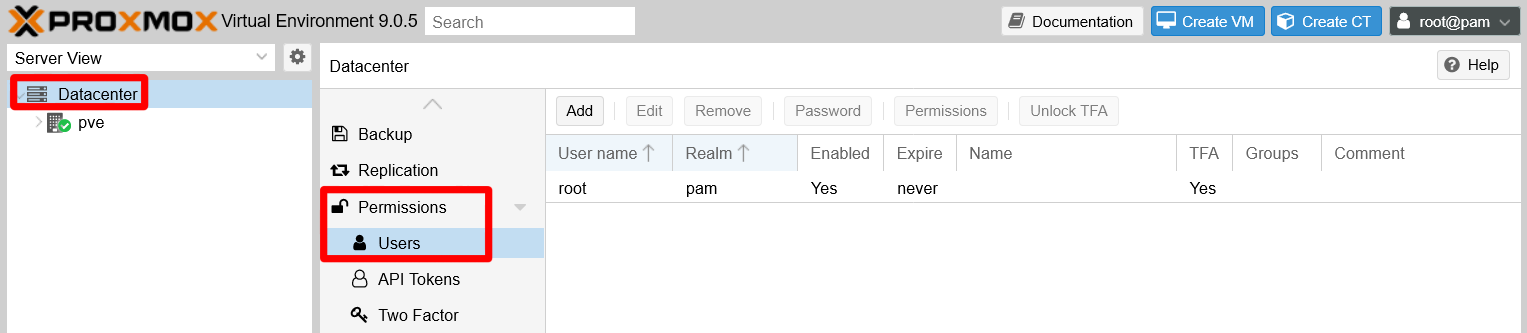
So, if all the PVE’s user management is handled at the Datacenter level, does that mean that Proxmox VE takes care somehow of syncing the pam realm among the nodes of a cluster (in case you were working on one)? Short answer, no. Changes in the palm realm only apply to the node you logged in. Also, if you create a user directly from the PVE’s Users page and assign it to the pam realm, it will not create the user at the Debian OS level.
Always create your pam users at the OS level first
In conclusion, creating a pam realm’s user in Proxmox VE always implies two basic steps:
Creating the user directly in the node at the Debian OS level.
Enabling it in the Proxmox VE user management, either through the web console or by the shell commands Proxmox VE also provides for this and other administrative tasks.
With just one standalone node, creating one or two very particular system users is no big deal
However, in a cluster you would need to automate this via shell scripting or some other tools.
Creating a new system administrator user for a Proxmox VE node
Here you are about to create an alternative, and a bit safer, administrator user for your system to use instead of root.
In a normal Linux-based server, you would just create a standard user and then give it sudo privileges. But such user also has to hold a certain role and concrete privileges within your Proxmox VE platform. Those privileges are security concerns at the PVE’s Datacenter level, not just of any particular PVE node.
Therefore, you need to perform a number of steps to create a new administrative user in your Proxmox VE’s pam realm.
Creating the user with sudo privileges in Debian
Open a remote terminal as root connected to your Proxmox VE server, and then:
Create a user called, for instance,
mgrsyswith theaddusercommand:$ adduser mgrsysStick to a naming criteria for your users!
Use a criteria for naming your users, and make those names individualized. This way you have a better chance to detect any strange behavior related to your users in the system’s logs. For instance, you could follow a pattern like
[role][initials]or[role][name][surname].The
addusercommand first asks the password twice for the new user, and then a few informative details like the user’s full name. The whole output should be something like this:New password: Retype new password: passwd: password updated successfully Changing the user information for mgrsys Enter the new value, or press ENTER for the default Full Name []: PVE system's manager Room Number []: Work Phone []: Home Phone []: Other []: Is the information correct? [Y/n]Add the new user to the
sudogroup:Ensure you have
sudoinstalled in your PVE nodeBefore you proceed with this step, be sure of having the
sudopackage installed in your PVE node:$ apt install sudo$ adduser mgrsys sudo Adding user `mgrsys' to group `sudo' ... Adding user mgrsys to group sudo Done.
Assigning a TOTP code to the new user
Remaining in the same remote terminal session you opened with root on your Proxmox VE server:
Switch to your new user by using the
sucommand, and go to its$HOMEdirectory:$ su mgrsys $ cdCreate a TOTP token for the new user with the
google-authenticatorprogram. Use the automated method with a command like the following:$ google-authenticator -t -d -f -r 3 -R 30 -w 3 -Q utf8 -i pve.homelab.cloud -l mgrsys@pamDo not forget the
@pamsuffix in your TOTP token’s label!Notice how the label (
-l) has an@pamsuffix after the username, like it is withroot.Copy all the codes given by the
google-authenticatorcommand in a safe location, like a password manager.
Testing sudo with the new administrator user
After you have checked that your new administrator user can connect through ssh, make a simple test to see if this user has sudo privileges. For instance, you could try to execute a ls with sudo.
$ sudo ls -alCreating a system administrator group in Proxmox VE
The most convenient way of assigning roles and privileges to users within the Proxmox VE platform is by putting them in groups that already have the required roles and privileges. Hence, create a PVE platform managers group:
Open a shell terminal as
rootand create the group with the following PVE command:$ pveum groupadd pvemgrs -comment "PVE system's managers"Do not set confusing names to your groups
Avoid using a name too similar or equal to the ones already used for existing groups in the underlying Debian OS, like
sysoradm, to avoid possible confusions.You can check the existing Debian groups in the
/etc/groupfile.Assign the Administrator role to the newly created group:
$ pveum aclmod / -group pvemgrs -role AdministratorCheck the group creation by opening the file
/etc/pve/user.cfg. In it, you should see something like this:user:root@pam:1:0:::pveroot@homelab.cloud::x: group:pvemgrs::PVE system's managers: acl:1:/:@pvemgrs:Administrator:The file’s content can be explain as follows:
- The
user:line describes the PVE’srootuser. - The
group:line corresponds to your newly created system administrator group. - The
acl:line assigns the PVE roleAdministratorto your new group.
This new group can also be seen in the user management section of your PVE node’s web console. Click on
Datacenterand unfold thePermissionslist, then click onGroups.
New PVE managers group seen through web console The new group you’ve just created is just a Proxmox VE one
The
pvemgrsis not part of the underlying Debian’s groups. Therefore, it is not listed in the/etc/groupfile.- The
Enabling the new administrator user in Proxmox VE
The mgrsys user you created earlier exists within the Debian OS, but not in the Proxmox VE platform yet. To do so, you have to create the same user within the PVE platform too:
To create the user in just one line, type a command line (as
root) like the following:Specify an email useful to you in the command below
Do not forget replacing the
-emailexample value shown here with the one you want!$ pveum user add mgrsys@pam -comment "PVE system's manager" -email "mgrsys@homelab.cloud" -firstname "PVE" -lastname "SysManager" -groups pvemgrsThe command line above creates the
mgrsysuser within the PVE node’spamrealm (@pam), while also including it in thepvemgrsgroup. You can check this on the PVE web console: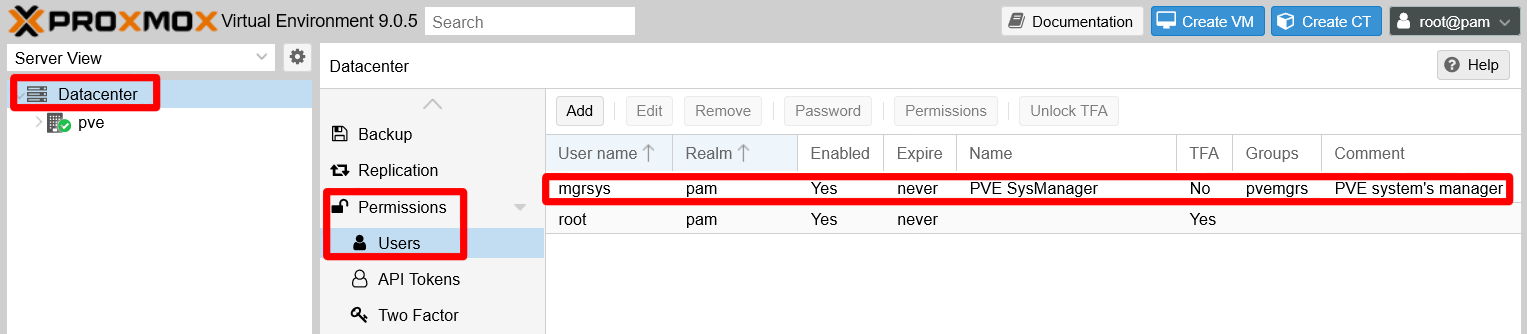
New user on user management screen Since the PVE’s pam realm has the two factor authentication enforced, the
mgrsysuser needs its TOTP enabled too. Go then to theDatacenter\Permissions\Two Factorpage andAdda newTOTPentry: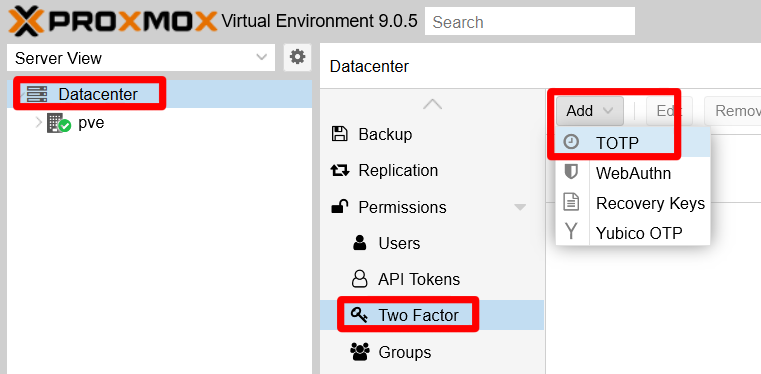
Selecting the TOTP option in the Datacenter Permissions Two Factor page Fill the TFA form for the
mgrsysuser reusing the same TOTP details and secret previously set with thegoogle-authenticatorprogram: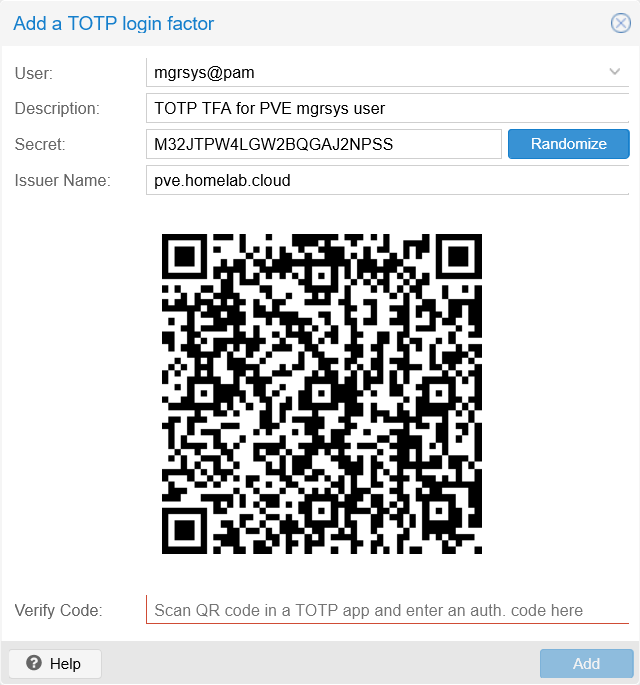
TOTP form filled for the new mgrsys user Be always careful with your secret codes, even expendable ones
Remember to never share TOTP codes at all!
With the TOTP set up correctly, you can try to log with your new
mgrsysuser in the Proxmox VE web console:The
mgrsysuser’s password is the one specified at the Debian OS level with theaddusercommand.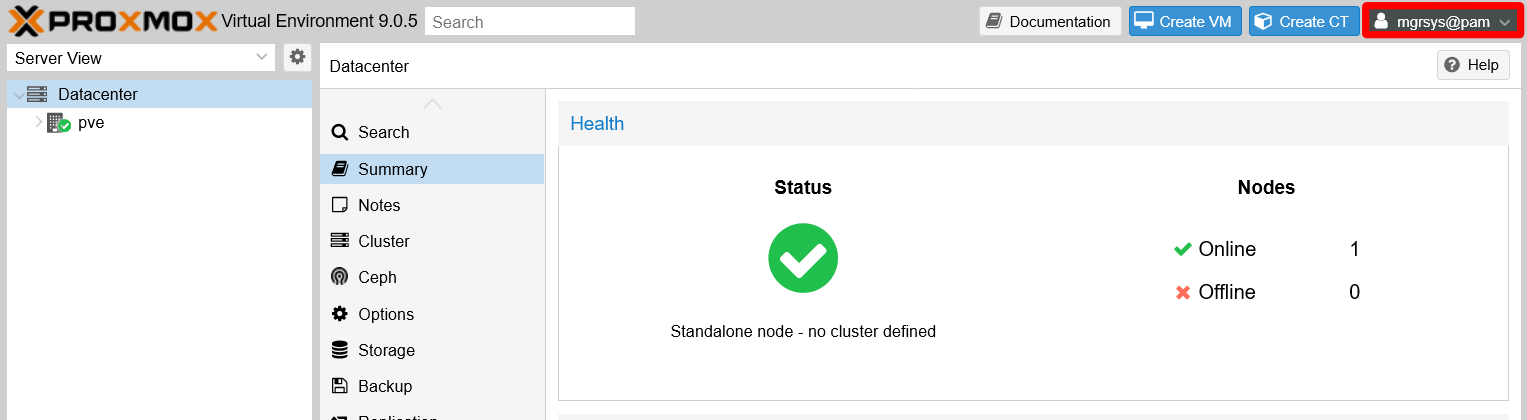
New mgrsys user has logged in PVE web console The new
mgrsysuser has access to the same tabs and options asroot, thanks to being part of a PVE group with full administrative rights.
Relevant system paths
Directories
$HOME/etc/pve/etc/pve/priv
Files
$HOME/.google_authenticator/etc/pve/user.cfg/etc/pve/priv/tfa.cfg/etc/pve/priv/shadow.cfg