Network hardening with sysctl
Harden your PVE’s networking with a sysctl configuration
You can harden your Proxmox VE node’s network connections with a proper sysctl configuration. This will help you mitigate or nullify certain attacks, while also fitting your network configuration better to your needs.
About sysctl
The sysctl framework looks for system configuration files distributed on a couple of locations in your system, and will parse them at boot time in a concrete order. Inside the folders, sysctl will read the files in lexicographical order.
In your PVE system you’ll find the following files:
/etc/sysctl.d/README.sysctl
This is NOT a filesysctlwill read./usr/lib/sysctl.d/10-coredump-debian.conf/usr/lib/sysctl.d/10-pve.conf/usr/lib/sysctl.d/10-pve-ct-inotify-limits.conf/usr/lib/sysctl.d/50-default.conf/usr/lib/sysctl.d/50-pid-max.conf/usr/lib/sysctl.d/pve-firewall.conf
See how Proxmox VE already has its own files, the ones with the pve string in their names.
On the other hand, there is the directory /lib/sysctl.d/. This path is correponds to the /usr/lib/sysctl.d/ directory since /lib is just a symlink to /usr/lib/.
The sysctl configuration files get sorted in memory by their names
All configuration files are sorted (after being loaded) in memory by their filename in lexicographic order, regardless of the directories they are in.
If multiple files specify the same option, the entry in the file with the lexicographically last name will take precedence. Thus, the configuration in a certain file may either be replaced completely (by placing a file with the same name in a directory with higher priority), or individual settings might be changed (by specifying additional settings in a file with a different name that is ordered later).
The previous file list would be applied by sysctl in the following lexicographical order:
10-coredump-debian.conf10-pve.conf10-pve-ct-inotify-limits.conf50-default.conf50-pid-max.confpve-firewall.conf
Finally, to see the current value of a sysctl parameter, you can use directly the sysctl command with any full parameter name (autocomplete works for those parameter names):
$ sudo sysctl net.core.wmem_default
net.core.wmem_default = 212992
On the other hand, you can also list the full list of parameters with their current values:
$ sudo sysctl -a
abi.vsyscall32 = 1
debug.exception-trace = 1
debug.kprobes-optimization = 1
dev.cdrom.autoclose = 1
dev.cdrom.autoeject = 0
dev.cdrom.check_media = 0
dev.cdrom.debug = 0
dev.cdrom.info = CD-ROM information, Id: cdrom.c 3.20 2003/12/17
dev.cdrom.info =
dev.cdrom.info = drive name:
dev.cdrom.info = drive speed:
dev.cdrom.info = drive # of slots:
dev.cdrom.info = Can close tray:
dev.cdrom.info = Can open tray:
...
Since there are a lot of parameters, you may prefer to pipe this command to less to revise them in a more comfortable manner:
$ sudo sysctl -a | lessSome sysctl values are managed by the Proxmox VE firewall
Be aware that the Proxmox VE firewall handles a bunch of sysctl net parameters. The ones listed in the Proxmox VE Firewall official documentation, in the firewall’s Host Specific Configuration segment under the Configuration Files section, are the following ones.
nf_conntrack_allow_invalid
To allow packets with the state INVALID on the connection tracking (conntrack). There is no other reference to this parameter beyond the Proxmox VE-related documentation, so maybe it is not asysctlvalue, although certainly looks like it.nf_conntrack_helpers
For enabling conntrack helpers for specific protocols. Like thenf_conntrack_allow_invalidparameter, it appears to be asysctlparameter but it is not mentioned in the official Kernel networking documentation.net.netfilter.nf_conntrack_max
The maximum number of allowed connection tracking entries. This value can be changed directly in the Proxmox VE web console.net.netfilter.nf_conntrack_tcp_timeout_established
Just a timeout in seconds for established connections. This value can be changed directly in the Proxmox VE web console. Should not be shorter than thenet.ipv4.tcp_keepalive_timevalue.net.netfilter.nf_conntrack_tcp_timeout_syn_recv
Another timeout in seconds, although there is no proper definition explaining its meaning.
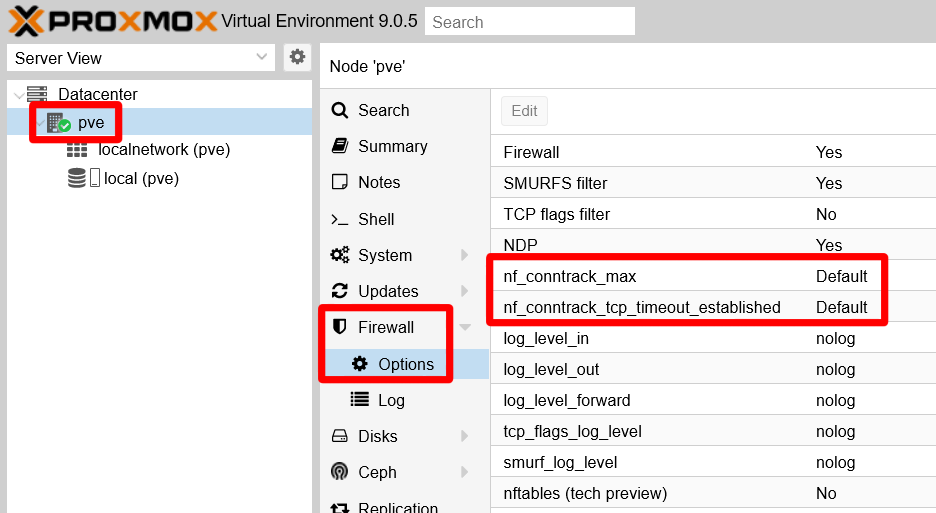
The parameters mentioned above are just a few of many related to the netfilter conntrack system. Find a more complete list in this page. On the other hand, the nf parameters that can be managed from the web console are found at the pve node level, in the firewall option’s page:
It is not documented, but at least other two other values can be affected by the Proxmox VE firewall:
net.bridge.bridge-nf-call-ip6tablesnet.bridge.bridge-nf-call-iptables
When the firewall gets fully enabled, those values are set to 1, overriding the 0 value they have in the /usr/lib/sysctl.d/10-pve.conf file. This means that netfilter becomes enabled on the bridges you run on your Proxmox VE host.
On the other hand, know that all the sysctl parameters are found under the /proc/sys folder as independent files just containing their values. Therefore, to see the net.netfilter values, you should list the contents of the /proc/sys/net/netfilter folder and you will be met by a little surprise:
$ ls -al /proc/sys/net/netfilter
total 0
dr-xr-xr-x 1 root root 0 Aug 29 12:03 .
dr-xr-xr-x 1 root root 0 Aug 29 11:10 ..
-rw-r--r-- 1 root root 0 Aug 29 12:03 nf_hooks_lwtunnel
dr-xr-xr-x 1 root root 0 Aug 29 12:03 nf_log
-rw-r--r-- 1 root root 0 Aug 29 12:03 nf_log_all_netns
None of the parameters controlled by Proxmox VE is present there, nor any of the ones you can see here. This only means that the netfilter system is not currently active in the system. Only after you enable the firewall at the datacenter level (something you will do in the chapter about firewalling), you will end up seeing this folder filled with new nf_conntrack_ files.
TCP/IP stack hardening with sysctl
To avoid messing with the .conf files already present, better make a new one filled with parameters just for hardening the TCP/IP stack of your system.
Give your sysctl .conf files unique names
The .conf files can have any name but, once a file of a given filename is loaded, sysctl will ignore any other file of the same name in subsequent directories.
Open a shell as
mgrsysandcdto/etc/sysctl.d/:$ cd /etc/sysctl.dCreate the new configuration file as
80_tcp_hardening.conf:$ sudo touch 80_tcp_hardening.confEdit
80_tcp_hardening.conf, adding the following lines to it:## TCP/IP stack hardening # Disable IPv6 protocol net.ipv6.conf.all.disable_ipv6 = 1 net.ipv6.conf.default.disable_ipv6 = 1 # Timeout broken connections faster (amount of time to wait for FIN). # Sets how many seconds to wait for a final FIN packet before the socket # is forcibly closed. This is strictly a violation of the TCP specification, # but required to prevent denial-of-service attacks. # https://sysctl-explorer.net/net/ipv4/tcp_fin_timeout/ # Value in SECONDS. net.ipv4.tcp_fin_timeout = 10 # IP loose spoofing protection or source route verification. # Complements the rule set in /usr/lib/sysctl.d/pve-firewall.conf for all interfaces. # Set to "loose" (2) to avoid unexpected networking problems in usual scenarios. net.ipv4.conf.default.rp_filter = 2 # Ignore ICMP echo requests, or pings. # Commented by default since Proxmox VE or any other monitoring tool might # need to do pings to this host. # Uncomment only if you're sure that your system won't need to respond to pings. # net.ipv4.icmp_echo_ignore_all = 1 # net.ipv6.icmp.echo_ignore_all = 1 # Disable source packet routing; this system is not a router. net.ipv4.conf.default.accept_source_route = 0 # Ignore send redirects; this system is not a router. net.ipv4.conf.all.send_redirects = 0 net.ipv4.conf.default.send_redirects = 0 # Do not accept ICMP redirects; prevents MITM attacks. net.ipv4.conf.all.accept_redirects = 0 net.ipv4.conf.default.accept_redirects = 0 net.ipv4.conf.all.secure_redirects = 0 net.ipv4.conf.default.secure_redirects = 0 # Protection against tcp time-wait assassination hazards, # drop RST packets for sockets in the time-wait state. net.ipv4.tcp_rfc1337 = 1 # Only retry creating TCP connections twice. # Minimize the time it takes for a connection attempt to fail. net.ipv4.tcp_syn_retries = 2 net.ipv4.tcp_synack_retries = 2 net.ipv4.tcp_orphan_retries = 2 # For intranets or low latency users, SACK is not worth it. # Also can become a performance and security issue. net.ipv4.tcp_sack = 0 # A martian packet is an IP packet which specifies a source or destination # address that is reserved for special-use by Internet Assigned Numbers Authority # (IANA). # To monitor 'martian' packets in your logs, enable the lines below. # Be aware that this can fill up your logs with a lot of information, # so use these options only if you really need to do some checking or diagnostics. # net.ipv4.conf.all.log_martians = 1 # net.ipv4.conf.default.log_martians = 1Save the
80_tcp_hardening.conffile, and apply the changes in your system:$ sudo sysctl -p /etc/sysctl.d/80_tcp_hardening.confThe command will output a list of all the parameters it has read and applied to the system.
Do not forget to specify the file to read to the
sysctl -pcommandWhen executing
sysctl -pwithout specifying any file, the command will load only the values found in the/etc/sysctl.conffile (if it exists), and will not read anything inside the/etc/sysctl.dfolder.Reboot your system:
$ sudo rebootThe specified configuration in the previous step 3 also disables the IPv6 protocol in your system. Verify with the
sscommand that there are no sockets listening in[::1](the IPv6 version oflocalhost) addresses:$ sudo ss -atlnup Netid State Recv-Q Send-Q Local Address:Port Peer Address:Port Process udp UNCONN 0 0 127.0.0.1:323 0.0.0.0:* users:(("chronyd",pid=801,fd=5)) udp UNCONN 0 0 [::1]:323 [::]:* users:(("chronyd",pid=801,fd=6)) tcp LISTEN 0 4096 127.0.0.1:85 0.0.0.0:* users:(("pvedaemon worke",pid=1161,fd=6),("pvedaemon worke",pid=1160,fd=6),("pvedaemon worke",pid=1158,fd=6),("pvedaemon",pid=1157,fd=6)) tcp LISTEN 0 100 127.0.0.1:25 0.0.0.0:* users:(("master",pid=1111,fd=13)) tcp LISTEN 0 128 10.1.0.1:22 0.0.0.0:* users:(("sshd",pid=948,fd=6)) tcp LISTEN 0 16 127.0.0.1:3493 0.0.0.0:* users:(("upsd",pid=1119,fd=4)) tcp LISTEN 0 4096 10.1.0.1:8006 0.0.0.0:* users:(("pveproxy worker",pid=1176,fd=6),("pveproxy worker",pid=1175,fd=6),("pveproxy worker",pid=1174,fd=6),("pveproxy",pid=1173,fd=6))In the output above you can see that only one IPv6 socket remains, opened by a certain
chronydservice. Check the next subsection to learn how to disable that particular socket.
Disabling Chrony’s IPv6 socket
Chrony is a daemon that keeps your server’s clock synchronized with an external time server through the NTP (Network Time Protocol) protocol. It can also run as a time server, but in this setup it is only working as client. To disable its IPv6 socket, you need to modify slightly one of its configuration files:
Go to
/etc/defaultand make a backup of thechronyfile:$ cd /etc/default $ sudo cp chrony chrony.origEdit the
chronyfile, and just add the-4option to theDAEMON_OPTSparameter. It should end looking like below:# Options to pass to chrony. DAEMON_OPTS="-4 -F 1"Restart the Chrony service:
$ sudo systemctl restart chrony.serviceVerify that the Chrony daemon (
chronyd) only has the IPv4 socket open:$ sudo ss -atlnup | grep chronyd udp UNCONN 0 0 127.0.0.1:323 0.0.0.0:* users:(("chronyd",pid=9379,fd=5))
Relevant system paths
Directories
/etc/etc/default/etc/sysctl.d/usr/lib/sysctl.d/lib/sysctl.d/proc/sys/proc/sys/net/netfilter
Files
/etc/default/chrony/etc/default/chrony.orig/etc/sysctl.d/80_tcp_hardening.conf/etc/sysctl.d/README.sysctl/usr/lib/sysctl.d/10-coredump-debian.conf/usr/lib/sysctl.d/10-pve.conf/usr/lib/sysctl.d/10-pve-ct-inotify-limits.conf/usr/lib/sysctl.d/50-default.conf/usr/lib/sysctl.d/50-pid-max.conf/usr/lib/sysctl.d/pve-firewall.conf
References
Proxmox
sysctl references
sysctl configuration examples
- Archlinux. ArchWiki. sysctl
- GitHub Gist. sergey-dryabzhinsky/sysctl-proxmox-tune.conf. Most popular speedup
sysctloptions for Proxmox - GitHub Gist. kfox/sysctl.conf. Linux kernel tuning settings for large number of concurrent clients
- Narkive. Ethtool & sysctl.conf hardening per Cryptostorm
- IT Blog. Tuning nf_conntrack
SYN cookies
- Wikipedia. SYN cookies on Wikipedia
- cr.yp.to. SYN cookies by their inventor, Daniel J. Bernstein
- LWN.net. Improving syncookies
- ServerFault. Better alternative for tcp_syncookies in linux
- ServerFault. Sane value for net.ipv4.tcp_max_syn_backlog in sysctl.conf
- StackOverflow. What is the difference between tcp_max_syn_backlog and somaxconn?
- Veithen.io. How TCP backlog works in Linux
ICMP
- GitHub. systemd. sysctl.d: switch net.ipv4.conf.all.rp_filter from 1 to 2
- SuperUser. What is ICMP broadcast good for?
- Ask Ubuntu. What are ICMP redirects and should they be blocked?
- SecScan. Ensure broadcast ICMP requests are ignored
Other networking-related knowledge
- nftables. Wiki. Connection Tracking System
- Debian. DSA-4272-1 linux – security update
- ServerFault. When to turn TCP SACK off?
- ServerFault. Improving TCP performance over a gigabit network with lots of connections and high traffic of small packets
- Red Hat Customer Portal. Knowledgebase. SegmentSmack and FragmentSmack: IP fragments and TCP segments with random offsets may cause a remote denial of service (CVE-2018-5390, CVE-2018-5391)