Proxmox VE services
Reduce your Proxmox VE server’s exposed surface
Your standalone Proxmox VE node comes with a number of services running by default. Having in mind the particularities assumed in this guide’s target system, there is some reconfiguring or disabling of services you can do to harden your Proxmox VE platform even more.
The basic idea is to reduce your platform’s surface exposed to possible attacks, while also saving some RAM and CPU in the process, by disabling unneeded processes related to Proxmox VE.
Checking currently running services
To see what services are running in your system, you can do any of the following.
Listing the contents of the /etc/init.d/ folder
Check out the /etc/init.d/ folder with ls -al to get an output like the following:
$ ls -al /etc/init.d/
total 112
drwxr-xr-x   2 root root 4096 Aug 27 16:28 .
drwxr-xr-x 100 root root 4096 Aug 27 16:28 ..
-rwxr-xr-x   1 root root 3740 Jul 21 11:30 apparmor
-rwxr-xr-x   1 root root 1897 Jun  3 17:16 chrony
-rwxr-xr-x   1 root root 1235 Jul 20 06:30 console-setup.sh
-rwxr-xr-x   1 root root 3100 Apr  3 12:18 cron
-rwxr-xr-x   1 root root 3152 Mar  8 20:04 dbus
-rwxr-xr-x   1 root root 7013 May  9 12:19 fail2ban
-rwxr-xr-x   1 root root 1511 Mar  9 18:18 iscsid
-rwxr-xr-x   1 root root 1482 Aug  7  2022 keyboard-setup.sh
-rwxr-xr-x   1 root root  883 Apr 12 14:35 lm-sensors
-rwxr-xr-x   1 root root 5619 Mar 31 20:13 nfs-common
-rwxr-xr-x   1 root root 5329 Jun 27 23:04 nut-client
-rwxr-xr-x   1 root root 5316 Jun 27 23:04 nut-server
-rwxr-xr-x   1 root root 2472 Mar  9 18:18 open-iscsi
-rwxr-xr-x   1 root root 2161 Dec 17  2024 postfix
-rwxr-xr-x   1 root root  959 Jul 30 13:58 procps
-rwxr-xr-x   1 root root 2529 Mar 18 01:43 rpcbind
-rwxr-xr-x   1 root root 4417 Jul 26 11:26 rsync
-rwxr-xr-x   1 root root 3088 Oct 10  2019 smartmontools
-rwxr-xr-x   1 root root 4060 Aug  1 17:02 ssh
-rwxr-xr-x   1 root root 1161 Jun 30 07:55 sudo
lrwxrwxrwx   1 root root   10 Jun 27 23:04 ups-monitor -> nut-client
-rwxr-xr-x   1 root root 1221 May  4 19:39 wtmpdb-update-boot
The problem with this approach is that not all running processes or services have an executable file in this folder, so this listing gives you a very incomplete reference.
Listing the unit files with systemctl
A much more detailed listing is the one offered by this systemctl command:
$ sudo systemctl list-unit-filesThis command will give you a long and exhaustive interactive read-only list of processes and services:
UNIT FILE                                    STATE           PRESET
efi.automount                                generated       -
proc-sys-fs-binfmt_misc.automount            static          -
-.mount                                      generated       -
dev-hugepages.mount                          static          -
dev-mqueue.mount                             static          -
efi.mount                                    generated       -
proc-fs-nfsd.mount                           static          -
proc-sys-fs-binfmt_misc.mount                disabled        disabled
run-lock.mount                               disabled        enabled
run-rpc_pipefs.mount                         generated       -
sys-fs-fuse-connections.mount                static          -
sys-kernel-config.mount                      static          -
sys-kernel-debug.mount                       static          -
sys-kernel-tracing.mount                     static          -
tmp.mount                                    static          -
nut-driver-enumerator.path                   enabled         enabled
postfix-resolvconf.path                      disabled        enabled
systemd-ask-password-console.path            static          -
systemd-ask-password-wall.path               static          -
session-1.scope                              transient       -
apparmor.service                             enabled         enabled
apt-daily-upgrade.service                    static          -
apt-daily.service                            static          -
apt-listchanges.service                      static          -
auth-rpcgss-module.service                   static          -
autovt@.service                              alias           -
blk-availability.service                     enabled         enabled
capsule@.service                             static          -
ceph-fuse@.service                           disabled        enabled
chrony-dnssrv@.service                       static          -
chrony-wait.service                          disabled        enabled
chrony.service                               enabled         enabled
chronyd-restricted.service                   disabled        enabled
chronyd.service                              alias           -
console-getty.service                        disabled        disabled
console-setup.service                        enabled         enabled
...
Getting the status of running services with systemctl
Another way of listing all the running services with systemctl is:
$ sudo systemctl statusThe command will print an interactive read-only list:
● pve
    State: running
    Units: 486 loaded (incl. loaded aliases)
     Jobs: 0 queued
   Failed: 0 units
    Since: Thu 2025-08-28 16:09:43 CEST; 10min ago
  systemd: 257.7-1
  Tainted: unmerged-bin
   CGroup: /
           ├─init.scope
           │ └─1 /sbin/init
           ├─system.slice
           │ ├─chrony.service
           │ │ ├─842 /usr/sbin/chronyd -F 1
           │ │ └─863 /usr/sbin/chronyd -F 1
           │ ├─cron.service
           │ │ └─1106 /usr/sbin/cron -f
           │ ├─dbus.service
           │ │ └─705 /usr/bin/dbus-daemon --system --address=systemd: --nofork --nopidfile --systemd-activation --syslog-only
           │ ├─fail2ban.service
           │ │ └─958 /usr/bin/python3 /usr/bin/fail2ban-server -xf start
           │ ├─ksmtuned.service
           │ │ ├─ 724 /bin/bash /usr/sbin/ksmtuned
           │ │ └─2741 sleep 60
           │ ├─lxc-monitord.service
           │ │ └─959 /usr/libexec/lxc/lxc-monitord --daemon
           │ ├─lxcfs.service
           │ │ └─739 /usr/bin/lxcfs /var/lib/lxcfs
           │ ├─nfs-blkmap.service
           │ │ └─674 /usr/sbin/blkmapd
           │ ├─nut-monitor.service
           │ │ ├─1159 /lib/nut/upsmon -F
           │ │ └─1160 /lib/nut/upsmon -F
           │ ├─nut-server.service
           │ │ └─1156 /lib/nut/upsd -F
           │ ├─postfix.service
           │ │ ├─1146 /usr/lib/postfix/sbin/master -w
...
Checking the systemd units loaded in memory
Also with systemctl, you can see the “units” systemd has currently in memory and their state:
$ sudo systemctl list-units
  UNIT                                                                                                       LOAD   ACTIVE     SUB       DESCRIPTION
  efi.automount                                                                                              loaded active     waiting   EFI System Partition Automount
  proc-sys-fs-binfmt_misc.automount                                                                          loaded active     running   Arbitrary Executable File Formats File System Automount Point
● dev-fuse.device                                                                                            loaded activating tentative /dev/fuse
  sys-devices-pci0000:00-0000:00:13.0-ata1-host0-target0:0:0-0:0:0:0-block-sda-sda1.device                   loaded active     plugged   Samsung_SSD_860_QVO_1TB 1
  sys-devices-pci0000:00-0000:00:13.0-ata1-host0-target0:0:0-0:0:0:0-block-sda-sda2.device                   loaded active     plugged   Samsung_SSD_860_QVO_1TB 2
  sys-devices-pci0000:00-0000:00:13.0-ata1-host0-target0:0:0-0:0:0:0-block-sda-sda3.device                   loaded active     plugged   Samsung_SSD_860_QVO_1TB 3
  sys-devices-pci0000:00-0000:00:13.0-ata1-host0-target0:0:0-0:0:0:0-block-sda-sda4.device                   loaded active     plugged   Samsung_SSD_860_QVO_1TB 4
  sys-devices-pci0000:00-0000:00:13.0-ata1-host0-target0:0:0-0:0:0:0-block-sda.device                        loaded active     plugged   Samsung_SSD_860_QVO_1TB
  sys-devices-pci0000:00-0000:00:13.0-ata2-host1-target1:0:0-1:0:0:0-block-sdb-sdb1.device                   loaded active     plugged   WDC_WD10JPVX-22JC3T0 1
  sys-devices-pci0000:00-0000:00:13.0-ata2-host1-target1:0:0-1:0:0:0-block-sdb.device                        loaded active     plugged   WDC_WD10JPVX-22JC3T0
  sys-devices-pci0000:00-0000:00:14.0-usb2-2\x2d1-2\x2d1:1.0-host2-target2:0:0-2:0:0:0-block-sdc-sdc1.device loaded active     plugged   ST2000LM015-2E8174 1
  sys-devices-pci0000:00-0000:00:14.0-usb2-2\x2d1-2\x2d1:1.0-host2-target2:0:0-2:0:0:0-block-sdc.device      loaded active     plugged   ST2000LM015-2E8174
  sys-devices-pci0000:00-0000:00:1b.0-sound-card0-controlC0.device                                           loaded active     plugged   /sys/devices/pci0000:00/0000:00:1b.0/sound/card0/controlC0
  sys-devices-pci0000:00-0000:00:1c.2-0000:03:00.0-net-enp3s0.device                                         loaded active     plugged   RTL8111/8168/8211/8411 PCI Express Gigabit Ethernet Controller
  sys-devices-pci0000:00-0000:00:1f.0-intel\x2dspi-spi_master-spi0-spi0.0-mtd-mtd0.device                    loaded active     plugged   /sys/devices/pci0000:00/0000:00:1f.0/intel-spi/spi_master/spi0/spi0.0/mtd/mtd0
  sys-devices-pci0000:00-0000:00:1f.0-intel\x2dspi-spi_master-spi0-spi0.0-mtd-mtd0ro.device                  loaded active     plugged   /sys/devices/pci0000:00/0000:00:1f.0/intel-spi/spi_master/spi0/spi0.0/mtd/mtd0ro
  sys-devices-platform-serial8250-serial8250:0-serial8250:0.0-tty-ttyS0.device                               loaded active     plugged   /sys/devices/platform/serial8250/serial8250:0/serial8250:0.0/tty/ttyS0
  sys-devices-platform-serial8250-serial8250:0-serial8250:0.1-tty-ttyS1.device                               loaded active     plugged   /sys/devices/platform/serial8250/serial8250:0/serial8250:0.1/tty/ttyS1
  sys-devices-platform-serial8250-serial8250:0-serial8250:0.2-tty-ttyS2.device                               loaded active     plugged   /sys/devices/platform/serial8250/serial8250:0/serial8250:0.2/tty/ttyS2
  sys-devices-platform-serial8250-serial8250:0-serial8250:0.3-tty-ttyS3.device                               loaded active     plugged   /sys/devices/platform/serial8250/serial8250:0/serial8250:0.3/tty/ttyS3
  sys-devices-virtual-block-dm\x2d0.device                                                                   loaded active     plugged   /sys/devices/virtual/block/dm-0
  sys-devices-virtual-block-dm\x2d1.device                                                                   loaded active     plugged   /sys/devices/virtual/block/dm-1
  sys-devices-virtual-misc-rfkill.device                                                                     loaded active     plugged   /sys/devices/virtual/misc/rfkill
  sys-devices-virtual-net-vmbr0.device                                                                       loaded active     plugged   /sys/devices/virtual/net/vmbr0
  sys-devices-virtual-tty-ttyprintk.device                                                                   loaded active     plugged   /sys/devices/virtual/tty/ttyprintk
  sys-module-configfs.device                                                                                 loaded active     plugged   /sys/module/configfs
  sys-module-fuse.device                                                                                     loaded active     plugged   /sys/module/fuse
  sys-subsystem-net-devices-enp3s0.device                                                                    loaded active     plugged   RTL8111/8168/8211/8411 PCI Express Gigabit Ethernet Controller
  sys-subsystem-net-devices-vmbr0.device                                                                     loaded active     plugged   /sys/subsystem/net/devices/vmbr0
  -.mount                                                                                                    loaded active     mounted   Root Mount
  dev-hugepages.mount                                                                                        loaded active     mounted   Huge Pages File System
  dev-mqueue.mount                                                                                           loaded active     mounted   POSIX Message Queue File System
  etc-pve.mount                                                                                              loaded active     mounted   /etc/pve
  proc-sys-fs-binfmt_misc.mount                                                                              loaded active     mounted   Arbitrary Executable File Formats File System
  run-lock.mount                                                                                             loaded active     mounted   Legacy Locks Directory /run/lock
  run-rpc_pipefs.mount                                                                                       loaded active     mounted   RPC Pipe File System
...
Inspecting the running services with htop
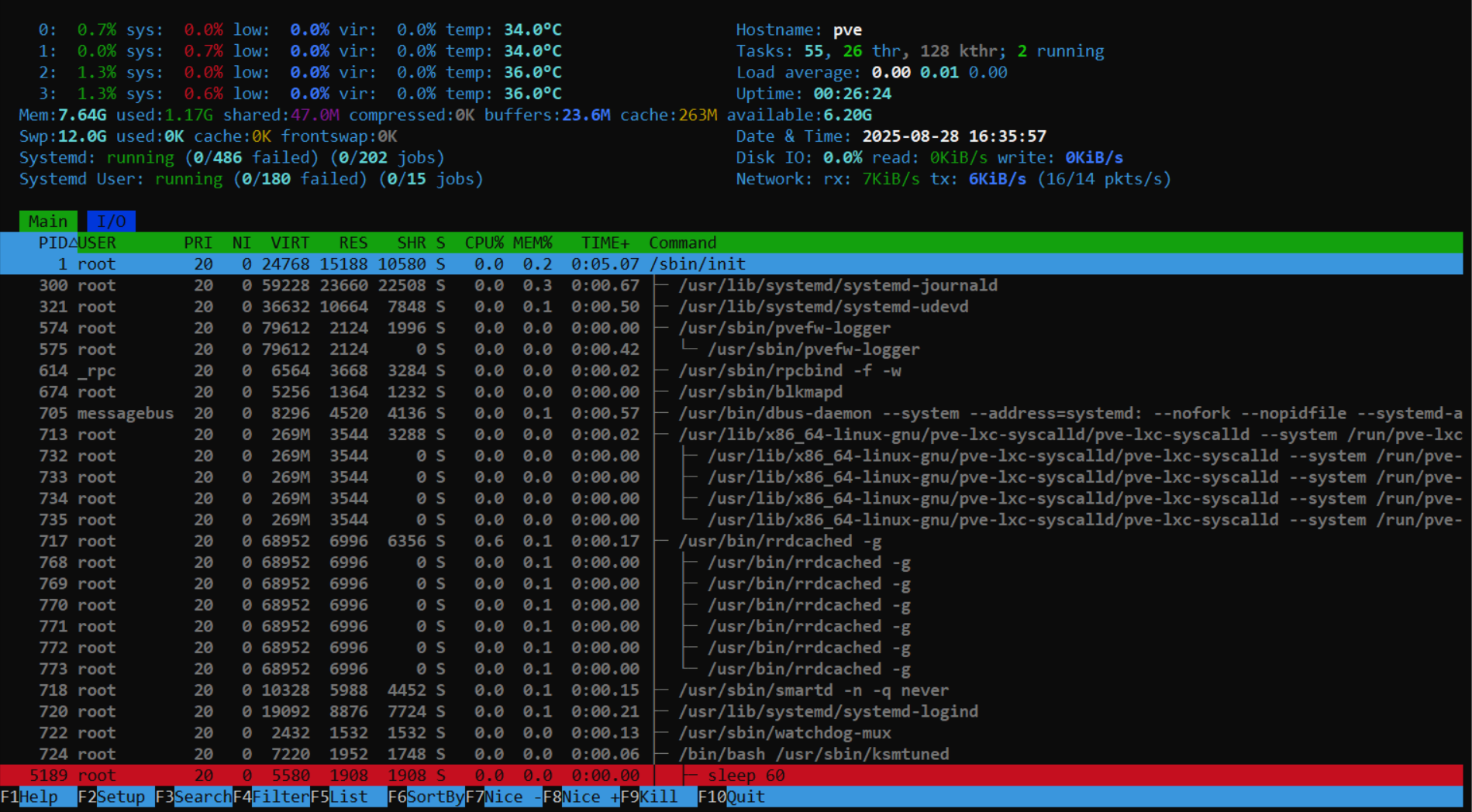
If you installed it, you can use htop to monitor in real time all the services currently running in your Proxmox VE server and the resources usage:
$ htopThis program offers an interactive text-based interface that, after some tinkering (press F2 to enter its Setup menu), can be configured to look like in this snapshot:
Configuring the pveproxy service
The PVEProxy is the component responsible for exposing the Proxmox VE API through HTTPS. It is just a specific reverse proxy that gives access to the Proxmox VE API and its web console at the 8006 port.
Default 8006 port and listening interfaces
By default, pveproxy listens on all your system’s network interfaces through the 8006 port. You can adjust this behavior to make pveproxy listen only through one specific IP, although you cannot change the listening port:
Open a shell with
mgrsys,cdto/etc/default/and create an emptypveproxyfile:$ cd /etc/default/ $ sudo touch pveproxyEdit the new
/etc/default/pveproxyfile to add a line like the following:LISTEN_IP="10.1.0.1"Ensure you specify your PVE system’s IP!
Do not just blindly copy this configuration line and forget about it, or you might very well disable your access to your Proxmox VE web interface!
Save the changes and restart the
pveproxyservice:$ sudo systemctl restart pveproxy.service
This change also affects PVE’s spiceproxy service
Since spiceproxy is a service you will disable later in this chapter, it is not necessary to restart it here.
Enforcing strong SSL/TLS ciphers
To make the pveproxy use strong SSL/TLS ciphers (for TLS 1.2 and below) and cipher suites (for TLS 1.3 and above) only when its negotiating TLS connections (to avoid Man In The Middle, or MITM, attacks), do the following:
Add to the
pveproxyfile the following lines:CIPHERS="ECDHE-ARIA128-GCM-SHA256:ECDHE-ARIA256-GCM-SHA384:ECDHE-ECDSA-AES128-GCM-SHA256:ECDHE-ECDSA-AES256-GCM-SHA384:ECDHE-ECDSA-ARIA128-GCM-SHA256:ECDHE-ECDSA-ARIA256-GCM-SHA384:ECDHE-ECDSA-CHACHA20-POLY1305:ECDHE-PSK-CHACHA20-POLY1305:ECDHE-RSA-AES128-GCM-SHA256:ECDHE-RSA-AES256-GCM-SHA384:ECDHE-RSA-CHACHA20-POLY1305" CIPHERSUITES="TLS_AES_256_GCM_SHA384:TLS_CHACHA20_POLY1305_SHA256:TLS_AES_128_GCM_SHA256" HONOR_CIPHER_ORDER="1"Save the changes and restart the
pveproxyservice:$ sudo systemctl restart pveproxy.service
The set in the CIPHERS parameter is derived from the list of supported ciphers you can find in Cryptcheck. The chosen ones are the ones at the top of the list, branded with a green mark but not of the CCM type. The set in CIPHERSUITES is the default one, which is a selection from the five cipher suites currently available for TLS 1.3.
Ciphers evolve over time
Over time, the ciphers will become outdated or deemed weak. You should check this list or a similar one from time to time to update the set of ciphers admitted in your system.
Host based access control rules
You can apply some degree of access control by specifying a list of allowed IP addresses or ranges in the pveproxy configuration.
This approach forces you to remember to what program did you apply certain rules
The sshd and other services also offer this kind of access control in their configuration, but managing all those rules in this scattered way is just unnecessarily hard.
Better centralize all the access control rules in the Proxmox VE firewall or putting a similar solution “in front” of all your services.
If you really need or find useful to enforce some hard access control directly in the PVE proxy’s configuration:
Edit the
pveproxyfile and append to it the following parameters:DENY_FROM="all" ALLOW_FROM="YOUR.PRIVATE.IP.RANGE/24,YOUR.HOME.IP.ADDRESS" POLICY="allow"For example, you could put in the
ALLOW_FROMparameter something like the following.ALLOW_FROM="10.0.0.1-10.0.0.5,192.168.0.0/22"Save the changes and restart the
pveproxyservice:$ sudo systemctl restart pveproxy.service
Disabling RPC services
Since you will not use NFS in your standalone Proxmox VE node, see here how to disable all of its related services or daemons:
Open a shell with your
mgrsysuser, and prevent withsystemctltherpcbindservices from starting up when the system boots up:$ sudo systemctl disable --now rpcbind.target rpcbind.socket rpcbind.serviceThe command will output this:
Synchronizing state of rpcbind.service with SysV service script with /usr/lib/systemd/systemd-sysv-install.
Executing: /usr/lib/systemd/systemd-sysv-install disable rpcbind
Removed '/etc/systemd/system/sockets.target.wants/rpcbind.socket'.
Removed '/etc/systemd/system/multi-user.target.wants/rpcbind.service'.
Disabling 'rpcbind.service', but its triggering units are still active:
rpcbind.socket
Nevermind the warning about the
rpcbind.socketunit. After the reboot you will perform in a later step, that service unit and the other rpcbind ones will remain disabled.cdto/etc/default/and make a backup of thenfs-commonfile:$ cd /etc/default/ $ sudo cp nfs-common nfs-common.origThen, edit
nfs-commonand set itsNEED_parameters as follows:# If you do not set values for the NEED_ options, they will be attempted # autodetected; this should be sufficient for most people. Valid alternatives # for the NEED_ options are "yes" and "no". # Do you want to start the statd daemon? It is not needed for NFSv4. NEED_STATD=no # Do you want to start the idmapd daemon? It is only needed for NFSv4. NEED_IDMAPD=no # Do you want to start the gssd daemon? It is required for Kerberos mounts. NEED_GSSD=noNotice how is set the
NEED_parameters asno, disabling certain daemons not used in this guide’s PVE setup.There is also a unit loaded in systemd which offers nfs client services. Let’s disable it:
$ sudo systemctl disable --now nfs-client.targetReboot your system:
$ sudo rebootFinally, check what sockets are currently listening in your system:
$ sudo ss -atlnupThis command will print you an output like this:
Netid            State             Recv-Q            Send-Q                       Local Address:Port                       Peer Address:Port           Process
udp              UNCONN            0                 0                                127.0.0.1:323                             0.0.0.0:*               users:(("chronyd",pid=834,fd=5))
udp              UNCONN            0                 0                                    [::1]:323                                [::]:*               users:(("chronyd",pid=834,fd=6))
tcp              LISTEN            0                 128                               10.1.0.1:22                              0.0.0.0:*               users:(("sshd",pid=972,fd=6))
tcp              LISTEN            0                 4096                             127.0.0.1:85                              0.0.0.0:*               users:(("pvedaemon worke",pid=1182,fd=6),("pvedaemon worke",pid=1181,fd=6),("pvedaemon worke",pid=1180,fd=6),("pvedaemon",pid=1179,fd=6))
tcp              LISTEN            0                 100                              127.0.0.1:25                              0.0.0.0:*               users:(("master",pid=1132,fd=13))
tcp              LISTEN            0                 16                               127.0.0.1:3493                            0.0.0.0:*               users:(("upsd",pid=1141,fd=4))
tcp              LISTEN            0                 4096                              10.1.0.1:3128                            0.0.0.0:*               users:(("spiceproxy work",pid=1242,fd=6),("spiceproxy",pid=1241,fd=6))
tcp              LISTEN            0                 4096                              10.1.0.1:8006                            0.0.0.0:*               users:(("pveproxy worker",pid=1213,fd=6),("pveproxy worker",pid=1212,fd=6),("pveproxy worker",pid=1211,fd=6),("pveproxy",pid=1210,fd=6))
tcp              LISTEN            0                 100                                  [::1]:25                                 [::]:*               users:(("master",pid=1132,fd=14))
The nfs service uses several ports in both TCP and UDP protocols: 111, 1110, 2049, 4045. But, as you can see in the output above, none of them appear as being in use by any active socket.
Disabling zfs and ceph
ZFS requires a lot of RAM not affordable in such a small server as the one used in this guide. Ceph, on the other hand, is impossible to use with just one standalone node. Therefore, it is better to disable all of their related services:
Open a shell with you administrator user, and disable the
zfsandcephrelated services so they do not start when the node boots up:$ sudo systemctl disable --now zfs-mount.service zfs-share.service zfs-volume-wait.service zfs-zed.service zfs-import.target zfs-volumes.target zfs.target ceph-fuse.targetThe
ceph.targetcannot be just disabled, it has to be masked or it will run again after a reboot:$ sudo systemctl mask --now ceph.targetReboot the system:
$ sudo rebootCheck with
htoporsystemctlthat thezfsservices are not running.
The ZFS tab will remain visible in PVE’s web console
Disabling the zfs services will not remove the ZFS tab found in the PVE web console at the pve node level, under the Disks section.
Also, Ceph was not really installed on your system, something notified by the PVE web console at the Datacenter > Ceph section, although Proxmox VE is installed with a couple of Ceph-related services.
Disabling the SPICE proxy
The spiceproxy service allows SPICE clients to connect to virtual machines and containers with graphical environments. Since this guide does not contemplate having a graphical environment running in any VM or container, better disable this proxy:
Open a shell with you administrator user, and mask the
spiceproxyservice:$ sudo systemctl mask --now spiceproxyThe
pve-managerservice launchesspiceproxyThe Proxmox VE startup script called
pve-managerstarts thisspiceproxyservice, and that forces us tomaskrather thandisableit withsystemctl. If you justdisablethespiceproxy, it will be started again by thepve-managerafter a reboot.Reboot the system:
$ sudo rebootCheck with
htoporsystemctlthat thespiceproxyservice is not running.Check with
ssthat there’s nospiceproxyprocess with a socket open at the3128port:$ sudo ss -atlnup | grep spiceproxyThe command above should return no result whatsoever.
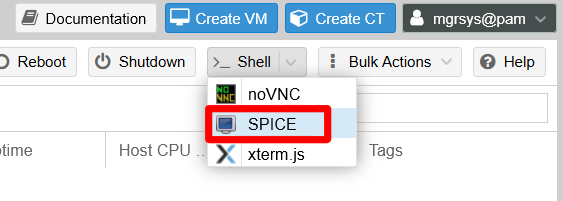
The SPICE option will remain available
The SPICE option offered by the PVE web console will still be present in the Shell list, although you will not be able to connect to the server through that method now.
Disabling cluster and high availability related services
Since you are working just with a standalone node, it does not make much sense to have cluster or high availability related services running for nothing:
Do not attempt to disable the pve-cluster daemon
The Proxmox VE documentation explicitly says that this service is needed even when not running a cluster.
Open a shell with you administrator user, and with the
systemctlcommand disable and stop the services as follows:$ sudo systemctl disable --now pve-ha-crm pve-ha-lrm corosyncReboot the system:
$ sudo rebootCheck either with
htoporsystemctlthat thepve-ha-crmandpve-ha-lrmservices are not running. Corosync was not running since your node is a standalone one.
Considerations
These are a couple of things to be aware of regarding Proxmox VE services.
Errors in the apt upgrade process
Disabling or masking PVE related services may provoke errors (or raise warnings at least) during the apt upgrade process of Proxmox VE packages, as it can happen with the pve-manager when apt does not find the spiceproxy daemon available. The update process for some of those PVE packages may expect a certain service to be present or running in the system, and they may try to restart them as part of the update process.
You should expect these error happening anytime you run an update of your system, although your Proxmox VE standalone node should keep on running just fine. Any time you end an upgrade process with errors, you can try first the command sudo apt autoremove to make apt or dpkg deal with them somehow.
View of services running in the Proxmox VE node
The Proxmox VE web console has a System view, at the PVE node level, where you can see the current status of the Proxmox VE-related service units running in your host.
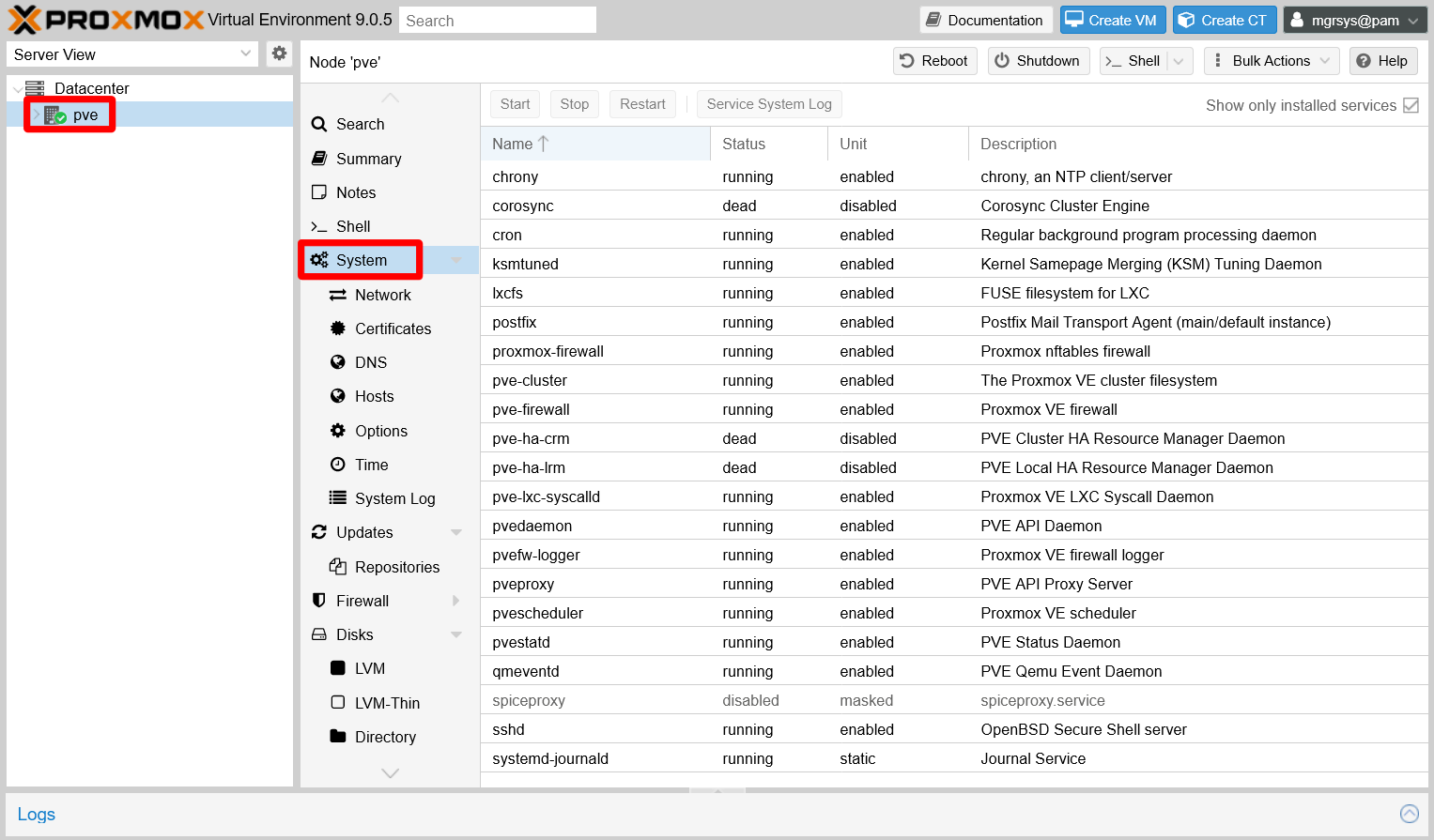
For example, notice how the corosync, pve-ha-crm and pve-ha-lrm services are reported dead with their systemd units disabled. Meanwhile, the spiceproxy service is greyed out as disabled with its systemd unit masked.
The System view only shows PVE-related services
The services shown in this System view are only the ones Proxmox VE is directly concerned with. Other system services running in your PVE host will not appear listed here.
Relevant system paths
Directories
/etc/default
Files
/etc/default/nfs-common/etc/default/nfs-common.orig/etc/default/pveproxy
References
Proxmox
Proxmox hardening and standalone node optimization
Services management in Debian
- Vitux. How to Start, Stop and Restart Services in Debian 10
- LinuxQuestions.org. The directory
/etc/default/ - SuperUser. What is the purpose of /etc/default?
NFS and RPC
- ServerFault. Is rpcbind needed for an NFS client?
- ServerFault. Which ports do I need to open in the firewall to use NFS?
- Quora. What is the purpose of rpcbind service on Linux Systems?