Connecting the VM to the NUT server
Make your VMs aware of your UPS unit with NUT
In the chapter about connecting the Proxmox VE host to a UPS unit you set up a standalone NUT server so your PVE node could monitor the UPS unit it is plugged in. Now that you have started creating VMs, it is convenient to make them aware of your UPS unit. When there is a power cut and the UPS kicks in, you can automate a proper shutdown sequence for your whole server setup. Think that your VMs, in this context, will be like real computers plugged into the same UPS unit as your Proxmox VE host, so they will be also directly affected to whatever happens to your PVE host’s power supply.
In short, you have to make your VMs monitor the UPS unit supporting your setup. You can do this by connecting the NUT client you already have installed in your first Debian VM to your Proxmox VE NUT server.
Reconfiguring the NUT server on your Proxmox VE host
First, you need to change the configuration of the NUT server running in your Proxmox VE host, so it can also serve the NUT client enabled in your VMs.
Changing the nut.conf file
Open a shell as
mgrsyson your Proxmox VE host, thencdto/etc/nutand make a backup of thenut.conffile:$ cd /etc/nut ; sudo cp nut.conf nut.conf.bkpEdit the
nut.conffile and change the value of theMODEparameter tonetserver:MODE=netserverSave the changes on the
nut.conffile.
Reconfiguring the UPS driver with the ups.conf file
Remain at
/etc/nut, and make a backup of theups.conffile:$ sudo cp ups.conf ups.conf.bkpEdit the
ups.conffile. At its end, you should have just the configuration block for the UPS unit configured previously in the host:[eaton] driver = usbhid-ups port = auto desc = "Eaton 3S700D"You have to add to this block a few more parameters like this:
[eaton] driver = usbhid-ups port = auto desc = "Eaton 3S700D" offdelay = 60 ondelay = 70 lowbatt = 80Here is a brief explanation of the three new parameters added to the
[upsunit]configuration:offdelay
Value in seconds, default is 20 seconds. Time that passes between theupsdrvctlshutdown command and the moment the UPS shuts itself down.ondelay
Value in seconds, default is 30 seconds. Time that must pass between theupsdrvctlshutdown command and the moment when the UPS will react to the return of wall power and turn on the power to the system.This
ondelayvalue must be greater than theoffdelaynumber!lowbatt
Value in percentage. Percentage of battery charge remaining in the UPS unit that should be considered as “low charge”.
To set up those parameters properly, you must be fully aware of the real capacity of your UPS unit to hold your system running in case of a power cut. In this guide’s setup, the UPS unit can only hold for just a few minutes before discharging completely. This implies that this configuration has to be set with very conservative values (in particular in the
lowbattparameter). Of course, how long your UPS unit can run depends on how much (or how fast) energy will be drained from its battery when in use. Also, bear in mind the battery degradation over time (even if its never used), and how long does your server take to shutdown gracefully (including your VMs and services running within them).Save the changes on the
ups.conffile.
Adding access control rules in the upsd.conf file
Still at
/etc/nut, make a backup of theupsd.conffile:$ sudo cp upsd.conf upsd.conf.bkpEdit the
upsd.conffile, jump to theLISTENlines and modify them as follows:# LISTEN <address> [<port>] #LISTEN 127.0.0.1 3493 LISTEN 0.0.0.0 3493 # LISTEN ::1 3493By setting
0.0.0.0as listening address, you are making theupsdservice listen for traffic from all IP v4 sources available in your Proxmox VE host. This is necessary to allow the NUT server to respond to the NUT clients running in any of your VMs.Save the changes on the
upsd.conffile.
Adding a NUT client user in the upsd.users file
Still at
/etc/nut, make a backup of theupsd.usersfile:$ sudo cp upsd.users upsd.users.bkpEdit the
upsd.usersfile by appending the following block:[upsmonclient] password = s3c4R3_Kly3Nt_p4sSw0rD! upsmon secondaryNotice the
upsmon secondaryline, which indicates that theupsmonclientwill be the common user for all monitor client systems (the VMs running in your Proxmox VE server).Save the changes on the
upsd.usersfile.
After adding this user, your NUT system will have three different NUT users: one administrator user, one monitor user to be used only locally in the primary NUT server, and other monitor user only to be used remotely from secondary client NUT systems such as the VMs you have to create later on your PVE node.
Declaring executable actions related to concrete NUT events
Still in the
/etc/nutdirectory, make a backup of the currentupsmon.conffile:$ sudo cp upsmon.conf upsmon.conf.bkpEdit the
upsmon.conffile, adding under the customizedSHUTDOWNCMDparameter a newNOTIFYCMDline:SHUTDOWNCMD "logger -t upsmon.conf \"SHUTDOWNCMD calling /sbin/shutdown to shut down system\" ; /sbin/shutdown -h +0" NOTIFYCMD /usr/sbin/upsschedIn
NOTIFYCMD, the configuredupsschedcommand is a NUT program that provides a rich set of actions to execute in response to events detected byupsmon.Also, modify the customized
NOTIFYFLAGlines for theONLINE,ONBATTandLOWBATTevents by adding a +EXEC flag:NOTIFYFLAG ONLINE SYSLOG+EXEC NOTIFYFLAG ONBATT SYSLOG+EXEC NOTIFYFLAG LOWBATT SYSLOG+EXECThe
+EXECflag makesupsmoncall the program configured in theNOTIFYCMDparameter.Save the changes on the
upsmon.conffile:Rename the
upssched.conffile toupssched.conf.orig, and create a new emptyupssched.conffile:$ sudo mv upssched.conf upssched.conf.orig $ sudo touch upssched.conf ; sudo chmod 640 upssched.confEdit the new
upssched.conffile and put in it the following script:# upssched.conf CMDSCRIPT /usr/sbin/upssched-cmd PIPEFN /var/run/nut/upssched.pipe LOCKFN /var/run/nut/upssched.lock AT ONLINE eaton@localhost EXECUTE online AT ONBATT eaton@localhost EXECUTE onbatt AT LOWBATT eaton@localhost EXECUTE lowbattThe parameters in this script are explained next:
CMDSCRIPTPoints to a user script that will be executed byupsschedin response to the UPS events notified by theupsmonNUT monitor service.This script is provided by the system administrator, which is you in this case
Do not confuse this script with the
/usr/sbin/upsschedcommand, which is the NUT program that will call your script. On the other hand, the nameupssched-cmdis the assumed standard in the NUT community: do not change it.PIPEFN
Socket file used for communication betweenupsmonandupssched.The directory containing this file should be accessible only by the NUT software and nothing else.
LOCKFN
File required by the upsmon NUT daemon to avoid race conditions.The directory should be the same as for the
PIPEFNfile.ATlines
Declarations for actions toEXECUTEwith theCMDSCRIPTonlyATthe events defined in this configuration file. These declarations follow the pattern below:AT notifytype UPSunit-name commandThis line is translated as follows:
ATis the keyword to start the declaration.notifytypeis the code identifying a NUT-monitored event.UPSunit-nameis the name of the monitored UPS unit. This argument admits the use of the wildcard*to refer to all available UPS units, although it is not recommended. You usually will prefer to have particular rules for each of those UPS units.commandspecifies what to do when the event happens. TheEXECUTEcommand is just one of several available.
Create an empty
/usr/sbin/upssched-cmdfile with the right permissions:$ sudo touch /usr/sbin/upssched-cmd ; sudo chmod 755 /usr/sbin/upssched-cmdPut the following shell script code in the new
upssched-cmdfile:#!/bin/bash -u # upssched-cmd logger -i -t upssched-cmd Calling upssched-cmd $1 UPS="eaton" STATUS=$( upsc $UPS ups.status ) CHARGE=$( upsc $UPS battery.charge ) CHMSG="[$STATUS]:$CHARGE%" case $1 in online) MSG="$UPS, $CHMSG - INFO - Power supply is back online." ;; onbatt) MSG="$UPS, $CHMSG - WARNING - Power failure. Now running on battery!" ;; lowbatt) MSG="$UPS, $CHMSG - WARNING - Low battery. Shutdown now!" ;; *) logger -i -t upssched-cmd "ERROR - Bad argument: \"$1\", $CHMSG" exit 1 ;; esac logger -i -t upssched-cmd $MSG notify-send-all "$MSG"Do not forget specifying your own UPS unit in the
UPSparameter of this script.This script is just an example of what you can do
In this case, is just some logging and sending messages regarding a particular set of UPS events. Notice how it has one input argument (
$1), and the options appearing in thecaseblock are used in theATdeclarations defined in theupssched.conffile.Save the
upssched-cmdfile and restart the NUT related services already running in your Proxmox VE host:$ sudo systemctl restart nut-server.service nut-monitor.service
Opening the upsd port on the Proxmox VE node
You need to make the upsd port (in this guide is the standard NUT 3493 port) accessible in your PVE host, so the NUT client monitors in your VMs can connect to it. To achieve this, you need to set up proper firewall rules in Proxmox VE, both at the Datacenter and pve node levels of the Proxmox VE web console:
Get the IP of your, at this point, sole Debian VM. You can see it in the VM’s
Summaryscreen, in theStatusblock: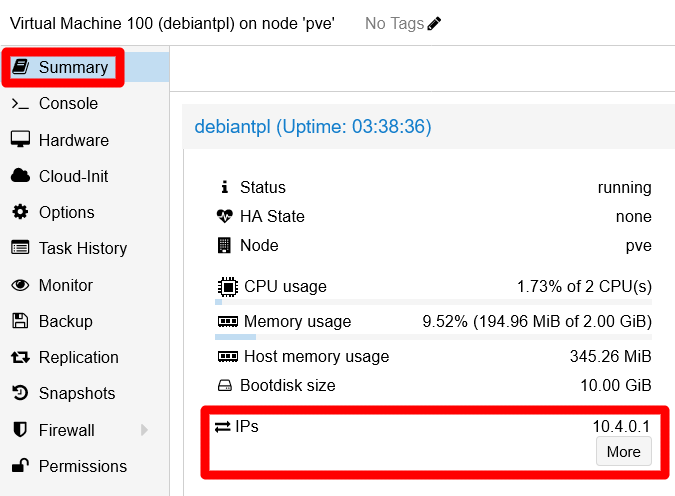
VM's IP at Summary screen This VM only has one external IP assigned, by your router or gateway, to the only network card currently enabled in the VM.
Assign an
Aliasto the VM’s IP. Go toDatacenter > Firewall > Aliasand click onAdd: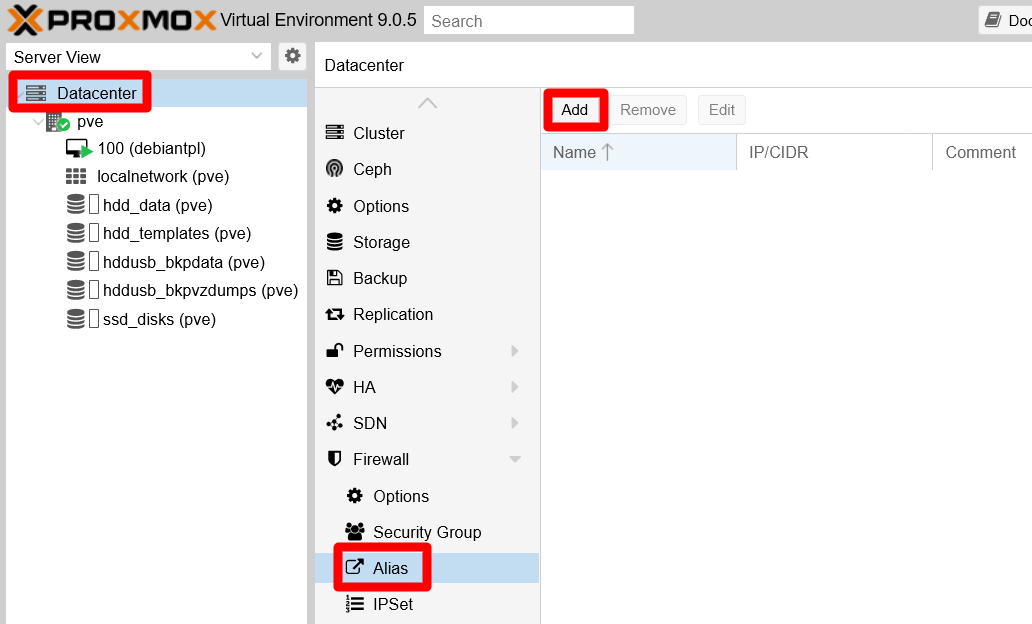
Datacenter Firewall Alias empty screen The
Add: Aliasform appears: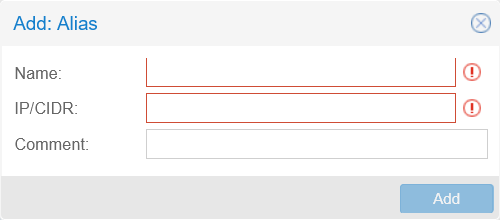
New IP Alias empty form Fill this form in a meaningful manner:
Name
Careful with this field, not any string will be considered valid here.- Only use alphanumerical characters plus the
_symbol. - Only use letters from the English alphabet.
These particularities are not explained in the Proxmox VE official documentation.
To fill this field, better follow a criteria like
[vm_hostname]_[vm_network_device_name]. Then, for the sole VM existing in your PVE system at this point, this value would bedebiantpl_net0.- Only use alphanumerical characters plus the
IP/CIDR
This value can be just a single IP (like1.2.3.4) or a network range (as1.2.3.0/24). For this case, you just have to input the VM’s main IP here (the one assigned to the VM’snet0network device).Comment
Use this text field to put more specific info about the alias.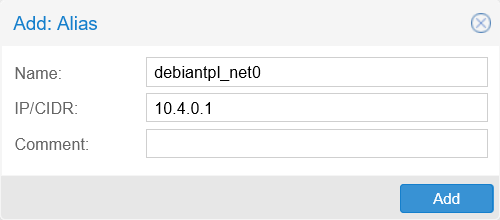
New IP Alias form filled
After clicking on
Add, see how your new alias gets listed in theAliaspage:
New IP Alias listed Next, create an IP set to hold all the IPs related to the Kubernetes cluster you will build in a later chapter. Go to the
Firewallat theDatacenterlevel, open theIPSetscreen and click onCreate: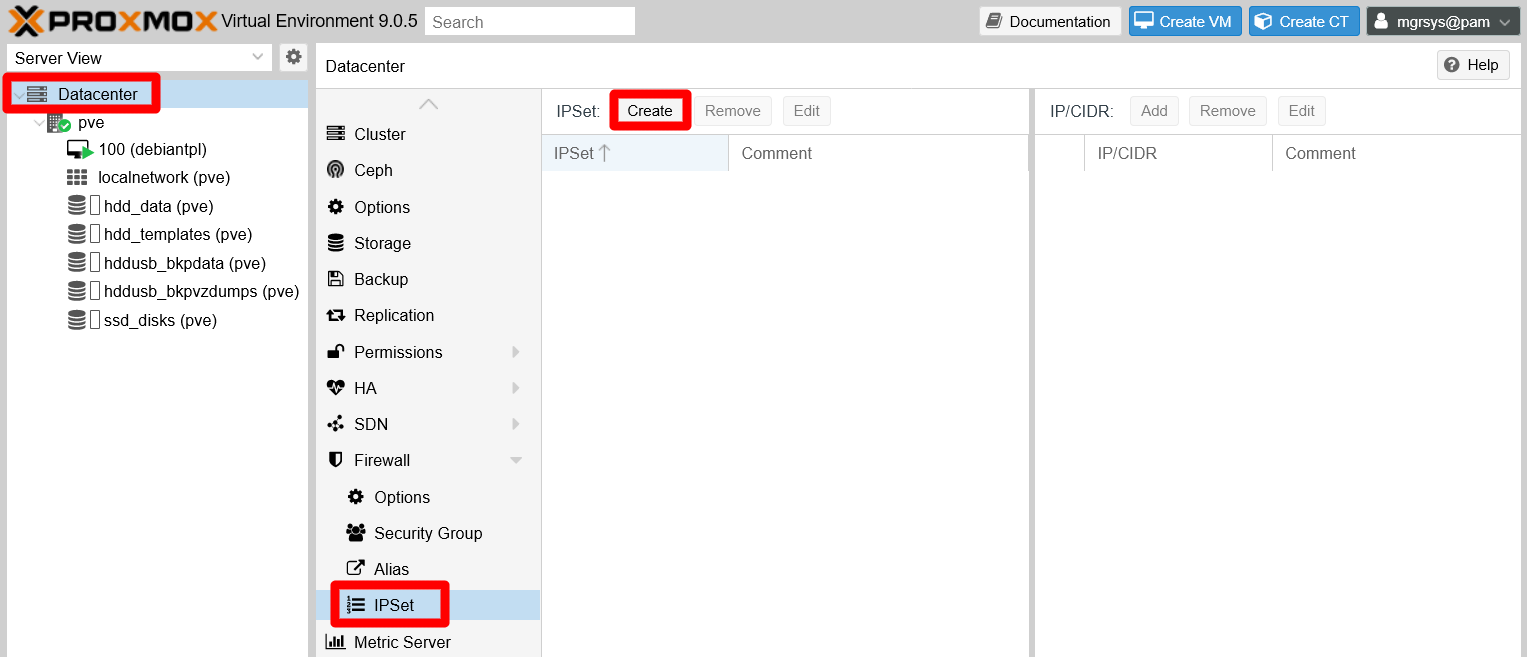
Datacenter Firewall IPSet empty screen A simple form appears for creating an IPSet:
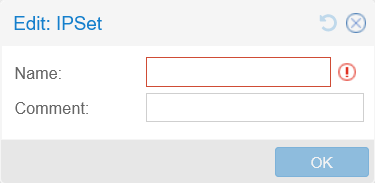
IPSet creation form Give the new IP set a meaningful
Namesuch ask3s_nodes_net0_ips:
IPSet creation form filled After filling the form, just click on
OKto create the new IP set.The
IPSetscreen now shows the new IP set on its left side. Select the newk3s_nodes_net0_ipsIP set, then click on the now enabledAddbutton over the right side: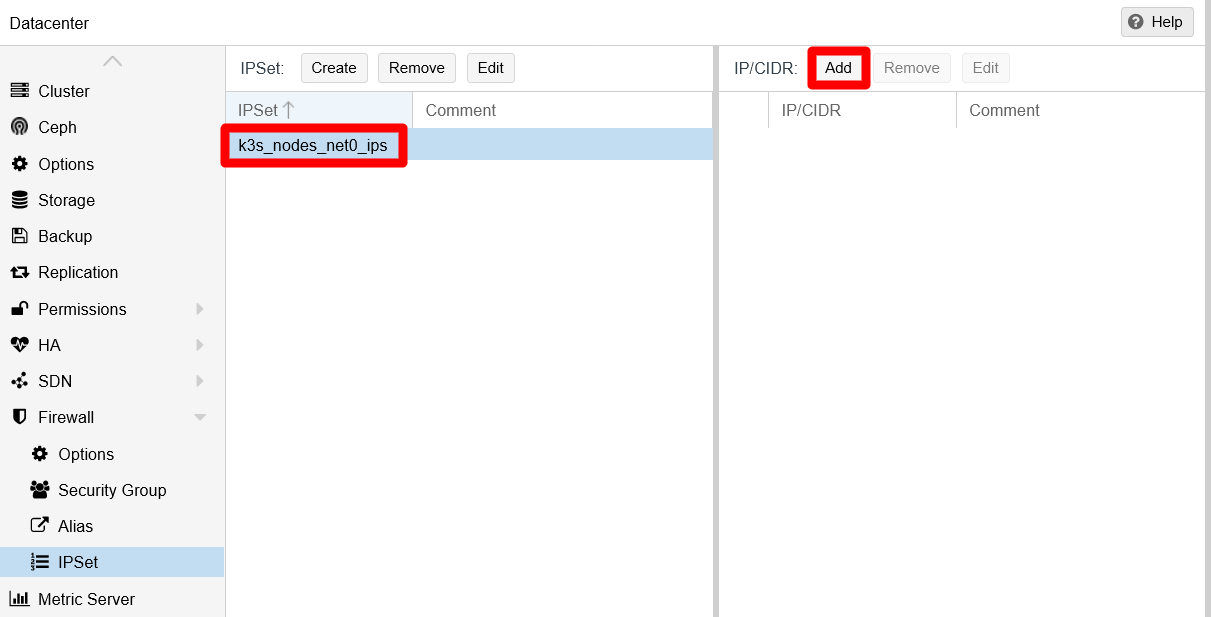
IP set created You meet a form where to input the IP to add to the IP set:

Editor for adding new IP to IP set This form has three fields.
IP/CIDR
Here you can type an IP, or just choose an aliased IP from the unfolded list.nomatch
Enabling this option explicitly excludes from the set the IP put in theIP/CIDRfield.Comment
Any string you might want to type here, although try to make it meaningful.
Choose your previously aliased IP so the form looks like below:

New aliased IP filled in Click on
Create, then see your aliased IP added to the set on theIP/CIDRlist on the right:
Aliased IP added to IP set Notice in the snapshot how Proxmox VE has added the
dc/prefix to the IP alias added to the IP set. That prefix probably stands for the term “DataCenter”, and seems to indicate the scope this alias belongs to (at the moment of writing this, there is no explanation for this prefix in the Proxmox VE documentation).Next step is to create a
Security Group. A security group is just a way of grouping together firewall rules, making it easier to handle them later. So, go toDatacenter > Firewall > Security Groupin your PVE web console. Then, click onCreate: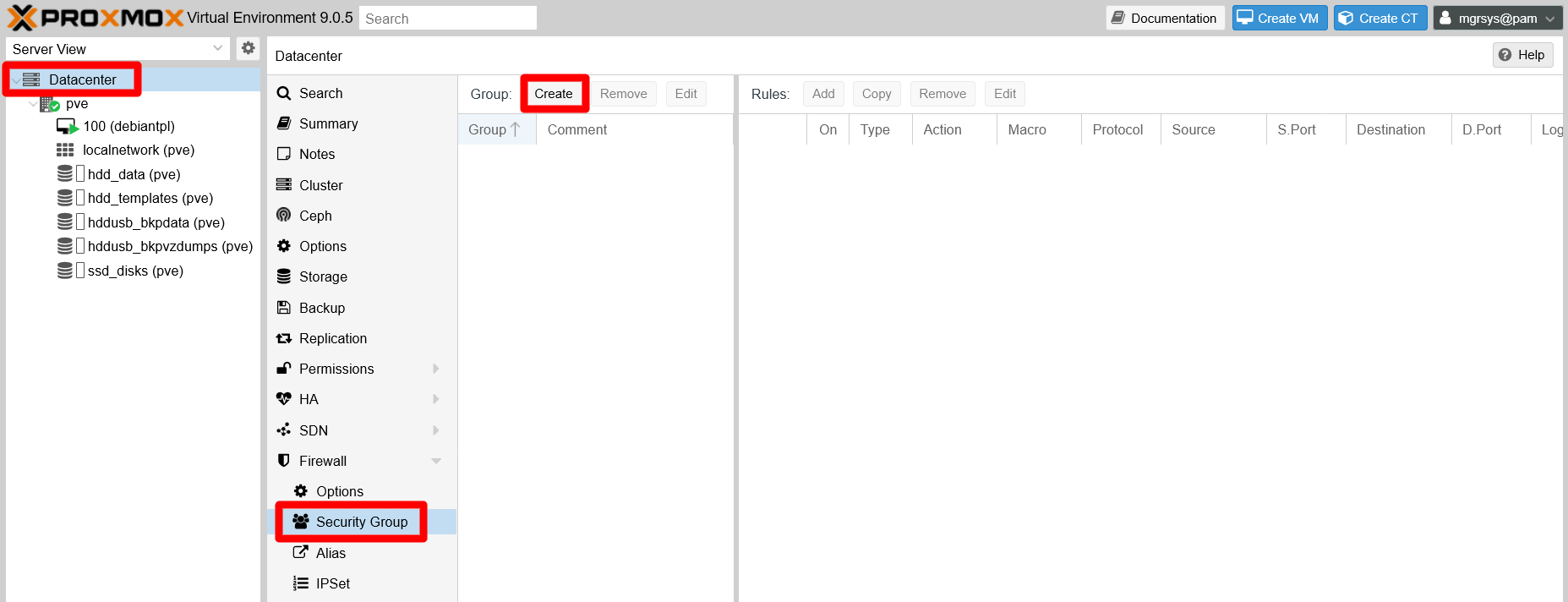
Datacenter Firewall Security Group screen A simple form raises for creating a security group:
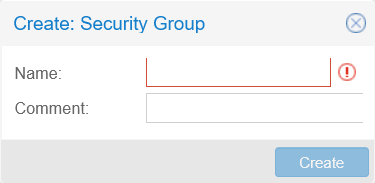
Security Group editor This group will hold the firewall rules related to the NUT port, so give it a meaningful
Namelikenut_port_accept_in:Careful with the
Namefield in this formLike the IP alias
Namefield from before, theNamefield here can only use alphanumerical English characters plus the_symbol.
Security Group form filled Click on the
Createbutton, and see how your new security group appears on the left half of theSecurity Grouppage. Then, select the new group and click onAddon the right half:
New security group added to list In the editor that appears, define a firewall rule to allow access to the NUT
3493port from the IP set you defined a few steps before:
Security Group firewall rule editor Here is the explanation for each field:
Direction
This field only offers two options, either the rule is aboutINcoming orOUTgoing connections. Chooseinto allow incoming connections to the NUT server.Action
There are three options available here,ACCEPT,DROPorREJECTthe connection. In this case, chooseACCEPT.Difference between the
DROPandREJECTactionsThe difference between
DROPandREJECTis thatDROPrejects connections silently, whereasREJECTmakes the firewall answer with a rejection code. For stopping connection attempts, always useDROPunless you really need to make the rejection noticeable.Enable
As its name implies, ticking this option enables the rule. Leave it off for now.Macro
This is a list of services known by Proxmox VE. If you choose one, some fields of this rule editor get filled automatically. Leave it empty, since it does not have an option for NUT.Protocol
This a list of known net protocols, from which you have to choose the right one. For NUT, choosetcp.Source
Indicates the IP where the connection comes from. Be mindful that, depending on the value of theDirectionfield,Sourcecan refer to an external origin (an INcoming connection) or to your own system (an OUTgoing connection). This field also offers a list of IP sets and IP aliases, so you just have to click on which one you want rather than typing IPs on the field.
List of existing defined IPs in the PVE system For the NUT rule, choose the IP set you defined before, the
k3s_nodes_net0_ips. This way, any other IP you put into that IP set gets covered by this firewall rule.Source port
Which port on the source can the connection come from. Leave it empty for accepting any port.Destination
Is the IP the incoming or outgoing connection wants to reach. This field is of the same kind asSource. For the NUT rule, leave it empty for now (unless you have already defined an alias or IP set for your PVE node’s IPs).Dest. port
Port in which the connection wants to connect. Specify the NUT port here:3493(or the one you have set in your NUT configuration).Comment
Any meaningful string you might like to put here.Log level
This is the onlyAdvancedoption available in this form. If you want the rule to log the connections that go through it, change the defaultnologvalue to any other that suits the severity of the event. For NUT, it should not be more thaninfo, usually.

New rule defined for Security Group Click on
Add, and see the updatedRuleslist of your security group on the right side of the page:
Security Group Rules list updated Notice that the rule is NOT active, since the checkbox on the
Oncolumn is NOT ticked. Leave it that way for now.Go to your PVE node, and browse to the now ruleless
Firewallsection and click onInsert: Security Group: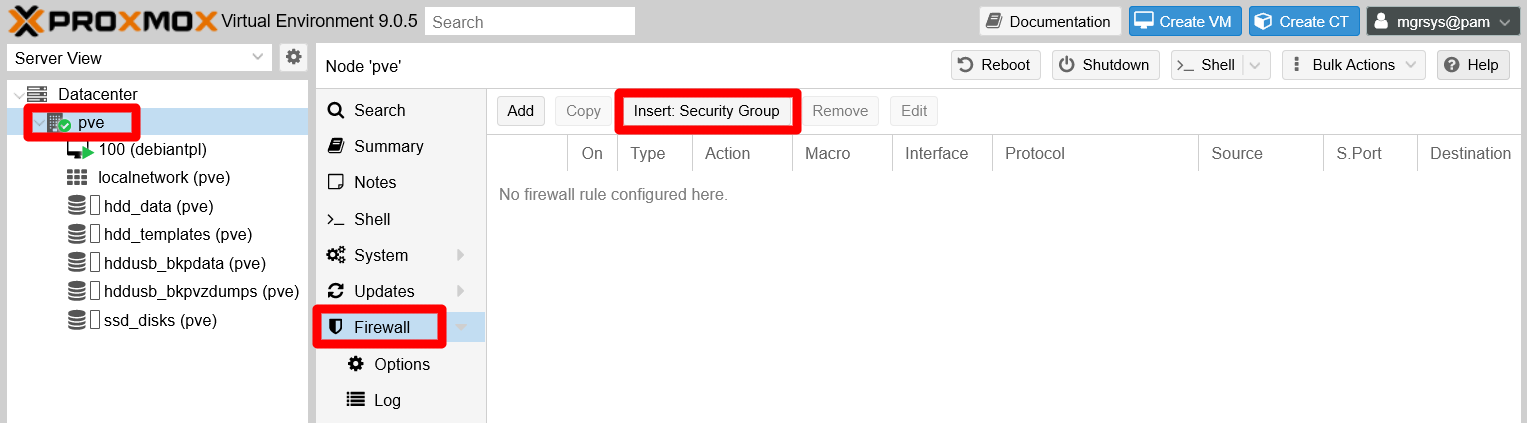
Ruleless PVE node Firewall A form raises where you can declare a firewall rule that applies a security group:

Security Group rule editor Here is a brief explanation for each field:
Security Group
In this field you must choose a preexisting security group defined at theDatacenterlevel. In this case, you only have the one you have created before,nut_port_accept_in.Interface
This field only admits the name (not IPs or MACs) of an existing node network interface, or just being left empty. In this case you need to enter the name of thevmbr0bridge, since it is the network device through which your Proxmox VE host communicates.Enable
Tick this checkbox on to enable the rule on the firewall.Comment
Any meaninful string you may want to put here, like a brief explanation of what the rule does.

Security Group rule defined Click on
Addand the new rule gets listed immediately in yourpvenode’s firewall: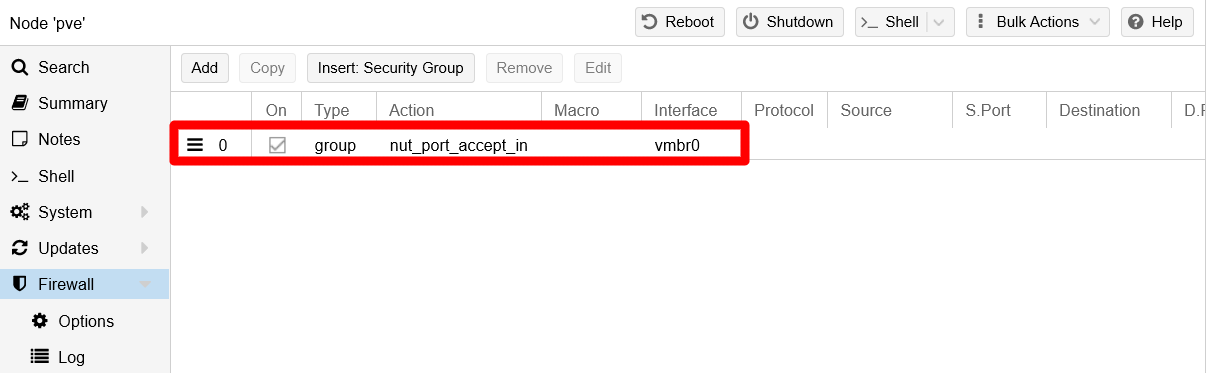
Added new rule to node's Firewall
Configuring the NUT client on your Debian VM
The previous section has been all about configuring the server side of your NUT setup. Now you have deal with the client side of it in your Debian VM. Remember that, in your VM, you only installed the nut-client package of NUT, since you do not need the server components for just monitoring the system’s UPS unit:
Open a shell in your Debian VM as
mgrsys, thencdto/etc/nutand make a backup of thenut.conffile:$ cd /etc/nut/ ; sudo cp nut.conf nut.conf.origEdit the
nut.conffile and just change the value of theMODEparameter tonetclient:MODE=netclientSave the changes to
nut.conf, then make a backup of theupsmon.conffile:$ sudo cp upsmon.conf upsmon.conf.origEdit
upsmon.confas follows:Search for and comment out the active lines of the
RBWARNTIMEandSHUTDOWNCMDparameters:# -------------------------------------------------------------------------- # RBWARNTIME - replace battery warning time in seconds # # upsmon will normally warn you about a battery that needs to be replaced # every 43200 seconds, which is 12 hours. It does this by triggering a # NOTIFY_REPLBATT which is then handled by the usual notify structure # you've defined above. # # If this number is not to your liking, override it here. #RBWARNTIME 43200# -------------------------------------------------------------------------- # SHUTDOWNCMD "<command>" # # upsmon runs this command when the system needs to be brought down. # # This should work just about everywhere ... if it doesn't, well, change it, # perhaps to a more complicated custom script. # # Note that while you experiment with the initial setup and want to test how # your configuration reacts to power state changes and ultimately when power # is reported to go critical, but do not want your system to actually turn # off, consider setting the SHUTDOWNCMD temporarily to do something benign - # such as posting a message with 'logger' or 'wall' or 'mailx'. Do be careful # to plug the UPS back into the wall in a timely fashion. # # For Windows setup use something like: # SHUTDOWNCMD "C:\\WINDOWS\\system32\\shutdown.exe -s -t 0" # If you have command line using space character you have to add double quote to them, like this: # SHUTDOWNCMD "\"C:\\Program Files\\some command.bat\" -first_arg -second_arg" # Or use the old DOS 8.3 file name, like this: # SHUTDOWNCMD "C:\\PROGRA~1\\SOMECO~1.bat -first_arg -second_arg" #SHUTDOWNCMD "/sbin/shutdown -h +0"Append the following lines to the
upsmon.conffile:# -------------------------------------------------------------------------- # Customized settings MONITOR eaton@10.1.0.1 1 upsmonclient s3c4R3_Kly3Nt_p4sSw0rD! secondary SHUTDOWNCMD "logger -t upsmon.conf \"SHUTDOWNCMD calling /sbin/shutdown to shut down system\" ; /sbin/shutdown -h +0" NOTIFYCMD /usr/sbin/upssched NOTIFYMSG ONLINE "UPS %s: On line power." NOTIFYMSG ONBATT "UPS %s: On battery." NOTIFYMSG LOWBATT "UPS %s: Battery is low." NOTIFYMSG REPLBATT "UPS %s: Battery needs to be replaced." NOTIFYMSG FSD "UPS %s: Forced shutdown in progress." NOTIFYMSG SHUTDOWN "Auto logout and shutdown proceeding." NOTIFYMSG COMMOK "UPS %s: Communications (re-)established." NOTIFYMSG COMMBAD "UPS %s: Communications lost." NOTIFYMSG NOCOMM "UPS %s: Not available." NOTIFYMSG NOPARENT "upsmon parent dead, shutdown impossible." NOTIFYFLAG ONLINE SYSLOG+EXEC NOTIFYFLAG ONBATT SYSLOG+EXEC NOTIFYFLAG LOWBATT SYSLOG+EXEC NOTIFYFLAG REPLBATT SYSLOG NOTIFYFLAG FSD SYSLOG NOTIFYFLAG SHUTDOWN SYSLOG NOTIFYFLAG COMMOK SYSLOG NOTIFYFLAG COMMBAD SYSLOG NOTIFYFLAG NOCOMM SYSLOG NOTIFYFLAG NOPARENT SYSLOG RBWARNTIME 7200 # 2 hoursThe configuration above is mostly the same as the one you have in the
upsmon.confof your Proxmox VE node, save the MONITOR line which defines to what UPS unit to connect and with what user. In that MONITOR line you must set the client user you have defined, previously in this chapter, as an unprivileged NUT secondary user in your PVE host’supsd.usersfile. This is much safer than using the fully-privileged administrator user just for monitoring your UPS unit from a VM.Also see how an IP refers to the UPS unit to monitor, this IP is the NUT server IP. Instead of an IP you could also use the NUT server’s
hostname, but only if your network is able to resolve it to the right IP.
Save the
upsmon.conffile, then rename theupssched.conffile toupssched.conf.orig, and create a new emptyupssched.conffile:$ sudo mv upssched.conf upssched.conf.orig $ sudo touch upssched.conf ; sudo chmod 640 upssched.conf ; sudo chgrp nut upssched.confEdit the
upssched.confadding the following lines:# upssched.conf CMDSCRIPT /usr/sbin/upssched-cmd PIPEFN /var/run/nut/upssched.pipe LOCKFN /var/run/nut/upssched.lock AT ONLINE eaton@10.1.0.1 EXECUTE online AT ONBATT eaton@10.1.0.1 EXECUTE onbatt AT LOWBATT eaton@10.1.0.1 EXECUTE lowbattLike with the previous configuration file, here you can see that this file is almost the same
upssched.conffile as the one set up previously in your Proxmox VE host. The only difference here is in theATdeclarations, where there was a call to thelocalhostnow you must put the NUT server IP or itshostname.Save the
upssched.conffile. Then create an empty/usr/sbin/upssched-cmdfile with the right permissions:$ sudo touch /usr/sbin/upssched-cmd ; sudo chmod 755 /usr/sbin/upssched-cmdEdit the new
/usr/sbin/upssched-cmdso it has the following shell script code:#!/bin/bash -u # upssched-cmd logger -i -t upssched-cmd Calling upssched-cmd $1 UPS="eaton@10.1.0.1" STATUS=$( upsc $UPS ups.status ) CHARGE=$( upsc $UPS battery.charge ) CHMSG="[$STATUS]:$CHARGE%" case $1 in online) MSG="$UPS, $CHMSG - INFO - Power supply is back online." ;; onbatt) MSG="$UPS, $CHMSG - WARNING - Power failure. Now running on battery!" ;; lowbatt) MSG="$UPS, $CHMSG - WARNING - Low battery. Shutdown now!" ;; *) logger -i -t upssched-cmd "ERROR - Bad argument: \"$1\", $CHMSG" exit 1 ;; esac logger -i -t upssched-cmd $MSG notify-send-all "$MSG"This script is essentially the same one you already configured in your PVE host. The only thing that changes is the
UPSvariable, which now also needs the IP of the NUT server specified.Save the
upssched-cmdfile and start the NUT related services already running in your VM:$ sudo systemctl restart nut-client.service nut-monitor.service
Checking the connection between the VM NUT client and the PVE node NUT server
You have everything configured. It is time to test the NUT connection between your Debian VM and the Proxmox VE node. To do this, execute the upsc command on your VM as follows:
$ sudo upsc eaton@10.1.0.1And this command should return the following output:
Error: Connection failure: Connection timed outYes, there is a problem with the connection. You can also see this error in repeated logs written in the journal of your VM. To see those entries and many other that you cannot see as a regular user, you must open the journal as root or, better, use sudo when being mgrsys:
$ sudo journalctlThis is the only way you will be able to see all the logs being registered in the journal of your VM (and this is also true for your Proxmox VE server). In particular, for this NUT connectivity issue, look for lines like this one:
Sep 05 20:01:46 debiantpl nut-monitor[903]: UPS [eaton@10.1.0.1]: connect failed: Connection failure: Connection timed outThe NUT monitor daemon on your VM tries to connect every few seconds to the NUT server on your PVE node, but something is wrong and the connection times out. What is missing? Just a small detail affecting the security group you created in the firewall at the Datacenter level of your Proxmox VE platform.
Go back to your PVE web console, browse to Datacenter > Firewall > Security Group and select the group you created there before, the nut_port_accept_in one:
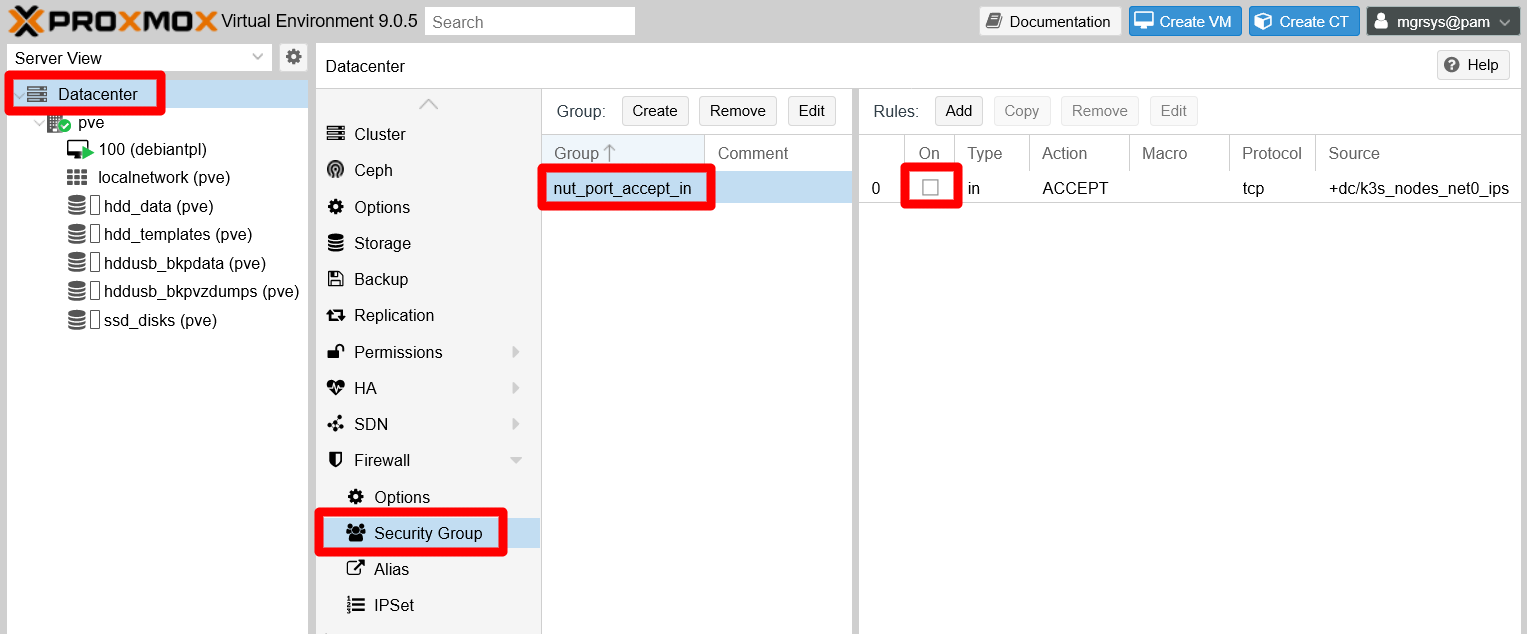
You only declared one rule in the security group, and you were told to leave it disabled. This way, you have seen a bit of how the relationship between levels within Proxmox VE works regarding firewall rules. Remember that, at your pve node tier, you have created and enabled a firewall rule that used the security group itself. But only the rules enabled within the security group will be also enforced by the firewall. So, to enable access to the NUT port in your PVE host, you must also activate the rule you prepared exactly for it. To do so, just click on the checkbox the rule has at the On column:

The firewall enforces the rule right away. You can check if now you can communicate with the NUT server from your VM:
$ sudo upsc eaton@10.1.0.1
Init SSL without certificate database
battery.charge: 100
battery.charge.low: 80
battery.runtime: 3360
battery.type: PbAc
device.mfr: EATON
device.model: Eaton 3S 700
device.serial: Blank
device.type: ups
...
ups.vendorid: 0463
Now you should get a proper answer from the NUT server, in this case information about your UPS unit. On the other hand, and maybe a few seconds after you enabled the rule in the firewall, in the journal of your VM you should see the following line once:
Sep 05 20:19:26 debiantpl nut-monitor[903]: UPS eaton@10.1.0.1: Communications (re-)established.The NUT monitor in your VM now is properly connected to the NUT server in your PVE node. On the other hand, in the journal (opened with sudo) of your PVE host you should also find an output like this:
Sep 05 20:19:26 pve nut-server[1617]: User upsmonclient@10.4.0.1 logged into UPS [eaton]This log verifies the NUT client connection on the server side. Mind that, on the server side, you will not get logs about the connection failures. Those happened due to the firewall blocking all possible incoming connections from NUT clients, so they are only seen by the clients.
As a final note on this matter, browse in your PVE web console to the Datacenter > Firewall:
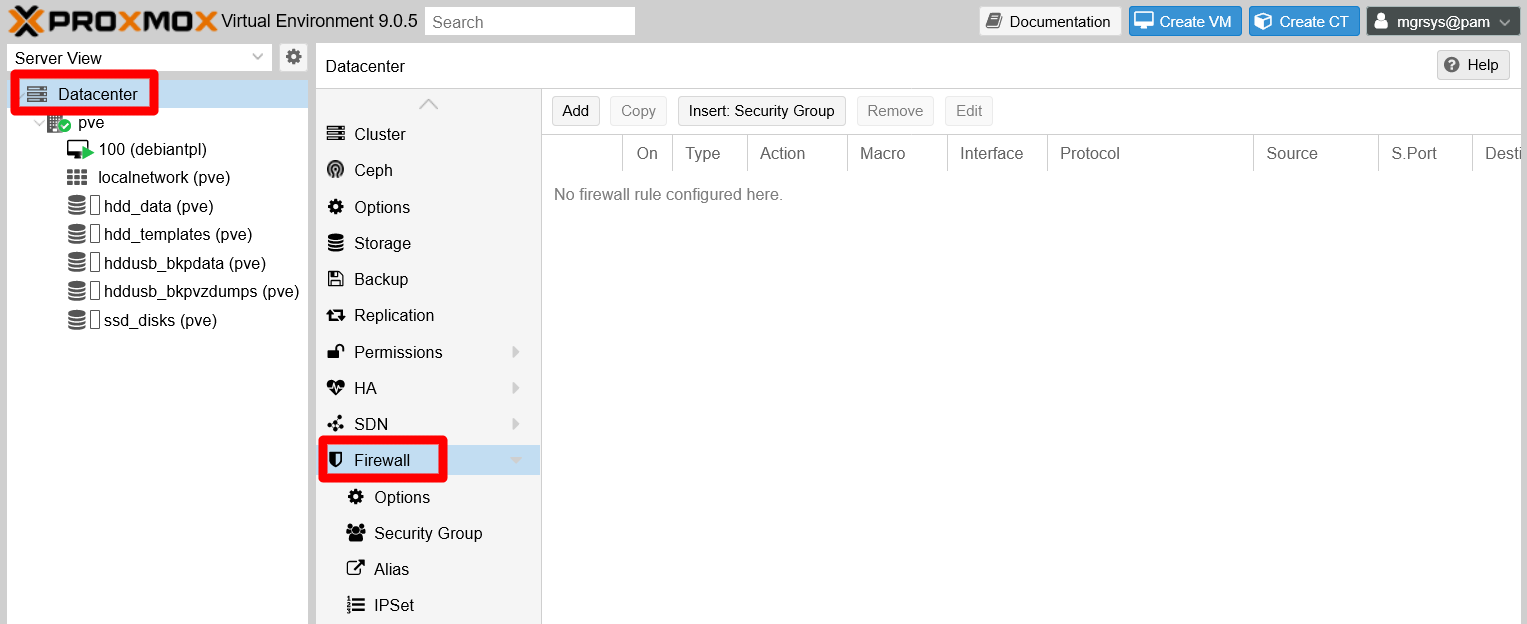
As you can see in this page, there are no visible rules whatsoever. This may look strange since you created the security group at the Datacenter tier, and do not forget the rules enabled in the iptables running underneath, but those are not show here either.
How could be this explained is that, from the firewall point of view, the datacenter and node levels are the same logical network “host” zone, although each level have their own firewall configuration page (with different options available, mind you). Just be aware of this particularity of Proxmox VE whenever you have to deal with its firewall.
Testing a Forced ShutDown sequence (FSD) with NUT
To test if your whole NUT setup works as expected, you can provoke a Forced ShutDown (FSD) event with just one NUT command. But first you must understand what is going to happen after provoking the FSD event.
FSD event shutdown sequence
The
upsmonprimarydaemon, running in your Proxmox VE host, notices and setsFSD(the forced shutdown flag) to tell allsecondarysystems that it will soon power down the load:The
upsmonsecondarydaemon in your VM sees theFSDevent and:- Generates a
NOTIFY_SHUTDOWNevent. - Waits
FINALDELAYseconds, by default 5. - Calls its shutdown command specified by
SHUTDOWNCMD. - Disconnects from
upsd.
- Generates a
The
upsmonprimarydaemon waits up toHOSTSYNCseconds (by default 15) for thesecondarysystems to disconnect fromupsd. If any are connected after this time,upsmonstops waiting and proceeds with the shutdown process.The
upsmonprimary:- Generates a
NOTIFY_SHUTDOWNevent. - Waits
FINALDELAYseconds, by default 5. - Creates the
POWERDOWNFLAGfile, by default/etc/killpower. - Calls its shutdown command specified by
SHUTDOWNCMD.
- Generates a
On most systems,
inittakes over, kills your processes, syncs and unmounts some filesystems, and remounts some read-only.The
initprocess then runs your shutdown script. This checks for thePOWERDOWNFLAG, finds it, and tells the UPS driver(s) to power off the load (your UPS unit).The system, your Proxmox VE host, loses power.
Time passes. The power returns, and your UPS unit switches back on.
There are a few takeaways to consider from this sequence.
Timing is crucial
You need to leave enough time for your client (secondaryfor NUT) systems, like your Debian VM, to shutdown properly. At this point, you only have one VM that does nothing but keeping itself running, so it can shutdown in a few seconds. Something else will be when, in later chapters, you build a Kubernetes cluster with two quite service-loaded VMs. You need to adjust the value of theHOSTSYNCparameter (declared in the/etc/nut/upsmon.conffile), both in theprimaryNUT server and in thesecondarysystems, to suit it to the longest period of time required to shutdown safely your VMs, while also keeping in mind the limitations of the battery on your UPS unit. Thus, you need to test your whole system to measure how much time does your setup requires to shutdown safely.Use of the SHUTDOWNCMD and NOTIFYCMD parameters
You can prepare shell scripts able to do certain actions, like stopping services in a certain order, and then set them in theSHUTDOWNCMDor theNOTIFYCMDparameter (both declared in the/etc/nut/upsmon.conffile). This is exactly what you have seen previously in this chapter, when you created the/usr/sbin/upssched-cmdscript and set it in the NOTIFYCMD parameter. In fact, you could just improve theupssched-cmdscript and associate it with more events.The UPS unit will restart
With thisFSDsequence, the last thing the UPS unit will do is restart. Bear this in mind if you have other unrelated devices plugged in the same UPS unit.
Executing the FSD test
First, as
mgrsys, open a shell terminal on your Proxmox VE host. Then, execute the followingupsmoncommand:$ sudo upsmon -c fsdThis command only prints the name and version of the upsmon service:
Network UPS Tools upsmon 2.8.1You lose connection to the Debian VM first, then from the Proxmox VE system.
Your UPS unit may react in some way when it reboots, like with blinking leds or by doing some internal (audible) switching.
Switch your Proxmox VE server back on, and then also your VM.
Open a shell terminal to each system. Then, open the journal on both terminals:
$ sudo journalctlIn the Proxmox VE system journal, look for log lines like these:
...
Sep 05 20:38:13 pve nut-monitor[1623]: Signal 10: User requested FSD
Sep 05 20:38:13 pve nut-server[1617]: Client upsmon@127.0.0.1 set FSD on UPS [eaton]
Sep 05 20:38:13 pve upsd[1617]: Client upsmon@127.0.0.1 set FSD on UPS [eaton]
...
Sep 05 20:38:21 pve nut-monitor[1623]: Executing automatic power-fail shutdown
Sep 05 20:38:21 pve nut-monitor[1623]: Auto logout and shutdown proceeding.
Sep 05 20:38:21 pve nut-monitor[32897]: Network UPS Tools upsmon 2.8.1
...
Those lines mark the beginning of the
FSDsequence in the Proxmox VE host. Some seconds later, you should encounter this other line:Sep 05 20:38:26 pve upsmon.conf[32964]: SHUTDOWNCMD calling /sbin/shutdown to shut down systemThat line indicates when the shutdown begins in the Proxmox VE server. Around it you can also see the logs of VMs and services being stopped, storages being unmounted and so on.
In your Debian VM journal, search for log lines like these:
Sep 05 20:38:16 debiantpl nut-monitor[903]: UPS eaton@10.1.0.1: Forced shutdown in progress.
Sep 05 20:38:16 debiantpl nut-monitor[903]: Executing automatic power-fail shutdown
Sep 05 20:38:16 debiantpl nut-monitor[1085]: Network UPS Tools upsmon 2.8.1
Sep 05 20:38:16 debiantpl nut-monitor[903]: Auto logout and shutdown proceeding.
Sep 05 20:38:16 debiantpl nut-monitor[1088]: Network UPS Tools upsmon 2.8.1
That is the beginning of the
FSDsequence on the VM. Not far below it, you should get across this other line:Sep 05 20:38:21 debiantpl upsmon.conf[1090]: SHUTDOWNCMD calling /sbin/shutdown to shut down systemIt is exactly like in the Proxmox VE server, and also indicates that the shutdown process of the Debian VM truly starts at this point.
With this test, you can check out the validity of your NUT configuration and your associated shell scripts. Also, you may consider using this mechanism to shut down your whole system (VMs included) with just one command. Rather than using this command, be aware that Proxmox VE also comes with more convenient features regarding the automatic starting and stopping of its VMs.
Relevant system paths
Directories on Debian VM
/etc/nut/usr/sbin/var/log/var/run/nut
Files on Debian VM
/etc/nut/nut.conf/etc/nut/nut.conf.orig/etc/nut/upsmon.conf/etc/nut/upsmon.conf.orig/etc/nut/upssched.conf/etc/nut/upssched.conf.orig/usr/sbin/upssched/usr/sbin/upssched-cmd/var/log/syslog/var/run/nut/upssched.pipe/var/run/nut/upssched.lock
Directories on Proxmox VE host
/etc/nut/usr/sbin/var/log/var/run/nut
Files on Proxmox VE host
/etc/nut/nut.conf/etc/nut/nut.conf.bkp/etc/nut/ups.conf/etc/nut/ups.conf.bkp/etc/nut/upsd.conf/etc/nut/upsd.conf.bkp/etc/nut/upsd.users/etc/nut/upsd.users.bkp/etc/nut/upsmon.conf/etc/nut/upsmon.conf.bkp/etc/nut/upssched.conf/etc/nut/upssched.conf.orig/usr/sbin/upssched/usr/sbin/upssched-cmd/var/log/syslog/var/run/nut/upssched.pipe/var/run/nut/upssched.lock
References
Network UPS Tools (NUT)
Other contents about NUT
- rogerprice.org. Network UPS Tools (NUT). Configuration Examples
- ichasco. Instalar y configurar NUT por SNMP (in Spanish)
- Random Bits. Monitoring a UPS with nut on Debian or Ubuntu Linux
- ServerFault. Can’t get upsmon service started to monitor (and respond to) remote UPS
- mn3m. Configure UPS monitor using NUT on Debian
- DIYblindGuy.com. HOWTO: Configure A UPS on Proxmox 5.x
- Reddit. Homelab. UPS Server on Raspberry Pi
- Stuart’s Notes. Configuring NUT for the Eaton 3S UPS on Ubuntu Linux