Debian VM template and backup
Turn your Debian VM into a VM template
With your first Debian VM configured, you can turn it into a VM template. This way, you will be able to create new Debian VMs much faster just by cloning this template.
Steps for transforming your Debian VM into a VM template
To do this conversion, browse into your Proxmox VE web console and follow the steps below:
First, yo must stop your VM by clicking on its
Shutdownbutton: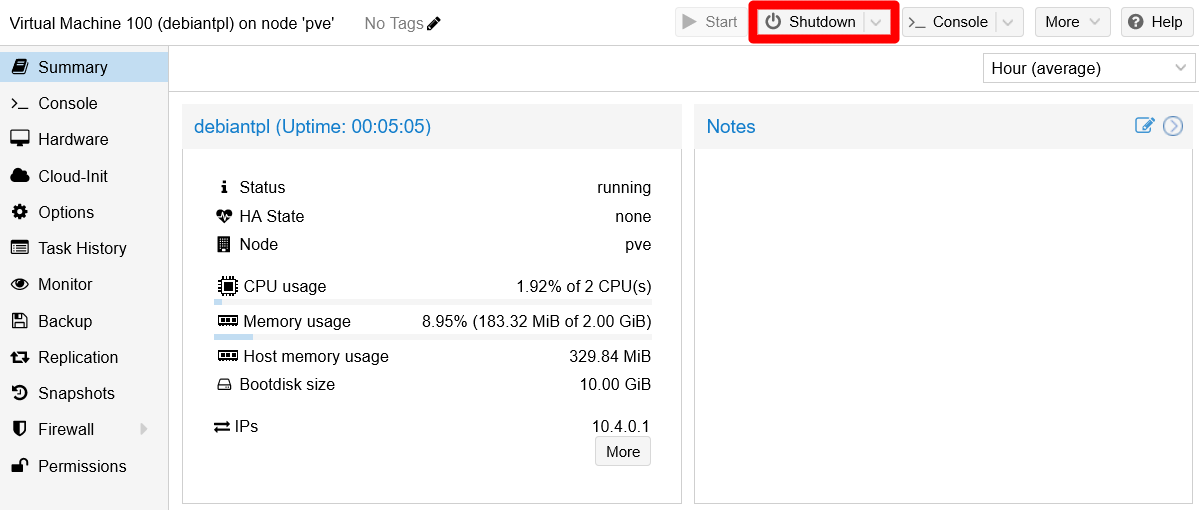
VM's Shutdown button You have to confirm the
Shutdownaction: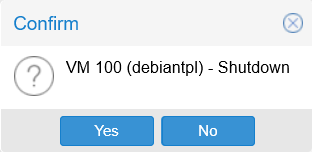
VM's Shutdown confirmation It should not take more than a few seconds for your VM to shut down:
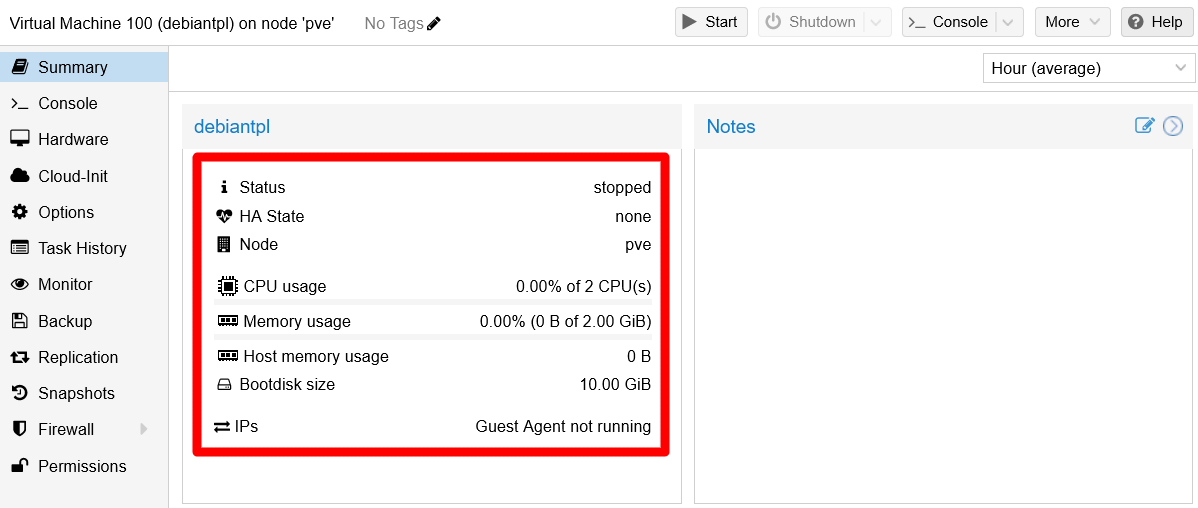
VM's Shutdown completed The VM’s
Statuschanges tostopped. Other indicators like CPU and memory usage fall to 0.Click on the
Morebutton and choose theConvert to templateoption:
Convert to template option on VM web console The web console requests your confirmation to carry on the conversion:

Confirmation of Convert to template action Just click on
Yes, and Proxmox VE turns the VM into a template in a few seconds. When the task is finished, the VM’sSummarypage changes automatically into this: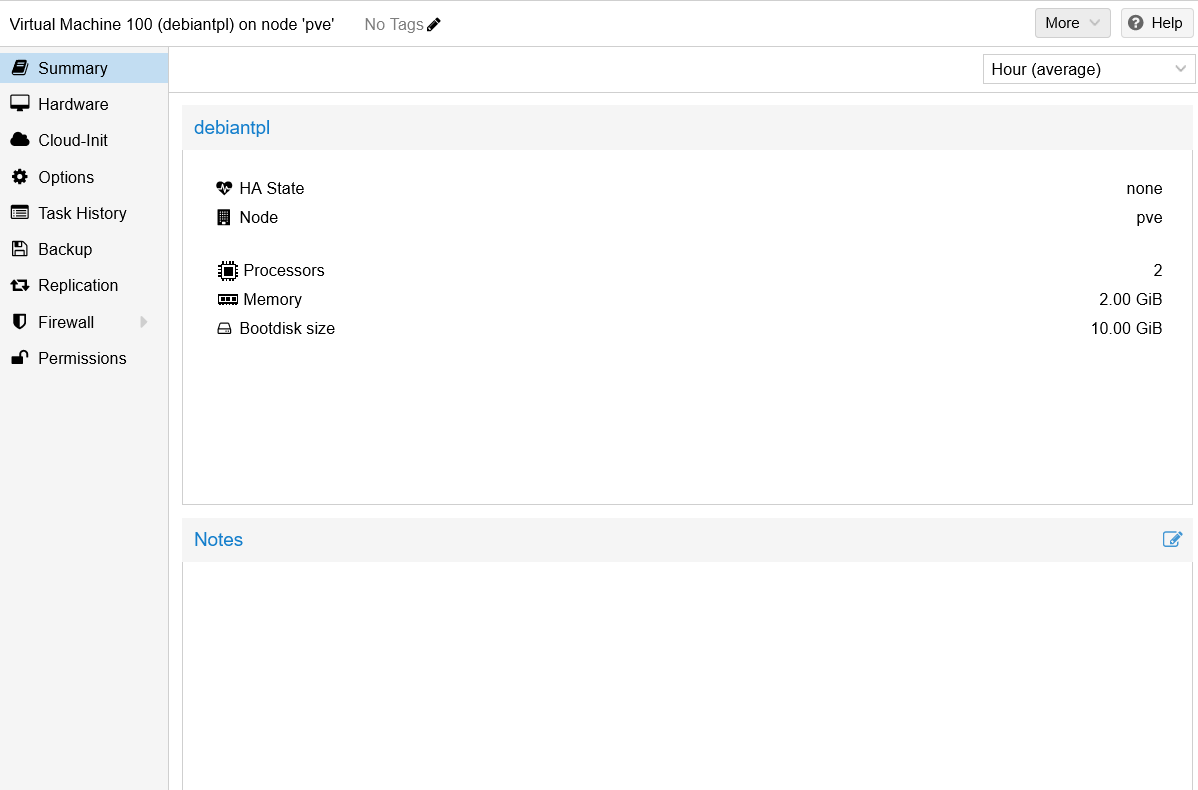
Summary page of VM template See that the
Summaryno longer shows the VM’s status or the usage statistics. Also notice that some tabs are no longer available under theSummaryone such asConsole,MonitororSnapshot. Also, theStart,ShutdownandConsolebuttons that used to be at the VM page’s top are not there either. This is because VM templates cannot be started. VM templates are just like read-only molds you can clone to create new VMs. Another minor detail that has changed is the icon the VM has in the tree shown at the web console’s left.It is better to leave a proper description of the template in the
Notestext block available in itsSummaryview:Click on the
Notes’ gear icon: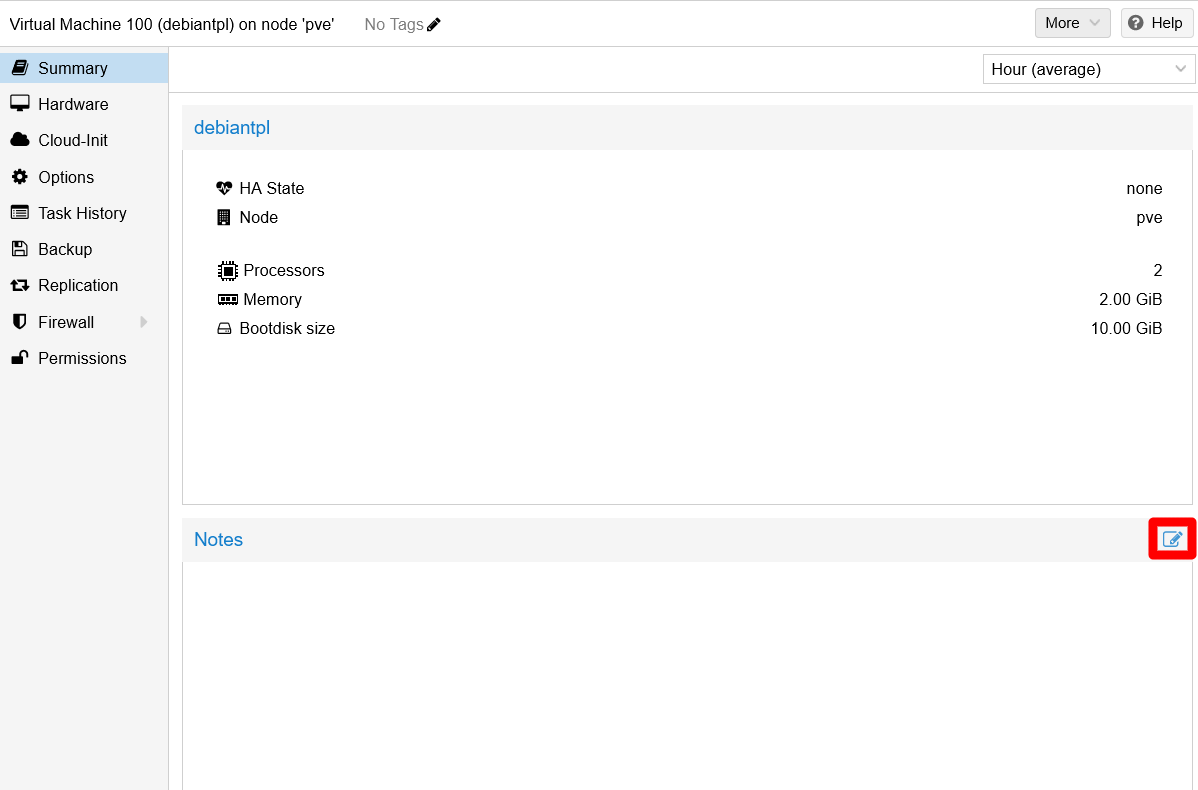
Gear icon at Notes block on Summary view You will get an editor window where you can type anything you want, and even use Markdown syntax:

Notes editor window For instance, you could type something like the following there:
The text snippet below is formatted in Markdown
If you use it as a template for your notes, be mindful of, among other things, the
\character used at the end of each line. Double spacing and\in Markdown forces a hard line break, equivalent to a<br />tag in html.# Debian VM TEMPLATE VM created: 2025-09-06\ OS: Debian 13 "trixie"\ Root login disabled: yes\ Sysctl configuration: yes\ Transparent hugepages disabled: yes\ SSH access: yes\ Key-pair for SSH access: yes\ TFA enabled: yes\ QEMU guest agent working: yes\ Fail2Ban working: yes\ NUT (UPS) client working: yes\ Utilities apt packages installed: yesAs you can see, you can use it as a reminder of what is inside your VM template.
When you have the text ready, just click on
OKand theNotesblock will be updated in theSummaryview: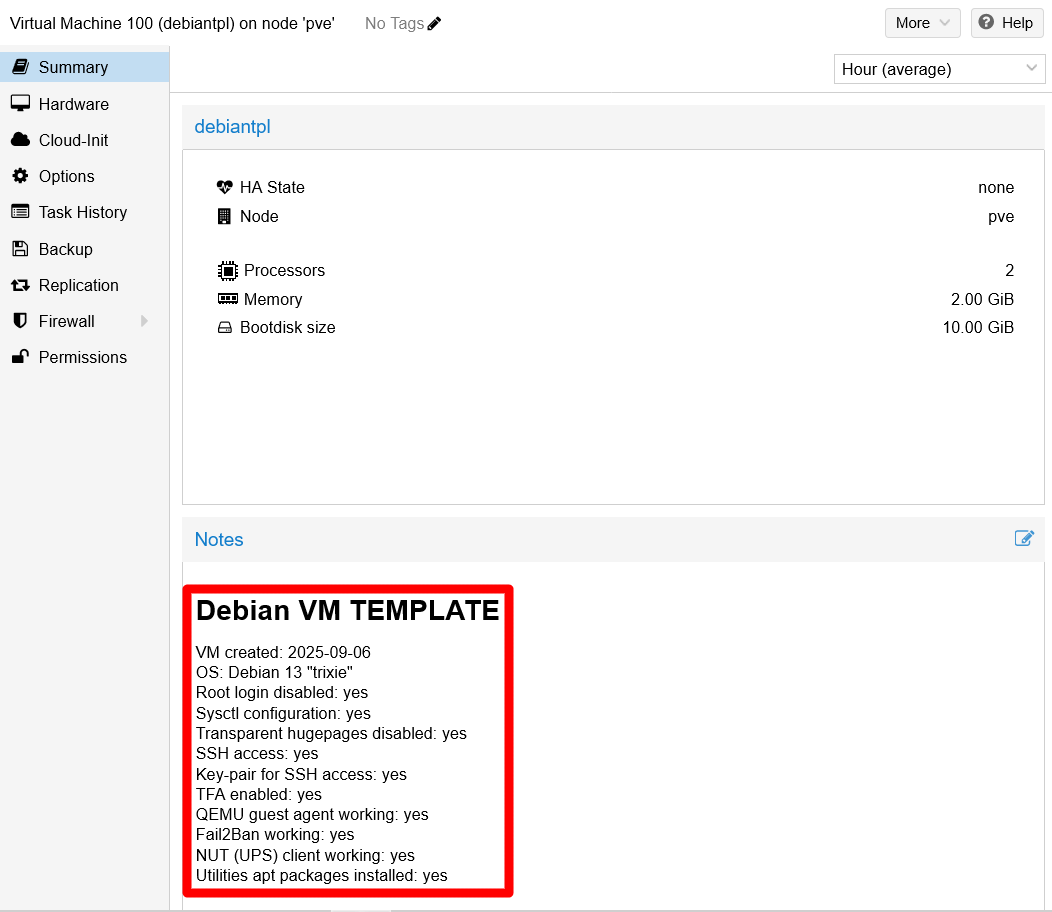
Notes updated in Summary view
VM template’s backup
It is convenient to have a backup of your VM template, just in case anything happens. For VMs and containers, the kind of backup you can do in Proxmox VE is a vzdump. These dumps have to be saved in a storage configured for it but, since you already configured a specific Proxmox VE directory for that (in the external USB storage drive), now you just have to worry about doing the backup itself.
Creating the backup of the VM template
In the Proxmox VE web console, browse to the
Backupview of your Debian VM template: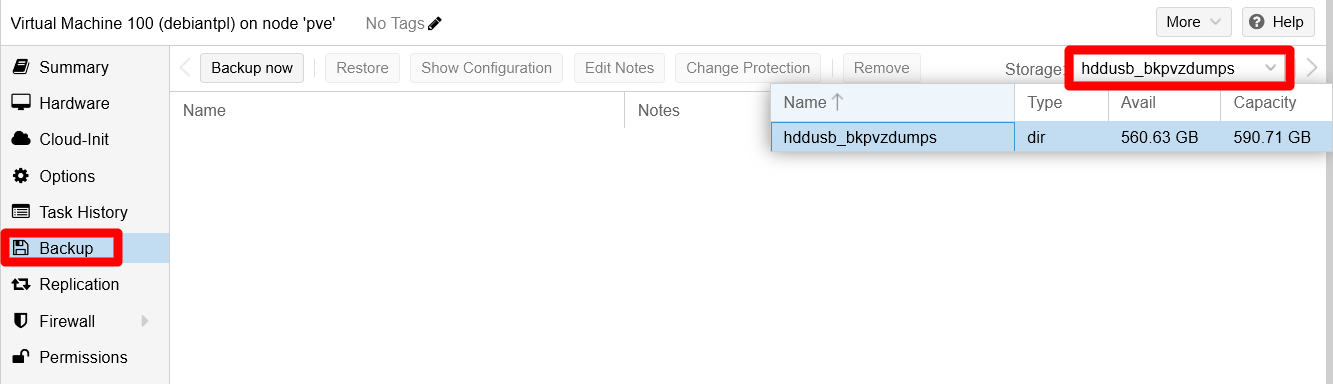
VM template's Backup view At this point, you find this view empty of backups. The two main things you must notice here are the
Backup nowbutton and theStorageunfoldable list on the right. There is only thehddusb_bkpvzdumpsstorage available for VM dumps, which was left configured as the sole directory for holding vzdumps. Now you can take advantage of it and, since its already selected as the storage of choice for VM dumps, just press on theBackup nowbutton.An editor window appears for creating a new backup:
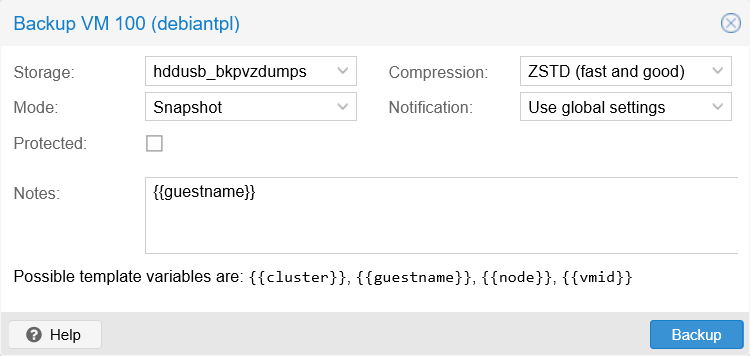
Editor window for a new backup of the VM There you have the following parameters to fill:
Storage
It is the same list you have available in theBackupview.Mode
Indicates how you want to execute the backup on your VM. In case of running VMs, you have to consider if you want to execute the backup in parallel with the VM still running (SnapshotandSuspendmodes, which also use the QEMU guest agent if available in the VM) or stopping it while the backup is being done (Stopmode). For a VM template backup, it should not matter which mode you choose, although the only one that truly makes sense to use in this case isStopmode.The behavior of these backup modes for containers is similar but not equivalent to how they work for VMs
Check the Proxmox VE help to see the differences.
Compression
Offers you the possibility of compressing or not the backup of your VM or container. In a scenario with very limited storage like the one used in this guide series, it is mandatory to compress the dumps as much as possible. The defaultZSTDoption is the best option since is not only the fastest algorithm of the four options offered, but is also multi-threaded.Notification
This allows you to choose how you want to notify users about this backup. The legacy method uses thesendmailservice, while the modern method relays on certain Proxmox VE global settings not covered in this guide. Thesendmailmethod may not work depending on your network and security configuration.Protected
When enabled, Proxmox VE protects this backup from removal actions. This is particularly useful when using automated cleaning processes that free storage by removing old backups, but you want to preserve some specific backups.Notes
Text field you can use to leave some description of the backup. Notice how you can use certain template variables that are replaced by their real value when the text is set in the backup.
Knowing all that, you can set the configuration for the new backup like below, where the
Modehas been changed toStop:
Mode changed to stop in new backup configuration Also notice how the backup is protected from unwanted removal actions and has a descriptive text.
Click on the
Backupbutton and a task progress window appears:
New backup progress window After a short while, the
Outputprints informative log lines like these:INFO: backup is sparse: 8.26 GiB (82%) total zero data INFO: transferred 10.00 GiB in 69 seconds (148.4 MiB/s) INFO: stopping kvm after backup task INFO: archive file size: 834MB INFO: adding notes to backup INFO: marking backup as protected INFO: Finished Backup of VM 100 (00:01:12) INFO: Backup finished at 2025-09-06 20:00:36 INFO: Backup job finished successfully INFO: notified via target `mail-to-root` TASK OKThis means that the dump has been done correctly.
Close the status window to return to the
Backupview. There, you can see the new backup listed as a vzdump file compressed invma.zstformat:
New backup listed on Backup view Notice that this backup takes up to 874.99 MiB. This is a very decent compression of the 2.16 GiB taken up by the VM template’s
base-100-disk-0disk image.
Restoring the VM template’s backup
Restoring the backup of a VM or VM template is not much more complex than creating them:
Go back to the
Backupview of your VM template and select the only backup you have listed there:
Buttons enabled for chosen backup When selecting a backup, all the buttons next to
Backup nowbecome active. The ones that you should pay attention to now areRestoreandShow Configuration.It may happen that it has been a while since you did the backup, and you do not remember what is inside of it. To help you with this, you can press on
Show Configuration:
Show Configuration window of VM backup This window shows you the configuration of the VM or VM template saved in the backup, including the notes (rendered as regular text) you may have added to the VM itself. This gives you an idea of what is going to be put back when you restore the backup.
Close the backup’s
Configurationwindow, then press onRestore:
Restore window of VM backup The fields you see mean the following:
Source
The backup file from which you are going to restore the VM or VM template.Storage
The storage where you want to restore the backup. Left by default, the backup will restore the VM hard disks in the locations indicated by the VM’s configuration.VM
The id of the VM you are restoring.Bandwidth Limit
This parameter is to restrict the system’s storage bandwidth taken up by the restoration process, and limit the impact it will have in your system performance.Unique
This is a feature that generates new values to certain attributes of the restored VM, like its network interface MACs.Careful when using this attribute
If you happen to have some configuration that relies on the attributes that get regenerated, like a router assigning static IPs to specific MACs, the new values may not fit and could “break” your setup.
Start after restore
Makes the restored VM start immediately after being restore, although this feature does not work with VM templates.Override Settings
This is where you can give a different name to the restored VM, plus readjust its assigned CPU and RAM capacities. Changing these particular attributes is usually not a problem for Linux-based OSes like Debian, although you must be sure that the readjusted capacities are enough for the needs of the processes that will run in the restored VM.
In this case the default values are fine, so press on
Restore. The following window appears requesting you to confirm the restoration:
Confirmation of backup's restore Restoring the VM removes its existing hard disk
The restoration process replaces the hard disk you currently have linked to the VM template with the one stored within the backup.
After accepting the confirmation, the progress window of the
Restoreprocess appears:
Progress window of backup Restore process After a while you should see in the output the
TASK OKmessage, as a sign of the successful end of the process. Also, among those log entries, you may notice a line like the following:space reduction due to 4K zero blocks 2.83%This means that the restoration procedure has found some empty (
zero) blocks in the backup. Due to that, the space taken up by the restored VM has been reduced by a certain percentage (2.83%in the example above).
Considerations about backups
Different restore commands for VM and containers
You can also restore commands through a shell:qmrestore
VM restore utility.pct restore
Container restore utility.
Check their
manpages to see how they work.Careful with storages
The hard disks attached to VMs or containers could be configured to storages that are no longer available in your system, or that have changed their names. So always check the configuration of the VM or container before you restore it, to see in which storage you can put it back.Hardware setup is saved in the backup
The hardware configuration of a VM that you see in the Proxmox VE web console is also stored in its backup. So, when you recover the backup of a VM, the hardware configuration will also be recovered, although the PVE web console may ask you about the differences it finds between the current VM configuration and the one stored in the backup.This point is directly related with the previous one.
Other considerations regarding VM templates
Nature of VM templates
It might seem odd that, in the Proxmox VE platform, the VM templates are treated almost as normal VMs. To understand this, you have to think about VM templates just as frozen-in-time VMs. Thanks to this nature, you can clone them in Proxmox VE to create new but similar VMs much faster.Proxmox VE does not compress the templates
Directly related to this “frozen VM” nature, you must bear in mind that a VM template’s hard disk will not be compressed or shrunk in any way by Proxmox VE. Whatever storage space was used by the VM disk image, that is exactly the space the template will still take up. The only thing that will change, as you have seen in this guide, is the write permission on the corresponding light volume and its status to inactive.In case you were using a
qcow2image file, how this read-only restriction is enforced will change. Given how the storage setup has been configured already, theqcow2format is not covered in this guide.Clone VM templates to update them
Since VM templates are read-only, you cannot modify them. If you want to update a template, you have to clone it into a new VM, update that VM and, then, turn the updated VM into a new VM template.Hardware configuration can be changed
The part that really is read-only in a template is the storage drive that becomes the disk image, but the hardware setup can still be changed. If you have to do this, you must be careful that the changes do not contradict what the templated VM saved in the image knows about its hardware.For instance, changing the number of vCPUs or the RAM will not usually give you any trouble. However, removing a network device could have concerning consequences.