Debian VM creation
You can start creating VMs in your Proxmox VE server
Your Proxmox VE system is now configured well enough for you to start creating the virtual machines you require in it. This chapter will show you how to create a rather generic VM with Debian. This Debian VM will be the base over which you will build, in the following chapters, a more specialized VM template for your K3s cluster’s nodes.
Preparing the Debian ISO image
Since the operative system chosen to build the VMs is Debian Linux, first you need to get its ISO and store it in your Proxmox VE server.
Obtaining the latest stable Debian ISO image
At the time of writing this, the latest stable version of Debian is 13.0.0 “trixie”.
You can find the net install version of the ISO for the latest Debian version right at the Debian project’s webpage:
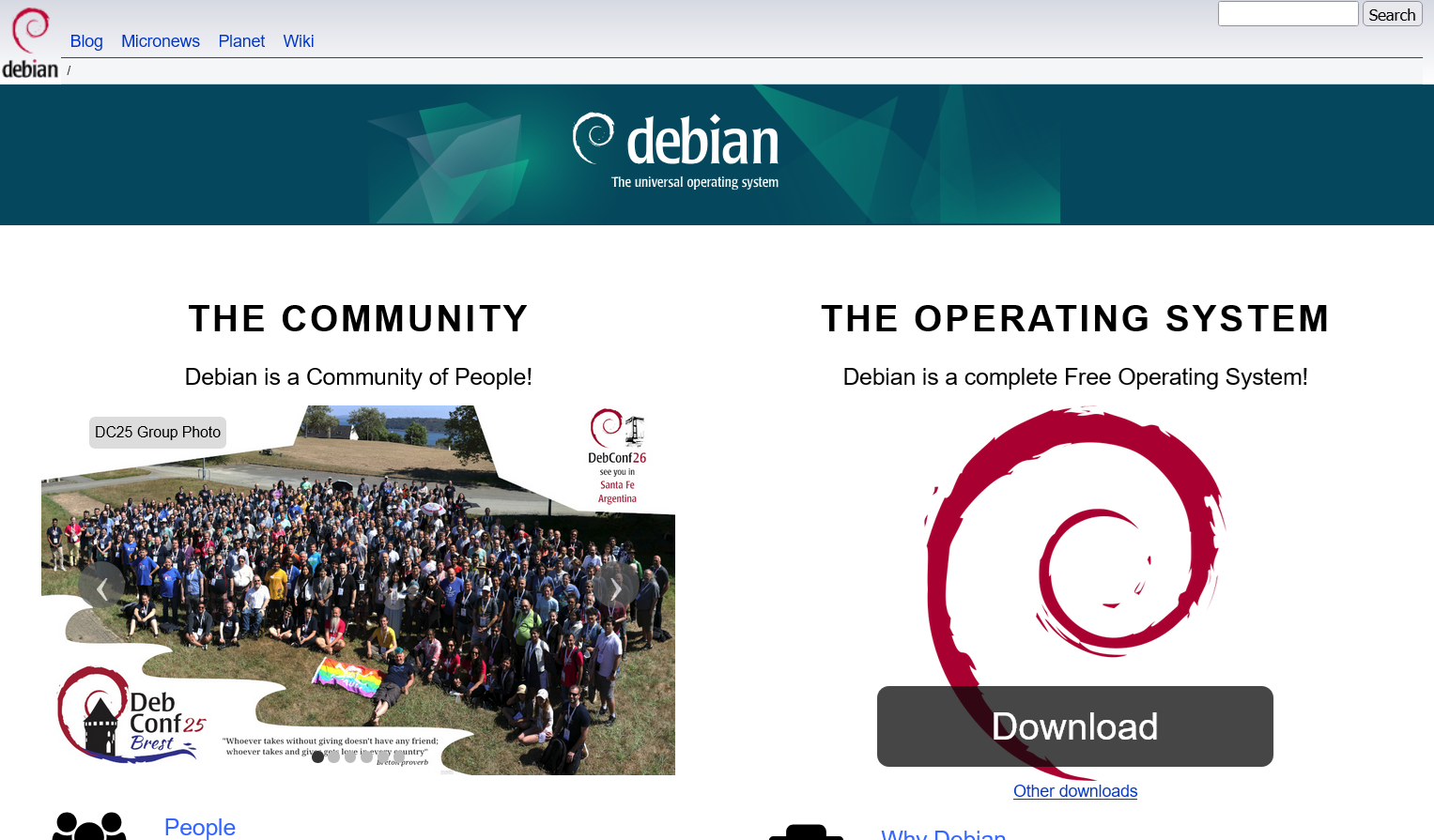
After clicking on that big Download button, your browser should start downloading the debian-13.0.0-amd64-netinst.iso file.
Storing the ISO image in the Proxmox VE platform
Proxmox VE needs that ISO image saved in the proper storage space it has available to be able to use it. Therefore, you need to upload the debian-13.0.0-amd64-netinst.iso file to the storage space you configured to hold such files, the one called hdd_templates:
Open the web console and unfold the tree of available storages under your
pvenode. Click onhdd_templatesto reach itsSummarypage: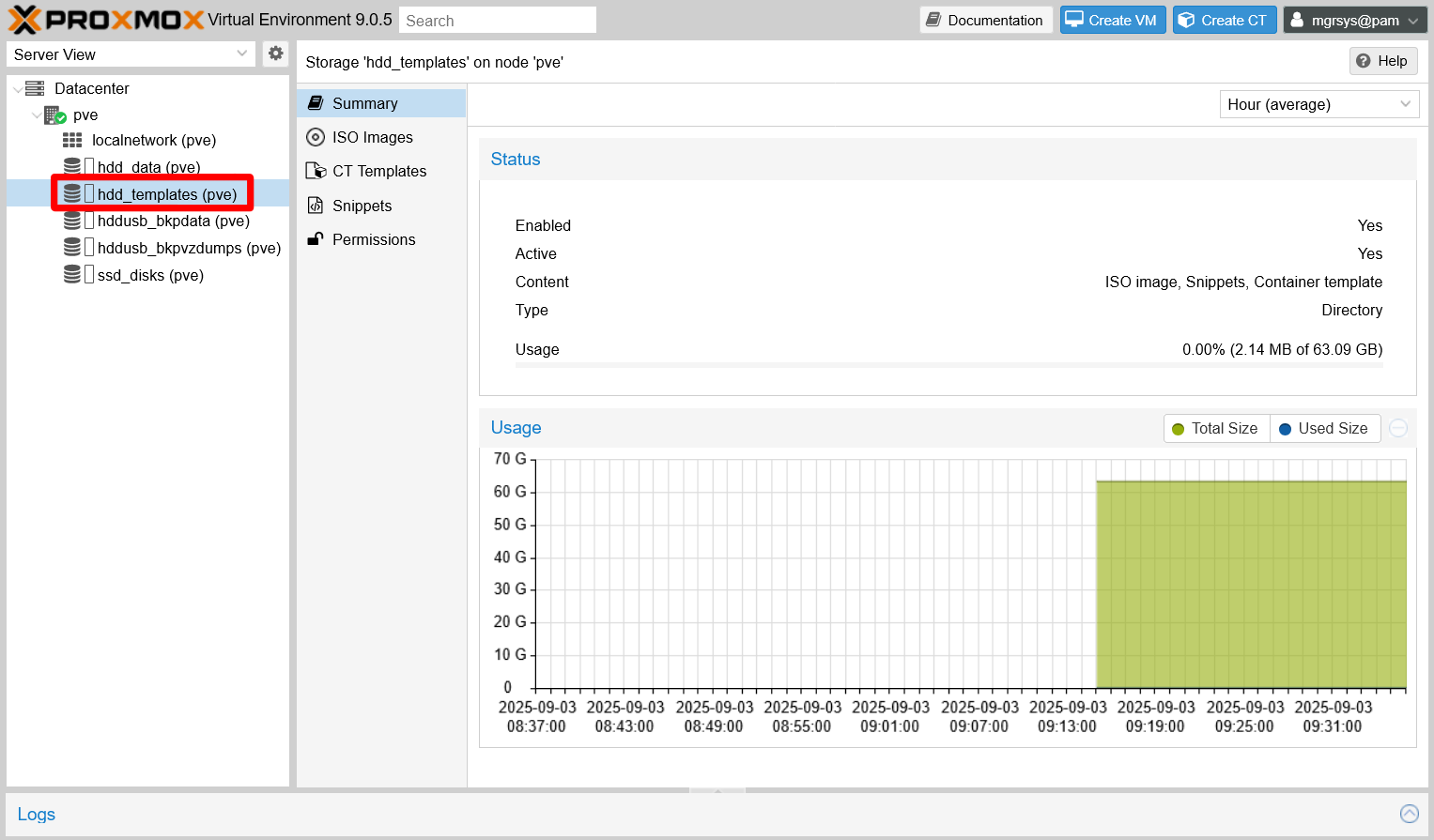
Summary of templates storage Click on the
ISO Imagestab to see the page of available ISO images:
ISO images list empty It appears empty at this point.
Click on the
Uploadbutton to raise the dialog below: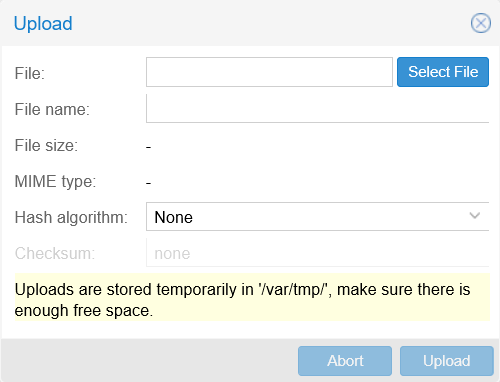
ISO image upload dialog Ensure having enough free storage available in your Proxmox VE’s
rootfilesystem before uploading filesNotice the warning about where Proxmox VE temporarily stores the file you upload before moving it to its definitive place. The
/var/tmp/path lays in therootfilesystem of your PVE server, so be sure of having enough room in it or the upload will fail.Click on
Select File, find and select yourdebian-13.0.0-amd64-netinst.isofile in your computer, then click onUpload. The same dialog will show the upload progress:
ISO image upload dialog in progress When the upload is finished, Proxmox VE shows you another dialog with the result of the task that moves the ISO file from the
/var/tmp/PVE system path to thehdd_templatesstorage:
ISO image copy data task dialog result OK Close the Task viewer dialog to return to the
ISO Imagespage. See that the list now shows your newly uploaded Debian ISO image:
ISO images list updated Notice how the ISO is only identified by its file name. Sometimes ISOs do not have detailed names like the one for the Debian distribution. In those cases, give the ISOs you upload meaningful and unique names to tell them apart.
Finally, you can check out in the
hdd_templatesstorage’sSummaryhow much space you have left (Usagefield):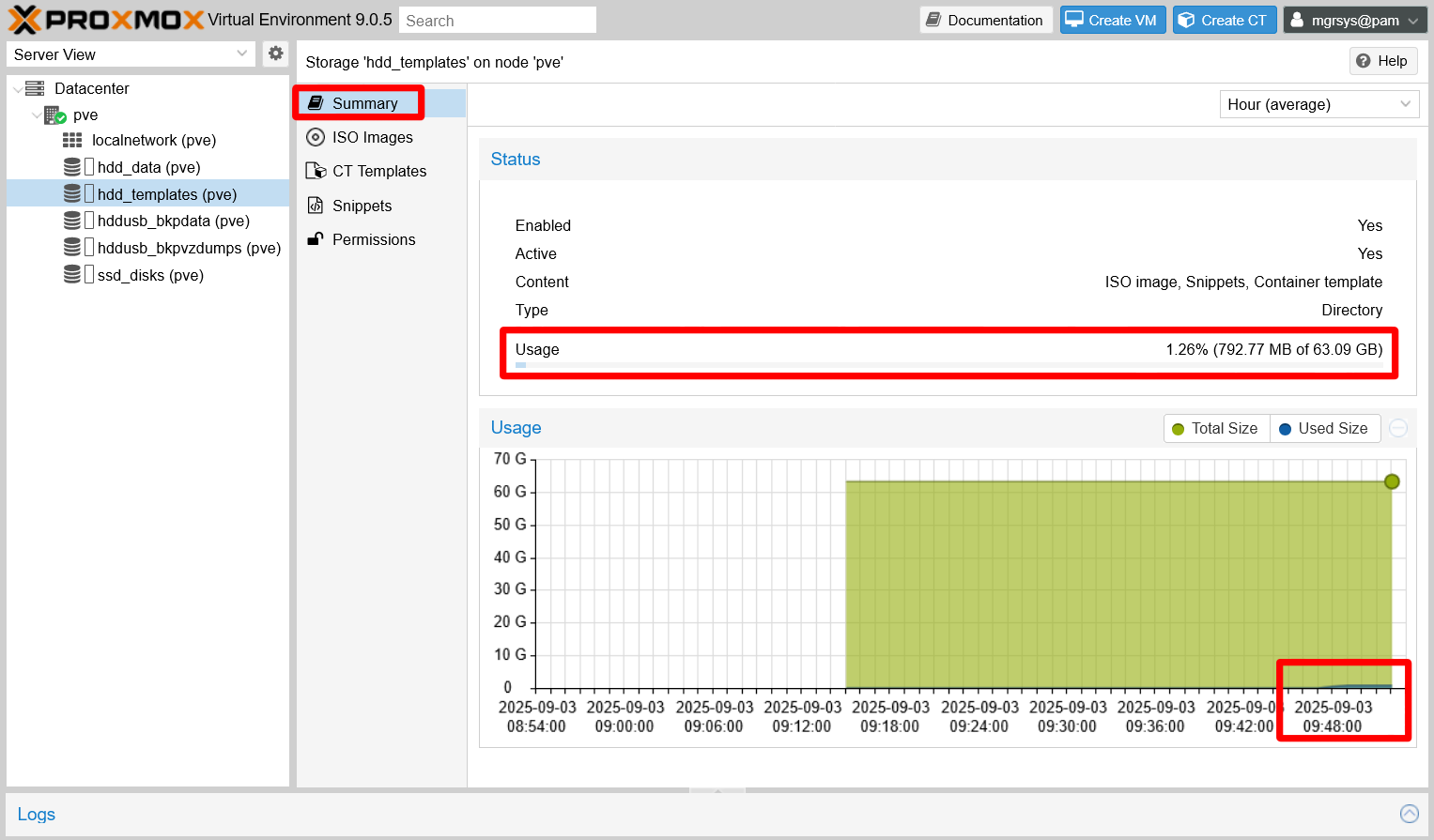
Summary of templates storage updated
Now you only have one ISO image but, over time, you may accumulate a number of them. Be mindful of the free space you have left, and prune old images or container templates you are not using anymore.
Building a Debian virtual machine
This section covers how to create a basic and lean Debian VM, then how to turn it into a VM template.
Setting up a new virtual machine
First, you need to create and configure a new VM:
Click on the
Create VMbutton found at the web console’s top right: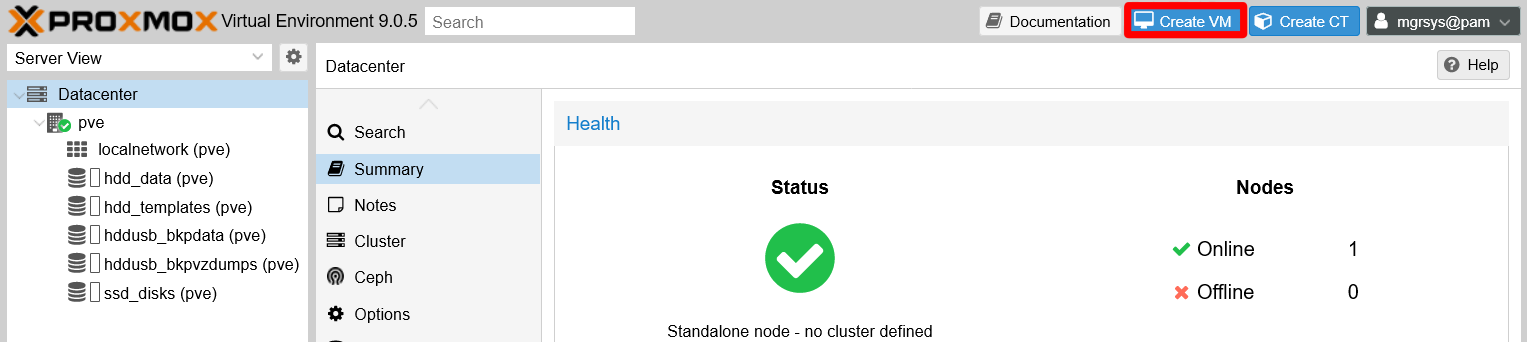
Create VM button The
Create: Virtual Machinewindow appears, opened at theGeneraltab: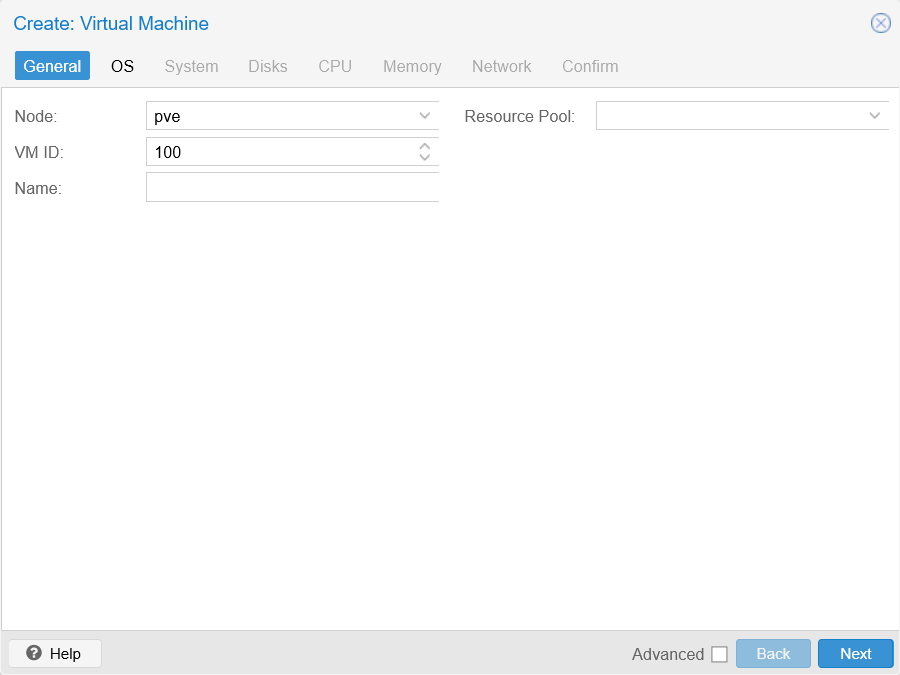
General tab unfilled at Create VM window From it, only worry about the following parameters:
Node
In a cluster with several nodes you would need to choose where to put this VM. Since you only have one standalone node, just leave the defaultpvevalue.VM ID
A numerical identifier for the VM.There is a lower limit for VM IDs
Proxmox VE does not allow IDs lower than
100.Name
This field must be a valid DNS name, likedebiantplor something longer such asdebiantpl.homelab.cloud.This
Namefield is not properly described by the official documentationThe official Proxmox VE says that this name is
a free form text string you can use to describe the VM, which contradicts what the web console actually validates as correct.Resource Pool
Here you can indicate to which pool of resources (you have none defined at this point) you want to make this VM a member of.
The only value you really need to set here is the name, which in this case it could be
debiantpl(for Debian Template):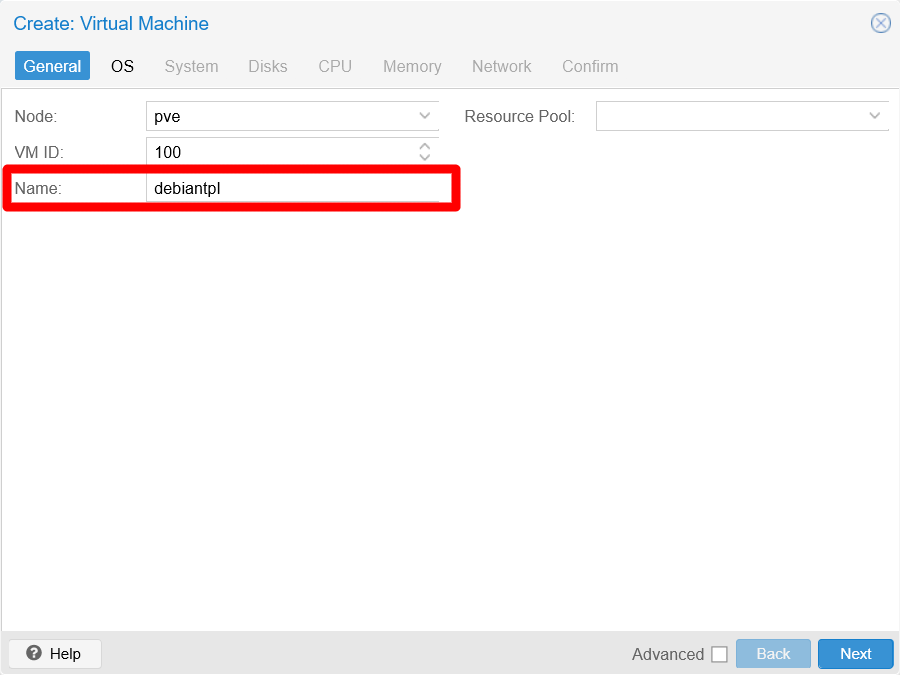
General tab filled at Create VM window Click on the
Nextbutton to reach theOStab: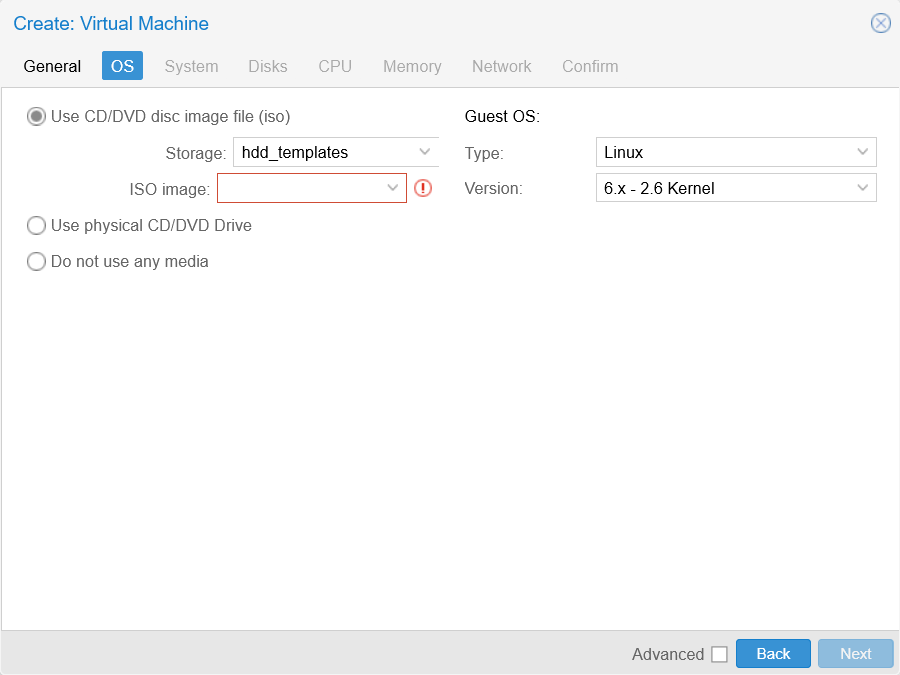
OS tab unfilled at Create VM window In this form, you only have to choose the Debian ISO image you uploaded before. The
Guest OSoptions are already properly set up for the kind of OS (a Linux distribution) you are going to install in this VM.Therefore, be sure of having the
Use CD/DVD disc image fileoption enabled, then select the properStorage(you should only see here thehdd_templatesone) andISO image(you just have one ISO right now):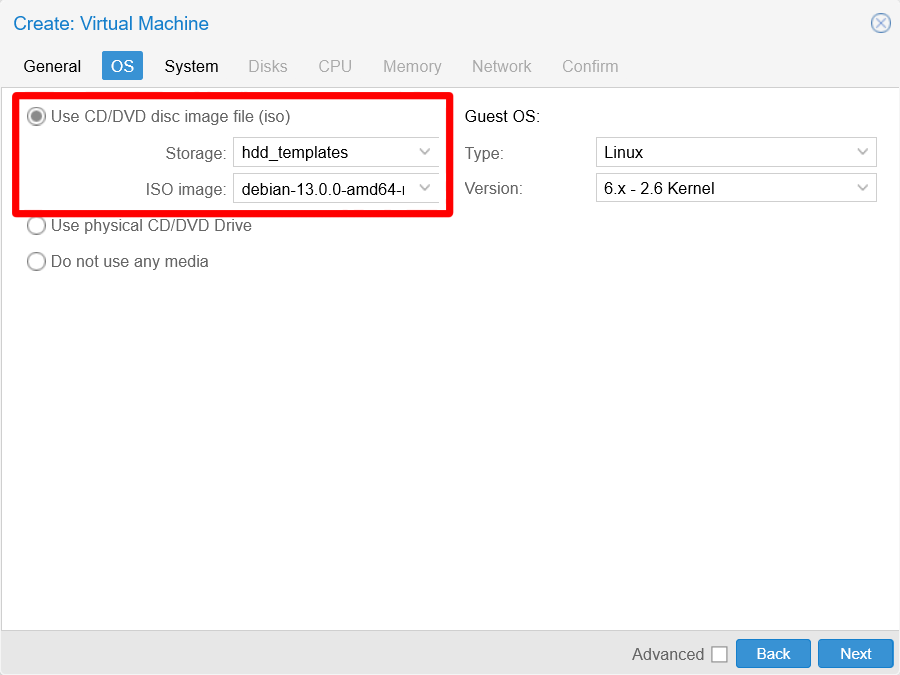
OS tab filled at Create VM window The next tab to go to is
System: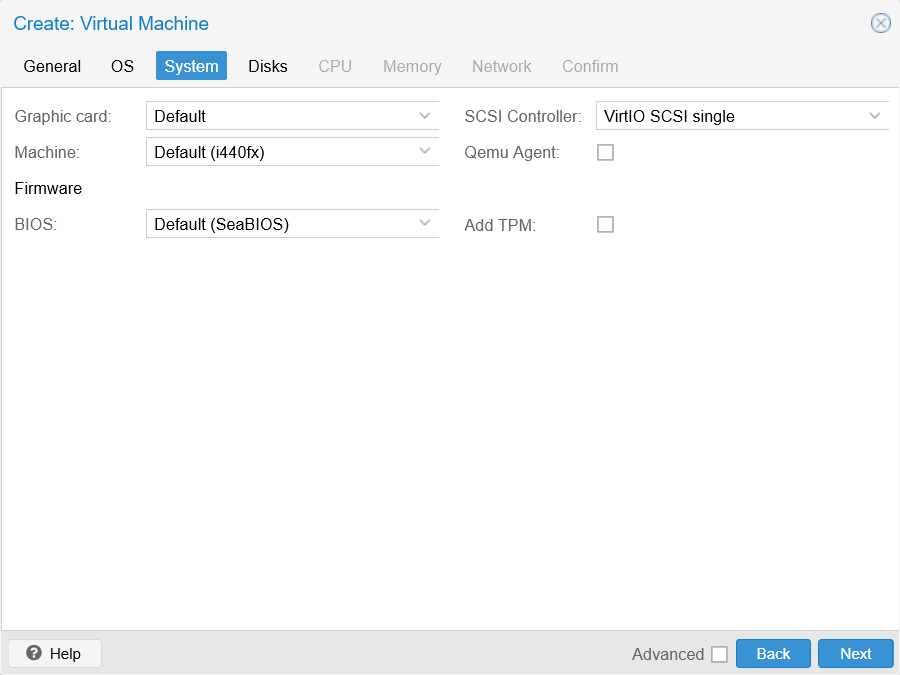
System tab unfilled at Create VM window Here, only tick the
Qemu Agentcheckbox and leave the rest with their default values: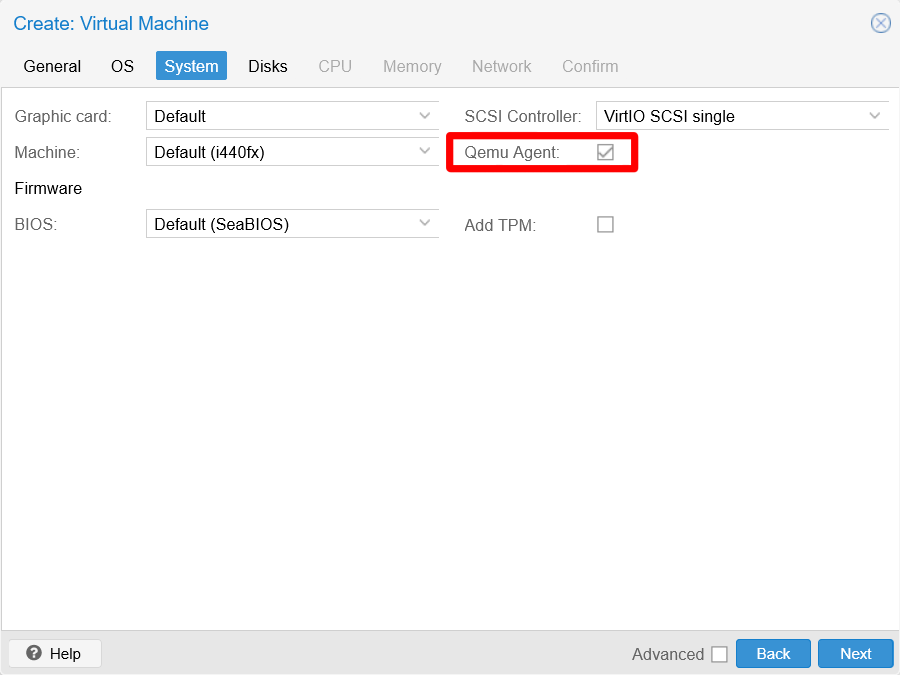
System tab filled at Create VM window The QEMU agent “lets Proxmox VE know that it can use its features to show some more information, and complete some actions (for example, shutdown or snapshots) more intelligently”.
Hit on
Nextto advance to theDiskstab: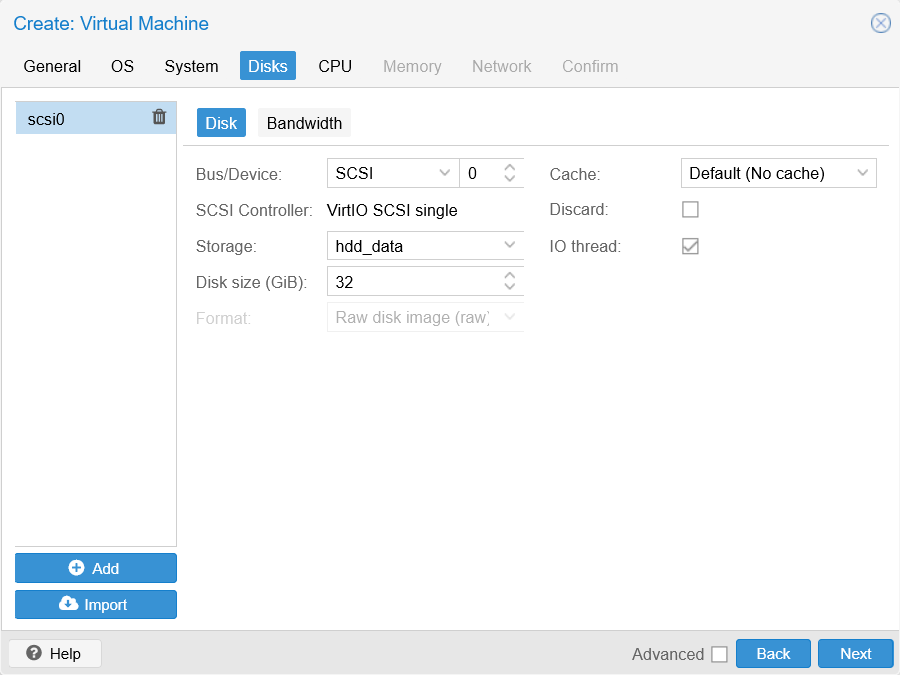
Disks tab unfilled at Create VM window In this step you have a form in which you can add several storage drives to your VM, but there are certain parameters that you need to see to create a virtual SSD drive. Enable the
Advancedcheckbox at the bottom of this window to see some extra parameters shown highlighted in the next snapshot:Not all tabs of the
Create: Virtual Machinewindow have advanced optionsAlthough the
Advancedcheckbox appears in all the steps of this wizard, not all of those steps have advanced parameters to offer.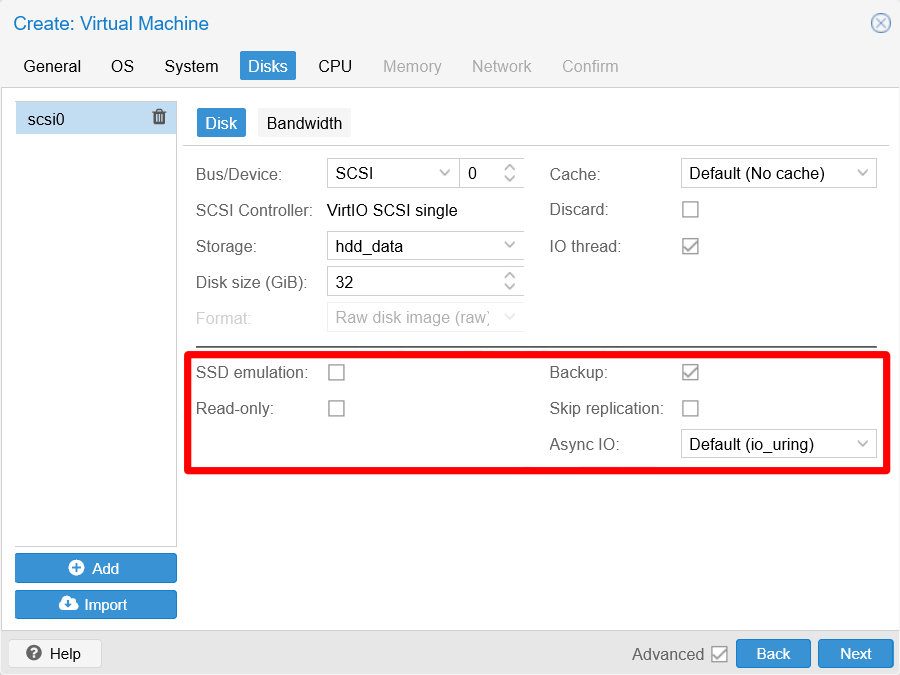
Disks tab unfilled advanced options From the many parameters showing now in this form, just pay attention to the following ones:
Storage
Here you must choose on which storage you will place the disk image of this VM. At this point, in the list you can see only the thinpools created previously.Disk size (GiB)
How big you want the main disk for this VM, in gibibytes.Discard
Since this drive will be put on a thin provisioned storage, you can enable this option to make this drive’s image get shrunk when space is marked as freed after removing files within the VM.SSD emulation
If your storage is on an SSD drive, (like thessd_disksthinpool), you can turn this on.IO thread
With this option enabled, IO activity will have its own CPU thread in the VM, which could improve the VM’s performance and also sets theSCSI Controllerof the drive to VirtIO SCSI single.Async IO
The official documentation does not explain this value, but it can be summarized as the way to choose which method to use for asynchronous IO.Find more details about async IO in the Proxmox Forum
The
Bandwidthtab allows you to adjust the read/write capabilities of the storage driveOnly adjust the bandwidth options if you are really sure about how to set them up.
Knowing all this, choose the
ssd_disksthinpool asStorage, put a small number asDisk Size(such as 10 GiB), and ensure to enable theDiscardandSSD emulationoptions. Leave theIO threadoption enabled (as it is by default), and do not change the default value already set in theAsync IOparameter. Do not change any of the remaining parameters in this dialog: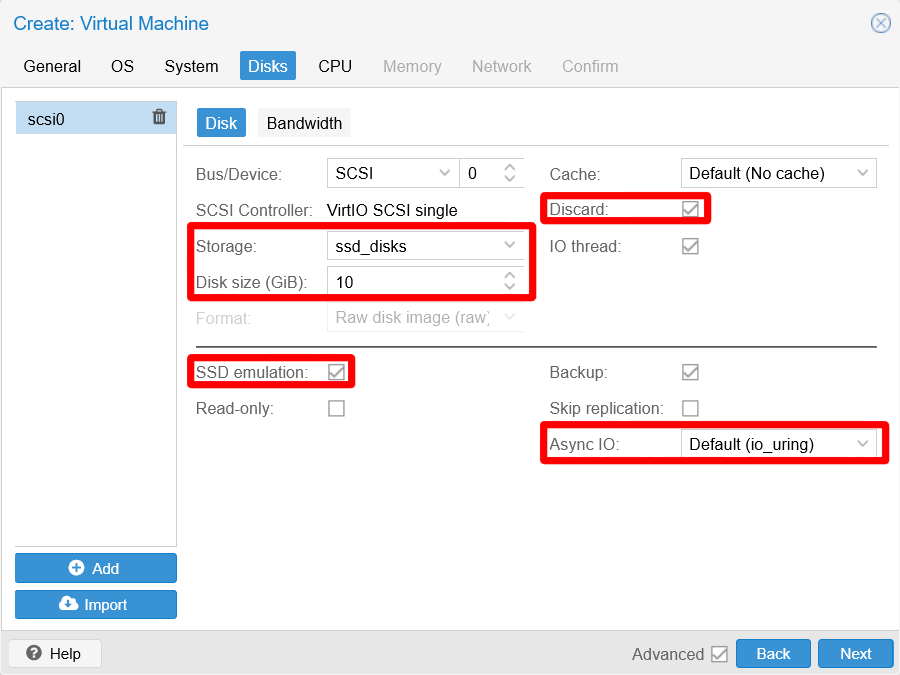
Disks tab filled at Create VM window This way, you have configured the
scsi0drive you see listed in the column at the window’s left. If you want to add more drives, click on theAddbutton and a new drive will be added with default values.The next tab to fill is
CPU. Since you have enabled theAdvancedcheckbox in the previousDiskstab, you already see the advanced parameters of this and following steps right away: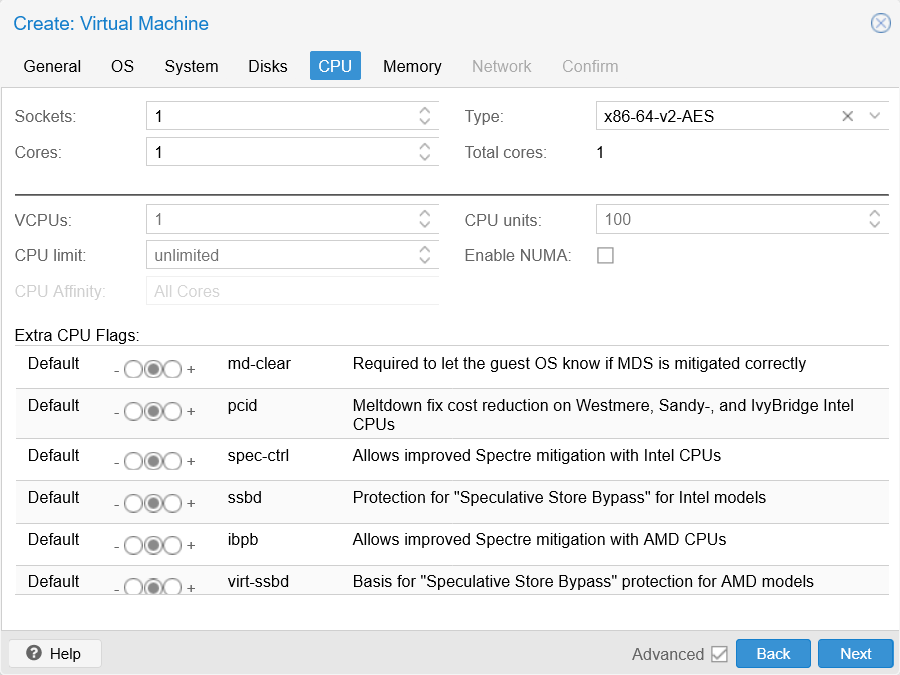
CPU tab unfilled at Create VM window The parameters on this tab are very dependant on the real capabilities of your host’s CPU. The main parameters you have to care about at this point are:
Sockets
A way of saying how many CPUs you want to assign to this VM. Just leave it with the default value (1).Cores
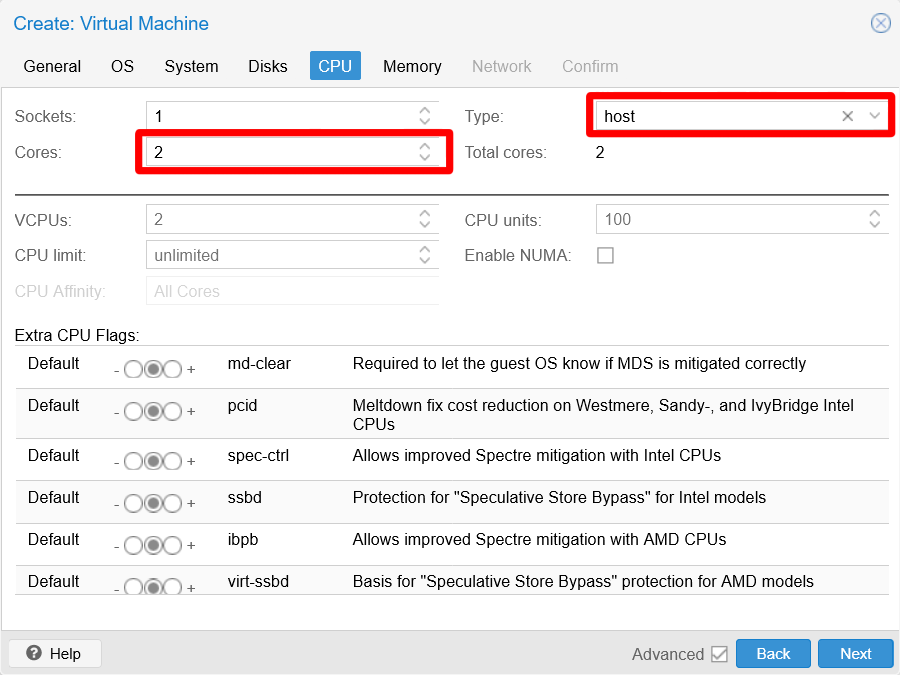
How many cores you want to give to this VM. When unsure on how many to assign, just put2here.Never enter here a number greater than the real cores count in your CPU
Otherwise, Proxmox VE will not start your VM.
Type
This indicates the type of CPU you want to emulate, and the closer it is to the real CPU running your system the better. There is a typehostwhich makes the VM’s CPU have exactly the same flags as the real CPU running your Proxmox VE platform, but VMs with thathostCPU type will only run on CPUs that include the same flags. So, if you migrated such VM to a new Proxmox VE platform that runs on a CPU lacking certain flags expected by the VM, the VM will not run there.Enable NUMA
If your host supports NUMA, enable this option.Extra CPU Flags
Flags to enable special CPU options on your VM. Only enable the ones actually available in the CPUTypeyou chose, otherwise the VM will not run. If you choose the typeHost, you can see the flags available in your real CPU in the/proc/cpuinfofile within your Proxmox VE host:$ less /proc/cpuinfoThis file lists the specifications of each core on your CPU. For instance, the first core (called
processorin the file) of this guide’s Proxmox VE host is detailed as follows:processor : 0 vendor_id : GenuineIntel cpu family : 6 model : 55 model name : Intel(R) Celeron(R) CPU J1900 @ 1.99GHz stepping : 8 microcode : 0x838 cpu MHz : 2211.488 cache size : 1024 KB physical id : 0 siblings : 4 core id : 0 cpu cores : 4 apicid : 0 initial apicid : 0 fpu : yes fpu_exception : yes cpuid level : 11 wp : yes flags : fpu vme de pse tsc msr pae mce cx8 apic sep mtrr pge mca cmov pat pse36 clflush dts acpi mmx fxsr sse sse2 ss ht tm pbe syscall nx rdtscp lm constant_tsc arch_perfmon pebs bts rep_good nopl xtopology tsc_reliable nonstop_tsc cpuid aperfmperf tsc_known_freq pni pclmulqdq dtes64 monitor ds_cpl vmx est tm2 ssse3 cx16 xtpr pdcm sse4_1 sse4_2 movbe popcnt tsc_deadline_timer rdrand lahf_lm 3dnowprefetch epb pti ibrs ibpb stibp tpr_shadow flexpriority ept vpid tsc_adjust smep erms dtherm ida arat vnmi md_clear vmx flags : vnmi preemption_timer invvpid ept_x_only flexpriority tsc_offset vtpr mtf vapic ept vpid unrestricted_guest bugs : cpu_meltdown spectre_v1 spectre_v2 mds msbds_only mmio_unknown bogomips : 4000.00 clflush size : 64 cache_alignment : 64 address sizes : 36 bits physical, 48 bits virtual power management:The flags available in the CPU are listed on the
flags,vmx flagsandbugslists.
Being aware of the capabilities of the real CPU used to run the Proxmox VE VM used in this guide, this form is filled like this:
CPU tab filled at Create VM window The next tab is
Memory, with its advanced parameters already shown: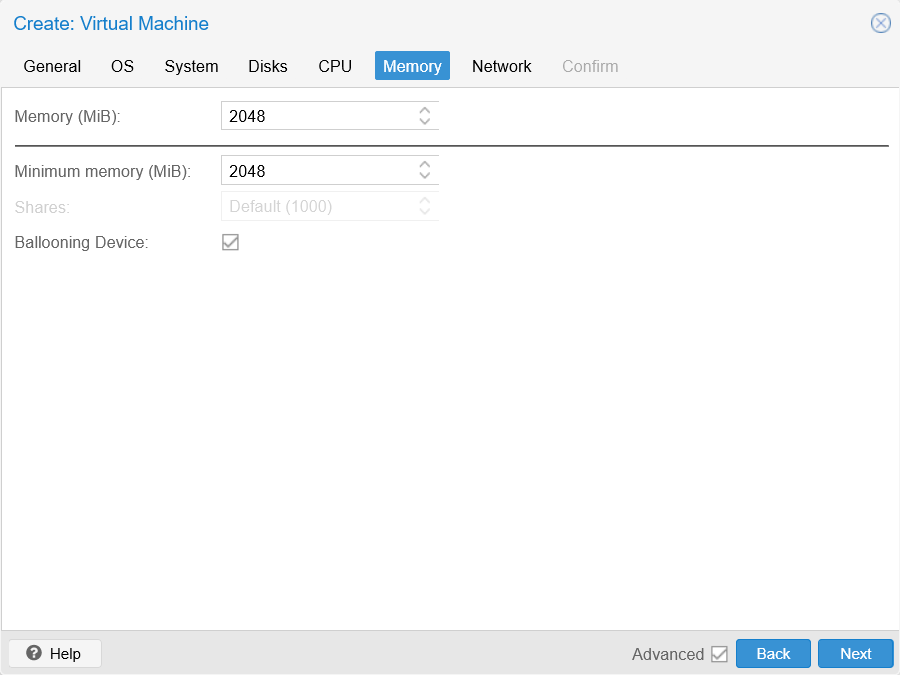
Memory tab unfilled at Create VM window The parameters to set in this dialog are:
Memory (MiB)
The maximum amount of RAM this VM will be allowed to use.Minimum memory (MiB)
The minimum amount of RAM Proxmox VE must guarantee for this VM.
If the
Minimum memoryis a different (thus lower) value than theMemoryone, Proxmox VE will useAutomatic Memory Allocationto dynamically balance the use of the host RAM among the VMs you may have in your system, which you can also configure with theSharesattribute in this form. Better check the documentation to understand how Proxmox VE handles the VMs’ memory.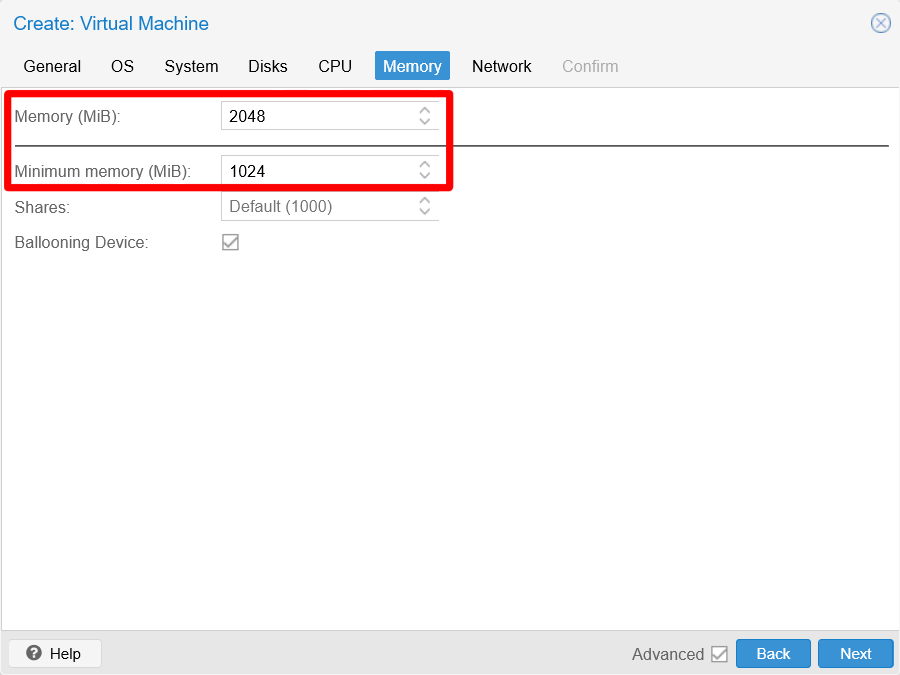
Memory tab filled at Create VM window With the arrangement above, the VM will start with 1 GiB and will be able to only take up to 2 GiB from the host’s available RAM.
The next tab to go to is
Network, which also has advanced parameters: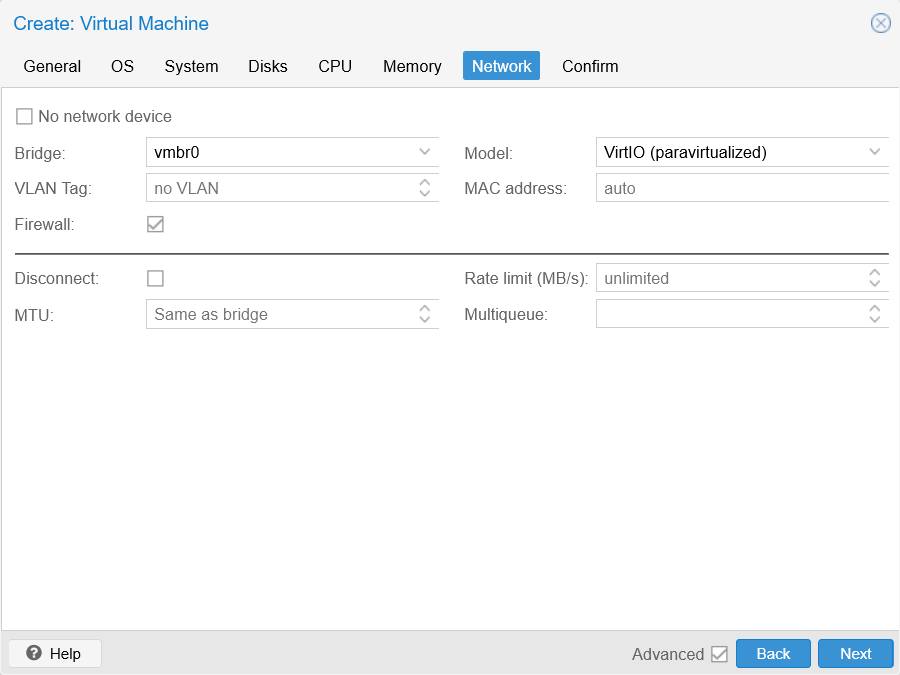
Network tab default at Create VM window Notice how the
Bridgeparameter is set by default with thevmbr0Linux bridge. You will come back to this parameter later but, for now, you do not need to configure anything in this step, the default values are correct for this Debian template VM.The last tab to get into is
Confirm: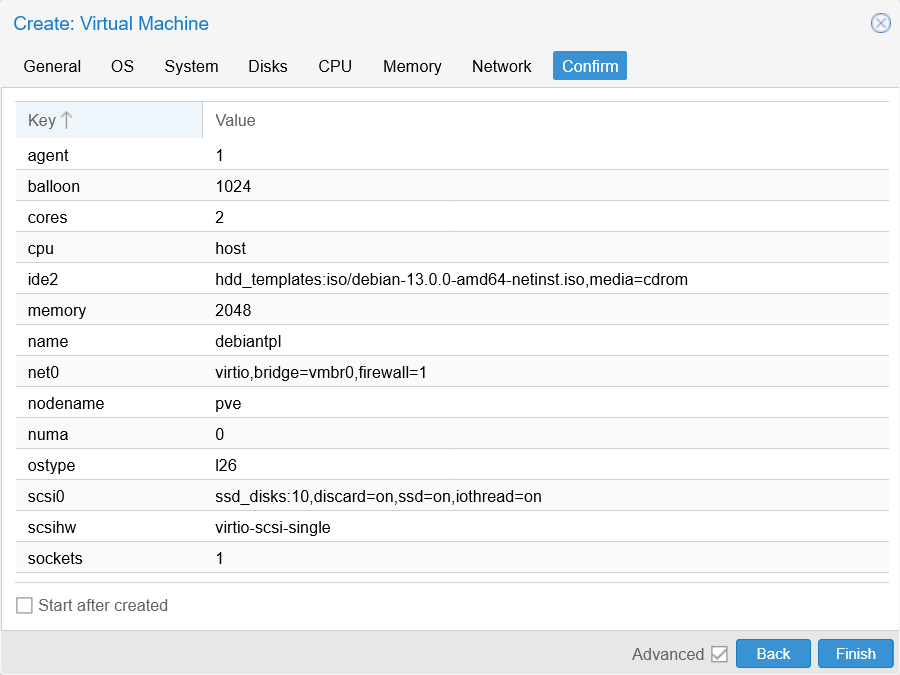
Confirm tab at Create VM window Here you can give a final look to the configuration you have assigned to your new VM before you create it. If you want to readjust something, just click on the proper tab or press
Backto reach the step you want to change.Also notice the
Start after createdcheck. Do NOT enable it, since it makes Proxmox VE boot up your new VM right after its creation, something you do not want at this point.Click on
Finishand the creation should proceed. Check theTaskslog at the bottom of your web console to see its progress: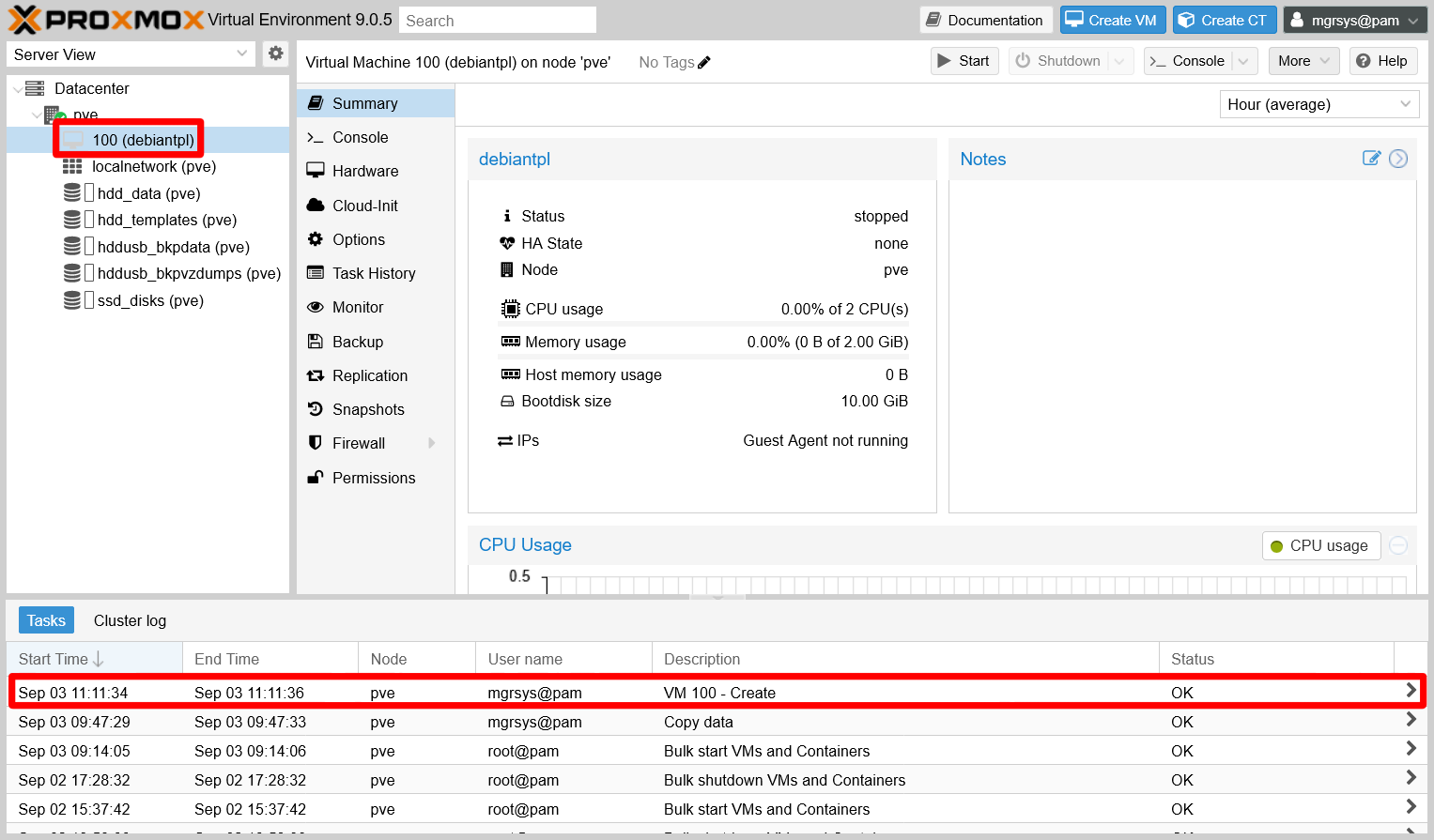
VM creation on Tasks log Notice how the new VM appears in the
Server Viewtree of your PVE node. Click on it to see itsSummaryview as shown in the capture above.
The configuration file for the new VM is stored at /etc/pve/nodes/pve/qemu-server (notice that it is related to the pve node) as [VM ID].conf. For this new VM with the VM ID 100, the file is /etc/pve/nodes/pve/qemu-server/100.conf:
agent: 1
balloon: 1024
boot: order=scsi0;ide2;net0
cores: 2
cpu: host
ide2: hdd_templates:iso/debian-13.0.0-amd64-netinst.iso,media=cdrom,size=754M
memory: 2048
meta: creation-qemu=10.0.2,ctime=1756890694
name: debiantpl
net0: virtio=BC:24:11:3E:B9:39,bridge=vmbr0,firewall=1
numa: 0
ostype: l26
scsi0: ssd_disks:vm-100-disk-0,discard=on,iothread=1,size=10G,ssd=1
scsihw: virtio-scsi-single
smbios1: uuid=8fce9b8d-d716-4e7b-9817-3d727b40eb9f
sockets: 1
vmgenid: 08b95c71-2feb-4338-8970-c3cfba8a6e94
Adding an extra network device to the new VM
In the VM creation wizard, Proxmox VE does not allow you to configure more than one network device. To add an extra network device in your VM, you have to do it after you have created the VM in Proxmox VE. And why the extra network device? To allow your future K3s cluster’s nodes to communicate directly with each other through the other Linux bridge you already created for this exact purpose. Keep on reading to learn how to add that extra network device to your new VM:
Go to the
Hardwaretab of your new VM:
Hardware tab at the new VM Click on
Addto see the list of devices you can aggregate to the VM, then chooseNetwork Device:
Choosing Network Device from Add list The
Networkwindow that appears is exactly the same as theNetworktab you saw while creating the VM: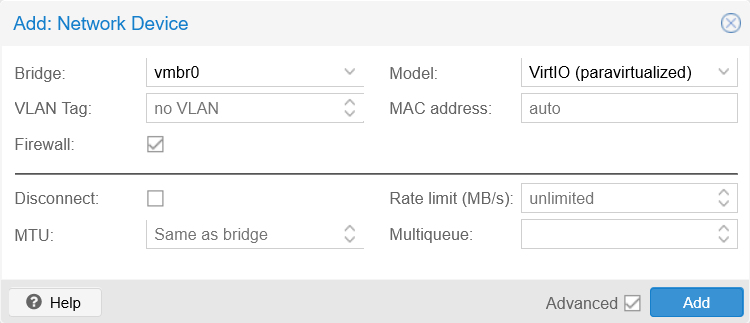
Adding a new network device to the VM Notice that the
Advancedoptions are also enabled, probably because the Proxmox VE web administration remembers that check as enabled from the creation wizard. Here you have to adjust only two parameters:Bridge
You must set thevmbr1bridge.Firewall
Since this network device is strictly meant for internal networking, you do not need the firewall active here. Uncheck this option.

Changing bridge of new network device Click on
Addand see how the new network device appears immediately asnet1at the end of your VM’s hardware list:
Hardware list updated with new network device
Installing Debian on the new VM
At this point, your new VM has the minimal virtual hardware setup you need for installing Debian in it:
Go back to the
Summarytab of your new VM so you can see its status and performance statistics, then press theStartbutton to start the VM up: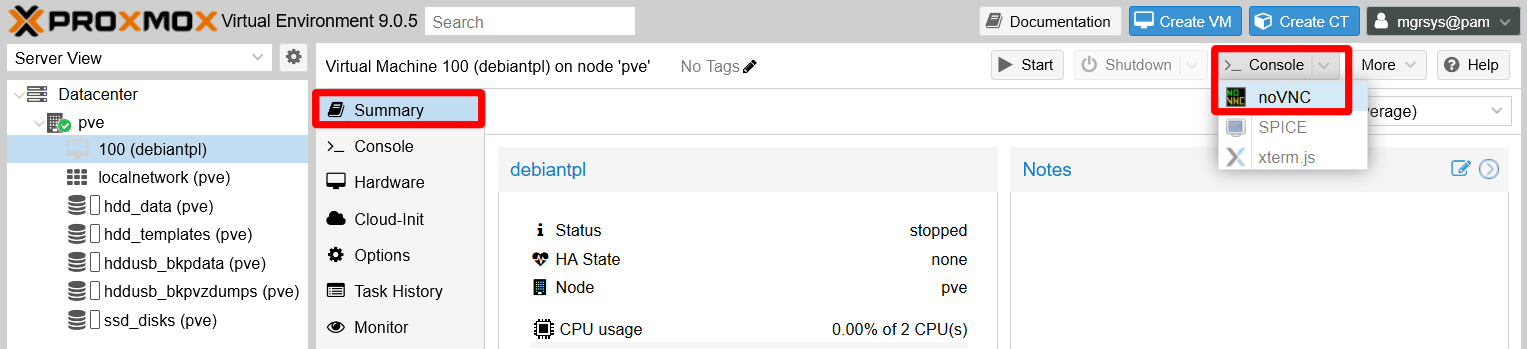
VM Start button Right after starting the VM, click on the
>_ Consolebutton to raise anoVNCshell window.In the
noVCNshell window, you should end up seeing the Debian installer boot menu: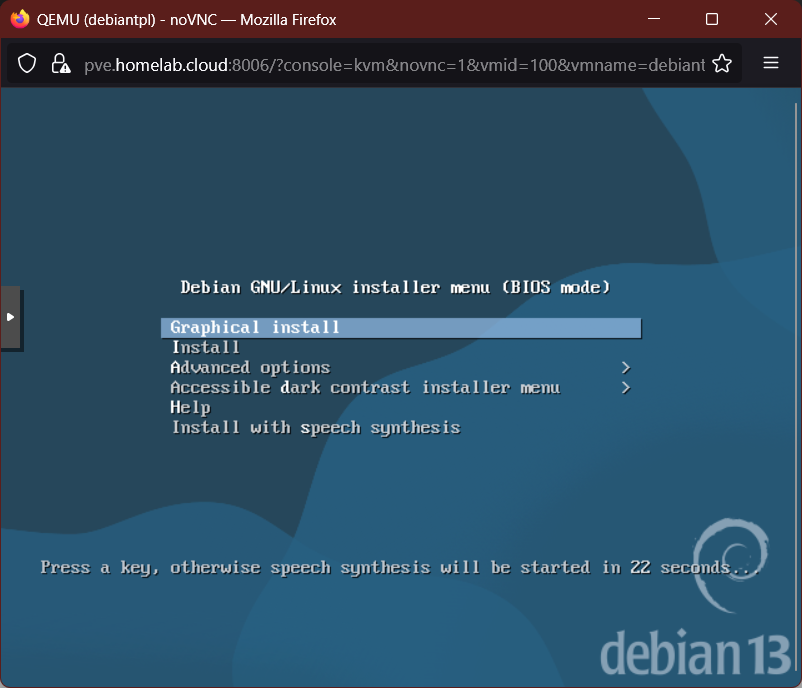
Debian installer menu In this menu, you must choose the
Installoption to run the installation of Debian in text mode: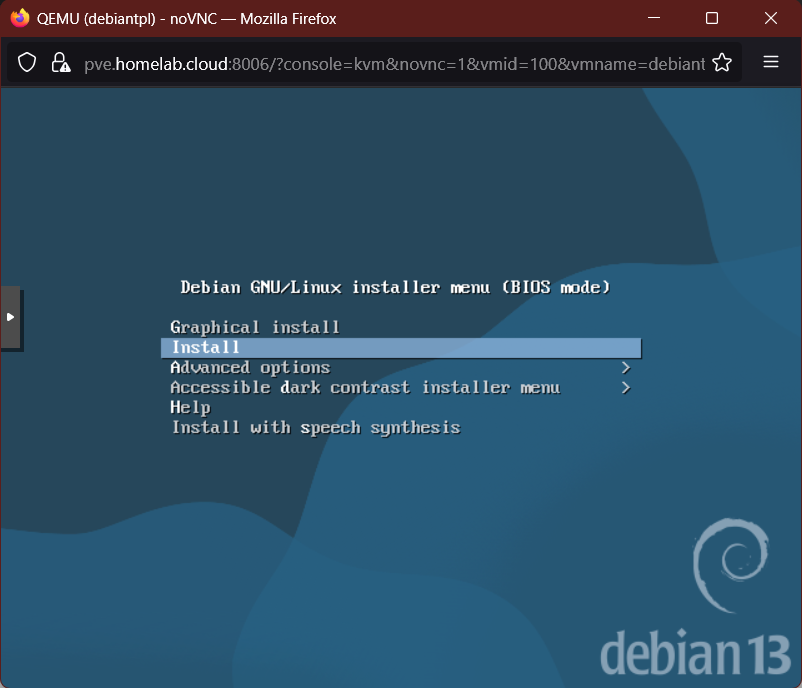
Install option chosen It will take a few seconds to load the next step’s screen.
The next screen asks you about what language you want to use in the installation process and apply to the installed system:
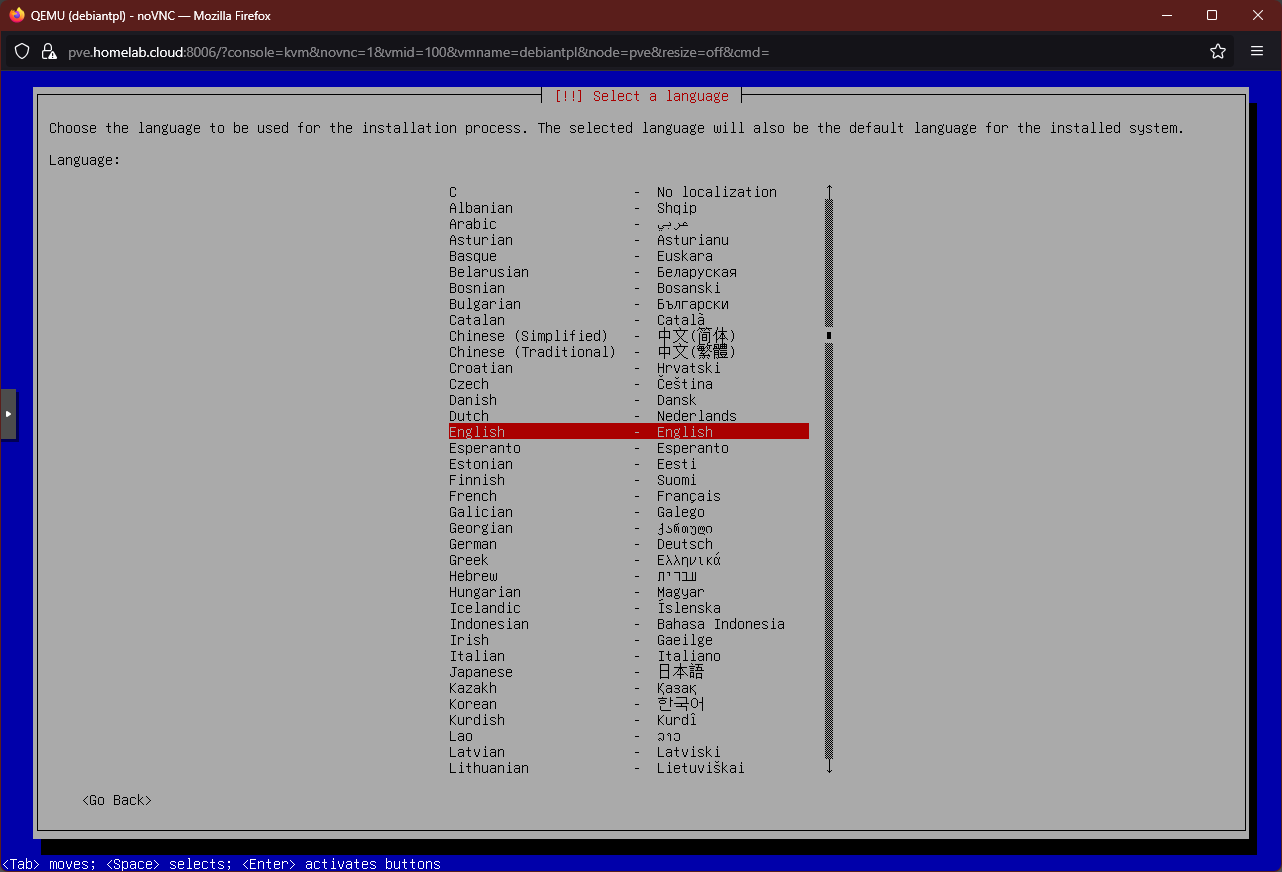
Choosing system language Just choose whatever suits you and press
Enter.The following step is about your geographical location. This will determine your VM’s timezone and locale:
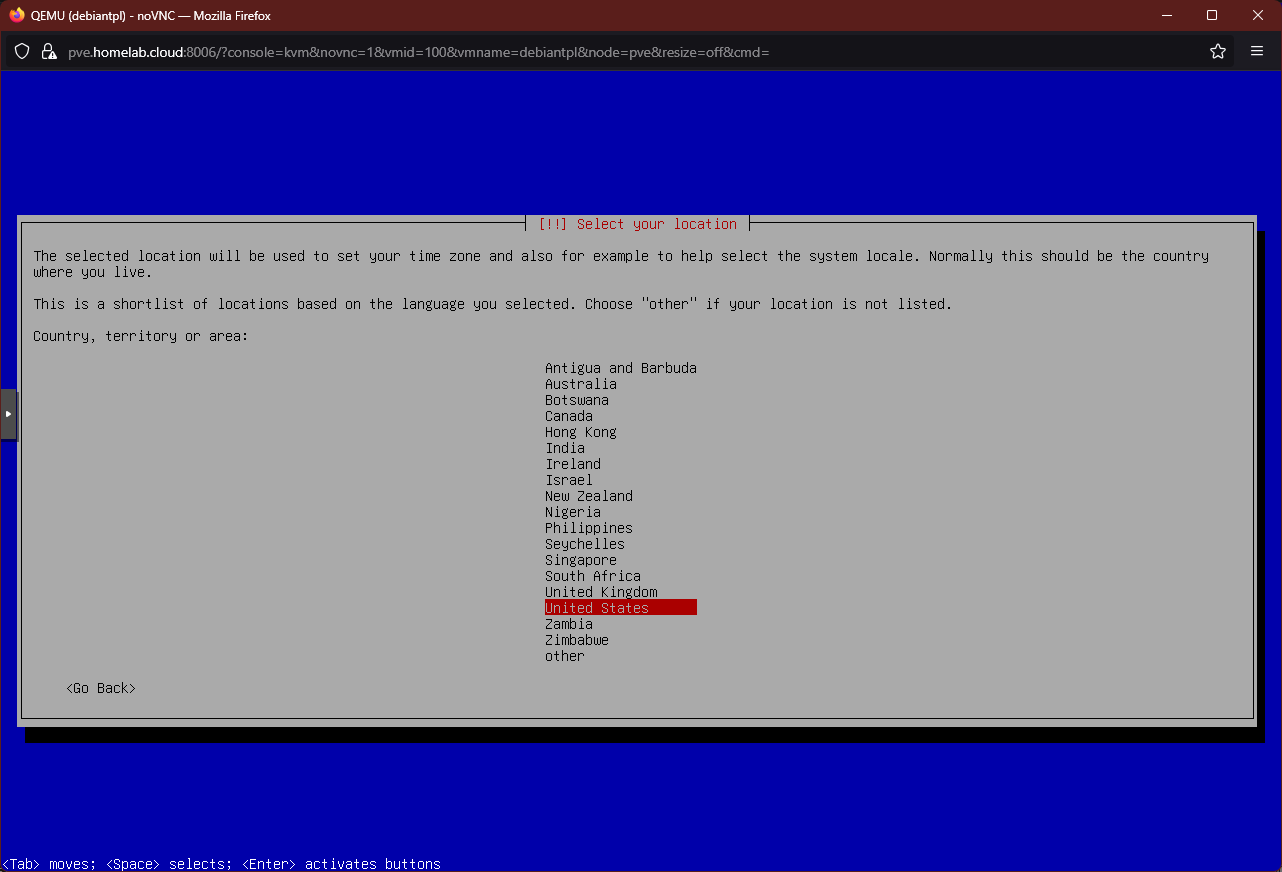
Choosing system geographical location Again, highlight whatever suits you and press
Enter.If you choose an unexpected combination of language and location, the installer will ask you about what locale to apply on your system:
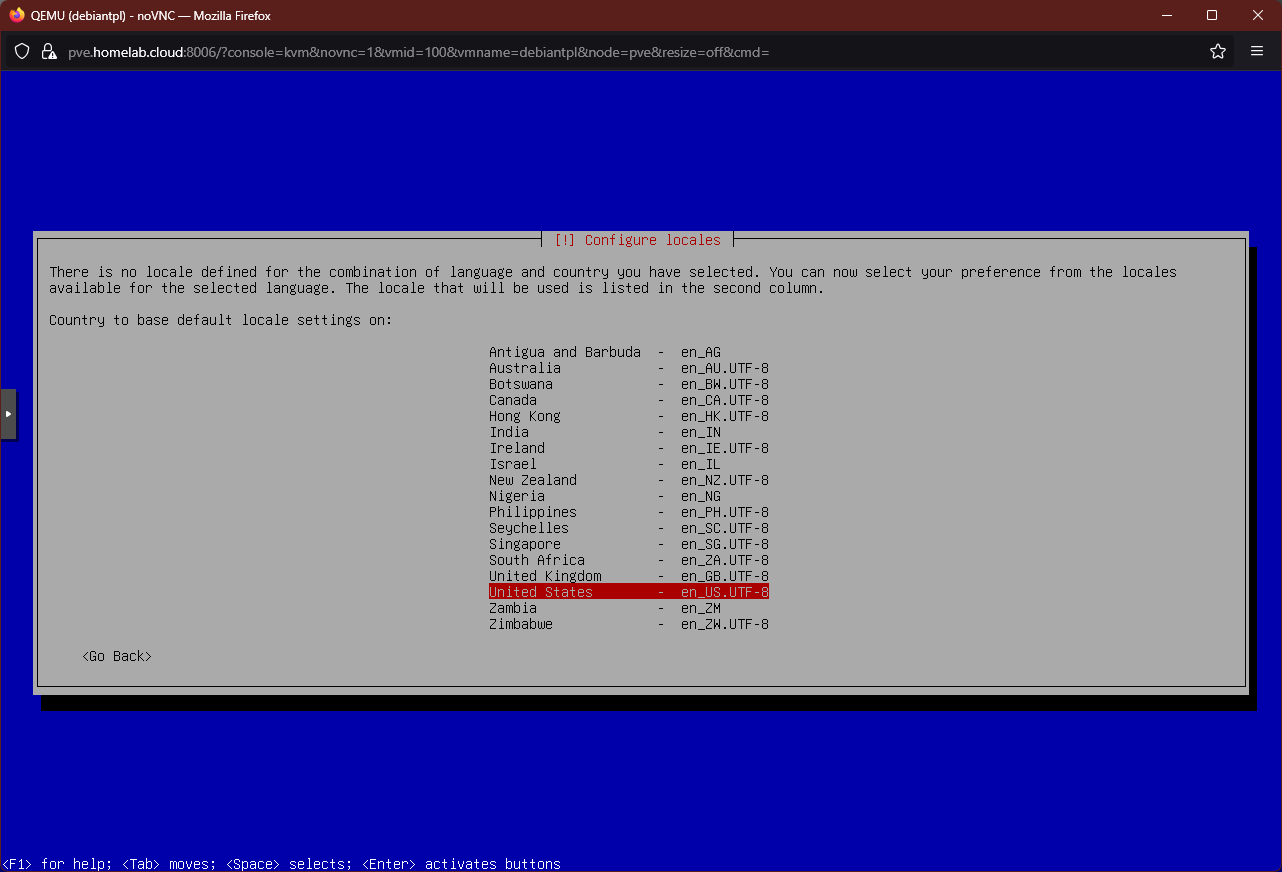
Configuring system locales Oddly enough, it only offers the options shown in the screenshot above. In case of doubt, just stick with the default
United States - en_US.UTF-8option.Next, you have to choose your preferred keyboard configuration:
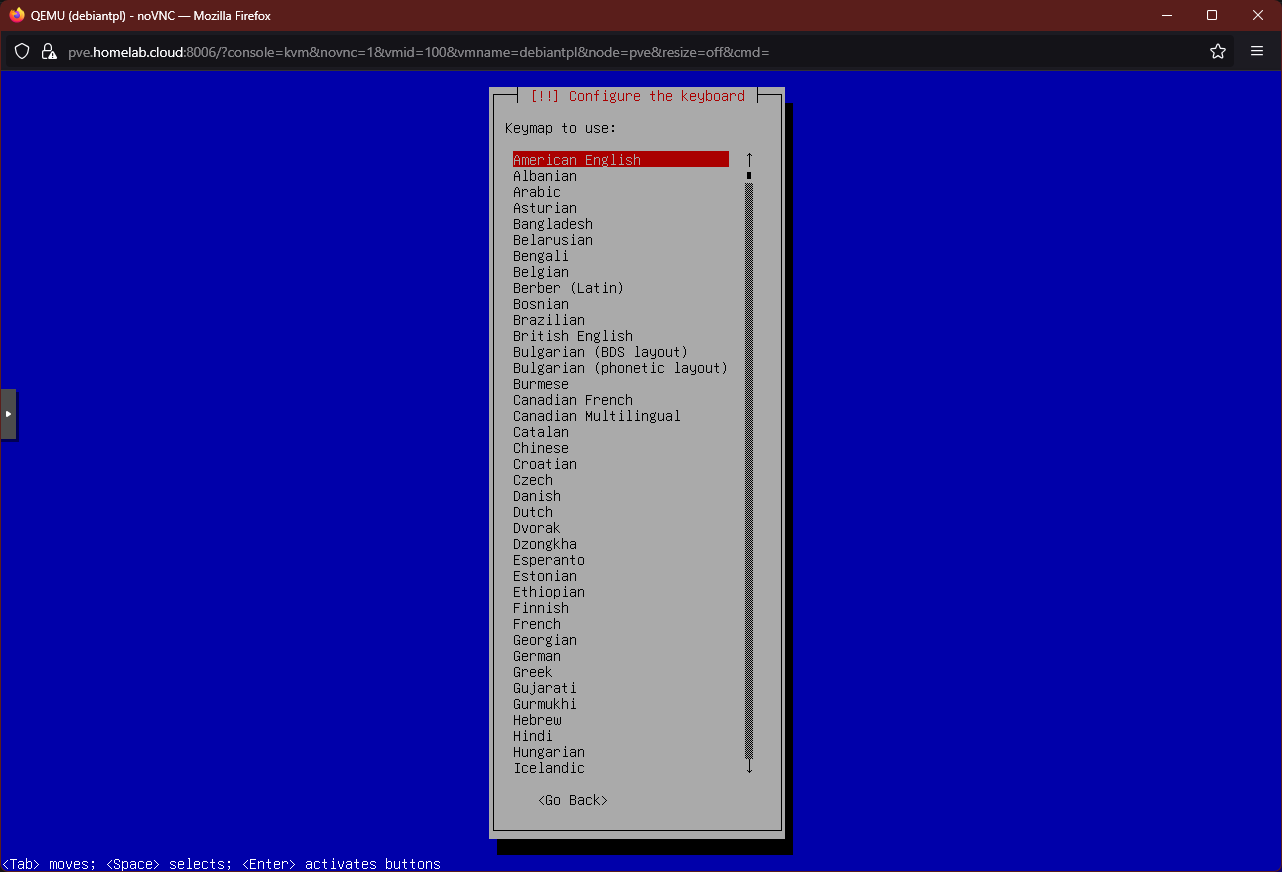
Configuring the keyboard At this point it will show some progress bars while the installer retrieves additional components and scans the VM’s hardware:
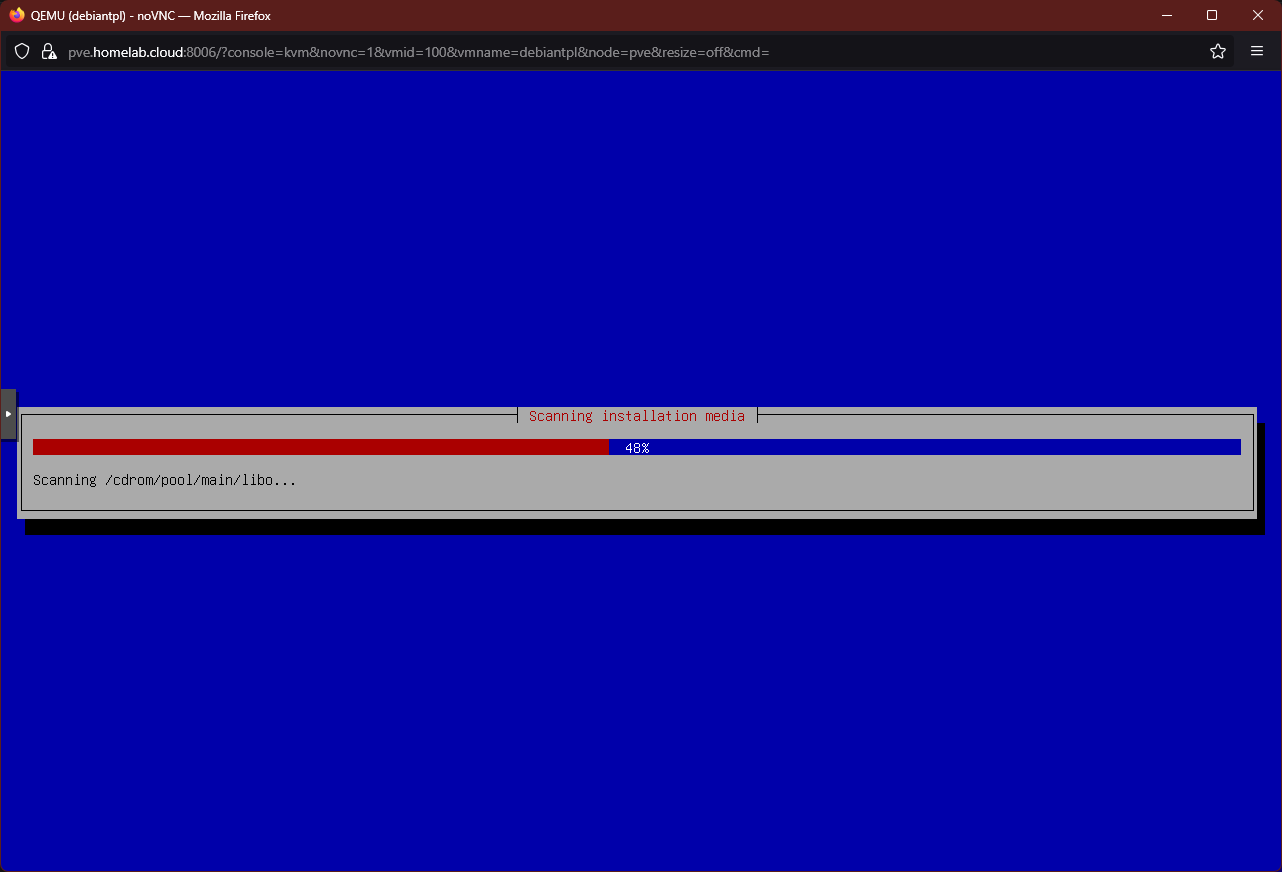
Installer loading componentes After a few seconds, you get to the screen for configuring the network:

Choosing network card Since this VM has two virtual Ethernet network cards, the installer must know which one to use as the primary network device. Leave the default option (the card with the lowest
ens##number, like theens18in the snapshot) and pressEnter.Next, you see how the installer tries to setup the network in a few progress bars:

Configuring the network with DHCP If the previous network autosetup process is successful, you end up in the following screen:
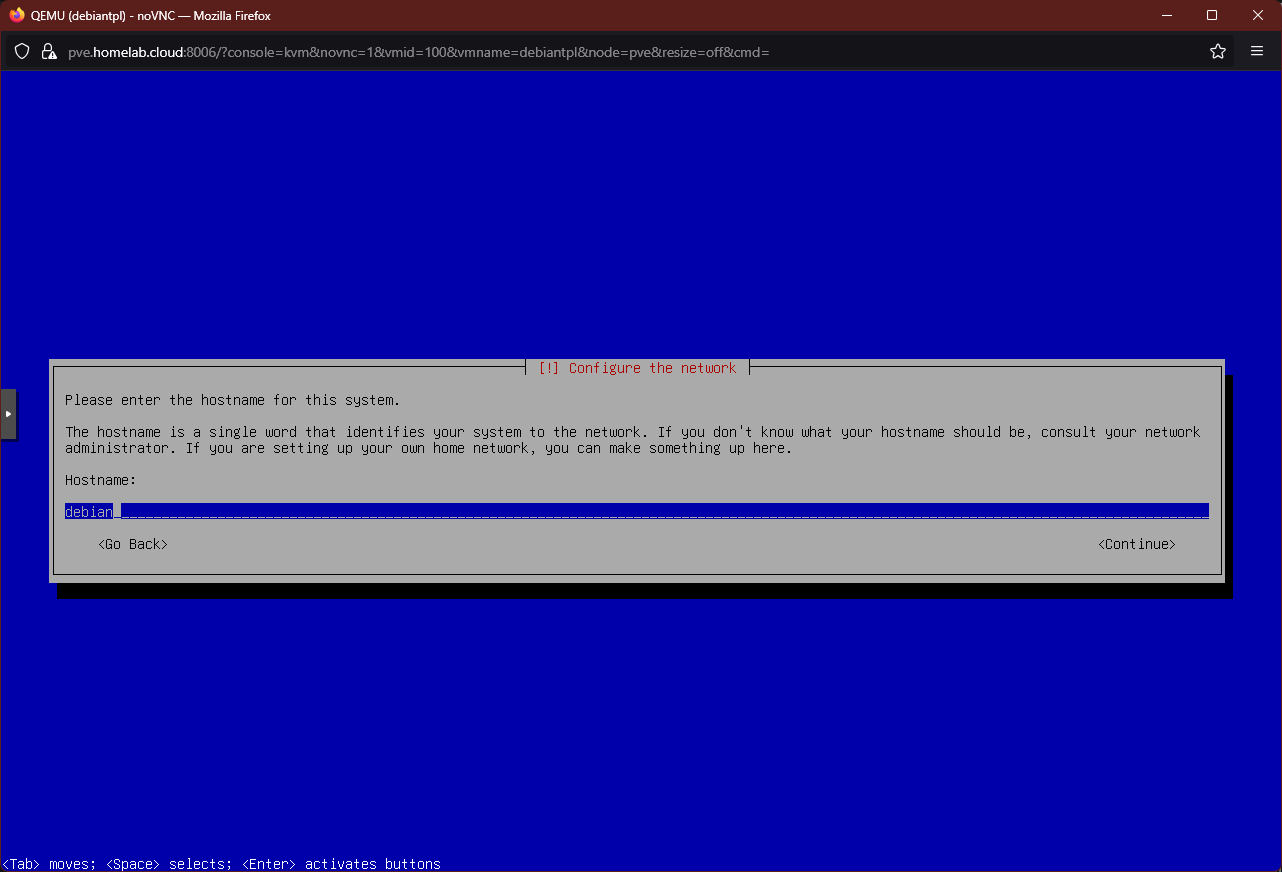
Hostname input screen In the text box, type in the
hostnamefor this system, bearing in mind that this VM will become just a template to build others. Preferably, input the same name you used previously in the creation of the VM, which in this guide isdebiantpl.In the next step you have to specify a domain name:

Domain name input screen Here use the same one you set for your Proxmox VE system, which in this guide is
homelab.cloud.The following screen is about setting up the password for the
rootuser:
Setting up root password Since this VM is going to be just a template, there is no need here for you to type a difficult or long password.
The installer will ask you to confirm the
rootpassword:
Confirming root password The next step is about creating a new user that you should use instead of the
rootone:
Creating new admin user In this screen you are expected to type the new user’s full name, but since this is going to be your administrative one, input something more generic like
System Managerfor instance.The following screen is about typing a username for the new user:

Setting the new user's username By default, the installer will take the first word you set as the user’s full name and use it (in lowercase) as username. In this guide, this user is called
mgrsys, following the same criteria used for creating the alternative manager user for the Proxmox VE host.On this step you input the password for this new administrative user. Again, since this VM is going to be just a template, do not enter a complex password here:

Setting password for new user You have to confirm the new user’s password:

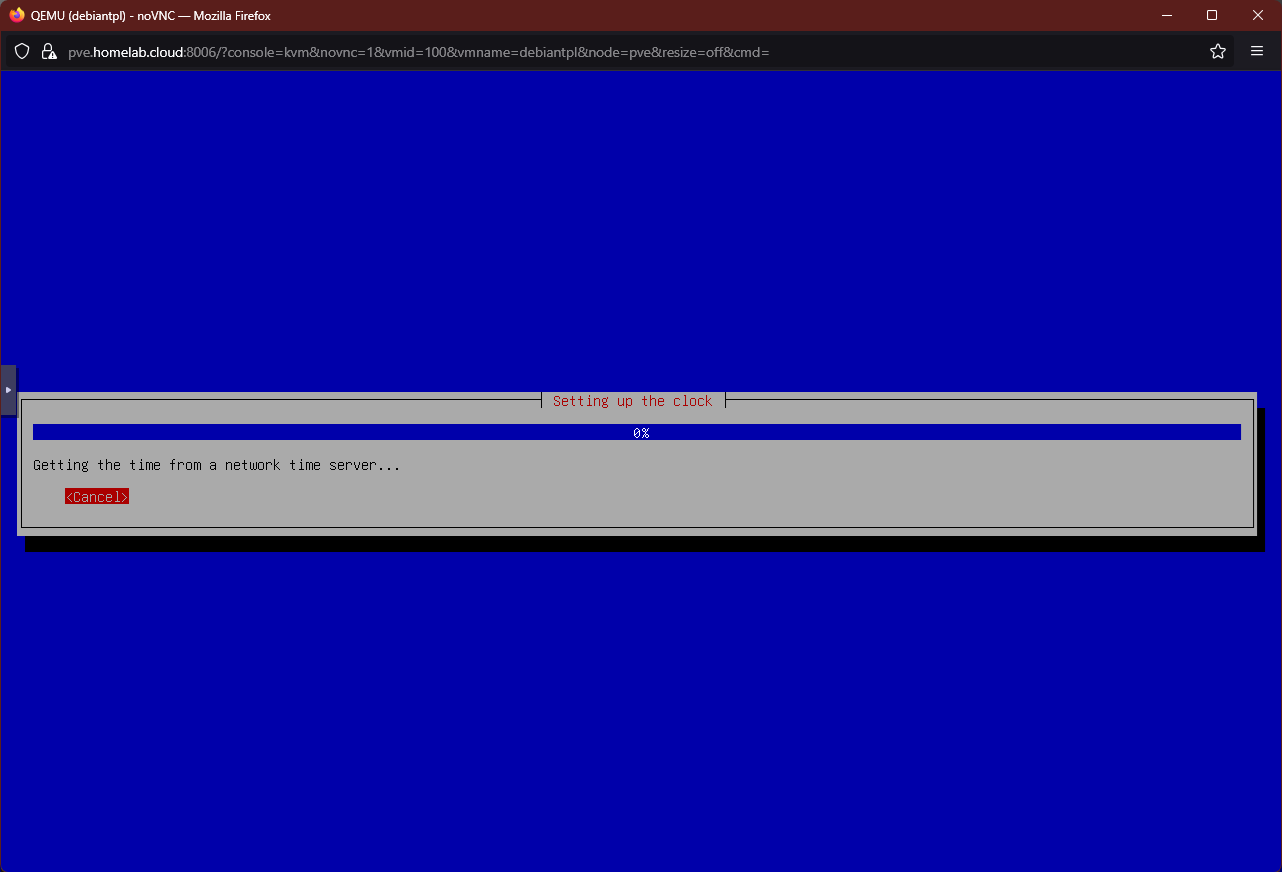
Confirmation of new user's password This step is just about setting up the clock of this VM. First, the Debian installer will try to find a proper time server:
Installer looks for a time server Then, the installer may or may not ask your specific timezone within the country you picked earlier:
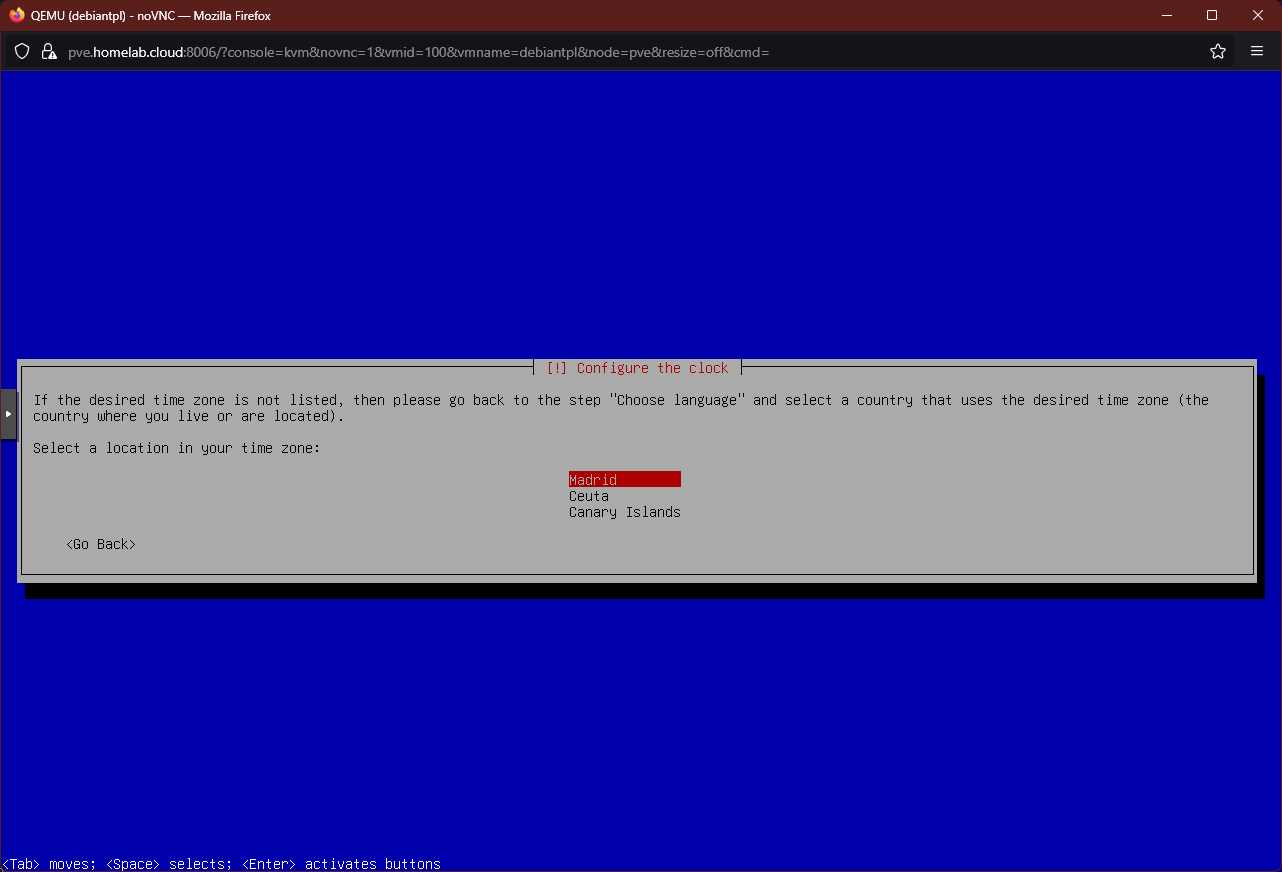
Choosing timezone After a few more loading bars, you advance to the step for disk partitioning:
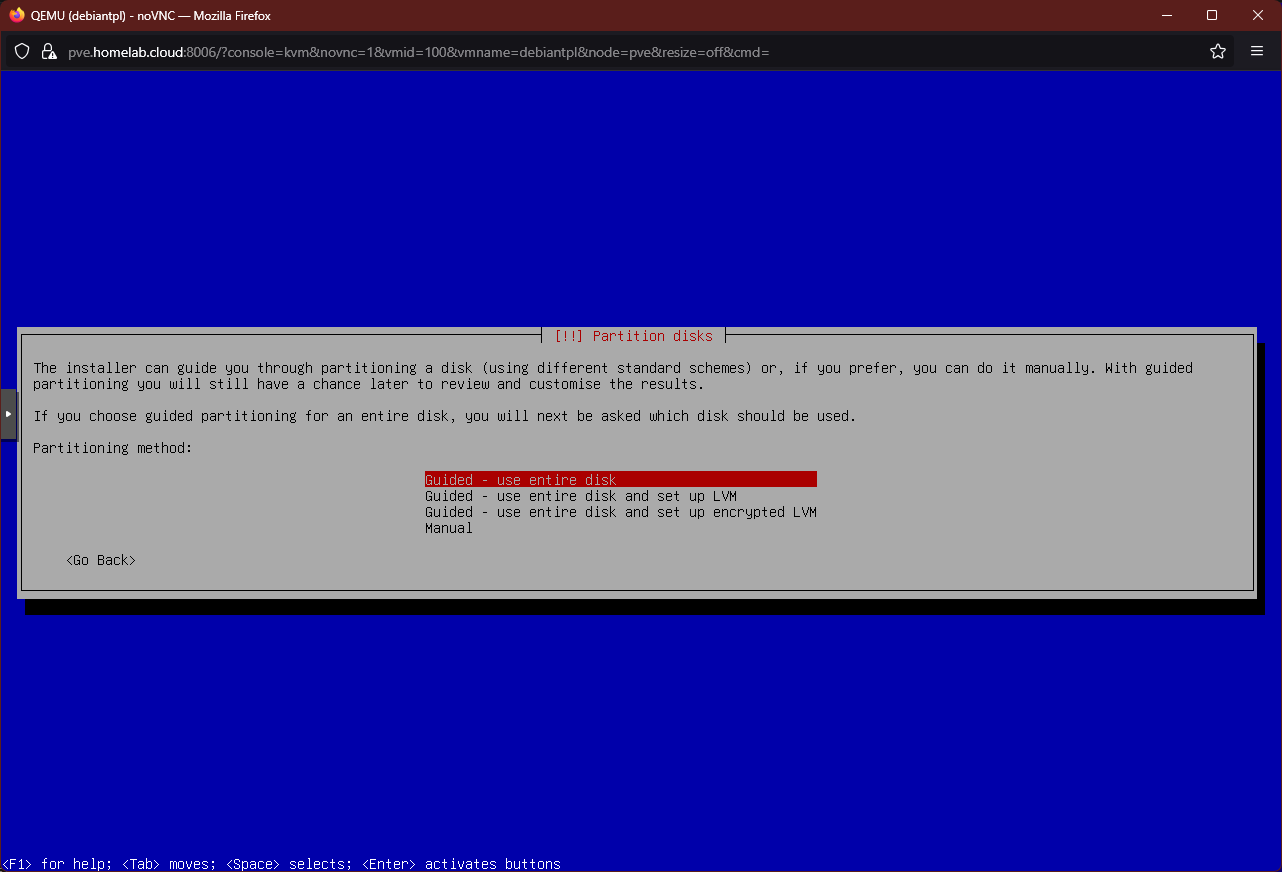
Disk partitioning options screen Be sure of choosing the SECOND guided option to give the VM’s disk a more flexible partition structure with the LVM system, like the one you have in your Proxmox VE host:

Second option chosen at disk partitioning The following screen is about choosing the storage drive to partition:

Choosing disk for partitioning There is only one disk attached to this VM, so there is no other option but the one shown.
Next, the installer asks you which partition schema you want to apply:

Choosing the partition schema to apply on the VM storage This VM is going to be a template for servers, so you should never need to mount a separate partition for the
homedirectory. Something else could be said about directories likevarorsrv, or even the swap, whose contents can potentially grow notably. But, since you can increase the size of the VM’s storage easily from Proxmox VE, just leave the default highlighted option and pressEnter.The next screen is the confirmation of the disk partitioning you have setup in the previous steps:

Disk partitioning confirmation screen If you are sure that the partition setup is what you wanted, highlight
Yesand pressEnter.The following step asks you about the size assigned to the LVM group in which the system partitions are going to be created:

LVM group size Unless you know better, just stick with the default value and move on.
The installer applies the partition scheme selected and, after seeing some more fast progress windows, you reach the disk partitioning final confirmation screen:

Disk partitioning final confirmation screen Choose
Yesto allow the installer to finally write the changes on the storage.After the partitioning is finished, the progress bar for the base system installation appears:

Installing the base system screen The Debian installer needs a bit of time to finish this task.
When the base system is installed, the following dialog appears:
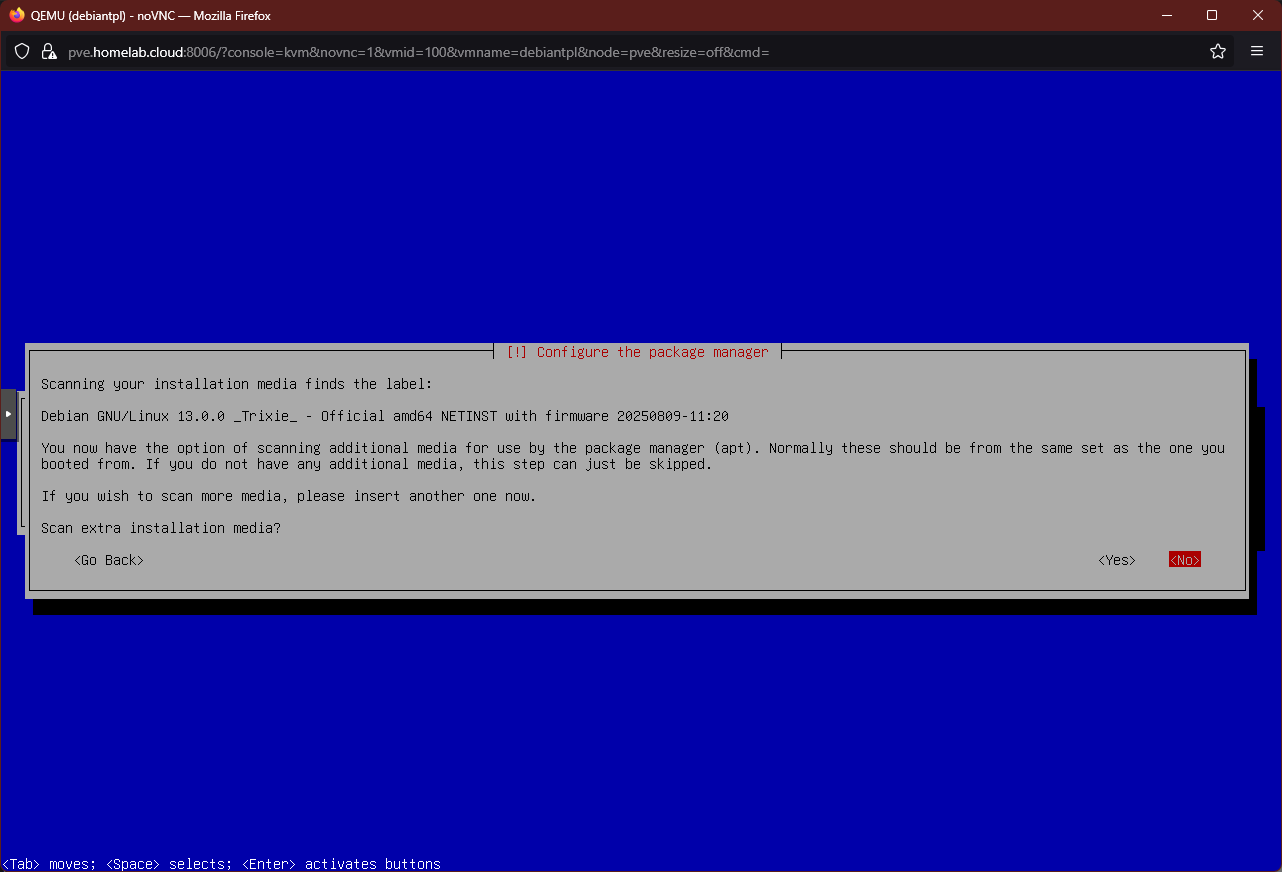
Additional media scan dialog Since you do not have any additional media to use, just answer
Noto this dialog.The following step is about setting the right mirror servers location for your
aptconfiguration:
Mirror servers location screen By default, the option highlighted will be the same country you chose at the beginning of this installation. Pick the country that suits you best.
The next screen is about choosing a concrete mirror server for your
aptsettings:
Choosing apt mirror server screen Stick with the default option, or change it if you identify a better alternative for you in the list.
A window arises asking you to input your
HTTP proxy information, if your PVE node happens to be connecting through one:
HTTP proxy information screen In this guide it is assumed that you are not using a proxy, so that field should be left blank.
The installer takes a moment to configure the VM’s
aptsystem:
Autoconfiguration of apt system When the
aptconfiguration has finished, the installer asks you the following question about allowing a script to get some usage statistics of packages on your system:
Popularity contest question screen Choose whatever you like here, although bear in mind that the security restrictions you will have to apply in a later chapter to this Debian VM system may end blocking that script’s functionality.
After another loading bar, you reach the
Software selectionscreen: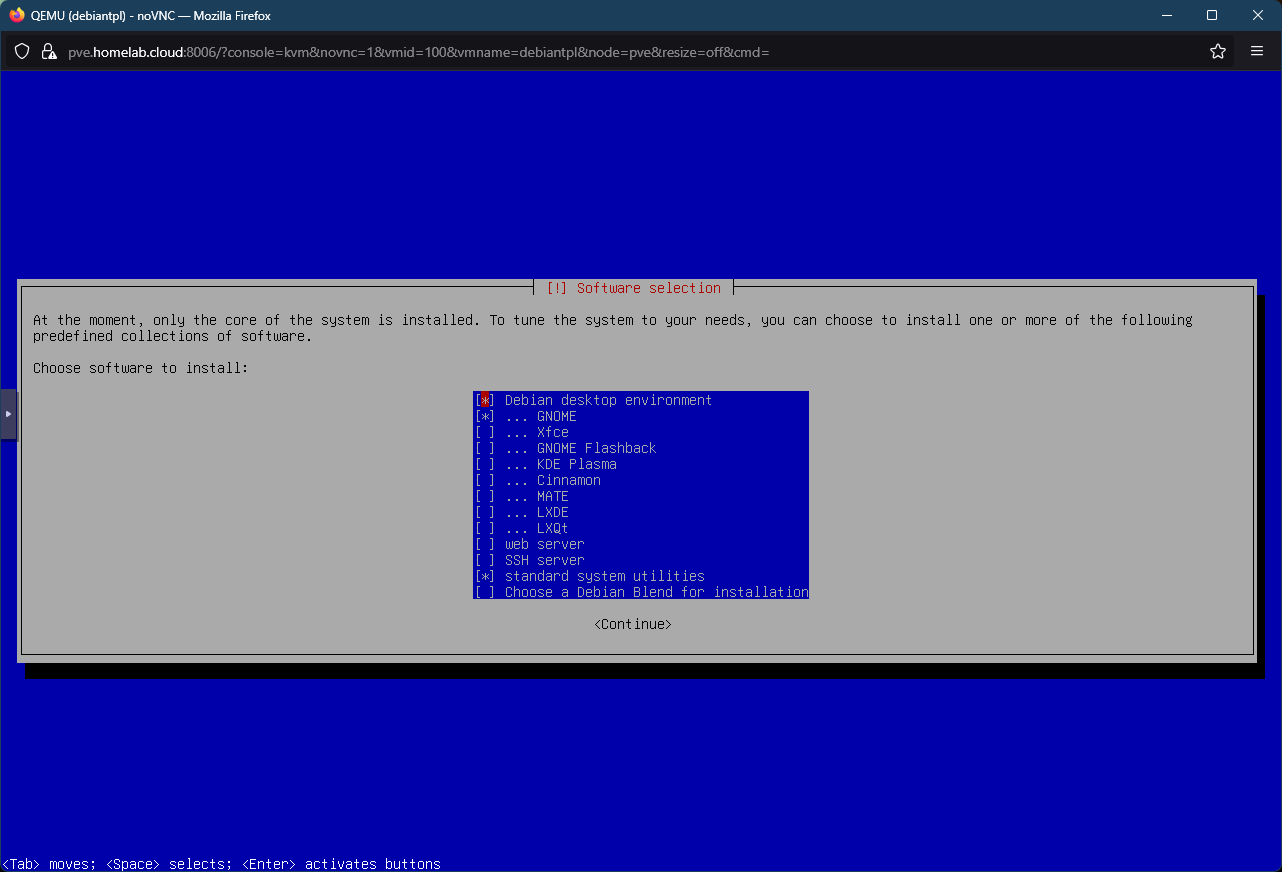
Software selection screen You can see here that, by default, the installer is setting the VM to be a graphical environment. Since your VM is going to be the basic template for server VMs, you only need enabled the two last options (
SSH serverandstandard system utilities). Change the options here to make them look like below and then pressContinue:
Software selection changed to enable minimum server options Another progress windows shows up and the installer will proceed with the remainder of the software installation process:

Installation progress bar After finishing the software installation, the installer asks you if you want to install the GRUB boot loader in the VM’s primary storage drive:

GRUB boot loader installation screen The default
Yesoption is the correct one, so just pressEnteron this screen.Next, the installer asks you on which drive you want to install GRUB:

GRUB boot loader installation location screen Highlight the
/dev/sdaoption and pressEnterto continue the process:
GRUB boot loader disk sda chosen After configuring the GRUB boot loader, the installer performs the remaining necessary tasks to finish the Debian installation:

Finishing the installation screen After the installation has finished, the installer warns you about removing the media you used to launch the whole procedure:
Keep calm, DO NOT press
Enteryet and read the next stepsIf you
Continue, the VM will reboot and, if the installer media is still in place, the installer will boot up again.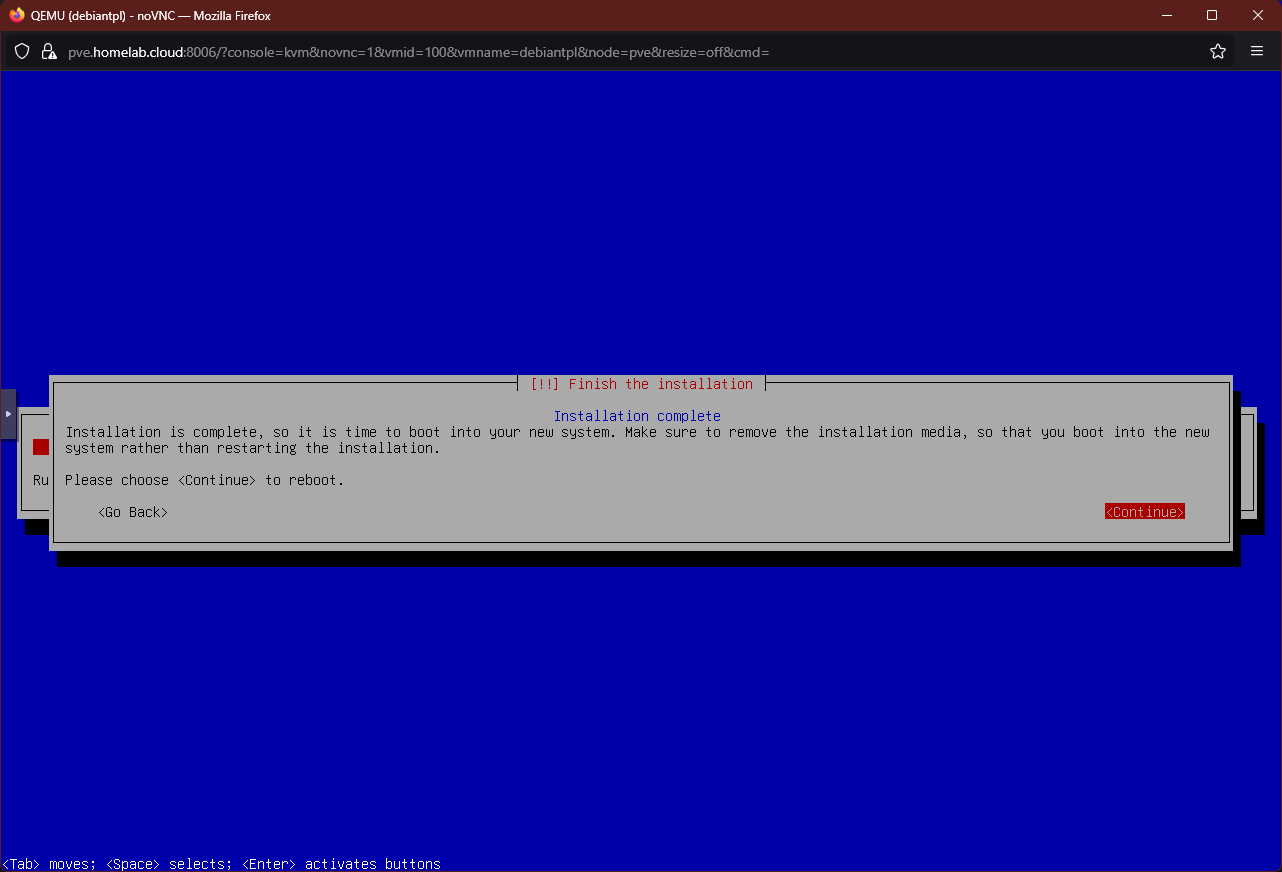
Remove installer media screen Go back to your Proxmox VE web console, and open the
Hardwaretab of your VM. Then, choose theCD/DVD Driveitem and press theEditbutton (or just double click on the item):
Edit button on VM's hardware tab See there the
Editwindow for theCD/DVD Driveyou chose:
Edit window for CD/DVD Drive Here, choose the
Do not use any mediaoption and click onOK.
Option changed at Edit window for CD/DVD Drive Back in the Hardware screen, you should see how the CD/DVD Drive is now set to
none:
CD/DVD Drive empty on VM's Hardware tab This does not mean that the change has been applied to the still running VM
Usually, changes like these will require a reboot of the VM.
Now that the VM’s CD/DVD drive is configured to be empty, you can go back to the noVNC shell and press on
Enterto finish the Debian installation. If everything goes as it should, the VM should reboot into the GRUB screen of your newly installed Debian system: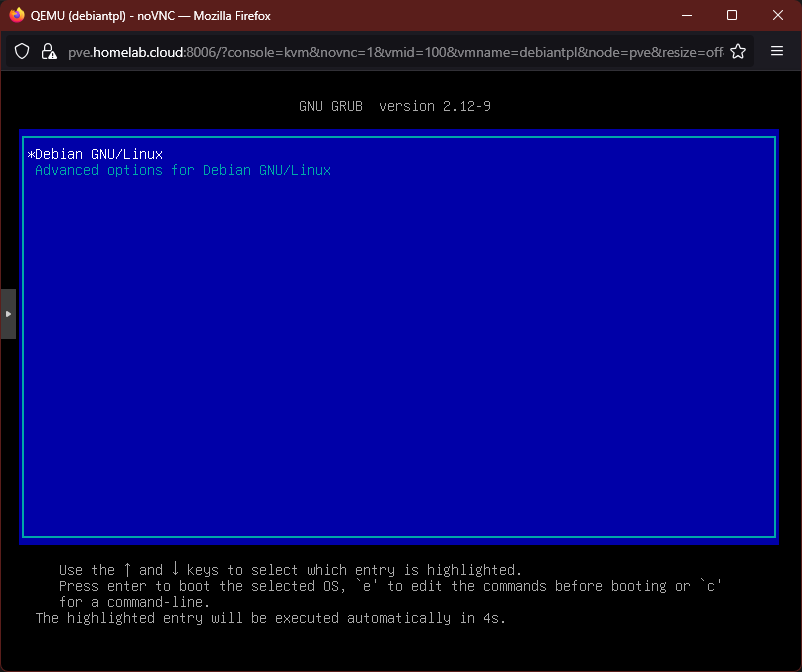
GRUB boot loader screen Press
Enterwith the default highlighted option or allow the timer to reach0. Then, after the usual system booting shell output, you should reach the login prompt: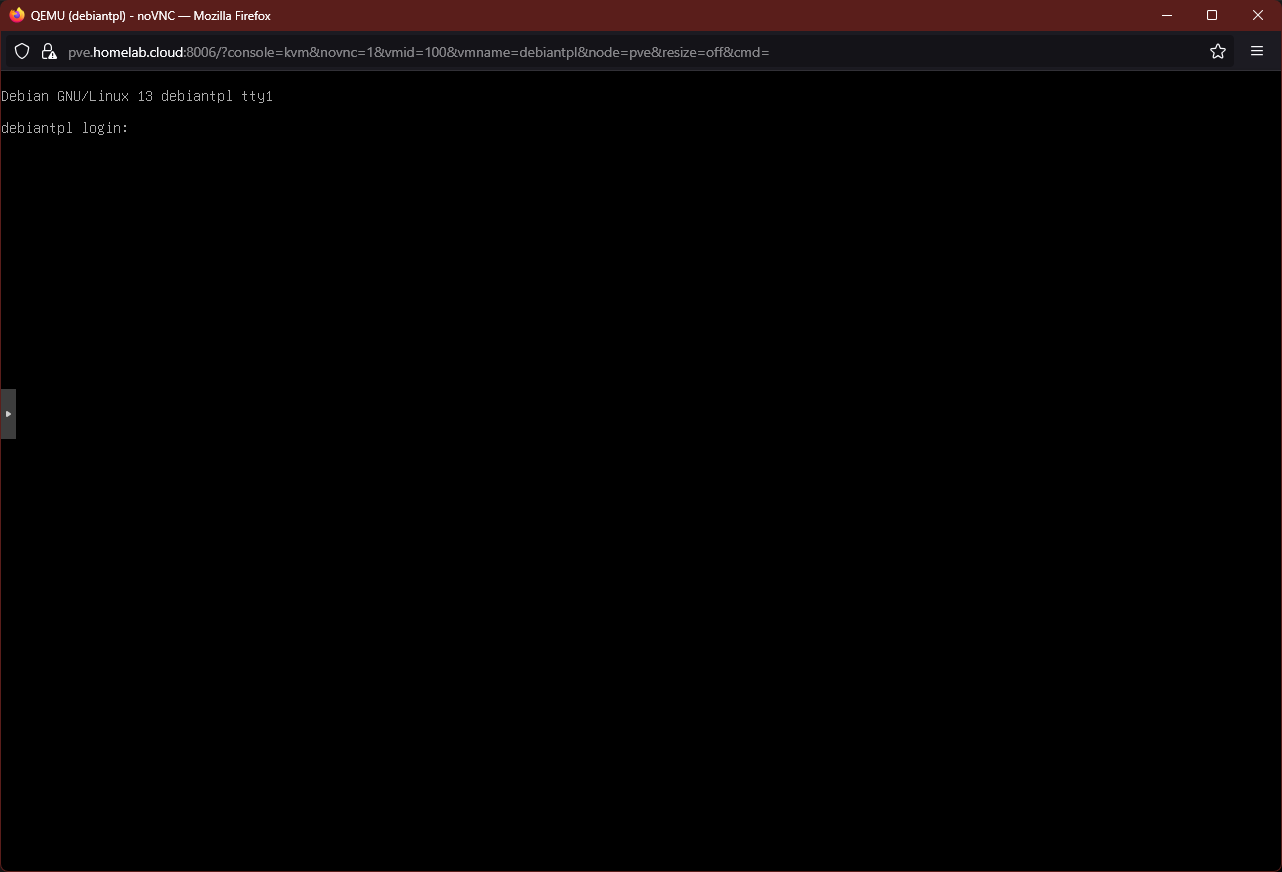
Debian login As a final verification, login either with
rootor withmgrsysto check that they work as expected.
Note about the VM’s Boot Order option
Go to the Options tab of your new Debian VM:

In the capture above, you can see highlighted the Boot Order list currently enabled in this VM. If you press on the Edit button, you can edit this Boot Order list:

Notice how PVE has already enabled the bootable hardware devices (hard disk, CD/DVD drive and network device) that were configured in the VM creation process. Also see how the network device added later, net1, is NOT enabled by default.
New bootable devices in VMs are not enabled by default
When you modify the bootable hardware devices of a VM, Proxmox VE WILL NOT enable automatically any new bootable device in the Boot Order list. You must revise or modify it whenever you make changes to the hardware devices available in a VM.
Relevant system paths
Directories
/etc/pve/etc/pve/nodes/pve/qemu-server
Files
/etc/pve/user.cfg/etc/pve/nodes/pve/qemu-server/100.cfg
References
About installing Debian
Proxmox
Contents related to virtualization
- Reddit. Proxmox. Best practices on setting up Proxmox on a new server
- Wikipedia. Non-uniform memory access