Enabling the Traefik dashboard
Traefik is the embedded ingress controller of K3s
Traefik is the default ingress controller that already comes embedded in K3s. In other words, you can enable access to services running in your cluster through Traefik ingresses, instead of just assigning them external IPs directly (in particular, with the MetalLB load balancer).
Traefik in K3s comes with its embedded web dashboard enabled by default, but reaching it requires a particular setup not clearly explained in the official documentation of neither Traefik nor K3s.
Steps to enable access to the Traefik dashboard
This chapter shows you how to enable HTTPS access to your Traefik dashboard by doing the following:
Creating a user to restrict access into the Traefik dashboard.
Declaring an
IngressRoutethat enables access to aTraefikServicewhere the dashboard is available. ThisIngressRouteenforces basic authentication with the user created in the previous step.
The first step is just the execution of a command on your kubectl client. The other is resolved in the corresponding Kustomize project.
Kustomize project’s folder structure
Create the Kustomize project’s folder structure:
$ mkdir -p $HOME/k8sprjs/traefik-dashboard/{resources,secrets}This project has one resources subfolder for storing Kubernetes resources declarations, and a secrets one to keep a file with the secret string describing the user for accessing the Traefik dashboard.
Traefik dashboard user
Secure the access to your Traefik dashboard by defining at least one user with a password. Later in this chapter, this user will go into a Secret object generated by this Traefik dashboard’s Kustomize project.
Creating the user with htpasswd
Traefik demands passwords hashed using MD5, SHA1, or BCrypt, and recommends using the htpasswd command to generate them:
Install the package providing the
htpasswdcommand in yourkubectlclient system. The package isapache2-utilsand, on a Debian based system, you can install it withapt:$ sudo apt install -y apache2-utilsNext, use the
htpasswdcommand to generate a user called, for instance,tfkuserwith the password hashed with the BCrypt encryption:$ htpasswd -nb -B -C 9 tfkuser Pu7Y0urV3ryS3cr3tP4ssw0rdH3r3 tfkuser:$2y$17$0mdP4WLdbj8BWj1lIJMDb.bXyYK75qR5AfRNzuunZuCamvAlqDlo.Be careful with the value you set to the
-Coption!This option indicates the computing time used by the BCrypt algorithm for hashing and, if you set it too high, the Traefik dashboard could end not loading at all. The value you can type here must be between 4 and 17, and the default is 5.
Keep the
htpasswd’s output at hand, you will use that encrypted string in the next procedure.
Traefik dashboard secret
Copy the user string returned by htpasswd in a text file. Later, you will put this file in a Secret object generated by the Kustomize project:
Create a file simply called
usersin thesecretsfolder of the Kustomize project:$ touch $HOME/k8sprjs/traefik-dashboard/secrets/usersIn the
usersfile, copy the entire string you got from thehtpasswdcommand earlier:tfkuser:$2y$17$0mdP4WLdbj8BWj1lIJMDb.bXyYK75qR5AfRNzuunZuCamvAlqDlo.Be careful of who can access this
usersfileRegardless of the password being hashed, the hash itself is also secret information you do not want to get exposed to anyone.
Traefik dashboard Middleware
To restrict access to your Traefik dashboard with a login, you need a Middleware object to enable the basic authentication feature in the ingress route you will declare later:
Create the
traefik-dashboard-basicauth.middleware.traefik.yamlfile in theresourcesfolder of the Kustomize project:$ touch $HOME/k8sprjs/traefik-dashboard/resources/traefik-dashboard-basicauth.middleware.traefik.yamlDeclare in
traefik-dashboard-basicauth.middleware.traefik.yamlthe authentication method to use for login in the Traefik dashboard:# Basic authentication method for Traefik dashboard apiVersion: traefik.io/v1alpha1 kind: Middleware metadata: name: traefik-dashboard-basicauth spec: basicAuth: secret: traefik-dashboard-basicauth-secretA
Middlewareis a custom Traefik resource, used in this case for configuring a basic authentication method (a user and password login method). In thespec.basicAuth.secretparameter, this middleware invokes aSecretresource to be declared later in the Kustomize manifest for this Traefik dashboard project.
Traefik dashboard IngressRoute
To enable access into your Traefik dashboard, you need to declare an HTTPS ingress:
Create the following files within the Kustomize project:
$ touch $HOME/k8sprjs/traefik-dashboard/resources/traefik-dashboard.ingressroute.traefik.yamlDeclare in
traefik-dashboard.ingressroute.traefik.yamltheIngressRouteresource enabling access to the Traefik dashboard:# HTTPS ingress for Traefik dashboard and API apiVersion: traefik.io/v1alpha1 kind: IngressRoute metadata: name: traefik-dashboard spec: routes: - kind: Rule match: Host(`traefik.homelab.cloud`) && (PathPrefix(`/api`) || PathPrefix(`/dashboard`)) services: - name: api@internal kind: TraefikService middlewares: - name: traefik-dashboard-basicauthThis is a Traefik
IngressRouteobject specifying the route and the authentication method to access your Traefik dashboard:The
IngressRouteis NOT a standard Kubernetes resourceIt is a custom alternative to the standard
IngressKubernetes object offered only by Traefik. Other ingress controllers may have their own alternatives to the standard Kubernetes Ingress object.In the
spec.entryPointsthere is only thewebsecureoption enabled. This means that only the443port is enabled as entry point to this route.The
spec.routes.matchparameter indicates to Traefik the valid URL patterns reachable through thisIngressRoute:First in the pattern is the hostname of the Traefik service set as
Hostvalue. Next go the possible paths in Traefik, one for its API and the other for the Traefik dashboard.Notice the logic operators
&&(and) and||(or) that allow connecting the hostname with the available paths in the service.The domains or subdomains you set up as
Hostvalues will not work just by being put thereYou have to enable them in your network’s router or gateway, local DNS or associate them with their corresponding IP in the
hostsfile of any client systems connected to your network that require to know the correct IP for those domains or subdomains.Do not forget any of the backticks characters ( ` ) enclosing the strings in the
Hostdirectives.The
spec.routes.serviceslinks theIngressRoutewith theTraefikService(a custom Traefik-specific type of KubernetesService) calledapi@internalthrough which you can access the Traefik dashboard. Also notice that no service port is specified.There is no official proper explanation for this
api@internalTraefikServiceThis
api@internalcould be some sort of alias or wrapper of the realtraefikServicerunning in the K3s cluster. This may also explain why it is not necessary to specify which port to connect to in the service.The
spec.routes.match.middlewaresonly invokes the basic authentication middleware.
Traefik dashboard Kustomize project
Put together all the resources making up your Traefik dashboard ingress in a Kustomize manifest:
Generate a
kustomization.yamlfile at the main folder of this Kustomize project:$ touch $HOME/k8sprjs/traefik-dashboard/kustomization.yamlIn the
kustomization.yamlfile, declare yourKustomizationobject for enabling access into the Traefik dashboard:# Traefik dashboard ingress setup apiVersion: kustomize.config.k8s.io/v1beta1 kind: Kustomization namespace: kube-system resources: - resources/traefik-dashboard-basicauth.middleware.traefik.yaml - resources/traefik-dashboard.ingressroute.traefik.yaml secretGenerator: - name: traefik-dashboard-basicauth-secret files: - secrets/users options: disableNameSuffixHash: trueSee that there is a
secretGeneratorblock in thisKustomizationdeclaration:This is a Kustomize feature that generates
Secretobjects in a Kubernetes cluster containing files or environment variables specified in its declaration.The
namespaceputs all the resources and the secret generated by this Kustomize project under thekube-systemnamespace.The one secret generated is configured with a concrete
nameandnamespace. It also has underfilesa reference to theusersfile you created previously under thesecretssubfolder.The
disableNameSuffixHashoption is required to betrue. Otherwise, Kustomize will add a hash suffix to the secret’s name and yourMiddlewarewill not be able to find it in the cluster.This is an issue between Traefik and Kubernetes Kustomize
The suffix problem happens because the
Middlewareobject declares the secret’s name in a non-Kubernetes-standard parameter which Kustomize does not recognize. Therefore, Kustomize cannot replace the name with its hashed version in thespec.basicAuth.secretparameter.
Validating the Kustomize YAML output
To validate the Secret object, you can review it with kubectl kustomize:
$ kubectl kustomize $HOME/k8sprjs/traefik-dashboard | lessLook for the Secret object in the resulting YAML, it should have this aspect:
apiVersion: v1
data:
  users: |
    dGZrdXNlcjokMnkkMTckMG1kUDRXTGRiajhCV2oxbElKTURiLmJYeVlLNzVxUjVBZlJOenV1blp1
    Q2FtdkFscURsby4K
kind: Secret
metadata:
  name: traefik.homelab.cloud-basic-auth-secret
  namespace: kube-system
type: Opaque
Notice the following details in this Secret object:
In the
data.usersparameter there is an odd-looking string. This is the content of thesecrets/userfile referenced in thesecretGeneratorblock, automatically encoded by Kustomize in base64. You can check that it is the same string on the file by decoding it withbase64 -das follows.$ echo dGZrdXNlcjokMnkkMTckMG1kUDRXTGRiajhCV2oxbElKTURiLmJYeVlLNzVxUjVBZlJOenV1blp1Q2FtdkFscURsby4K | base64 -d tfkuser:$2y$17$0mdP4WLdbj8BWj1lIJMDb.bXyYK75qR5AfRNzuunZuCamvAlqDlo.See that the base64 string is entered in one line, although it had been returned split in two in the
Secretobject output.The
metadata.nameandmetadata.namespaceare exactly as specified in thekustomization.yamlfile.The
typeOpaquemeans that the content underdatais base64-encoded.
Deploying the Traefik dashboard Kustomize project
After verifying the YAML output of the Kustomize project, apply it in your cluster:
$ kubectl apply -k $HOME/k8sprjs/traefik-dashboardGetting into the Traefik dashboard
Assuming you have enabled the DNS name or hostname for the Traefik service as traefik.homelab.cloud in your LAN, try to access the URL https://traefik.homelab.cloud/dashboard:
Remember to associate your Traefik service’s IP to the DNS name or hostname you have chosen for it
The fastest way is usually adding an entry in the hosts file of the client system you are using. For the Traefik service’s IP and DNS name used in this guide, that entry would look like this:
10.7.0.1 traefik.homelab.cloudAlso be aware that you can associate more than one DNS name to the same IP, in the same line even.
The first thing you will probably see is a browser warning telling you that the connection is not secure because the certificate is not either. If you check the certificate’s information, you will see it being one self-generated by Traefik itself (“verified” by
CN=TRAEFIK DEFAULT CERT).Right after accepting “the risk” in the security warning, a generic “Sign in” window will pop up in your browser:
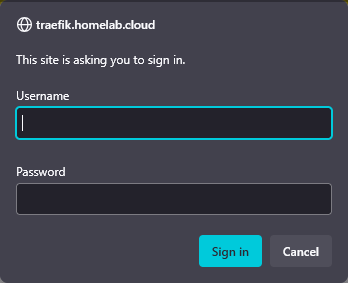
Traefik dashboard window for basic authentication Type your user and password, press on
Sign inand you will be redirected to the Traefik dashboard’s main page available under the/dashboard/#/path: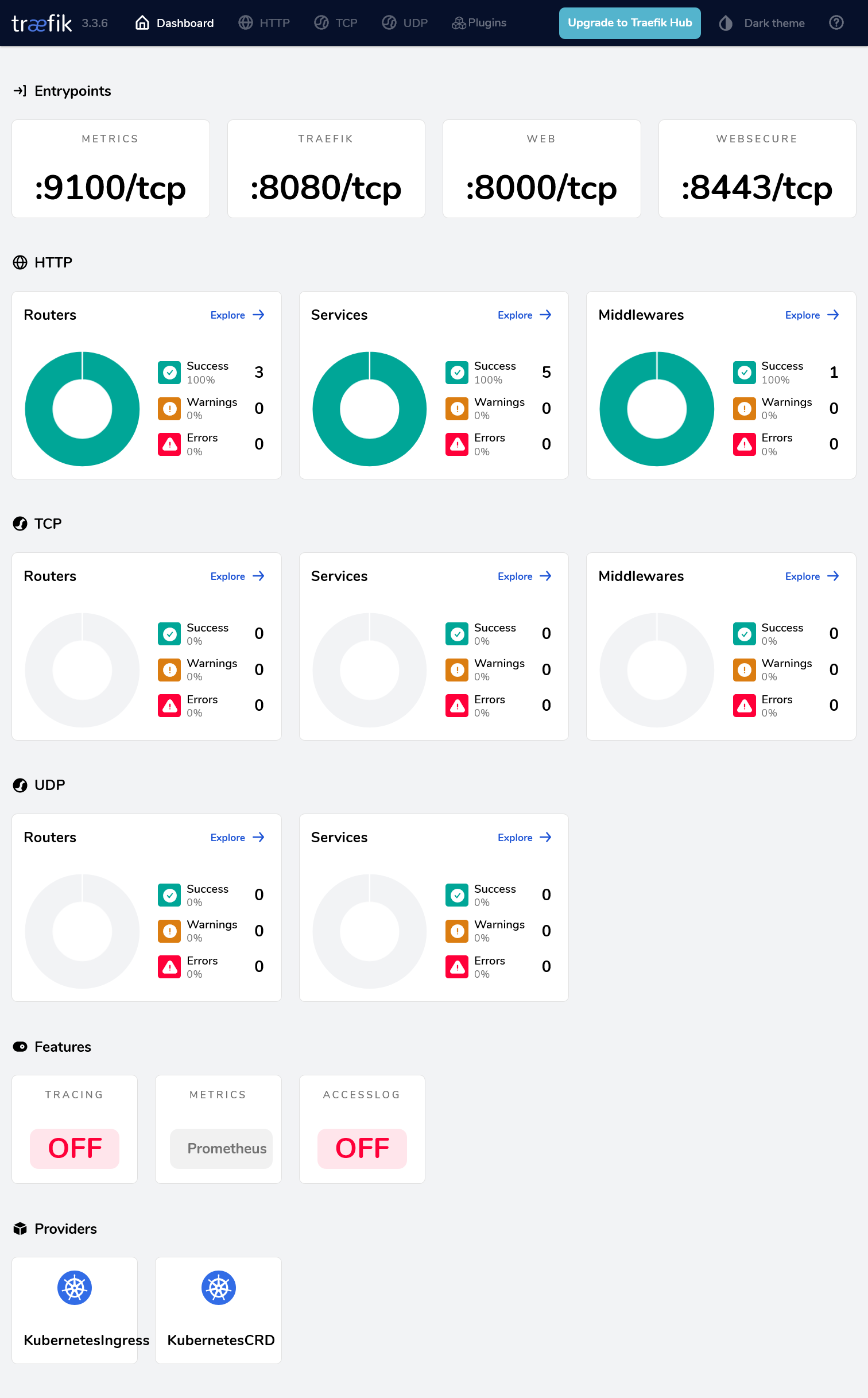
Traefik dashboard main page
What to do if Traefik’s dashboard has bad performance
If your Traefik dashboard seems to load extremely slowly, or just returning a blank page, it could be that you set the -C value in the htpasswd command too high. This can affect the Traefik dashboard’s performance, hitting badly the node were the traefik service is being executed. So, if this is happening to you, try the following:
Generate a new user string with
htpasswdas you saw previously, but with a lower-Cvalue than the one you used in the first place. Then replace the string you already have in thesecrets/usersfile with the new one.Delete and then reapply the Kustomize project again:
$ kubectl delete -k $HOME/k8sprjs/traefik-dashboard
$ kubectl apply -k $HOME/k8sprjs/traefik-dashboard
The
deletecommand is just to make sure that theIngressRouteresource is regenerated with the change applied.Try to access your Traefik dashboard and see how it runs now.
Traefik dashboard’s Kustomize project attached to this guide
Find the Kustomize project for this Traefik dashboard deployment in the following attached folder:
Relevant system paths
Folders in kubectl client system
$HOME/k8sprjs/traefik-dashboard$HOME/k8sprjs/traefik-dashboard/resources$HOME/k8sprjs/traefik-dashboard/secrets
Files in kubectl client system
$HOME/k8sprjs/traefik-dashboard/kustomization.yaml$HOME/k8sprjs/traefik-dashboard/resources/traefik-dashboard.ingressroute.traefik.yaml$HOME/k8sprjs/traefik-dashboard/resources/traefik-dashboard.service.yaml$HOME/k8sprjs/traefik-dashboard/resources/traefik-dashboard-basicauth.middleware.traefik.yaml$HOME/k8sprjs/traefik-dashboard/secrets/users
References
Traefik (Proxy)
- Reference. Install Configuration. API & Dashboard
- Reference. Routing Configuration. Common Configuration. HTTP. Middlewares. Overview
- Reference. Routing Configuration. Common Configuration. HTTP. Middlewares. BasicAuth
- Reference. Routing Configuration. Kubernetes. Ingress
- Reference. Routing Configuration. Kubernetes. Kubernetes CRD. HTTP. IngressRoute
- Reference. Routing Configuration. Kubernetes. Kubernetes CRD. HTTP. Middleware
Traefik IngressRoute Vs Ingress
- StackOverflow. What is the difference between a Kubernetes Ingress and a IngressRoute?
- GoLinuxCloud. Steps to expose services using Kubernetes Ingress
- Opensource.com. Directing Kubernetes traffic with Traefik
- Medium. ITNEXT. Ingress with Traefik on K3s
Traefik in K3s
Kubernetes
Kubernetes Documentation. Concepts. Overview. Objects In Kubernetes
Kubernetes Documentation. Concepts. Services, Load Balancing, and Networking