K3s Kubernetes cluster setup
Build your virtualized K3s cluster
Having a more specialized VM template suited for creating K3s nodes makes easier building your own virtualized K3s cluster. First you have create and set up the VMs you need. Then you install the K3s software in the VM nodes, although with a slightly different configuration on each of them.
Criteria for the VMs’ IPs and hostnames
In the chapter about configuring the initial Debian VM there is a suggestion about how to organize the IPs within your network. This chapter deepens in the matter by showing you a simple IP arrangement for the K3s cluster nodes you will create in this chapter. Also, this chapter shows you a naming convention for the VMs’ hostnames, since it is required that each node in a Kubernetes cluster has an unique hostname for identification purposes.
Another thing you must know is the two types of nodes that exist in a K3s cluster:
- The server node, specialized in running the control plane of the Kubernetes cluster.
- The agent node, where K3s runs the workloads in the cluster.
Kubernetes no longer distinguishes between nodes
In older versions of Kubernetes, control plane nodes were called master and the rest workers. In modern Kubernetes clusters, this distinction is no longer relevant since the control plane’s workloads can be run in any node.
Still, Kubernetes maintains some sort of default behavior that makes all control plane components start in the same node, and also avoids running any user container in that node.
A server can also act as an agent at the same time, but this chapter only explains the scenario using one “pure” server node.
This chapter shows you how to create a single-server K3s cluster that uses an embedded sqlite database as data storage
If you want a multiserver/multimaster cluster setup, you need to combine the instructions given here with the indications summarized in this appendix chapter.
Also be aware that a sqlite-based cluster can only have one server node and cannot be converted to a multiserver one.
Criteria for IPs
This guide assumes the most simple scenario, which is a single local network behind one router. This means that everything falls within a private network IPv4 range such as 10.0.0.0/8, and no other subnets are present.
This guide uses big private network IP range to minimize conflicts
Nowadays, is a common hardening feature to make devices use randomized MACs to connect to networks. This makes those devices get a new random IP from the router every time they connect to a network. Depending on how well the router is able to handle the IP assignments, this could lead to IP conflicts with devices that have statically assigned IPs. These conflicts emerge when a device with a static IP happens to be temporarily unavailable in the network, then other device gets the same IP through dynamic assignment because the router has not been programmed to take this situation into account. When the device with a static IP, usually a server, comes back and tries to claim its IP it sees that it has been assigned already to other device and is forced to get a different one.
To help minimize this problem, this guide considers better to use the widest valid network range available for private LANs: 10.0.0.0/8. This range provides up to 16.777.216 addresses, a big enough number to avoid having conflicts of IPs between devices in a small network like a home LAN.
Do not forget that the VMs have two network cards:
The primary NIC which is exposed to the internet
Its private static IP will be in the10.0.0.0/8range.The secondary NIC that only connects with other VMs through the isolated
vmbr1bridge
Its private static IP will be in the172.16.0.0/12range.
Finally, also know that the cluster will not have a high number of nodes. This guide aims to have only three nodes. With all this in mind, the IPs arrangement proposed for the K3s nodes is detailed in the next subsections.
IP ranges for VM templates
These proposed IP ranges also affect, in retrospective, to the main NIC of the first Debian VM created in this guide:
Main network card
From10.4.0.1to10.4.0.255.Secondary network card
From172.31.254.1to172.31.254.255.
IP ranges for K3s server nodes
Main network card
From10.4.1.1to10.4.1.255.Secondary network card
From172.16.1.1to172.16.1.255.
IP ranges for K3s agent nodes
Main network card
From10.4.2.1to10.4.2.255.Secondary network card
From172.16.2.1to172.16.2.255.
Naming convention for hostnames
This is the naming convention this guide uses to assign a hostname to each new VMs:
k3snodetpl
Name for the VM template from which all the K3s cluster VM nodes are cloned.k3sserverXX
Name for VMs acting as server nodes in the K3s cluster.k3sagentXX
Name for VMs acting as agent nodes in the K3s cluster.
The intention is to have a K3s cluster with one server and two agents. Therefore, the hostnames for each VM will be:
- The VM acting as server will be called
k3sserver01. - The other two VMs running as agents will be named
k3sagent01andk3sagent02.
As you can see, the naming convention does not need to be complicated. Just make sure that it makes sense and reflects the role given to each VM in the K3s cluster.
Creation of VMs based on the K3s node VM template
For starters, you have to create two VMs: one will be a K3s server and the other an agent. After creating them, you have to configure a number of details in both.
To create these two VMs, go to your latest VM template (the k3snodetpl one), unfold the More options and click on Clone. In the Clone window that appears:
- Make the
VM IDsomehow correspond to the IPs the VM will eventually have. - Specify a significant
Name, likek3sserver01. - Leave the mode as
Linked Clone, so the new VMs take up less space by reusing the data already present in the VM template.
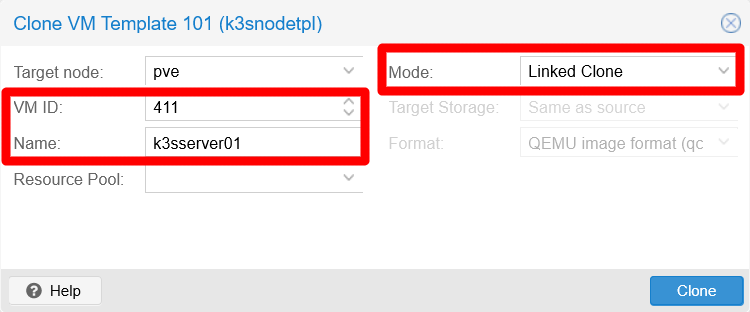
In the snapshot you see that the VM has been assigned the ID 411, since the primary IP of this VM is going to be 10.4.1.1. Also see that, since this VM is going to be the K3s server in the cluster, the VM has been named k3sserver01.
The second VM is going to be an agent, so its name should be k3sagent01. The main IP for this VM is going to be 10.4.2.1, so a good ID for it would be 421.
The VM IDs are important for configuring their automatic starting and shutting down by Proxmox VE
This chapter explains more about it later, but you can check how the VM IDs are important in such process in the Proxmox VE official documentation.
Again, the proposed hostname schema, static IP and ID assignments are just suggestions. Put the names, IPs and IDs you find suitable for your particular preferences or requirements.
Remember that linked clones are attached to their VM template
Proxmox VE will not allow you to remove the template unless you delete its linked clones first.
VM as K3s server node
K3s server nodes can run workloads (apps and services), but it is more appropriate to use them just for handling your Kubernetes cluster’s control plane. Acting just as a server is a heavy duty job, even in a small setup such as the one you are building with this guide. Hence, you can start assigning your k3sserver01 node low hardware specs and increase them later depending on how well the node runs. Still, be aware that if the server node has a bad performance, the whole cluster will not run properly either. In this guide’s case, the K3s server node VM is configured with rather low capabilities to begin with:
- Memory: 1.00/1.50 GiB of RAM.
- Processors: 2 vCPUs.
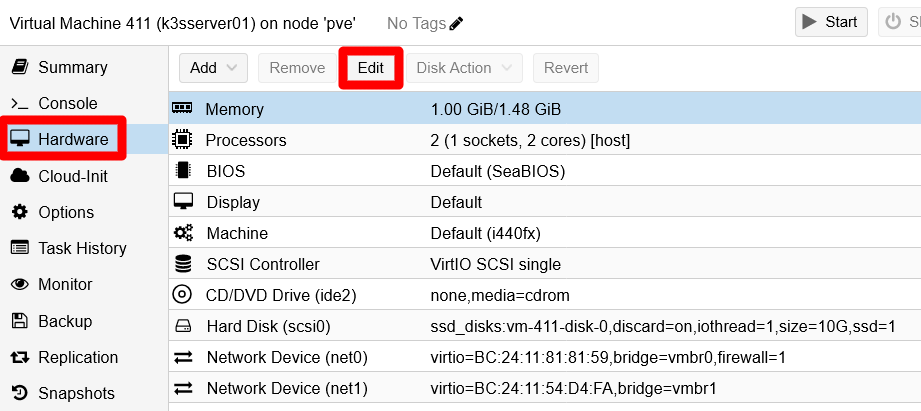
Those are really low hardware capabilities. Do not go lower than those or it will be too tight for the K3s server node to run properly. Do not forget that, to change the hardware attached to a VM, just go to the Hardware tab of the VM. There, either just double click the item you want to modify or select it and press on Edit:
Remember that this guide is based on a low end computer
If your hardware setup happens to be more powerful, do not hesitate to assign more resources to the VMs if you want or need to. Just be careful of not overloading your hardware.
VM as K3s agent node
K3s agent nodes are the ones meant to run workloads in the cluster. How much CPU and RAM you must assign to them depends heavily on what will be their workload. To play it safe, you can start by assigning them these compute resources:
- Memory: 1.00/2.00 GiB of RAM.
- Processors: 3 vCPUs.
As it happens with the server node VM, depending on how well your agent nodes run, you will have to adjust their capabilities later to fit both their needs and the limits of your real hardware.
Assign a static IP to each VM
After creating the VMs, go to your router or gateway and assign each a static IP. This chapter follows the criteria explained earlier, so the nodes here will have the following IPs for their primary network cards:
- K3s server node 1:
10.4.1.1 - K3s agent node 1:
10.4.2.1
Preparing the VMs for K3s
Now that you have the new VMs created, you might think that you can start creating the K3s cluster, right? Wrong. The following subsections show you the pending procedures you must apply in your VMs to make them fully adequate to become K3s cluster nodes.
Customizing the hostname
As it happened when you set up the k3s node VM template, these two new VMs you have created both have the same hostname inherited from the VM template. You need to change it, as you did before, but tailoring it to the role each node will play in the K3s cluster. If you apply the naming scheme shown in a previous section, the hostname value for each VM will be as follows:
- The K3s server VM will be called
k3sserver01. - The other VM will run as an agent, so it will be named
k3sagent01.
With the naming scheme decided, you can change the hostname to each VM in the same way you did when you configured the K3s node VM template:
At this point, your two new VMs will have the same credentials
This means having the same certificates, password and TFA TOTP code for the mgrsys user as the ones set in the K3s node VM template those VMs are clones of.
Remember this when you try to connect remotely to those VMs through SSH.
Using the
hostnamectlcommand, change the VM’s hostname value (k3snodetplnow). For the K3s server VM it would be like below:$ sudo hostnamectl set-hostname k3sserver01Edit the
/etc/hostsfile, where you must replace the old hostname (k3snodetpl) with the new one. The hostname should only appear in the127.0.1.1line:127.0.1.1 k3sserver01.homelab.cloud k3sserver01Do not forget to do the same steps on the
k3sagent01VM. First thehostnamectlcommand:$ sudo hostnamectl set-hostname k3sagent01Then, changing the proper line in the
/etc/hostsfile:127.0.1.1 k3sagent01.homelab.cloud k3sagent01
Remember that, to see the change applied, you have to exit your current remote terminal session and log back into the VM. You will see the new hostname in the shell prompt.
Changing the second network card’s IP address
The secondary network card of the new VMs has the same IP address that was configured in their template, something you must correct or the networking with this card will not work. Adhering to the criteria established before, the static IPs for these VMs are:
- K3s server node 1:
172.16.1.1 - K3s agent node 1:
172.16.2.1
To change this value on each VM, you just have to edit the
/etc/network/interfacesfile and replace there the template IP with the correct one. Of course, for extra safety, first do a backup:$ sudo cp /etc/network/interfaces /etc/network/interfaces.bkpEdit the
interfacesfile and just change the address assigned to the interface. In this guide’s case, it is theens19interface, and this is how it would look in the K3s server node:# The secondary network interface allow-hotplug ens19 iface ens19 inet static address 172.16.1.1 netmask 255.240.0.0To apply the change, you have to restart the interface with the
ifdownandifupcommands:$ sudo ifdown ens19 Error: ipv4: Address not found. $ sudo ifup ens19Do not mind the error warning
ifdownreturns,ifupcan activate the interface just fine.Finally, check with the
ipcommand that the interface has the new IP address:$ ip a 1: lo: <LOOPBACK,UP,LOWER_UP> mtu 65536 qdisc noqueue state UNKNOWN group default qlen 1000 link/loopback 00:00:00:00:00:00 brd 00:00:00:00:00:00 inet 127.0.0.1/8 scope host lo valid_lft forever preferred_lft forever 2: ens18: <BROADCAST,MULTICAST,UP,LOWER_UP> mtu 1500 qdisc fq state UP group default qlen 1000 link/ether bc:24:11:81:81:59 brd ff:ff:ff:ff:ff:ff altname enp0s18 altname enxbc2411818159 inet 10.4.1.1/8 brd 10.255.255.255 scope global dynamic noprefixroute ens18 valid_lft 85227sec preferred_lft 74427sec 3: ens19: <BROADCAST,MULTICAST,UP,LOWER_UP> mtu 1500 qdisc fq state UP group default qlen 1000 link/ether bc:24:11:54:d4:fa brd ff:ff:ff:ff:ff:ff altname enp0s19 altname enxbc241154d4fa inet 172.16.1.1/12 brd 172.31.255.255 scope global ens19 valid_lft forever preferred_lft forever
Remember to change the secondary network card’s IP, following the same steps, on your other K3sagent01 VM!
Changing the TOTP code
The VMs share the same TOTP code that you generated for the Debian VM template. This is obviously not secure, you must change it on each VM. On the other hand, you probably do not want to complicate your system management too much for what is just a homelab setup. Therefore, for the scenario contemplated in this guide, a middle-ground solution would be having one TOTP for the K3s server node, and another TOTP code for all the K3s agent nodes. Regardless of the strategy you adopt, the procedure to change the TOTP on each VM is the same.
You just have to execute the google-authenticator command, and it will overwrite the current content of the .google_authenticator file in the $HOME directory of your current user. For instance, in the K3s server node you would execute something like the following:
$ google-authenticator -t -d -f -r 3 -R 30 -w 3 -Q UTF8 -i k3sserverxx.homelab.cloud -l mgrsys@k3sserverxxAnd the command for the agent node should be as shown next:
$ google-authenticator -t -d -f -r 3 -R 30 -w 3 -Q UTF8 -i k3sagentxx.homelab.cloud -l mgrsys@k3sagentxxSave your TOTP codes
Export and save all the codes and even the .google_authenticator file in a password manager or by any other secure method.
Changing the SSH key-pair
As with the TOTP code, the SSH key-pair files are the same ones you created for your first Debian VM template, and all the VMs you have created till now have the very same pair. Following the same strategy as with the TOTP code, create a different key-pair for the server node and for the agent node. The procedure in both cases is as follows:
Being sure that you are on the
mgrsysuser’s$HOMEdirectory, remove the current key-pair completely:$ cd $ rm -rf .ssh/Create a new ssh key-pair with the
ssh-keygencommand:$ ssh-keygen -t ed25519 -a 250 -C "k3sserverxx.homelab.cloud@mgrsys"The comment (
-C) in the command above is just an exampleReplace that comment with whatever string suits your requirements.
Enable the public part of the key-pair:
$ cat .ssh/id_ed25519.pub >> .ssh/authorized_keys ; chmod 600 .ssh/authorized_keys
Careful now, you have to export the new private key (the id_ed25519 file) so you can remotely connect through your ssh client. Do not close your current connection so you can use it to export the private key.
Save your ssh key-pairs
Do not forget to export and save the new ssh key-pairs in a password manager or by any other secure method.
Changing the administrative user’s password
The mgrsys user also has the same password you gave it in the creation of the Debian template. To change it, follow the same strategy as with the TOTP code and the ssh key-pair: one password for the K3s server and another for all the K3s agents.
To change the password, just execute the passwd command:
$ passwd
Changing password for mgrsys.
Current password:
New password:
Retype new password:
passwd: password updated successfully
Save the password somewhere safe, like in a password manager.
Creating the pending K3s agent node VM
You have created and configured one VM that will act as a K3s server node, and another that will be a K3s agent node. Still, you are missing another agent node, so link-clone it to the K3s node template with a 422 VM ID and for name the string k3sagent02. Then, configure it as you did with the other K3s nodes you have already created, but with some differences.
Changing hostname and assigning IPs
As you did with both your K3s server and first agent nodes, you need to assign concrete static IPs to the network devices. Also, you need to change the hostname:
Assign in your router or gateway the static main IP for the new VM. Under this guide’s criteria, its address would be as follows:
- K3s agent node 2:
10.4.2.2
- K3s agent node 2:
Change its hostname, as seen before in this chapter:
- K3s agent node 2:
k3sagent02
- K3s agent node 2:
Finally, you also have to change the IP address of its secondary network interface:
- K3s agent node 2:
172.16.2.2
- K3s agent node 2:
Exporting the TOTP codes, the SSH key-pairs and reusing passwords
To ease a bit the burden of system maintenance, and reduce the madness of so many passwords and TOTP codes, reuse the ones you generated for the mgrsys user in your first agent node. It is not the safest configuration possible, true, but should be safe enough for the homelab you are building in this guide.
The idea is that you export the TOTP code and the SSH key-pair from your k3sagent01 VM to the k3sagent02 one. Also, you would reuse the new password applied in the first agent. This way, at least you will have different authorization codes for the different types of nodes in your K3s cluster.
The files you have to export are:
/home/mgrsys/.google_authenticator
The file where the TOTP code is stored./home/mgrsys/.ssh/
In this folder are the SSH key-files. Export the whole folder.
The most convenient way to export files is packaging and compressing them with the tar command:
$ cd
$ tar czvf .ssh.tgz .ssh/
$ tar czvf .google_authenticator.tgz .google_authenticator
When you have exported these .tgz files (with a tool like WinSCP, for instance) to the second agent node, remove the ones already present and then decompress the .tgz files:
$ cd
$ rm -rf .ssh
$ rm -f .google_authenticator
$ tar xvf .ssh.tgz
$ tar xvf .google_authenticator.tgz
$ rm .ssh.tgz .google_authenticator.tgz
The .tgz files’ content will be extracted with the same permissions and owners they had originally, which in this case makes them good to go as they are: the users and groups, and their internal IDs, are the same in all your VMs.
Finally, do not forget to use the passwd command to change the password and put the same one as in the first agent node.
Firewall setup for the K3s cluster
A K3s cluster uses certain ports to work, although they are different on each K3s node type.
Port mapping
In a default installation of a K3s cluster, the ports you need to have open are the following:
On SERVER nodes
TCP
2379-2380
Necessary when using HA with embedded etcd database engines. These are not used in a one-server-node setup.TCP
6443
This is for connecting to the Kubernetes API server, necessary for cluster management tasks.TCP
10250
Required to access Kubelet metrics.
On AGENT nodes
TCP
80
Used by the Traefik service.TCP
443
Also used by the Traefik service.TCP
10250
Required to access Kubelet metrics.
On the other hand, there is also the TCP port 22, which you must keep open in the firewall to allow yourself SSH access into all your VMs. Also, you need to give all your VMs access to the TCP port 3493 in the Proxmox VE host, so they can connect to the NUT server monitoring the UPS in your system.
Now that you know the ports required by K3s, you may wonder how these ports will be arranged in the network interface cards enabled in your VMs. Check it out below:
On SERVER nodes
NIC
net0/ens18, IP10.4.1.x:- TCP:
22,6443.
- TCP:
NIC
net1/ens19, IP172.16.1.x:- TCP:
2379-2380,6443,10250.
- TCP:
On AGENT nodes
- NIC
net0/ens18, IP10.4.2.x:- TCP:
22,80,443.
- TCP:
- NIC
net1/ens19, IP172.16.2.x:- TCP:
10250.
- TCP:
- NIC
Remember that each NIC is meant for a particular use:
The
net0/ens18interfaces are the ones that need to be firewalled since they face the external network. You will configure your K3s cluster to use these ones only for external traffic.The
net1/ens19interfaces are not firewalled but isolated through thevmbr1bridge. Your K3s cluster will use these NICs for its internal networking needs.
The upshot is that you need to open in your Proxmox VE firewall only the ports required on the net0/ens18 interfaces. Also, you need to give all your K3s VMs explicit access to the 3493 TCP port to reach the NUT server running in the Proxmox VE system.
Firewall configuration for the K3s node VMs
After planning the ports setup, you can enable them in the Proxmox VE firewall. The process is like what you did to grant your first Debian VM access to the NUT TCP port 3493 at the Proxmox VE host. The difference is that this time you have to handle more ports and IPs.
Allowing access to the host’s NUT port for all K3s nodes VMs
To give your VMs access to the NUT server running in your Proxmox VE host, you just have to include their main IPs to the IP set you already allowed to reach the NUT port:
Open your Proxmox VE web console and go to the
Datacenter, then toFirewall > Alias. There you must add the IPs of your VMs’net0NICs, the192.168.1.xones. The view should end looking like below: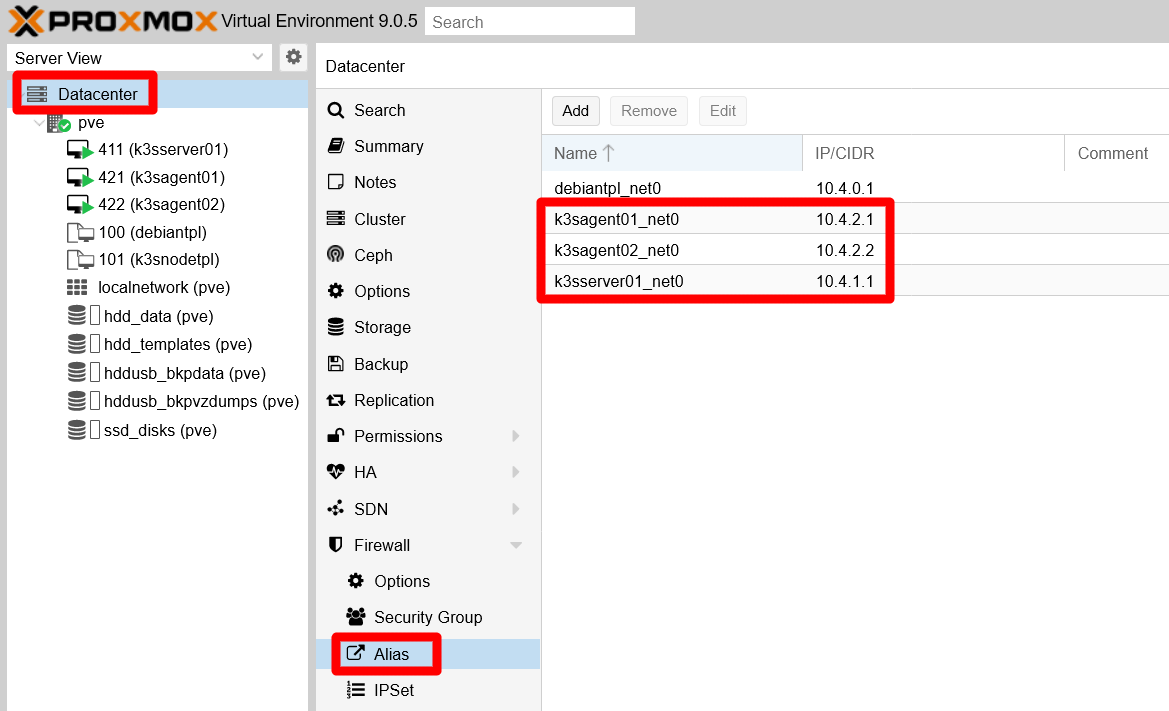
Alias created for VMs net0 IPs at Datacenter Firewall Remember that you had previously created the alias
debiantpl_net0already listed here.Browse now to the
Datacenter > Firewall > IPSettab, where you can find thek3s_nodes_net0_ipsIP set: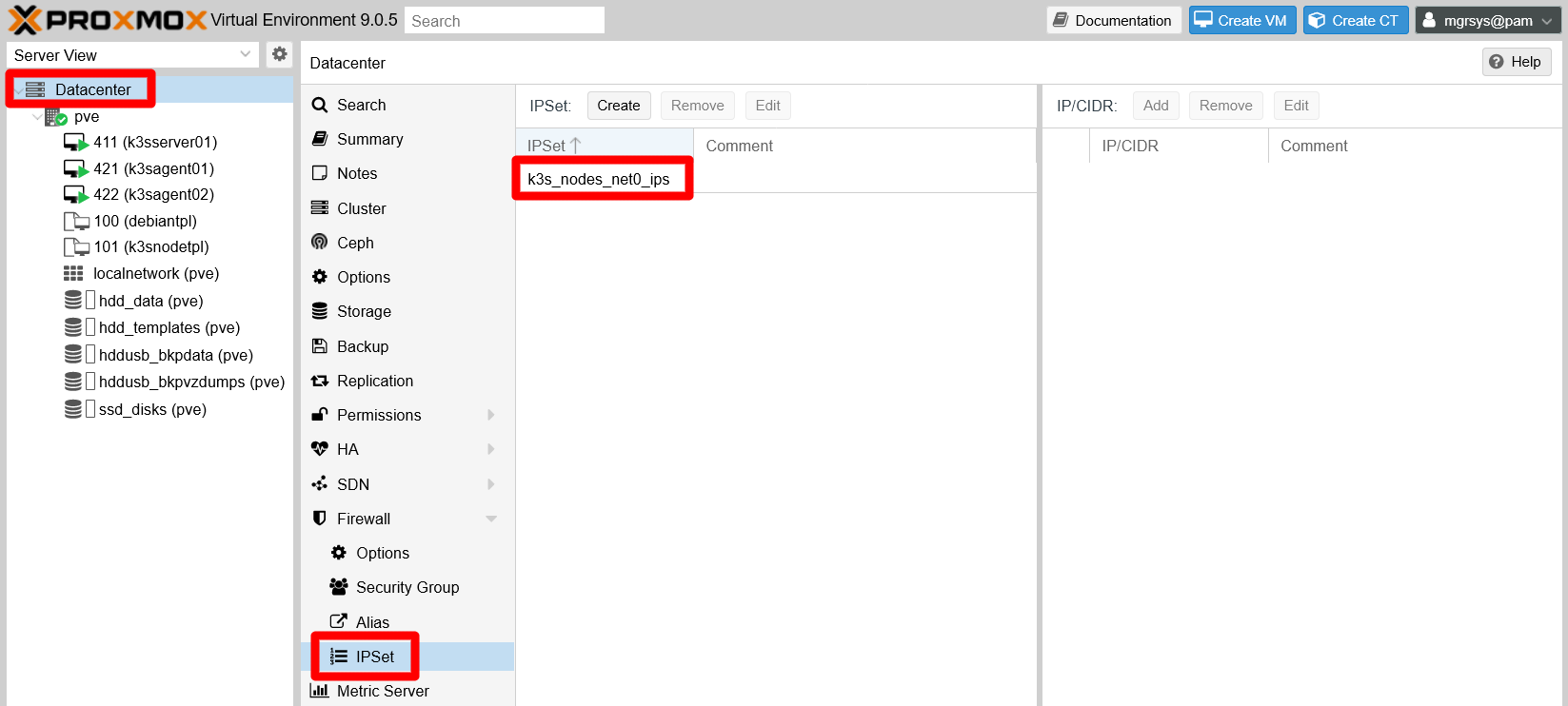
IPSet view before adding new IPs Select the
k3s_nodes_net0_ipsset, where you can see thedebiantpl_net0alias already added there. Since it is the IP of the first Debian VM template you created, and VM templates cannot be executed, you can remove thedebiantpl_net0alias from this IP set by pressing theRemovebutton: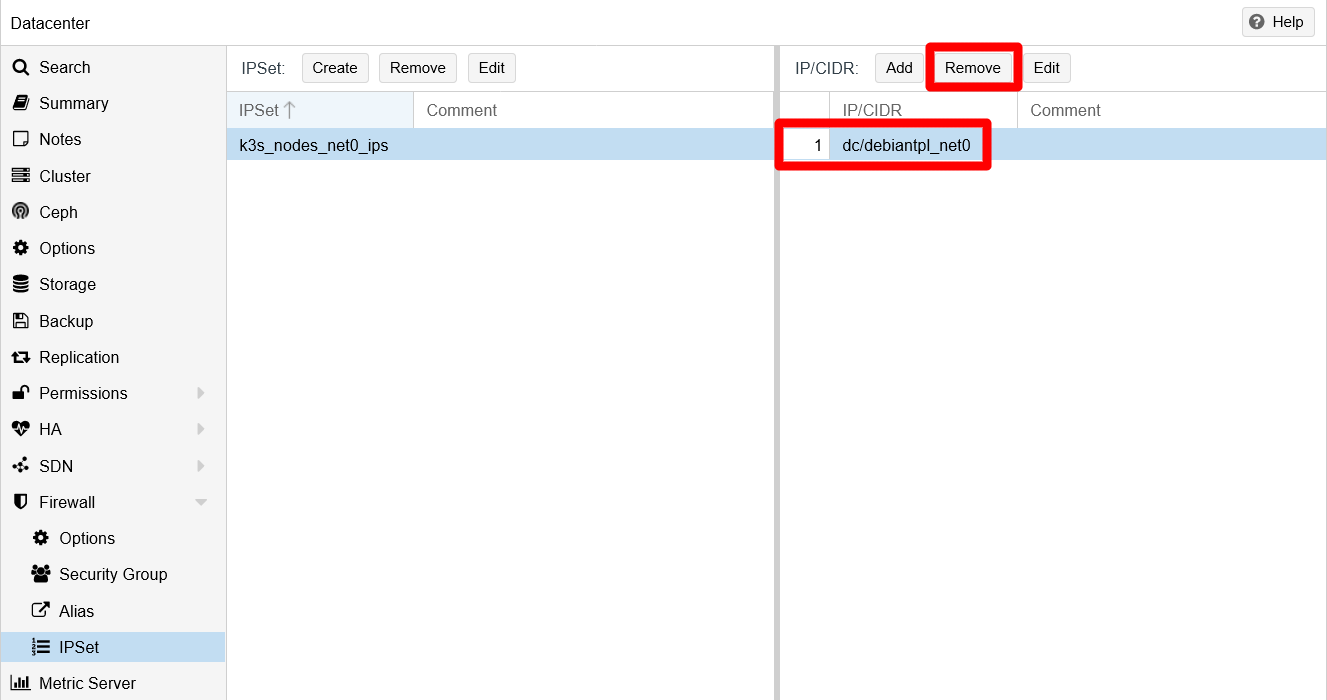
Removing the debiantpl_net0 alias You have to confirm the
Removeaction:
Confirmation of debiantpl_net0 removal Use the
Addbutton to aggregate the K3s node aliases created before to thek3s_nodes_net0_ipsIP set. The IP set should end looking like below: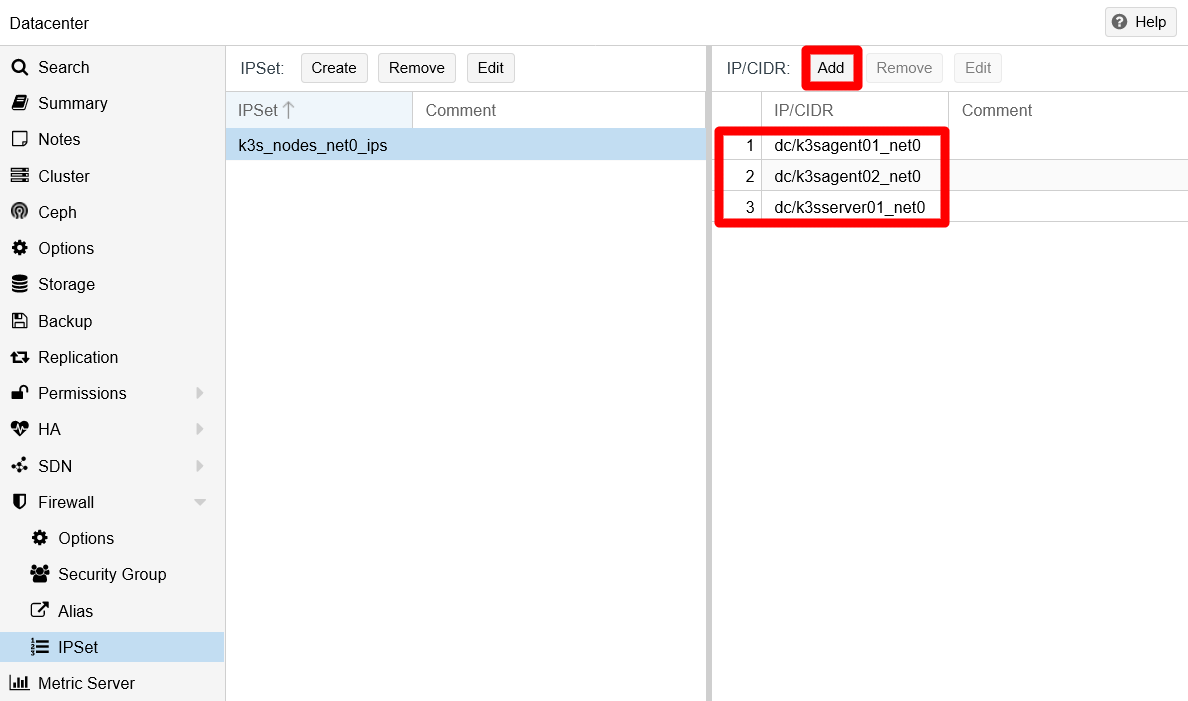
IPSet edited with the newly aliased IPs
The connection of your K3s nodes with the NUT server should be enabled now. Check it out with a NUT client command like upsc eaton@10.1.0.1. Or go back to the chapters about installing the NUT server or connecting a VM to it to see how to use the NUT-related commands.
K3s node VMs’ firewall setup
Browse back to the
Datacenter > Firewall > Aliastab. In this page, add the whole IP range of your local network (10.0.0.0/8in this guide):
Alias created for VMs net1 IPs at Datacenter Firewall Go to the
Datacenter > Firewall > IPSetpage and create an IP set for the local network IPs, calledlocal_network_ips. In it, add thelocal_networkalias: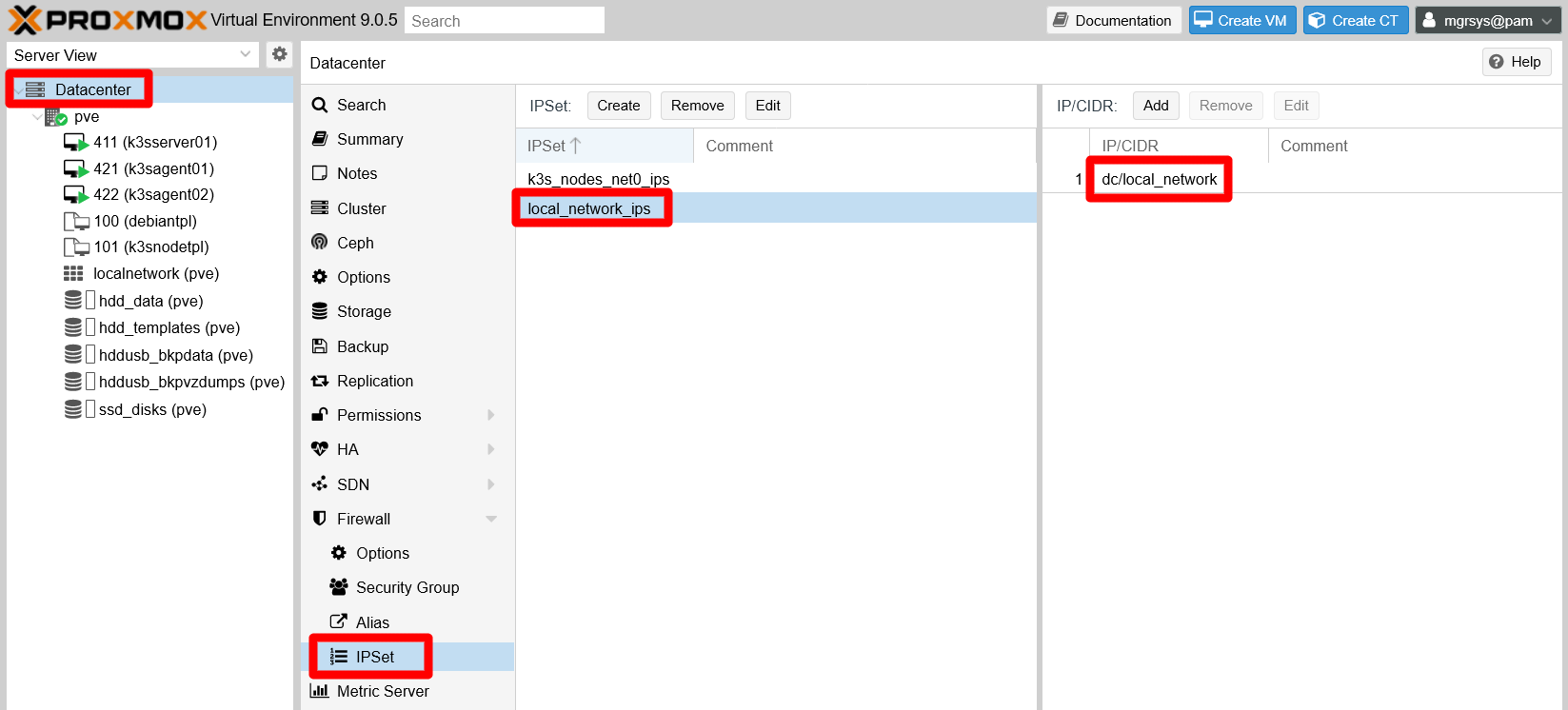
New IP set added for local network IPs Rather than using the
local_networkalias directly for creating rules, it is better to use sets, even for just one alias or IP. They give you more flexibility to manipulate IPs within the sets.Jump to the
Datacenter > Firewall > Security Grouppage. Define and enable here all the rules to give access to the ports you need open in your K3s cluster, which are only the ones on your VM’snet0interfaces. The rules are detailed next, organized in two distinct security groups:k3s_srvrs_net0_in:- Rule 1: Type
in, ActionACCEPT, Protocoltcp, Sourcelocal_network_ips, Dest. port22, CommentSSH standard port open for entire local network.
- Rule 1: Type
k3s_agnts_net0_in:Rule 1: Type
in, ActionACCEPT, Protocoltcp, Sourcelocal_network_ips, Dest. port22, CommentSSH standard port open for entire local network.Rule 2: Type
in, ActionACCEPT, Protocoltcp, Sourcelocal_network_ips, Dest. port80, CommentHTTP standard port open for entire local network.Rule 3: Type
in, ActionACCEPT, Protocoltcp, Sourcelocal_network_ips, Dest. port443, CommentHTTPS standard port open for entire local network.
Do not mind the rules numbers, it just for your reference when you read them. Their numbering will be different when you add them in the security groups, and they should end looking like this:

Security group rules for K3s server nodes net0 NIC 
Security group rules for K3s agent nodes net0 NIC Do not forget to enable the rules when you create them
Revise the
Oncolumn and check the ones you may have left disabled.The security groups do not work just as they are, you have to apply them on each of your K3s node VMs:
- Insert the
k3s_srvrs_net0_insecurity group in the K3s server VM firewall. - Put the
k3s_agnts_net0_insecurity group in your other two K3s agent VMs firewalls.
Next, see how the firewall should look in the
k3sserver01firewall with its corresponding security group inserted as a rule, after using theInsert: Security Groupbutton: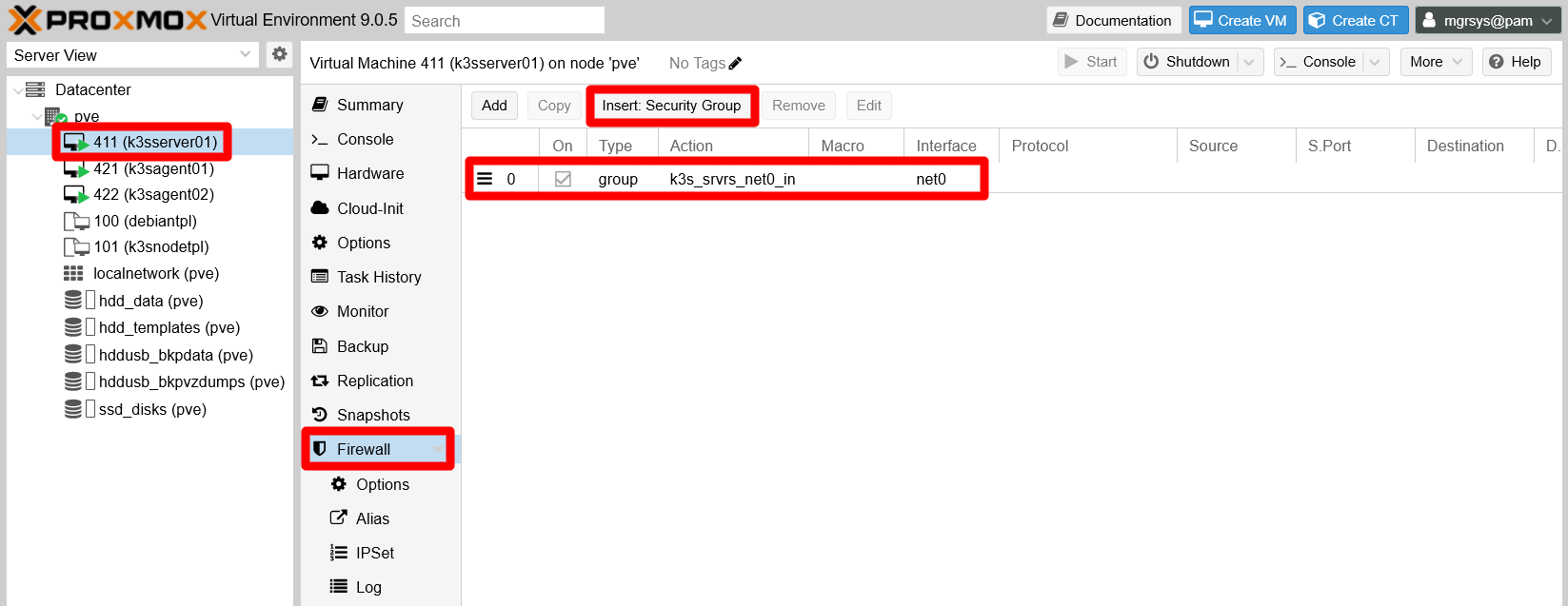
Inserted security group to k3sserver01 node and applied to net0 NIC Notice that not only it has been inserted and enabled the corresponding
k3s_srvrs_net0_ingroup, thenet0interface of this VM has also been set to the group.Browse to the
k3sserver01VM’sFirewall > IPSetpage and create an IP set for thenet0network interface. In the case of thek3sserver01VM, it should be like this:
IP set for ip filtering on net0 interface Notice how the IP set’s name follows the pattern
ipfilter-netX, where “X” is the network interface’s number in the VM. Keep the name as it is, since it is the one the Proxmox VE firewall expects for IP filtering. Also see how it has been added to the IP set only the aliased IP for thenet0interface, restricting to one the valid IPs that can initiate outgoing connections from that interface.Enable the firewall itself on
k3sserver01. Go to the VM’sFirewall > Optionstab andEdittheFirewallfield to enable it:
Enabled firewall and IP filter on VM firewall Notice that some other options also have been adjusted:
The
NDPoption is disabled because is only useful for IPv6 networking, which is not active in any of the existing VMs.The
IP filteris enabled, which helps to avoid IP spoofing.Enabling the
IP filteroption is not enoughYou need to specify the concrete IPs allowed in the network interface on which you want to apply this security measure, something you have just done in the previous step.
The
log_level_inandlog_level_outoptions are set toinfo, enabling the logging of the firewall on the VM. This allows you to see, in theFirewall > Logview of the VM, any incoming or outgoing traffic that gets dropped or rejected by the firewall.
On the other hand, you must know that the firewall configuration you apply to the VM is saved as a
.fwfile in your Proxmox VE host, under the/etc/pve/firewallpath. Open a shell asmgrsyson your Proxmox VE host andcdto that directory:$ cd /etc/pve/firewallThere, execute an
lsand see what files are there:$ ls 411.fw cluster.fwThe
411.fwfile contains the firewall configuration for thek3sserver01VM, identified in Proxmox VE with the VM ID411. Thecluster.fwis the file containing the whole Proxmox VE datacenter firewall configuration. If you open the411.fwfile, you get to see the following content:[OPTIONS] enable: 1 ndp: 0 log_level_out: info ipfilter: 1 log_level_in: info [IPSET ipfilter-net0] dc/k3sserver01_net0 [RULES] GROUP k3s_srvrs_net0_in -i net0As you have done with your K3s server node, apply the corresponding security group (
k3s_agnts_net0_in) and other firewall configuration to the K3s agent node VMs, starting with thek3sagent01VM (with ID421). Applying this configuration generates a/etc/pve/firewall/421.fwfile that should look like below:[OPTIONS] log_level_in: info log_level_out: info ipfilter: 1 ndp: 0 enable: 1 [IPSET ipfilter-net0] dc/k3sagent01_net0 [RULES] GROUP k3s_agnts_net0_in -i net0This firewall setup for
k3sagent01is almost identical to the one fork3sserver01:The lines under
OPTIONSmight show up ordered differently, as it happens above, but they are the same as in thek3sserver01VM.There is only one
IPSETthat applies an IP filter on the VM’snet0network card.The security group in the
GROUPrules and alias in theIPSETdirective correspond to the ones corresponding to the agent nodes.
Since the firewall configuration for the second K3s agent node is essentially the same as with the first one, instead of using the web console to set up the firewall for the other VM, open a shell as
mgrsyson your Proxmox VE host and do the following:$ cd /etc/pve/firewall $ sudo cp 421.fw 422.fwEdit the new
422.fwfile to replace just the IP alias in theIPSETblock with the correct one (k3sagent02_net0) for the422VM:[OPTIONS] log_level_in: info log_level_out: info ipfilter: 1 ndp: 0 enable: 1 [IPSET ipfilter-net0] dc/k3sagent02_net0 [RULES] GROUP k3s_agnts_net0_in -i net0
With the necessary ports open for the right IPs, you can now install the K3s software in your VMs. Also remember that it is not necessary to have the VMs running to configure their firewalls, and that the changes in the firewall configuration are put in effect immediately after the rules are enabled.
Port 6443 left closed on the server node’s net0 NIC
The 6443 port is listed as one of those to be opened in the net0 network card of your server node. Why have you not been told to open it in the firewall already? This port, on the net0 NIC of your server nodes, is meant to be open only for external clients from which you can manage remotely your K3s cluster. How to set up such a client is explained in the next chapter about kubectl, where you will open the 6443 port on your server node accordingly.
Considerations before installing the K3s software
To install the K3s software on any node, the procedure is essentially the same: you have to download and run a small executable and it will do everything to install and start the k3s service. But, before you install the K3s software, you must plan in advance how you want to configure your cluster. This is because you not only configure the K3s service itself, but also which embedded services are (or are not) deployed from the start and how they run in your K3s cluster. In other words, the initial configuration determines how the K3s cluster and its services are configured, and reconfiguring all of it later can be a more complicated matter.
On the other hand, the K3s service installer supports two ways of being configured: by using arguments like any other command, or reading its settings from a configuration file. Here is explained how to do it with the configuration file.
The K3s installer’s configuration file
By default, the K3s installer looks for the /etc/rancher/k3s/config.yaml file in the system, although you can specify another path with the --config or -c argument.
Also know that the K3s installer arguments take precedence over the parameters set in the file. Avoid using the same argument both in the command and in the config.yaml file, because only the command’s value will stand.
K3s Server node setup
The very first nodes you must deploy in a Kubernetes cluster are those that run the control plane managing the cluster itself. They are the server nodes in K3s jargon and, in this guide’s cluster, there is only one you have to setup.
Folder structure for K3s configuration files
In your K3s server node (k3sserver01), execute the following:
$ sudo mkdir -p /etc/rancher/k3s/ /etc/rancher/config.yaml.d/Notice that two folders are created, the /etc/rancher/k3s/ expected by K3s by default and the /etc/rancher/config.yaml.d/. The idea is to put your own configuration files in the config.yaml.d directory and symlink them in the k3s one. This is convenient because, if you happen to uninstall the K3s software for some reason, the uninstaller also removes the /etc/rancher/k3s/ folder completely.
Enabling graceful shutdown on the server node
The graceful node shutdown feature is available and enabled by default in Kubernetes, and you can use it in your K3s cluster. This way, you can protect better your cluster nodes against unexpected failures or just ensuring that, when your Proxmox VE host shuts down, your K3s nodes also shutdown gracefully.
To configure this functionality in your cluster, you need to setup a configuration file with two specific parameters and, optionally, a system service for cleaning up any Kubernetes pods that could get stuck in their shutdown phase.
The kubelet.conf file
The configuration file you need to enable the graceful node shutdown can be called anything and be on any path accessible by the K3s service. Use the folder structure created before and produce in it the required file with a significant name:
Create a
kubelet.conffile at/etc/rancher/config.yaml.d, and then symlink it in the/etc/rancher/k3sfolder:$ sudo touch /etc/rancher/config.yaml.d/kubelet.conf $ sudo ln -s /etc/rancher/config.yaml.d/kubelet.conf /etc/rancher/k3s/kubelet.confThe file is named
kubelet.confbecause it affects the configuration of the kubelet process thar runs on each node of any Kubernetes cluster. Symlinking this file is not really necessary, its just a manner of keeping all the configuration files accesible through the same default K3s folder for coherence.In the
kubelet.conffile, put the following lines:# Kubelet configuration apiVersion: kubelet.config.k8s.io/v1beta1 kind: KubeletConfiguration shutdownGracePeriod: 30s shutdownGracePeriodCriticalPods: 10sThe highlights from this YAML are:
apiVersion
The Kubernetes API used here is the beta one (v1beta1).kind
Indicates the type of Kubernetes object specified in the file. In this case is aKubeletConfiguration, meant to be used for configuring the kubelet process that any Kubernetes node has running.shutdownGracePeriod
Default value is0. Total delay period of the node’s shutdown, which gives the regular pods this time MINUS the period specified in theshutdownGracePeriodCriticalPodsparameter.shutdownGracePeriodCriticalPods
Default value is0. This is the grace period conceded only to pods marked as critical. This value has to be lower than theshutdownGracePeriod.The two
shutdownGracePeriodparameters must have a non-zero valueBoth the
shutdownGracePeriodand theshutdownGracePeriodCriticalPodsconfiguration options must be set to non-zero values to enable the graceful shutdown functionality.
With the values set in the YAML above, the node will have
20seconds to terminate all regular pods running in it, and10to end the critical ones.
Cleanup pods script
It might be that some pods do not shutdown in time and get stuck with the Shutdown status. They could reappear later as dead unevicted pods in your cluster after a reboot. To clean them up, you can prepare a system service in your server node that can get rid of them:
Create the
k3s-cleanup.servicefile at/lib/systemd/system/:$ sudo touch /lib/systemd/system/k3s-cleanup.servicePut the next content in the
k3s-cleanup.servicefile:[Unit] Description=k3s-cleanup StartLimitInterval=200 StartLimitBurst=5 Wants=k3s.service [Service] Type=oneshot ExecStart=kubectl delete pods --field-selector status.phase=Failed -A --ignore-not-found=true RemainAfterExit=true User=root StandardOutput=journal Restart=on-failure RestartSec=30 [Install] WantedBy=multi-user.targetNotice how, in the
ExecStartparameter, the service invokes akubectlcommand. Since it is not available in your server node yet, you cannot enable this service until you install the K3s software package in the VM.
The k3sserver01 node’s config.yaml file
As indicated before, the /etc/rancher/k3s/config.yaml file is the one the K3s installer will try to read by default:
Create the
config.yamlfile as follows:$ sudo touch /etc/rancher/config.yaml.d/config.yaml $ sudo ln -s /etc/rancher/config.yaml.d/config.yaml /etc/rancher/k3s/config.yamlNotice how the
config.yamlfile is symlinked in the/etc/rancher/k3sfolder, allowing the K3s installer to find it.You also need some basic networking information from the VM itself, which you can get with the
ipcommand:$ ip a 1: lo: <LOOPBACK,UP,LOWER_UP> mtu 65536 qdisc noqueue state UNKNOWN group default qlen 1000 link/loopback 00:00:00:00:00:00 brd 00:00:00:00:00:00 inet 127.0.0.1/8 scope host lo valid_lft forever preferred_lft forever 2: ens18: <BROADCAST,MULTICAST,UP,LOWER_UP> mtu 1500 qdisc fq state UP group default qlen 1000 link/ether bc:24:11:81:81:59 brd ff:ff:ff:ff:ff:ff altname enp0s18 altname enxbc2411818159 inet 10.4.1.1/8 brd 10.255.255.255 scope global dynamic noprefixroute ens18 valid_lft 79472sec preferred_lft 68672sec 3: ens19: <BROADCAST,MULTICAST,UP,LOWER_UP> mtu 1500 qdisc fq state UP group default qlen 1000 link/ether bc:24:11:54:d4:fa brd ff:ff:ff:ff:ff:ff altname enp0s19 altname enxbc241154d4fa inet 172.16.1.1/12 brd 172.31.255.255 scope global ens19 valid_lft forever preferred_lft foreverThe values you must have at hand are the IP for the first interface (
ens18in the output above), and the IP and name of the second interface (ens19).Edit the
/etc/rancher/k3s/config.yamlfile by adding the following content:# k3sserver01 cluster-domain: "homelab.cluster" tls-san: - "k3sserver01.homelab.cloud" - "10.4.1.1" flannel-backend: host-gw flannel-iface: "ens19" bind-address: "0.0.0.0" https-listen-port: 6443 advertise-address: "172.16.1.1" advertise-port: 6443 node-ip: "172.16.1.1" node-external-ip: "10.4.1.1" node-taint: - "node-role.kubernetes.io/control-plane=true:NoSchedule" kubelet-arg: "config=/etc/rancher/k3s/kubelet.conf" disable: - metrics-server - servicelb protect-kernel-defaults: true secrets-encryption: true agent-token: "SomeReallyLongPassword"The parameters from the
config.yamlfile above are explained next:cluster-domain
Specify the base domain name used internally in your cluster for assigning DNS records to pods and services. By default iscluster.local, but in this guide is going to behomelab.cluster. When you enter your own cluster domain, make it different to the main domain name you want to use for accessing externally the services deployed later in your cluster.tls-san
Additional hostnames or IPs that will be applied as Subject Alternative Names in the self-generated TLS certs of the K3s service, meaning not the ones specified in thebind-address,advertise-address,node-ipornode-external-ipparameters.Put here the VM’s full hostname and also the external IP of this server node to ensure that both values get included as Subject Alternative Names in its autogenerated TLS certificate. Otherwise, you will not be able to connect to your K3s cluster remotely with the official Kubernetes client using either the external IP or the full server node’s hostname. Both will be rejected as not being “recognized” by the TLS certificate.
This guide also covers the Kubernetes client
How to configure and use the Kubernetes client is explained in the next chapter.
flannel-backend
Flannel is a plugin for handling the cluster’s internal networking. Flannel supports four different network backend methods, beingvxlanthe default one. Thehost-gwbackend set in theconfig.yamlabove has better performance thanvxlanfor this guide’s setup, something you really want to have when running a K3s cluster in a resources-constrained environment.Know more about the Flannel backend options
The backend you choose for your cluster will affect its performance, sometimes in a big way
For instance, the default
vxlanproved to be an awful backend for this guide’s setup, making services respond not just slowly but erratically even. The solution was to usehost-gw, which offered a very noticeable good performance. Therefore, be aware that you might need to run some tests to choose the right backend which suits your requirements and your cluster setup.flannel-iface
Specifies through which interface you want Flannel to run. In this guide’s case, it is configured to use the interface connected to the internal bridged network (enabled through thevmbr1bridge in Proxmox VE) which is not exposed to the LAN.bind-address
The address on which the K3s API service will listen. By default is already0.0.0.0(listening on all interfaces), but it is convenient to make this and certain other default values explicit for clarity.https-listen-port
The port through which the K3s API service will listen. By default is6443. Change it if needed, but do not forget to update your firewall rules accordingly!advertise-address
The K3s API server will advertise through this IP to the other nodes in the cluster. See how this guide uses the IP meant for the internal bridged network.advertise-port
Port used only to advertise the API to the other nodes in the cluster. By default takes the value set in thehttps-listen-portparameter.node-ip
The internal IP the node uses to advertise itself in the cluster. Again, the guide uses here the IP for the internal bridged network.node-external-ip
The public or external IP where the node also advertises itself and through which it offers its services.node-taint
A taint is a way used in Kubernetes to mark nodes and other objects with certain characteristics. In this case, with thenode-role.kubernetes.io/control-plane=true:NoScheduletaint applied, this node will only perform control-plane tasks. Therefore, thek3sserver01node will not run any user workload, not even deployments for embedded services like Traefik.kubelet-arg
Allows you to specify parameters to the kubelet process that runs in this node.config
Path to a configuration file with parameters overwriting the kubelet defaults. In this case, the file is the one you have configured before to enable the node’s graceful shutdown.
disable
For specifying which embedded components are not to be deployed in the cluster. In this case, you can see that two embedded services have been disabled:metrics-server
Service for monitoring resources usage. It will be deployed as a regular service rather than an embedded one for adjusting its configuration to the particularities of the network setup used in this guide for the K3s cluster.servicelb
This is the default load balancer. In a later chapter you will learn how to deploy a better alternative.
protect-kernel-defaults
When set, the K3s service will return an error if certain Linux kernelsysctlparameters are different than the defaults required by the kubelet service. You already set those parameters properly in the K3s node VM template.secrets-encryption
When the node is at rest, it encrypts any secrets resources created in the cluster using a self-generated AES-CBC encrypted key. This option has to be set when the K3s cluster is created initially, not in a later reconfiguration. Otherwise, you will have authentication problems later with your cluster nodes. To know more about this feature, read here about it.agent-token
Alternative shared password to be used only by agents to join the cluster.The
agent-tokenvalue is a shared key among all server nodes of the clusterThis password can be any string, but all the server nodes of a cluster must have configured the same value.
Mind that this value is just the password part of what shall become the full agent token. The complete pattern of an agent token is as follows.
K10<sha256 sum of cluster CA certificate>::node:<password>The cluster CA certificate is the
/var/lib/rancher/k3s/server/tls/server-ca.crtfile of the server node (or the first server in a multiserver cluster). The sha256 sum is already calculated in the first portion of the server token saved in the/var/lib/rancher/k3s/server/tokenfile. Alternatively, you can calculate the sha256 sum yourself with the commandsudo sha256sum /var/lib/rancher/k3s/server/tls/server-ca.crt.The
nodestring is the username used by default for agents, whereas for server nodes the username isserver(you can see this in the server token string saved in the file/var/lib/rancher/k3s/server/token).
Installation of your K3s server node
With the config.yaml and the other configuration files ready, you can launch the installation of K3s in your VM.
K3s installation command
The command to execute in the server node is the following:
$ wget -qO - https://get.k3s.io | INSTALL_K3S_VERSION="v1.33.4+k3s1" sh -s - serverThe command will find the config.yaml file in the default path on the VM, and apply it in the installation. Also noticed the following details in the command above:
wget
Command for downloading the K3s installer. Instead of saving the executable into a file,wgetdumps it into the shell output (option-Ofollowed by-) to be consumed by the following pipe (|) command.The official K3s installation method uses
curlfor downloading the installerDebian does not come with the
curlcommand included by default, butwget.INSTALL_K3S_VERSION
Environment variable for controlling what version of K3s you are installing on your system. It is optional and, when omitted altogether, the K3s installer will download and install the lastest stable release of K3s. To know which releases are available, check the Releases page of K3s on GitHub.server
Option to make the node run as a server in the cluster.
K3s installation of the server node k3sserver01
Execute the installation command on the
k3sserver01VM:$ wget -qO - https://get.k3s.io | INSTALL_K3S_VERSION="v1.33.4+k3s1" sh -s - serverThe installer does not take too long to do its job. Still, give some time to the
k3s.service, which starts at the end of the installation, to setup itself. Open another remote shell session to this VM and check with thekubectlcommand the current status of this new K3s server node:$ sudo kubectl get nodes NAME STATUS ROLES AGE VERSION k3sserver01 NotReady control-plane,master 14s v1.33.4+k3s1The AGE column means how old the node is since it was created
It is NOT about how long the node has been running in the current session.
At first, it will probably show the
NotReadystatus for a moment. This depends on the capabilities given to your VM, so wait a bit and then execute again thekubectlcommand. But this time, usekubectlwith a couple of extra options to get more information about the cluster:$ sudo kubectl get nodes -o wide NAME STATUS ROLES AGE VERSION INTERNAL-IP EXTERNAL-IP OS-IMAGE KERNEL-VERSION CONTAINER-RUNTIME k3sserver01 Ready control-plane,master 2m6s v1.33.4+k3s1 172.16.1.1 10.4.1.1 Debian GNU/Linux 13 (trixie) 6.12.41+deb13-amd64 containerd://2.0.5-k3s2See how now the
k3sserver01node isReadynow. Also notice which roles has assigned: is not only amasterof the cluster, but also has acontrol-planerole. This K3s node is configured to worry only about managing the cluster, not running workloads, unless the workloads are compatible with thenode-role.kubernetes.io/control-plane=true:NoScheduletaint given before to this server node in its installation.On the other hand, you can verify that the IPs are assigned as expected, the one of the first network interface is the
EXTERNAL-IPand the one of the second NIC is theINTERNAL-IP. Moreover, now you can see other information about the container runtime that is running in the cluster.If at this point the installer has not returned the control to your shell prompt yet, just get ouf of it by pressing
Ctrl+C.
Enabling the k3s-cleanup service
With the K3s software installed in your server node, you can enable the k3s-cleanup service you prepared before for automatically cleaning up any pods that get stuck with a shutdown status after a reboot:
$ sudo systemctl enable k3s-cleanup.service
$ sudo systemctl start k3s-cleanup.service
Also, check its current status:
$ sudo systemctl status k3s-cleanup.service
● k3s-cleanup.service - k3s-cleanup
     Loaded: loaded (/usr/lib/systemd/system/k3s-cleanup.service; enabled; preset: enabled)
     Active: active (exited) since Wed 2025-09-10 12:51:50 CEST; 5s ago
 Invocation: 8495690ffa7747488b97ef03338a58a3
    Process: 5652 ExecStart=kubectl delete pods --field-selector status.phase=Failed -A --ignore-not-found=true (code=exited, status=0/SUCCESS)
   Main PID: 5652 (code=exited, status=0/SUCCESS)
   Mem peak: 22M
        CPU: 510ms

Sep 10 12:51:49 k3sserver01 systemd[1]: Starting k3s-cleanup.service - k3s-cleanup...
Sep 10 12:51:50 k3sserver01 kubectl[5652]: No resources found
Sep 10 12:51:50 k3sserver01 systemd[1]: Finished k3s-cleanup.service - k3s-cleanup.
In this service status output, you can see in its last lines the logs of the kubectl command this service invokes for cleaning up pods. This time there is nothing to clean up, which is expected since you do not have any workload running yet in your still incomplete cluster.
This service can only run on server nodes, because those are the ones which can fully run the kubectl command. This detail is explained further later in this chapter.
K3s Agent nodes setup
The procedure to setup your two remaining VMs as K3s agent nodes is mostly the same as with the server node. The few things that change are the parameters specified in the config.yaml files and an argument in the installer command:
Create the
config.yamlfile for the installer:$ sudo mkdir -p /etc/rancher/config.yaml.d /etc/rancher/k3s $ sudo touch /etc/rancher/config.yaml.d/config.yaml /etc/rancher/config.yaml.d/kubelet.conf $ sudo ln -s /etc/rancher/config.yaml.d/config.yaml /etc/rancher/k3s/config.yaml $ sudo ln -s /etc/rancher/config.yaml.d/kubelet.conf /etc/rancher/k3s/kubelet.confPut in the
kubelet.confthe same content as in the server node:# Kubelet configuration apiVersion: kubelet.config.k8s.io/v1beta1 kind: KubeletConfiguration shutdownGracePeriod: 30s shutdownGracePeriodCriticalPods: 10sEdit the
config.yamlfiles, being aware of the particular values required on each agent node:Configuration for the
k3sagent01node:# k3sagent01 flannel-iface: "ens19" node-ip: "172.16.2.1" node-external-ip: "10.4.2.1" server: "https://172.16.1.1:6443" token: "K10<sha256 sum of server node CA certificate>::node:<PasswordSetInServerNode>" kubelet-arg: "config=/etc/rancher/k3s/kubelet.conf" protect-kernel-defaults: trueConfiguration for the
k3sagent02node:# k3sagent02 flannel-iface: "ens19" node-ip: "172.16.2.2" node-external-ip: "10.4.2.2" server: "https://172.16.1.1:6443" token: "K10<sha256 sum of server node CA certificate>::node:<PasswordSetInServerNode>" kubelet-arg: "config=/etc/rancher/k3s/kubelet.conf" protect-kernel-defaults: trueThe
tokenvalue in these twoconfig.yamlfiles is the same for all the agent nodes. Remember how to build it:The
K10part can be taken directly from the server token saved in the/var/lib/rancher/k3s/server/tokenfile at the server node.The
nodestring is the username for all the agent nodes.The password is the one defined as
agent-tokenin the server node.
With the
config.yamlandkubelet.conffiles ready, you can launch the K3s installer on both yourk3sagentXXVMs:$ wget -qO - https://get.k3s.io | INSTALL_K3S_VERSION="v1.33.4+k3s1" sh -s - agentAt the end of the command, see that there is an
agentparameter. It makes the installer setup and launch ak3s-agent.servicewhich only runs agent workloads.On the server node, execute
watch sudo kubectl get nodes -o wideto monitor the joining of your new agent nodes in your K3s cluster:Every 2.0s: sudo kubectl get nodes -o wide k3sserver01: Wed Sep 10 13:11:50 2025 NAME STATUS ROLES AGE VERSION INTERNAL-IP EXTERNAL-IP OS-IMAGE KERNEL-VERSION CONTAINER-RUNTIME k3sagent01 Ready <none> 50s v1.33.4+k3s1 172.16.2.1 10.4.2.1 Debian GNU/Linux 13 (trixie) 6.12.41+deb13-amd64 containerd://2.0.5-k3s2 k3sagent02 Ready <none> 51s v1.33.4+k3s1 172.16.2.2 10.4.2.2 Debian GNU/Linux 13 (trixie) 6.12.41+deb13-amd64 containerd://2.0.5-k3s2 k3sserver01 Ready control-plane,master 25m v1.33.4+k3s1 172.16.1.1 10.4.1.1 Debian GNU/Linux 13 (trixie) 6.12.41+deb13-amd64 containerd://2.0.5-k3s2The new nodes need some time to appear in the list and reach the
Readystatus.The
watchcommand executes a command every two seconds by default, and constantly displays its newest output. To get out of this command, useCtrl+C.If the K3s installer on any of your agent nodes does not return control to the prompt after that node has reached the
Readystate, justCtrl+Cout of it.
With the agent nodes running, your K3s Kubernetes cluster is completed and will deploy immediately on the agents all the embedded services it is allowed to run initially.
Understanding your cluster through kubectl
Congratulations, your K3s cluster is up and running! Now you would like to know how to get all the information possible from your cluster, right? In your current setup, the command for managing the cluster and getting all the information is kubectl:
kubectl help
Lists the commands supported bykubectl.kubectl <command> --help
Shows the help relative to a concrete command, for instancekubectl get --helpwill return extensive information about thegetcommand.kubectl options
Lists all the options that can be passed to ANYkubectlcommand.kubectl api-resources
Lists the resources supported in the K3s cluster, like nodes or pods.
Use less to paginate long outputs
Since the help texts can be lenghty, use a | less after any of the commands listed above to get a paginated output, rather than having the text directly dumped in your shell.
In particular, the main command for retrieving information about what is going on in your cluster is kubectl get. You have already used it to see the nodes, but you can also obtain information from other resources like pods, services and many other. Next are listed a few examples to give you an idea of how to use this command:
kubectl get pods -Ao wide
Information about the pods running in your cluster. Notice here that only agent nodes are running the pods, since the servers are tainted not to do so:$ sudo kubectl get pods -Ao wide NAMESPACE NAME READY STATUS RESTARTS AGE IP NODE NOMINATED NODE READINESS GATES kube-system coredns-64fd4b4794-klv8f 1/1 Running 0 39m 10.42.0.3 k3sserver01 <none> <none> kube-system helm-install-traefik-crd-qg8c4 0/1 Completed 0 39m 10.42.2.3 k3sagent01 <none> <none> kube-system helm-install-traefik-pqljk 0/1 Completed 2 39m 10.42.2.2 k3sagent01 <none> <none> kube-system local-path-provisioner-774c6665dc-gwmhv 1/1 Running 0 39m 10.42.0.2 k3sserver01 <none> <none> kube-system traefik-c98fdf6fb-zmkcn 1/1 Running 0 15m 10.42.1.2 k3sagent02 <none> <none>See that each pod has its own IP, and that it has nothing to do with the one defined as internal IP for the cluster.
kubectl get services -Ao wide
Information about the services running in your cluster. Be aware that a service could be running in several pods at the same time:$ sudo kubectl get services -Ao wide NAMESPACE NAME TYPE CLUSTER-IP EXTERNAL-IP PORT(S) AGE SELECTOR default kubernetes ClusterIP 10.43.0.1 <none> 443/TCP 41m <none> kube-system kube-dns ClusterIP 10.43.0.10 <none> 53/UDP,53/TCP,9153/TCP 41m k8s-app=kube-dns kube-system traefik LoadBalancer 10.43.174.63 <pending> 80:30512/TCP,443:32647/TCP 16m app.kubernetes.io/instance=traefik-kube-system,app.kubernetes.io/name=traefikSee here that each service has its own cluster IP, different from the internal IP (configured in the installation process) and the pods IPs.
kubectl get pv -Ao wide
Lists the persistent volumes active in the cluster. See that instead of using the fullpersistentvolumesresource name, the command uses the shortnamepv. Not all resources have a shortname, something you should check in the list returned bykubectl api-resources:$ sudo kubectl get pv -Ao wide No resources foundAt this point, you do not have any persistent volume active in your cluster.
kubectl get pvc -Ao wide
Returns the persitent volume clamins (pvcis shorthand forpersistentvolumeclaims) active in the cluster:$ sudo kubectl get pvc -Ao wide No resources foundLike the persistent volumes, there are no persistent volume claims active in your cluster at this point.
kubectl get all -Ao wide
Gives you information of all resources active in your cluster. Since this list can be long, append| lessto this command to see the output paginated:$ sudo kubectl get all -Ao wide NAMESPACE NAME READY STATUS RESTARTS AGE IP NODE NOMINATED NODE READINESS GATES kube-system pod/coredns-64fd4b4794-klv8f 1/1 Running 0 44m 10.42.0.3 k3sserver01 <none> <none> kube-system pod/helm-install-traefik-crd-qg8c4 0/1 Completed 0 44m 10.42.2.3 k3sagent01 <none> <none> kube-system pod/helm-install-traefik-pqljk 0/1 Completed 2 44m 10.42.2.2 k3sagent01 <none> <none> kube-system pod/local-path-provisioner-774c6665dc-gwmhv 1/1 Running 0 44m 10.42.0.2 k3sserver01 <none> <none> kube-system pod/traefik-c98fdf6fb-zmkcn 1/1 Running 0 19m 10.42.1.2 k3sagent02 <none> <none> NAMESPACE NAME TYPE CLUSTER-IP EXTERNAL-IP PORT(S) AGE SELECTOR default service/kubernetes ClusterIP 10.43.0.1 <none> 443/TCP 44m <none> kube-system service/kube-dns ClusterIP 10.43.0.10 <none> 53/UDP,53/TCP,9153/TCP 44m k8s-app=kube-dns kube-system service/traefik LoadBalancer 10.43.174.63 <pending> 80:30512/TCP,443:32647/TCP 19m app.kubernetes.io/instance=traefik-kube-system,app.kubernetes.io/name=traefik NAMESPACE NAME READY UP-TO-DATE AVAILABLE AGE CONTAINERS IMAGES SELECTOR kube-system deployment.apps/coredns 1/1 1 1 44m coredns rancher/mirrored-coredns-coredns:1.12.3 k8s-app=kube-dns kube-system deployment.apps/local-path-provisioner 1/1 1 1 44m local-path-provisioner rancher/local-path-provisioner:v0.0.31 app=local-path-provisioner kube-system deployment.apps/traefik 1/1 1 1 19m traefik rancher/mirrored-library-traefik:3.3.6 app.kubernetes.io/instance=traefik-kube-system,app.kubernetes.io/name=traefik NAMESPACE NAME DESIRED CURRENT READY AGE CONTAINERS IMAGES SELECTOR kube-system replicaset.apps/coredns-64fd4b4794 1 1 1 44m coredns rancher/mirrored-coredns-coredns:1.12.3 k8s-app=kube-dns,pod-template-hash=64fd4b4794 kube-system replicaset.apps/local-path-provisioner-774c6665dc 1 1 1 44m local-path-provisioner rancher/local-path-provisioner:v0.0.31 app=local-path-provisioner,pod-template-hash=774c6665dc kube-system replicaset.apps/traefik-c98fdf6fb 1 1 1 19m traefik rancher/mirrored-library-traefik:3.3.6 app.kubernetes.io/instance=traefik-kube-system,app.kubernetes.io/name=traefik,pod-template-hash=c98fdf6fb NAMESPACE NAME STATUS COMPLETIONS DURATION AGE CONTAINERS IMAGES SELECTOR kube-system job.batch/helm-install-traefik Complete 1/1 24m 44m helm rancher/klipper-helm:v0.9.8-build20250709 batch.kubernetes.io/controller-uid=551768ff-ea03-4961-b8c7-1eeb7a95a156 kube-system job.batch/helm-install-traefik-crd Complete 1/1 24m 44m helm rancher/klipper-helm:v0.9.8-build20250709 batch.kubernetes.io/controller-uid=ea8fb86b-942d-4b0b-8f57-7b95fa23ff8a
All these examples use the -Ao wide options, which are related to the get command:
- The
Ais for getting the resources from all the namespaces present in the cluster. - The
ois for indicating the format of the output returned bykubectl get. Thewidestring just indicates one of the formats available in the command.
Also, do not forget that you can combine those kubectl commands with watch whenever you need to run a real time monitoring from your shell of the entities active in your cluster.
The kubectl command has to be executed with sudo in server nodes
Given how the K3s cluster is configured, kubectl must be executed with sudo in the cluster’s server nodes. Otherwise, you will only see the following warning output:
$ kubectl version
WARN[0000] Unable to read /etc/rancher/k3s/k3s.yaml, please start server with --write-kubeconfig-mode or --write-kubeconfig-group to modify kube config permissions
error: error loading config file "/etc/rancher/k3s/k3s.yaml": open /etc/rancher/k3s/k3s.yaml: permission denied
This is because the kubectl command embedded in the K3s installation tries to read the kubeconfig file /etc/rancher/k3s/k3s.yaml, and this file is protected with root rights. This is the safe configuration, but you could change the permissions of the k3s.yaml file using the write-kubeconfig-mode parameter in the config.yaml file as follows.
...
write-kubeconfig-mode: "0644"
...
Above you see how you can change the mode of the k3s.yaml file, with values used with the chmod command. But, again, the safe configuration is the default one. The proper thing to do is to access from a remote client that has the kubectl command installed and configured in it, a matter that gets explained in the next chapter.
The kubectl command does not work on pure agent nodes
The kubectl command does not work on pure agent nodes like the ones in your K3s cluster. This is because pure agents are not meant to manage the cluster, and lack the required control plane components for such tasks. Without those components, kubectl will fail to run. Confirm this just by executing the kubectl version command on any agent node:
$ sudo kubectl version
Client Version: v1.33.4+k3s1
Kustomize Version: v5.6.0
The connection to the server localhost:8080 was refused - did you specify the right host or port?
See that the final output line warns about the server in localhost:8080 refusing connection, just the component the kubectl program needs to work.
You might be asking yourself, why the kubectl command is also installed in the agent nodes? This is because it is embedded in the K3s software package, and the installation makes it also available in whichever system K3s gets installed.
Enabling bash autocompletion for kubectl
To make the use of the kubectl command a bit easier, you can enable the bash autocompletion in your server node. This little hack will help you enter kubectl commands a bit more faster:
Execute the following only in your server node (remember,
kubectlis useless in the agent nodes):$ sudo touch /usr/share/bash-completion/completions/kubectl $ sudo kubectl completion bash | sudo tee /usr/share/bash-completion/completions/kubectlThe second command line will output a long script. It is what goes into the
kubectlfile.Then, execute the following
sourcecommand to enable the new bash autocompletion rules:source ~/.bashrc
Regular K3s logs are journaled
The k3s.service running in all your K3s cluster nodes is configured to leave its logs in the Debian journaling system. To see the K3s logs specifically, you must execute the following command:
$ sudo journalctl -u k3sTry this in the server node first, which is where you will see many log entries. The agents will not have anything logged yet since they are not running any workload.
Rotating the containerd.log file
There is a log in the K3s setup for which you need to configure its rotation with logrotate: the file /var/lib/rancher/k3s/agent/containerd/containerd.log. Apply the following steps in all your K3s nodes:
Create the file
/etc/logrotate.d/k3s-containerd:$ sudo touch /etc/logrotate.d/k3s-containerdEdit the
k3s-containerdfile by adding the following configuration block to it:/var/lib/rancher/k3s/agent/containerd/containerd.log { daily rotate 5 missingok notifempty dateext compress delaycompress }The logrotate directives in the file mean the following:
daily
The log rotation will be done daily.rotate
How many times a log file is rotated before is finally deleted.missingok
If there is no log file to rotate, it is just ignored rather than provoking an error.notifempty
If the current log file is empty, it is not rotated.dateext
Adds a date extension to the rotated log files, by default it is a string following theYYYYMMDDschema.compress
Makes logrotate compress with gzip the rotated log files.delaycompress
The previous log to the current one will be rotated but not compressed.
To know more about the logrotate directives, just check
man logrotatein any of your cluster nodes.Test this new configuration:
$ sudo logrotate -d /etc/logrotate.d/k3s-containerdWith the
-doption,logrotateexecutes a dry run and also prints some debug information:warning: logrotate in debug mode does nothing except printing debug messages! Consider using verbose mode (-v) instead if this is not what you want. reading config file /etc/logrotate.d/k3s-containerd Reading state from file: /var/lib/logrotate/status Allocating hash table for state file, size 64 entries Creating new state Creating new state Creating new state Creating new state Creating new state Creating new state Creating new state Handling 1 logs rotating pattern: /var/lib/rancher/k3s/agent/containerd/containerd.log after 1 days empty log files are not rotated, (5 rotations), old logs are removed considering log /var/lib/rancher/k3s/agent/containerd/containerd.log Creating new state Now: 2025-09-10 16:30 Last rotated at 2025-09-10 16:00 log does not need rotating (log has already been rotated)Notice the final line which says that the
log does not need rotating. It means that, if you execute the samelogrotatecommand but without the-dparameter, it will not rotate the log at this moment.
K3s relevant paths
Something you also should know is where the K3s relevant paths are. On all the nodes of your K3s cluster you have the two following paths:
/etc/rancher/var/lib/rancher/k3s
From here on, the differences start between the server and the agent nodes. In the following subsections are listed some paths you should be aware of on each node type.
K3s paths at SERVER nodes
K3s server paths under the /etc/rancher folder
/etc/rancher/k3s/k3s.yaml\
Kubeconfig file in which your K3s setup has its cluster, context and credentials defined. In other words, this file is used to configure access to the Kubernetes cluster. By default, this file can only be accessed by the system’srootuser, forcing you to usesudoto executekubectlcommands./etc/rancher/node/password
Randomly generated password for the node, used by agents to register in the cluster (servers also have the agent processes active, since they are also K3s nodes).
K3s server paths under the /etc/systemd/system folder
/etc/systemd/system/k3s.service
Service script that runs the K3s server node. Like with any other systemd services, you can manage it withsystemctlcommands, for instancesudo systemctl status k3s.service./etc/systemd/system/k3s.service.env
An associated file for setting environment variables for thek3s.service. It is already called by thek3s.servicescript, but the installer creates it empty.
K3s server paths under the /var/lib/rancher/k3s folder
/var/lib/rancher/k3s/agent
This root-restricted folder is related to agent functionality. Contains configuration files, certificates and manifests./var/lib/rancher/k3s/data
Holds the busybox related binaries of command tools that come included with the K3s installation. Also has the configuration for the embedded strongSwan IPsec solution which provides encryption and authentication to the K3s cluster nodes./var/lib/rancher/k3s/server
This root-restricted folder is related to server functionality, so you can find it only in K3s server nodes. Contains configuration files and certificates related to the server functionality like, for instance, the internal database./var/lib/rancher/k3s/server/token
File containing a self-generated token used for authenticating when joining the cluster. Is symlinked by anode-tokenfile also present in the same folder./var/lib/rancher/k3s/server/manifests
Contains the YAML manifests configuring the services and resources which run in a default K3s installation. For instance, here you can find the manifests that configure the embedded Traefik service running in your K3s cluster.
K3s paths at AGENT nodes
K3s agent paths under the /etc/rancher folder
/etc/rancher/node/password
Randomly generated password for the node, used by agents to register in the cluster.
K3s agent paths under the /etc/systemd/system folder
/etc/systemd/system/k3s-agent.service
Service script that runs the K3s agent node. Like with any other systemd services, you can manage it withsystemctlcommands, for instancesudo systemctl status k3s-agent.service./etc/systemd/system/k3s-agent.service.env
An associated file for setting environment variables for thek3s-agent.service. It is already called by thek3s-agent.servicescript, but the installer creates it empty.
K3s agent paths under the /var/lib/rancher/k3s folder
/var/lib/rancher/k3s/agent
This root-restricted folder is related to agent functionality. Contains configuration files, certificates and manifests./var/lib/rancher/k3s/data
Holds the busybox related binaries of command tools that come included with the K3s installation.
Starting up and shutting down the K3s cluster nodes
In a K3s/Kubernetes cluster you need to apply a certain order to start the whole cluster properly:
- First the server nodes or, at least, one of them.
- Then the agent nodes, but only when you have started at least one server.
And what about the shutting down order? As you may suppose, it is the same but in reverse: agents first, then the servers. Be sure of always shut down (NOT halting, mind you) the agents first and doing it, of course, gracefully (using the feature you have specifically configured during the K3s installation). If you happen to shut down the servers first, the agents could get hang up waiting for the servers to be available again. This could force you to halt the agent VMs ungracefully, or to kill all the K3s process inside them before proceeding to shut those VMs down. Of course, this is a messy way of stopping the cluster so, again, remember: shut down first the agents, then the servers.
The question now is, do you have to start and shutdown the VMs of your K3s cluster manually every time? Not at all, Proxmox VE has the ability to start your VMs when your host boots up, and even allows you to specify in which order. The VM IDs are also relevant in the order in which the VMs are start or shut down, something previously mentioned in this chapter.
Automatic ordered start or shutdown of the K3s nodes VMs
In your Proxmox VE web console, go to your
k3sserver01server VM and open itsOptionspage: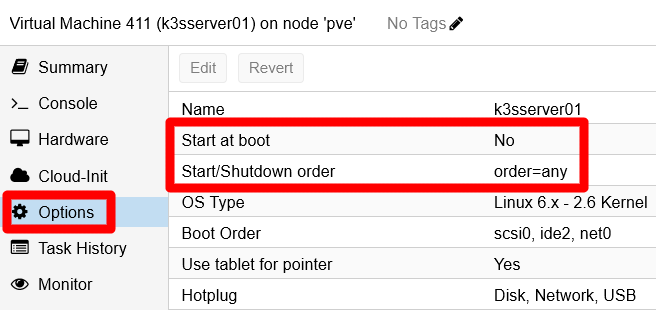
Start and shutdown options at VM Options page The two options highlighted above are the ones related to the automatic start and shutdown process managed by Proxmox VE.
Edit
Start at boot, which is composed only of one checkbox:
Start at boot option edit window Enable it and press
OK. Be aware that this action does not start the VM in that moment, it is only marking it to autostart at your Proxmox VE host’s boot time.Edit the
Start/Shutdown orderoption:
Start/Shutdown order option edit window This feature’s parameters are explained here:
Start/Shutdown order
This is an integer number that indicates in which order you want to start AND shutdown this VM. The ordering works as follows:At boot time, lower numbers start before higher numbers
A VM with order1will be booted up by Proxmox VE before another having a2or a higher value.At shutdown, higher numbers get shutdown before lower numbers
A VM with order2or higher will shutdown before another with any lower value.If two or more VMs have the same value on this field, they are ordered by VM ID using the same criteria as with the order value. So, if your K3s nodes have the same order, lets say
1, the VM with the lower ID will start before another with a higher one.VMs with the default value
anyin this field will always start after the ones that have a concrete number set here.The ordering behaviour of Proxmox VE for VMs that have this value set as
anyis not explicitly explained in the Proxmox VE official documentation. I think it can be safely assumed that it would be like as if they have the same order value, hence the VM ID can be expected to be the one used as ordering value.
Startup delay
Number of seconds that Proxmox VE must wait before it can boot up the next VM after this one. For instance, setting this field with a value of 30, it would make Proxmox VE wait 30 seconds till it can start the next VM in order. The default value here is 0 seconds (not explicitly detailed in the Proxmox VE documentation).Shutdown timeout
Number of seconds that Proxmox VE concedes to the VM to shutdown gracefully. If the VM has not shutdown by the time this countdown reaches 0, Proxmox VE will halt the VM forcefully. The default value is 180 seconds.
The
Start/Shutdown orderoption only works with VMs hosted in the same Proxmox VE nodeIf you have a Proxmox VE cluster of two or more nodes (instead of the standalone node setup used in this guide), this option would not be shared cluster wide. This feature just works in a node-per-node basis. To have cluster-wide ordering, you have to use the HA (High Availability) manager, which offers its own ways to do such things. Furthermore, VMs managed by HA ignore this
Start/Shutdown orderoption altogether.Set your server node with a
Start/Shutdown orderof 1, aStartup delayof 10 seconds, and leave theShutdown timeoutwith thedefaultvalue. PressOKand return to the VM’sOptionspage: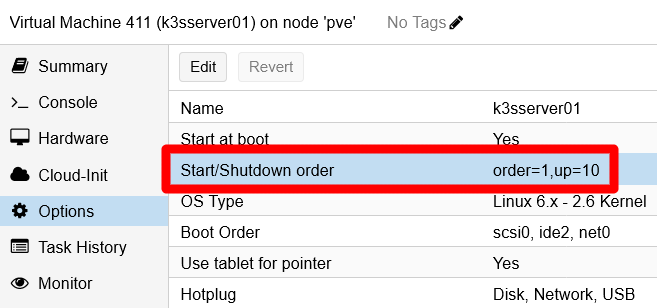
Start and shutdown options changed for k3sserver01 VM The startup delay, shown as
up=10in theStart/Shutdown orderoption, will make Proxmox VE wait 10 seconds before starting up any other VM that may come after this one. This is convenient to give some time to your server to fully start up before it can serve the agent nodes in your K3s cluster.In the other VMs, those acting as agent nodes of your cluster, you have to edit the same options but, this time, just give the same higher order number (like 2) to all of them:
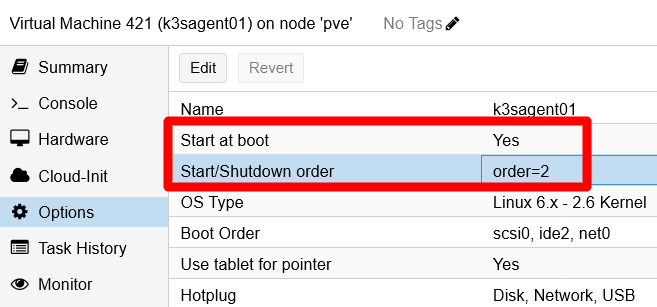
Start and shutdown options changed for k3sagent01 VM This way, the agent nodes will start in order of VM ID: first the VM 421, then the VM 422. And both of them will start after the delay of 10 seconds set in the
k3sserver01node, the VM 411.Reboot your Proxmox VE host, your only
pvenode in yourDatacenter, with theRebootbutton: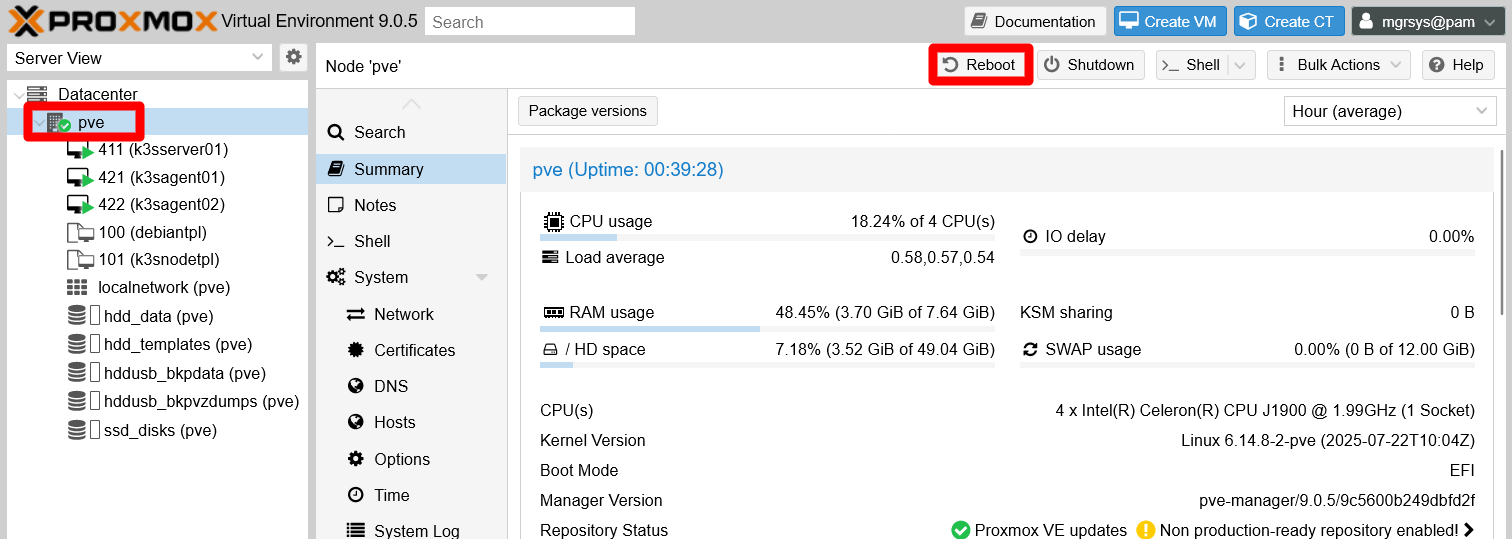
Reboot button of the PVE node After rebooting your Proxmox VE host, get back inside the web console and open the
Taskslog console at the bottom. There you can see listed when the VMs start and shutdown tasks started. Pay particular attention to the time difference between theVM 411 - Startand theVM 421-Starttasks. In this guide’s setup, it required more than the configured 10 seconds delay: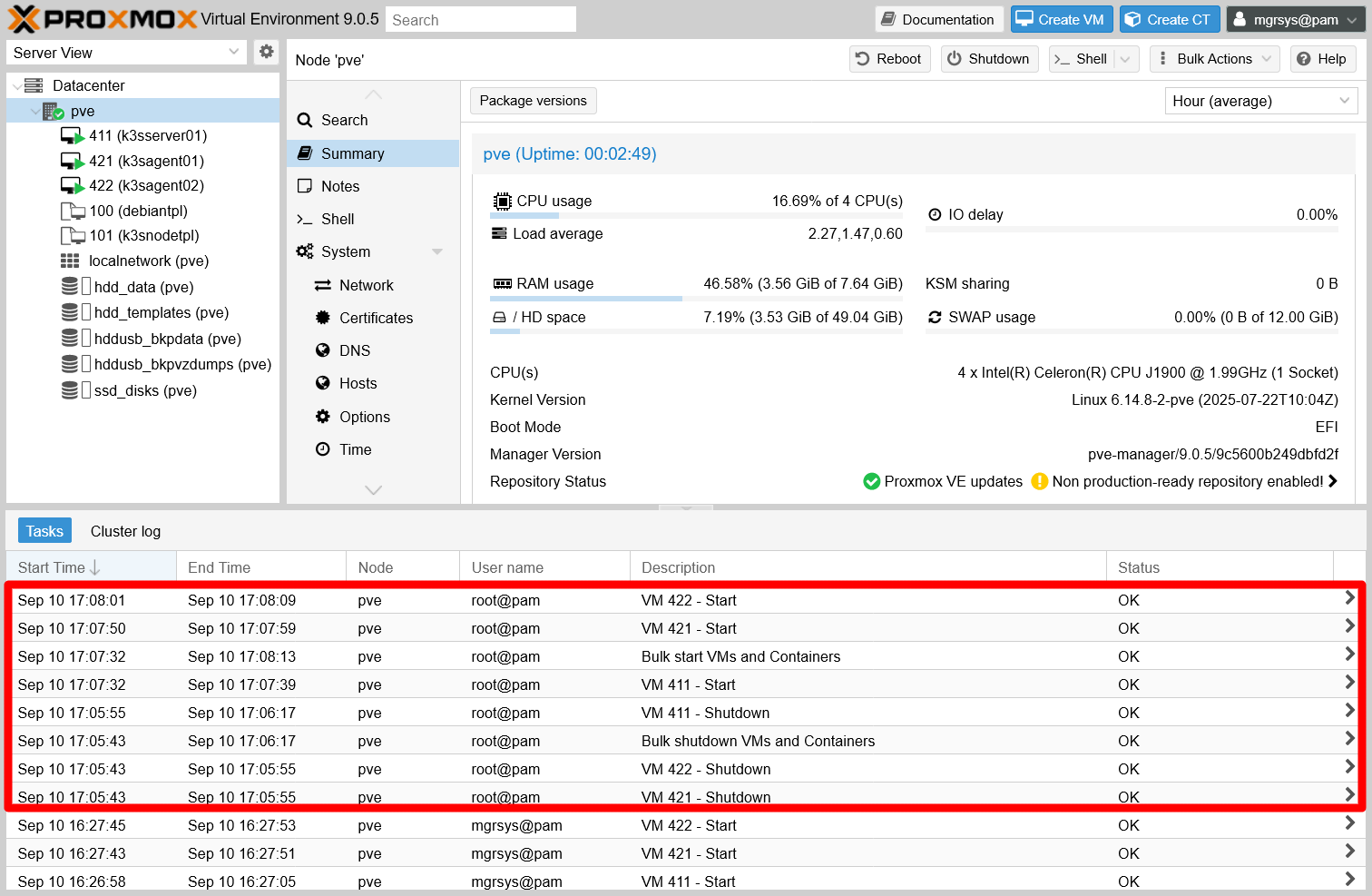
VM start and shutdown tasks at log console The logs
Bulk shutdown VMs and ContainersandBulk start VMs and Containerswill also appear representing the tasks executing those two processes.
Understanding the shutdown/reboot process of your Proxmox VE host with the K3s cluster running
When you press the Shutdown or the Reboot button on the Proxmox VE web console, what you are really doing is sending the corresponding signal to your host to execute those actions. This is the same as executing the reboot or shutdown commands on a shell in your host, or just pressing the power or reset button on the machine running Proxmox VE. Your VMs also shutdown because they have the Qemu guest agent running, through which they automatically receive the same shutdown signal.
On the other hand, you might be thinking now that the NUT configuration you have done in the VMs is kind of redundant. After all, when the UPS kicks in it already provokes a shutdown action of your whole Proxmox VE system, including the VMs. Still, consider that a shutdown provoked by the UPS is something unexpected, and having the NUT clients in your VMs allows you to apply more fine grained behaviours with shell scripts that can be launched within your VMs whenever some UPS-related event happens.
Warning about the Kubernetes graceful shutdown feature
This feature is still considered beta, so it could give you surprises. Read here an example from real experience with the older K3s release v1.33.4+k3s1 of K3s. After a graceful reboot, the pods appeared as Terminated although they were actually running. This is something you can detect with kubectl when checking the pods like in the output below:
$ kubectl get pods -n kube-system
NAME                                     READY   STATUS       RESTARTS      AGE
helm-install-traefik-crd--1-bjv95        0/1     Completed    0             30h
helm-install-traefik--1-zb5gb            0/1     Completed    1             30h
local-path-provisioner-64ffb68fd-zxm2v   1/1     Terminated   3 (17m ago)   30h
coredns-85cb69466-9l6ws                  1/1     Terminated   3 (21m ago)   30h
traefik-74dd4975f9-tdv42                 1/1     Terminated   3 (21m ago)   29h
metrics-server-5b45cf8dbb-nv477          1/1     Terminated   1 (21m ago)   28m
Notice the STATUS column. All the pods that appear Terminated there are in fact Running. How can you tell? The READY column informs you that thereis one out of one pods ready (1/1), but should be zero out of one if in fact no pod was running. Just be aware of this quirk, kind of unsurprising when using a beta feature.
Relevant system paths
Folders on the Proxmox VE host
/etc/pve/firewall
Files on the Proxmox VE host
/etc/pve/firewall/2101.fw/etc/pve/firewall/3111.fw/etc/pve/firewall/3112.fw/etc/pve/firewall/cluster.fw
Folders on the VMs/K3s nodes
/etc/etc/bash_completion.d/etc/logrotate.d/etc/network/etc/rancher/etc/rancher/k3s/etc/rancher/config.yaml.d/etc/rancher/node/etc/sysctl.d/etc/systemd/system/home/mgrsys/home/mgrsys/.ssh/var/lib/rancher/k3s/var/lib/rancher/k3s/agent/var/lib/rancher/k3s/agent/containerd/var/lib/rancher/k3s/data/var/lib/rancher/k3s/server/var/lib/rancher/k3s/server/manifests/var/lib/rancher/k3s/server/tls
Files on the VMs/K3s nodes
/etc/bash_completion.d/kubectl/etc/logrotate.d/k3s/etc/network/interfaces/etc/rancher/k3s/config.yaml/etc/rancher/k3s/k3s.yaml/etc/rancher/config.yaml.d/config.yaml/etc/rancher/node/password/etc/systemd/system/k3s.service/etc/systemd/system/k3s.service.env/home/mgrsys/.google_authenticator/home/mgrsys/.ssh/authorized_keys/home/mgrsys/.ssh/id_rsa/home/mgrsys/.ssh/id_rsa.pub/var/lib/rancher/k3s/agent/containerd/containerd.log/var/lib/rancher/k3s/server/token/var/lib/rancher/k3s/server/tls/server-ca.crt
References
K3s
Other K3s-related contents
- StackOverflow. Is there any way to bind K3s / flannel to another interface?
- Liquid Web. How to Install and Configure K3s on Ubuntu 18.04
- Publish0x. Home Server with k3s
- Reddit. K3s. Question: Problem setting up k3s in my VPS
- GitHub. k3s + Gitlab. Remote Access with kubectl
Embedded software in K3s
- Kubernetes
- CoreDNS
- Traefik
- Traefik on GitHub
- Kine
- SQLite
- Etcd
- Etcd K3s version on GitHub
- Containerd
- Containerd K3s version on GitHub
- Runc
- Flannel
- Metrics-server
- Helm-controller
- Local-path-provisioner
Kubernetes
Other Kubernetes-related contents
- DigitalOcean. How to Enable kubectl Autocompletion in Bash?
- StackOverflow. How to enable kubernetes commands autocomplete
Flannel
Other Flannel-related contents
- Henry Du Blog. K3S Supports Container Network Interface (CNI) and Flannel
- StackOverflow. why host-gw of flannel requires direct layer2 connectivity between hosts?
- DZone. Software Design and Architecture. Cloud Architecture. Configure Kubernetes Network With Flannel
- Gcore. Developers. Configure Kubernetes Network with Flannel
- GitHub. hustcat. flannel host-gw network
- TauCeti.blog. Kubernetes the not so hard way with Ansible - Harden the instances - (K8s v1.28)
YAML
Proxmox
Other Proxmox VE related contents
- ServerFault. How to apply proxmox firewall rules to VMs?
- Reddit. Proxmox. Shutdown VM’s and CT’s from Proxmox Shutdown Command?
- Bobcares. Fix Proxmox Can’t Stop VM Issue – Step-by-Step Solutions
Debian and Linux SysOps
Changing the Hostname
Network interfaces configuration
- tar.gz.ro. Linux World. Debian: add and configure VLAN
- LinuxConfig.org. How to setup a Static IP address on Debian Linux
- nixCraft. Tutorials. Ubuntu Linux. Howto: Ubuntu Linux convert DHCP network configuration to static IP configuration
- nixCraft. Howto. Debian Linux. Debian Linux Configure Network Interface Cards – IP address and Netmasks
- End user forums for VirtualBox. General. Using VirtualBox. For those wanting to play with VLANs
- Ask Ubuntu. How to setup and save vlans on ethernet
- Wikipedia. Reserved IP addresses. IPv4
Logrotate configuration
- Michael Kerrisk. man7.org. logrotate(8) — Linux manual page
- Tecmint. How to Setup and Manage Log Rotation Using Logrotate in Linux
- Osradar. How to Install and Configure logrotate on Linux