K3s node VM template setup
You need a more specialized VM template for building K3s nodes
At this point, you have a plain Debian VM template ready. You can use that template to build any virtualized server system you want but, to create VMs that work as K3s Kubernetes cluster nodes, further adjustments are necessary. Since those changes are required for any node of your future K3s cluster, it is more practical to have an specialized VM template that comes with all those adjustments already configured.
Reasons for a new VM template
Suppose you already have a new VM cloned from the Debian VM template created previously in this guide. The main changes you need to apply in that new VM so it suits better the role of a K3s node are listed next:
Disabling the swap volume
By default, Kubernetes does not allow the use of swap to its workloads mainly because of performance reasons. Moreover, you cannot configure how swap has to be used in a generic way. You must make an assessment of the needs and particularities of each workload that may require having swap available to safeguard their stability when they run out of memory.Also, mind that the workloads themselves only ask for memory, not swap. The use of swap is handled by Kubernetes itself, and it is a feature still being improved. Furthermore, the official Kubernetes documentation advises using an independent physical SSD drive exclusively for swapping on each node, and avoid using the swap that is usually enabled at the root filesystem of any Linux system.
Given the limitations and scope of the homelab this guide builds, it is better to deal with the swap issue in the “traditional” Kubernetes way: by completely disabling it in the VM.
Renaming the root VG
In the LVM storage structure of your Debian VM template, the name of the only VG present is based on your Debian VM template’s hostname. This is not a problem by itself, but could be misleading while doing some system maintenance tasks. Instead, you should change it to a more suitable name fitting for all your future K3s nodes.Preparing the second network card
The Debian VM template you have created in the previous chapters has two network cards, but only the principal NIC is active. The second one, connected to the isolatedvmbr1bridge, is currently disabled but you need to activate it. This way, the only thing left to adjust in this regard on each K3s node will be the IP address.Setting up sysctl parameters
By having a particular option enabled, K3s requires certainsysctlparameters to have concrete values. If they are not set up in such way, the K3s service refuses to run.
These aspects affect all the nodes in the K3s cluster. Then, the smart thing to do is to set them correctly in a VM which, in turn, will become the common template from which you can clone the final VMs that will run as nodes of your K3s cluster.
Creating a new VM based on the Debian VM template
This section covers the procedure of creating a new VM cloned from the Debian VM template you already have.
Full cloning of the Debian VM template
Since in this new VM you are going to modify its filesystem structure, start by fully cloning your Debian VM template:
Go to your
debiantpltemplate, then unfold theMoreoptions list. There you can find theCloneoption:
Clone option on template Click on
Cloneto see its corresponding window: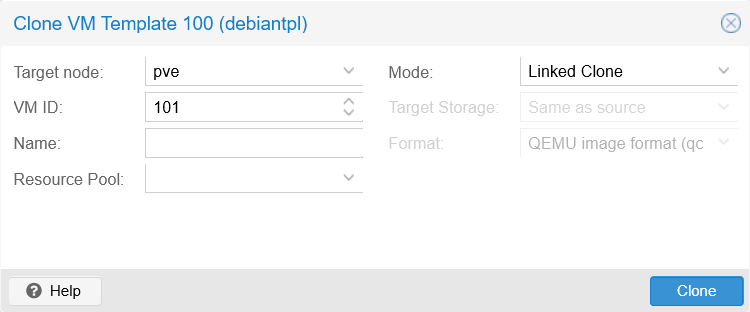
Clone window form The form parameters are explained next:
Target node
Which node in the Proxmox VE cluster you want to place your cloned VM in. In your case you only have one standalone node,pve.VM ID
The numerical ID that Proxmox VE uses to identify this VM. Notice how the form already assigns the next available number, in this case101.There is a lower limit for VM IDs
Proxmox VE does not allow IDs lower than
100.Name
This string must be a valid FQDN, likek3snodetpl.homelab.cloud.The official Proxmox VE documentation is misleading about this field
The official Proxmox VE documentation says that this name is
a free form text string you can use to describe the VM, which contradicts what the web console actually validates as correct.Resource Pool
For indicating to which pool this VM has to be a member of.Mode
This option offers two ways of cloning the new VM:Linked Clone
This creates a clone that still refers to the original VM, therefore is linked to it. This option can only be used with read-only VMs, or templates, since the linked clone uses the original VM’s volume to run, saving in its own image only the differences. Also, linked clones must be stored in the sameTarget Storagewhere the original VM’s storage is.VM templates with attached linked clones are not removable
Templates cannot be removed as long as they have linked clones attached to them.
Full Clone
Is a full copy of the original VM, so it is not linked to it at all. Also, this type allows to be put in a differentTarget Storageif required.
Target Storage
Here you can choose where you want to put the new VM, although you can choose only when making a full clone. Also, there are storage types that do not appear in this list, like directories.Format
Depending on the mode and target storage configured, this value changes to adapt to those other two parameters. It just indicates in which format is going the new VM’s volumes to be stored in the Proxmox VE system.
Fill the
Cloneform to create a newFull CloneVM as follows: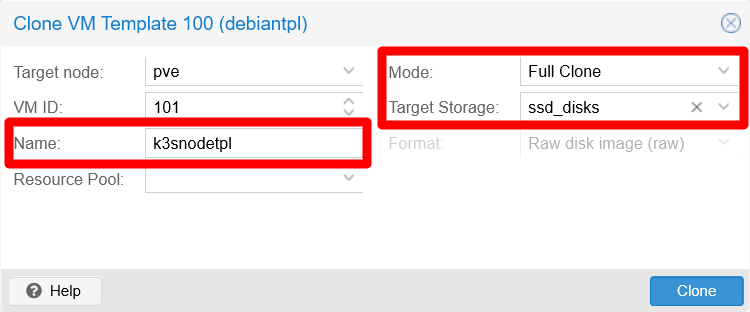
Clone window form filled for a full clone See in the snapshot how the name assigned to the full clone is
k3snodetpl, and that the target storage isssd_disks. Alternatively, the target storage could have been left with the defaultSame as sourcevalue since the template volume is also placed in that storage. For the sake of clarity, the field has been set explicitly tossd_disks.Click on
Clonewhen ready and the form will disappear. Pay attention to theTasksconsole at the bottom to see how the cloning process goes: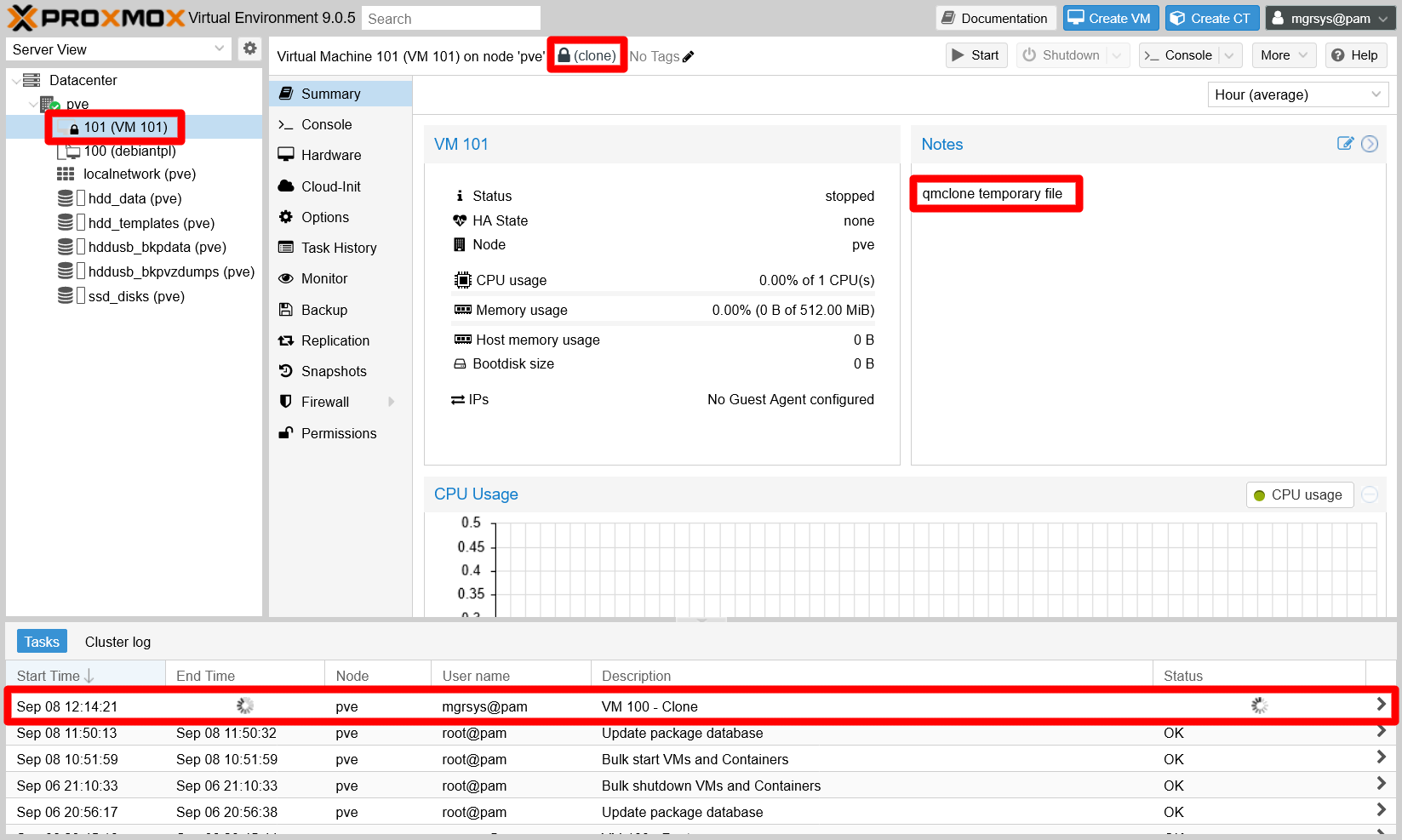
Full clone of template in progress See how the new
101VM appears with a lock icon in the tree at the left. Also, in itsSummaryview, you can see how Proxmox VE warns you that the VM is still being created with thecloneoperation, and even in theNotesyou can see a reference to aqmclone temporary file.When the
Taskslog reports the cloning task asOK, theSummaryview shows the VM unlocked and fully created: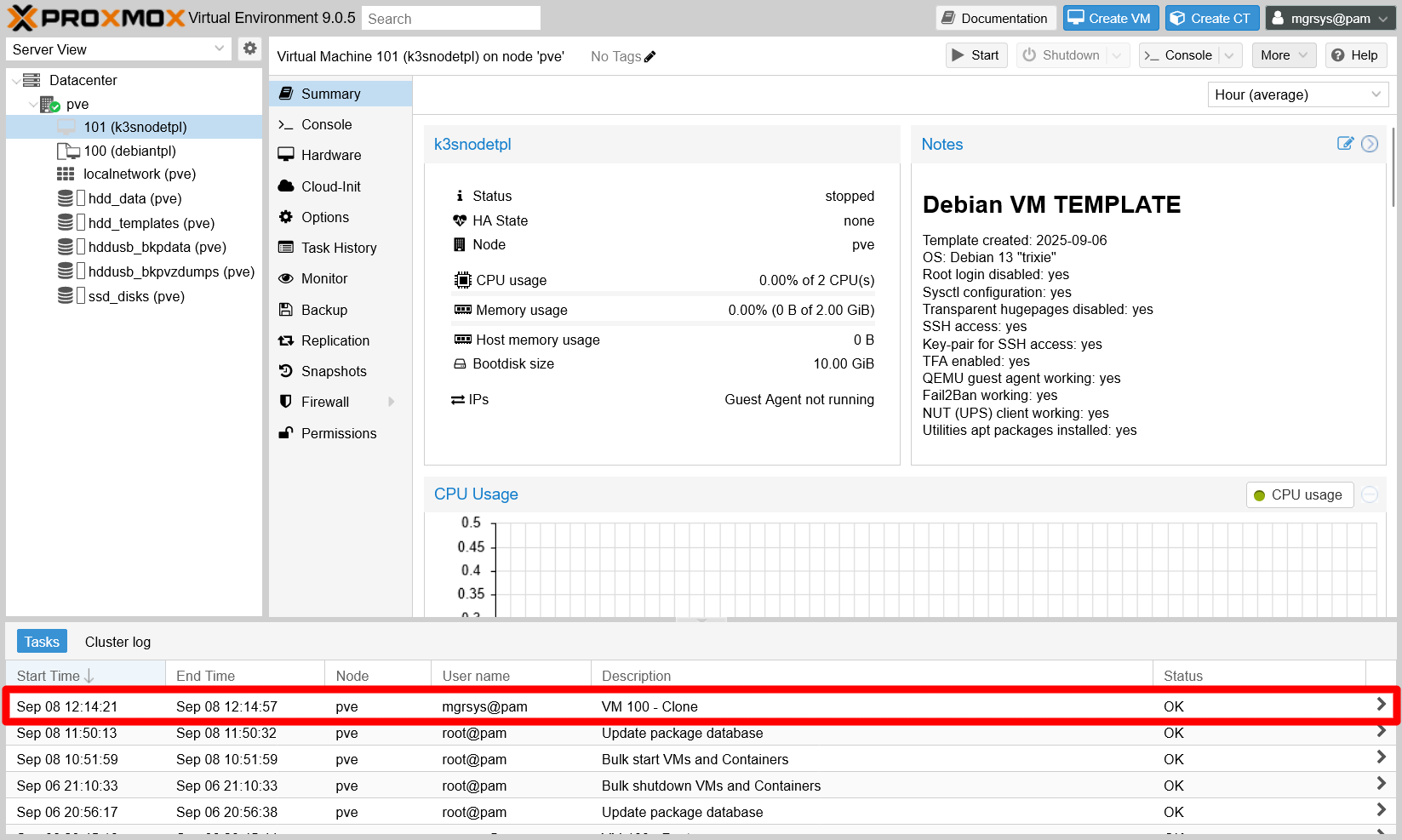
Full clone of template done See how all the details in the
Summaryview are the same as what the original Debian VM template had (like theNotesfor instance).
Setting an static IP for the main network device (net0)
Do not forget to set up a static IP for the main network device (the net0 one) of this VM in your router or gateway, ideally following some criteria. You can see the MACs, in the VM’s Hardware view, as the value of the virtio parameter on each network device attached to the VM:

Setting a proper hostname string
Since this new VM is a clone of the Debian VM template you prepared before, its hostname is the same one set in the template (debiantpl). It is better, for coherence and clarity, to set up a more proper hostname for this particular VM which, in this case, will be called k3snodetpl. Then, to change the hostname string on the VM, do the following:
Start the VM, then login as
mgrsys(with the same credentials used in the Debian VM template). To change the hostname value (debiantplin this case) in the/etc/hostnamefile, better use thehostnamectlcommand:$ sudo hostnamectl set-hostname k3snodetplIf you edit the
/etc/hostnamefile directly instead, you have to reboot the VM to make it load the new hostname.Edit the
/etc/hostsfile, where you must replace the old hostname (again,debiantpl) with the new one. The hostname should only appear in the127.0.1.1line:127.0.1.1 k3snodetpl.homelab.cloud k3snodetpl
To see all these changes applied, exit your current session and log back in. You should see that now the new hostname shows up in your shell prompt.
Disabling the swap volume
Follow the next steps to remove the swap completely from your VM:
First disable the currently active swap memory:
$ sudo swapoff -aThe
swapoffcommand disables the swap only temporarily, the system will reactivate it after a reboot. To verify that the swap is actually disabled, check the/proc/swapsfile.$ cat /proc/swaps Filename Type Size Used PriorityIf there are no filenames listed in the output, that means the swap is disabled (although just till next reboot).
Make a backup of the
/etc/fstabfile:$ sudo cp /etc/fstab /etc/fstab.origThen edit the
fstabfile and comment out, with a ‘#’ character, the line that begins with the/dev/mapper/debiantpl--vg-swap_1string.... #/dev/mapper/debiantpl--vg-swap_1 none swap sw 0 0 ...Edit the
/etc/initramfs-tools/conf.d/resumefile, commenting out with a ‘#’ character the line related to theswap_1volume:#RESUME=/dev/mapper/debiantpl--vg-swap_1Notice that you have not been told to make a backup of this
resumefileThis is because the
update-initramfscommand would also read the backup file regardless of it having a different name, and that would lead to an error.Of course, you could consider making the backup in some other folder, but that forces you to employ a particular (and probably forgettable) backup procedure only for this specific file. To sum it up, just be extra careful when modifying this particular file.
Check with
lvsthe name of the swap LVM volume:$ sudo lvs LV VG Attr LSize Pool Origin Data% Meta% Move Log Cpy%Sync Convert root debiantpl-vg -wi-ao---- <8.69g swap_1 debiantpl-vg -wi-a----- 544.00mIn the output above, it is the
swap_1light volume within thedebiantpl-vgvolume group. Uselvremoveon it to free that space:$ sudo lvremove debiantpl-vg/swap_1 Do you really want to remove active logical volume debiantpl-vg/swap_1? [y/n]: y Logical volume "swap_1" successfully removed.Then, check again with
lvsthat the swap partition is gone:$ sudo lvs LV VG Attr LSize Pool Origin Data% Meta% Move Log Cpy%Sync Convert root debiantpl-vg -wi-ao---- <8.69gAlso, see with
vgsthat thedebiantpl-vgVG now has some free space (VFreecolumn):$ sudo vgs VG #PV #LV #SN Attr VSize VFree debiantpl-vg 1 1 0 wz--n- 9.25g 580.00mTo expand the
rootLV into the newly freed space, executelvextendlike this:$ sudo lvextend -r -l +100%FREE debiantpl-vg/rootThe
lvextendoptions mean the following:-r
Calls theresize2fscommand right after resizing the LV, to also extend the filesystem in the LV over the added space.-l +100%FREE
Indicates that the LV has to be extended over the 100% of free space available in the VG.
Check with
lvsthe new size of therootLV:$ sudo lvs LV VG Attr LSize Pool Origin Data% Meta% Move Log Cpy%Sync Convert root debiantpl-vg -wi-ao---- 9.25gAlso verify that there is no free space left in the
debiantpl-vgVG:$ sudo vgs VG #PV #LV #SN Attr VSize VFree debiantpl-vg 1 1 0 wz--n- 9.25g 0The final touch is to modify the
swappinesssysctl parameter, which you already left set with a low value in the/etc/sysctl.d/85_memory_optimizations.conffile. As usual, first make a backup of the file:$ sudo cp /etc/sysctl.d/85_memory_optimizations.conf /etc/sysctl.d/85_memory_optimizations.conf.bkpThen, edit the
/etc/sysctl.d/85_memory_optimizations.conffile, but just modify thevm.swappinessvalue, setting it to0:... vm.swappiness = 0 ...Save the changes, refresh the sysctl configuration and reboot:
$ sudo sysctl -p /etc/sysctl.d/85_memory_optimizations.conf
$ sudo reboot
Changing the VG’s name
The VG you have in your VM’s LVM structure is the same one defined in your Debian VM template, meaning that it was made correlative to the hostname of the original system. This is not an issue per se, but it is better to give the VG’s name a string that correlates with the VM. Since this VM is going to be the template for all the VMs you will use as K3s nodes, lets give the VG the name k3snode-vg. It is generic but still more meaningful than the debiantpl-vg string for all the K3s nodes you have to create later.
This procedure affects your VM’s filesystem
Although this is not a difficult procedure, follow all the next steps carefully, or you may end messing up your VM’s filesystem!
Using the
vgrenamecommand, rename the VG with the suggested namek3snode-vg:$ sudo vgrename debiantpl-vg k3snode-vg Volume group "debiantpl-vg" successfully renamed to "k3snode-vg"Verify with
vgsthat the renaming has been done:$ sudo vgs VG #PV #LV #SN Attr VSize VFree k3snode-vg 1 1 0 wz--n- 9.25g 0You must edit the
/etc/fstabfile, replacing only thedebiantplstring withk3snodein the line related to therootvolume and, if you like, also in the commentedswap_1line to keep it coherent:... /dev/mapper/k3snode--vg-root / ext4 errors=remount-ro 0 1 ... #/dev/mapper/k3snode--vg-swap_1 none swap sw 0 0 ...Take care of NOT reducing the double dash (’
--’) to just one (-)Only replace the
debiantplpart with the newk3snodestring.Next, you must find and change all the
debiantplstrings present in the/boot/grub/grub.cfgfile. But before that, do not forget to make a backup ofgrub.cfg:$ sudo cp /boot/grub/grub.cfg /boot/grub/grub.cfg.origEdit the
/boot/grub/grub.cfgfile (mind you, is read-only even for therootuser) to change all thedebiantplname with the newk3snodeone in lines that contain the stringroot=/dev/mapper/debiantpl--vg-root. To reduce the chance of errors when editing this critical system file, you can do the following:Check first that
debiantpl--vg-rootONLY brings up the lines withroot=/dev/mapper/debiantpl--vg-root:$ sudo cat /boot/grub/grub.cfg | grep debiantpl--vg-rootRun it in another shell or dump the output in a temporal file, but keep the lines for later reference.
Apply the required modifications with
sed:$ sudo sed -i 's/debiantpl--vg-root/k3snode--vg-root/g' /boot/grub/grub.cfgIf
sedexecutes alright, it will not return any output.Verify if all the lines that had the
debiantpl--vg-rootstring have it now replaced with thek3snode--vg-rootone:$ sudo cat /boot/grub/grub.cfg | grep k3snode--vg-rootCompare this command’s output with the one you got first. You should see the same lines as before, but with the string changed.
Update the initramfs with the
update-initramfscommand:$ sudo update-initramfs -u -k allReboot the system to load the changes:
$ sudo rebootExecute the
dpkg-reconfigurecommand to regenerate the grub in your VM. To get the correct image to reconfigure, just autocomplete the command after typinglinux-imageand then type the one that corresponds with the kernel currently running in your VM:$ sudo dpkg-reconfigure linux-image-6.12.41+deb13-amd64The current Kernel is informed in the shell login
Right after you log in the VM, the very first line that Debian prints already informs you of its current Kernel among other details. For instance:
Linux k3snodetpl 6.12.41+deb13-amd64 #1 SMP PREEMPT_DYNAMIC Debian 6.12.41-1 (2025-08-12) x86_64The Kernel version string you must pay attention to comes after the hostname string (
k3snodetpl).Reboot the system again to apply the changes:
$ sudo reboot
Setting up the second network card
The VM has a second network card that is yet to be configured and enabled, and which is already set to communicate through the isolated vmbr1 bridge of your Proxmox VE’s virtual network. To set up this NIC properly, do the following:
Obtain the name of the second network interface with the following
ipcommand:$ ip a 1: lo: <LOOPBACK,UP,LOWER_UP> mtu 65536 qdisc noqueue state UNKNOWN group default qlen 1000 link/loopback 00:00:00:00:00:00 brd 00:00:00:00:00:00 inet 127.0.0.1/8 scope host lo valid_lft forever preferred_lft forever 2: ens18: <BROADCAST,MULTICAST,UP,LOWER_UP> mtu 1500 qdisc fq state UP group default qlen 1000 link/ether bc:24:11:2c:d0:e9 brd ff:ff:ff:ff:ff:ff altname enp0s18 altname enxbc24112cd0e9 inet 10.4.0.2/8 brd 10.255.255.255 scope global dynamic noprefixroute ens18 valid_lft 86162sec preferred_lft 75362sec 3: ens19: <BROADCAST,MULTICAST> mtu 1500 qdisc noop state DOWN group default qlen 1000 link/ether bc:24:11:eb:73:5c brd ff:ff:ff:ff:ff:ff altname enp0s19 altname enxbc2411eb735cIn the output above, the second network device is the one named
ens19, and has thestate DOWNand no IP assigned (noinetline).Configure the
ens19NIC in the/etc/network/interfacesfile. As usual, first make a backup of the file:$ sudo cp /etc/network/interfaces /etc/network/interfaces.origThen, append the following configuration to the
interfacesfile:# The secondary network interface allow-hotplug ens19 iface ens19 inet static address 172.31.254.1 netmask 255.240.0.0Notice that I have set an IP address within the valid private network range I decided to use (
172.16.0.0to172.31.255.255, or172.16.0.0/12with netmask255.240.0.0) for the secondary NICs of the K3s nodes.Do not just blindly copy the configuration above!
Ensure you are putting the correct name of the network interface as it appears in your VM when you copy the configuration above!
You can enable the interface with the following
ifupcommand:$ sudo ifup ens19The command does not return any output.
Use the
ipcommand to check out your new network setup:$ ip a 1: lo: <LOOPBACK,UP,LOWER_UP> mtu 65536 qdisc noqueue state UNKNOWN group default qlen 1000 link/loopback 00:00:00:00:00:00 brd 00:00:00:00:00:00 inet 127.0.0.1/8 scope host lo valid_lft forever preferred_lft forever 2: ens18: <BROADCAST,MULTICAST,UP,LOWER_UP> mtu 1500 qdisc fq state UP group default qlen 1000 link/ether bc:24:11:2c:d0:e9 brd ff:ff:ff:ff:ff:ff altname enp0s18 altname enxbc24112cd0e9 inet 10.4.0.2/8 brd 10.255.255.255 scope global dynamic noprefixroute ens18 valid_lft 84905sec preferred_lft 74105sec 3: ens19: <BROADCAST,MULTICAST,UP,LOWER_UP> mtu 1500 qdisc fq state UP group default qlen 1000 link/ether bc:24:11:eb:73:5c brd ff:ff:ff:ff:ff:ff altname enp0s19 altname enxbc2411eb735c inet 172.31.254.1/12 brd 172.31.255.255 scope global ens19 valid_lft forever preferred_lft foreverYour
ens19interface is now active with a static IP address. You can also see that, thanks to the QEMU agent, the second IP appears immediately after applying the change in theStatusblock of the VM’sSummaryview, in the Proxmox VE web console: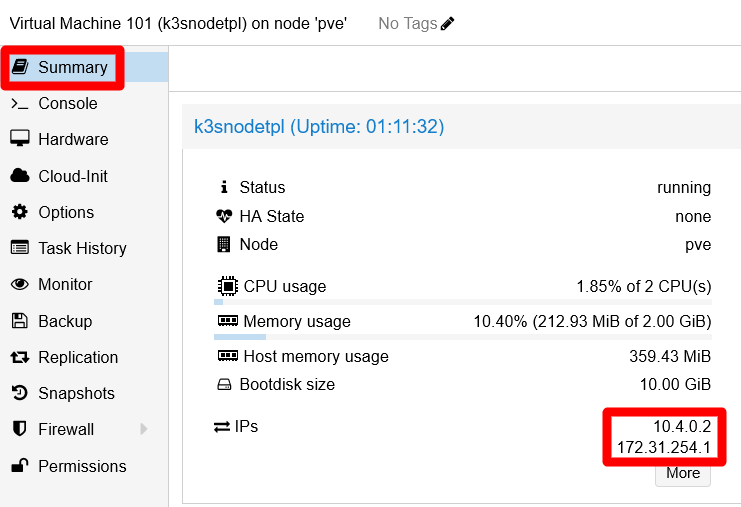
K3s node VM's IPs highlighted in Summary view
Thanks to this configuration, now you have an network interface enabled and connected to an isolated bridge. This helps to improve somewhat the hardening of the internal network of the K3s cluster you will build in the upcoming chapters.
Setting up sysctl kernel parameters for K3s nodes
In the installation of the K3s cluster, which you will perform in the next chapter, you will have to use the protect-kernel-defaults option. With it enabled, you must set certain sysctl parameters to concrete values or the kubelet process executed by the K3s service will not run:
Create a new empty file in the path
/etc/sysctl.d/90_k3s_kubelet_demands.conf:$ sudo touch /etc/sysctl.d/90_k3s_kubelet_demands.confEdit this
90_k3s_kubelet_demands.conffile, adding the following lines:## K3s kubelet demands # Values demanded by the kubelet process when K3s is run with the 'protect-kernel-defaults' option enabled. # This enables or disables panic on out-of-memory feature. # https://sysctl-explorer.net/vm/panic_on_oom/ vm.panic_on_oom=0 # This value contains a flag that enables memory overcommitment. # https://sysctl-explorer.net/vm/overcommit_memory/ # Already enabled with the same value in the 85_memory_optimizations.conf file. #vm.overcommit_memory=1 # Represents the number of seconds the kernel waits before rebooting on a panic. # https://sysctl-explorer.net/kernel/panic/ kernel.panic = 10 # Controls the kernel's behavior when an oops or BUG is encountered. # https://sysctl-explorer.net/kernel/panic_on_oops/ kernel.panic_on_oops = 1Set here the
vm.overcommit_memoryflag if you have not done it yetIf you skipped the memory optimizations step of the chapter G021, you need to adjust the
vm.overcommit_memoryflag here!Otherwise, the K3s service you will set up later in the next chapter will not be able to start.
Save the
90_k3s_kubelet_demands.conffile and apply the changes, then reboot the VM:$ sudo sysctl -p /etc/sysctl.d/90_k3s_kubelet_demands.conf $ sudo reboot
Turning the VM into a VM template
With the VM tuned properly, you can turn it into a VM template. Just repeat the procedure to transform a VM into a template already covered in this guide, remembering that the Convert to template action is available as an option in the More list of any VM:
You cannot turn a VM currently in use into a template
Before executing the conversion, first shut down the VM you are converting.

Moreover, update the Notes text of this VM with any new or extra detail you might think relevant, and do not forget to make a full backup of the template. This backup is something you also did after creating the first VM template, and the next snapshot is a reminder of where you can find the VM backup feature:
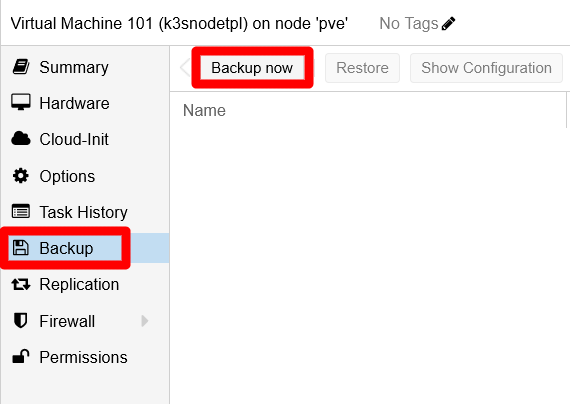
Remember that restoring backups can free some space due to the restoration process detecting and ignoring the empty blocks within the image. Therefore, consider restoring the VM template immediately after doing the backup to recover some storage space. This action is also explained in the VM templating procedure.
Relevant system paths
Folders on the VM
/boot/grub/etc/etc/initramfs-tools/conf.d/etc/network/etc/sysctl.d/proc
Files on the VM
/boot/grub/grub.cfg/boot/grub/grub.cfg.orig/etc/fstab/etc/fstab.orig/etc/hostname/etc/hosts/etc/initramfs-tools/conf.d/resume/etc/network/interfaces/etc/network/interfaces.orig/etc/sysctl.d/85_memory_optimizations.conf/etc/sysctl.d/85_memory_optimizations.conf.bkp/etc/sysctl.d/90_k3s_kubelet_demands.conf/proc/swaps
References
Kubernetes
Other contents about swap usage by Kubernetes
K3s
Debian and Linux SysOps
Changing the Hostname
Disabling the swap
- Discuss. Kubernetes. Community Forums. Swap Off - why is it necessary?
- StackExchange. Unix & Linux. How to safely turn off swap permanently and reclaim the space? (on Debian Jessie)
- Brandon Willmott. Permanently Disable Swap for Kubernetes Cluster
Changing the VG’s name of a root LV
- ORAganism. Rename LVM Volume Group Holding Root File System Volume
- StackExchange. Unix & Linux. How to fix “volume group old-vg-name not found” at boot after renaming it?
- Raveland Blog. Rename a Volume Group (LVM / Debian)
- LinuxQuestions.org. Unable to change Volume Group name
Network interfaces configuration
- Debian. Wiki. Network Configuration
- LinuxConfig.org. How to setup a Static IP address on Debian Linux
- nixCraft. Tutorials. Ubuntu Linux. Howto: Ubuntu Linux convert DHCP network configuration to static IP configuration
- nixCraft. Howto. Debian Linux. Debian Linux Configure Network Interface Cards – IP address and Netmasks
- libvirt Wiki. Net.bridge.bridge-nf-call and sysctl.conf