Setting up a kubectl client for remote access
Never handle your Kubernetes cluster directly from server nodes
To manage a K3s Kubernetes cluster through kubectl is recommended not to do it directly from the server nodes, but to connect remotely from another client computer. This way, you do not have to copy your .yaml files describing your deployments or configurations directly on any of your server nodes.
Description of the kubectl client system
This chapter assumes that you want to access your K3s cluster remotely from a Debian-based Linux client system. For convenience, this chapter uses the curl command which may not come installed by default in your client system. In a Debian-based system, you can install the curl package as follows:
$ sudo apt install -y curlGetting the right version of kubectl
The first thing you must know is the version of the K3s cluster you are going to connect to. This is important because kubectl is guaranteed to be compatible only with its own correlative version or those that are at one minor version of difference from it.
For instance, at the time of writing this chapter, the latest kubectl minor version is 1.34, meaning that it has guaranteed compatibility with the 1.33, 1.34 and 1.35 versions of the Kubernetes api. K3s follows the same versioning system, since it is “just” a particular distribution of Kubernetes.
Open a shell to your k3sserver01 server node and check your K3s software version with this k3s command:
$ sudo k3s --version
k3s version v1.33.4+k3s1 (148243c4)
go version go1.24.5
Look at the k3s version line and read the v1.33.4 part. This K3s server node is running Kubernetes version 1.33.4, and you can connect to it with the latest 1.34 version you can get of the kubectl command.
To know which is the latest stable release of Kubernetes, check this stable.txt file online. It just contains a version string which, at the time of writing this, is v1.34.1.
Installing kubectl on your client system
Your client system has to be prepared before you can install the kubectl command in it. First of all, do not install kubectl with a software manager like apt or yum. This is to avoid that a regular update changes your version of the command to an uncompatible one with your cluster, or not being able to upgrade kubectl because some reason of other. Better make a manual, non system-wide installation of kubectl in your client computer.
Said that, proceed with this manual installation of kubectl:
Get into your Linux client system as your preferred user and open a shell terminal in it. Then, remaining in the $HOME directory of your user, execute the following
mkdircommand:$ mkdir -p $HOME/bin $HOME/.kubeThese new folders are created for specific reasons:
$HOME/bin
Folder where you have to put thekubectlcommand to make it available only for your user. In some Linux systems like Debian, this directory is already specified in the user’s$PATH, but must be explicitly created.$HOME/.kube
This folder is where thekubectlcommand looks by default for the configuration file to connect to the Kubernetes cluster.
Download the
kubectlcommand in your$HOME/bin/kubectl-binfolder withcurlas follows:$ curl -L "https://dl.k8s.io/release/$(curl -L -s https://dl.k8s.io/release/stable.txt)/bin/linux/amd64/kubectl" -o $HOME/bin/kubectlCheck with
lsthe file you have just downloaded:$ ls bin kubectlAdjust the
kubectlfile permissions to make your current user the only one who can execute it:$ chmod 700 $HOME/bin/kubectl
At this point, DO NOT execute the kubectl command yet! You still need to get the configuration for connecting with your K3s cluster, so keep on reading this chapter.
Getting the configuration for accessing the K3s cluster
The configuration file you need is inside the server node of your K3s cluster:
Get into your K3s cluster’s server node, then open the
/etc/rancher/k3s/k3s.yamlfile in it. It should look like this:apiVersion: v1 clusters: - cluster: certificate-authority-data: LS0tLS1CRUdJTiBDRVJUSUZJQ0FURS0tLS0tCk1JSUJlRENDQVIyZ0F3SUJBZ0lCQURBS0JnZ3Foa2pPUFFRREFqQWpNU0V3SHdZRFZRUUREQmhyTTNNdGMyVnkKZG1WeUxXTmhRREUyTXpFMk9UZzNOamt3SGhjTk1qRXdPVEUxTURrek9USTVXaGNOTXpFd09URXpNRGt6T1RJNQpXakFqTVNFd0h3WURWUVFEREJock0zTXRjMlZ5ZG1WeUxXTmhRREUyTXpFMk9UZzNOamt3V1RBVEJnY3Foa2pPClBRSUJCZ2dxaGtqT1BRTUJCd05DQUFSZXNVc2ZwMzllVHZURkVYbE5xaDlNZUkraStuSTRDdzgrWkZZLzUyVDIKWVJkRkpQQy85TjlDRVpXVUpRYzFKeXdOOE00dGlLNDlPV3hOdE10aWdaUElvMEl3UURBT0JnTlZIUThCQWY4RQpCQU1DQXFRd0R3WURWUjBUQVFIL0JBVXdBd0VCL3pBZEJnTlZIUTRFRmdRVTYzZDVVTFUvRXNkRHZnQ1ZVMjc3CkplS1hzam93Q2dZSUtvWkl6ajBFQXdJRFNRQXdSZ0loQU5WUERDZ3k1MjdacGRMOWs5SVNpcnlIc2xVY21jK2YKcCtFeGxVcW9HZVhTQWlFQXFrb1c3RHpOR3dVVnNQTTlsWjlucm9wOXdwbjR4Ny9wczZZRUhYUDg1djQ9Ci0tLS0tRU5EIENFUlRJRklDQVRFLS0tLS0K server: https://0.0.0.0:6443 name: default contexts: - context: cluster: default user: default name: default current-context: default kind: Config preferences: {} users: - name: default user: client-certificate-data: LS0tLS1CRUdJTiBDRVJUSUZJQ0FURS0tLS0tCk1JSUJrRENDQVRlZ0F3SUJBZ0lJWW9QcXlYOVJtSFF3Q2dZSUtvWkl6ajBFQXdJd0l6RWhNQjhHQTFVRUF3d1kKYXpOekxXTnNhV1Z1ZEMxallVQXhOak14TmprNE56WTVNQjRYRFRJeE1Ea3hOVEE1TXpreU9Wb1hEVEl5TURreApOVEE1TXpreU9Wb3dNREVYTUJVR0ExVUVDaE1PYzNsemRHVnRPbTFoYzNSbGNuTXhGVEFUQmdOVkJBTVRESE41CmMzUmxiVHBoWkcxcGJqQlpNQk1HQnlxR1NNNDlBZ0VHQ0NxR1NNNDlBd0VIQTBJQUJOcG53a0Y4ZFdmWEU5ZW4KNmd0TWt5Z0YyTDVWdUJCZERCVk9aaWVCbG1IcHdHZlZ4SzBpeHdYelplQkxKZmZLR2twTG9GQXc5SWZSNmdhQgpEc2xGR2JtalNEQkdNQTRHQTFVZER3RUIvd1FFQXdJRm9EQVRCZ05WSFNVRUREQUtCZ2dyQmdFRkJRY0RBakFmCkJnTlZIU01FR0RBV2dCVG5SazNaN0RmdGhML255QnE1WUZyaXVBenpnREFLQmdncWhrak9QUVFEQWdOSEFEQkUKQWlCOXM3THJJT3RLRTNYZitaMVBmWG1QSTFJSWREamVjcHB6U0RwRE04Q1pNd0lnTFpsU3ozTFhNeURnZ2EwMgpDME4rRVk2OGwvRm1Od08vSGU2Wk90OCtMRkE9Ci0tLS0tRU5EIENFUlRJRklDQVRFLS0tLS0KLS0tLS1CRUdJTiBDRVJUSUZJQ0FURS0tLS0tCk1JSUJlRENDQVIyZ0F3SUJBZ0lCQURBS0JnZ3Foa2pPUFFRREFqQWpNU0V3SHdZRFZRUUREQmhyTTNNdFkyeHAKWlc1MExXTmhRREUyTXpFMk9UZzNOamt3SGhjTk1qRXdPVEUxTURrek9USTVXaGNOTXpFd09URXpNRGt6T1RJNQpXakFqTVNFd0h3WURWUVFEREJock0zTXRZMnhwWlc1MExXTmhRREUyTXpFMk9UZzNOamt3V1RBVEJnY3Foa2pPClBRSUJCZ2dxaGtqT1BRTUJCd05DQUFUUytJNk0ycEk3VllvRGxKUkdXTXZXSUZ4SXU4RUlCTFhpK1RZQVpyM3cKNFY1S052aUtoajBwWFdwZG8xWnJnNmpITmJHUzFINjZpUVdZMTZwWk96VnhvMEl3UURBT0JnTlZIUThCQWY4RQpCQU1DQXFRd0R3WURWUjBUQVFIL0JBVXdBd0VCL3pBZEJnTlZIUTRFRmdRVTUwWk4yZXczN1lTLzU4Z2F1V0JhCjRyZ004NEF3Q2dZSUtvWkl6ajBFQXdJRFNRQXdSZ0loQUpXMCtrN1lXUHJhamV2dGtzMmlHQjMyTG5tS2ZCcGMKbHhXbVBvOEVIeDdpQWlFQXQ3L1hIbVBNNlJzNDBsUUREZGEwTUpINmJ2bGl0MnVLNGpoMHVxbGNqZUU9Ci0tLS0tRU5EIENFUlRJRklDQVRFLS0tLS0K client-key-data: LS0tLS1CRUdJTiBFQyBQUklWQVRFIEtFWS0tLS0tCk1IY0NBUUVFSUpCTkxJK0ZtNFNqZUlqUFBiSnFNRWlDWmtuU1dJL0JOYnNWWVM1VkhydTZvQW9HQ0NxR1NNNDkKQXdFSG9VUURRZ0FFMm1mQ1FYeDFaOWNUMTZmcUMweVRLQVhZdmxXNEVGME1GVTVtSjRHV1llbkFaOVhFclNMSApCZk5sNEVzbDk4b2FTa3VnVUREMGg5SHFCb0VPeVVVWnVRPT0KLS0tLS1FTkQgRUMgUFJJVkFURSBLRVktLS0tLQo=Copy the whole
k3s.yamlfile into your user’s$HOME/.kubefolder within your client system, but renamed asconfig:$ mv $HOME/.kube/k3s.yaml $HOME/.kube/configThen adjust the permissions and ownership of the
configfile as follows.$ chmod 640 $HOME/.kube/config $ chown youruser:yourusergroup $HOME/.kube/configAlternatively, you could just create an empty
configfile, then paste the contents of thek3s.yamlfile in it:$ touch $HOME/.kube/config ; chmod 640 $HOME/.kube/config
Edit the
configfile and edit theserver:line present there. You have to replace the URL with the external IP and port of the K3s server node from which you got the configuration file. For this guide, it has to behttps://10.4.1.1:6443which corresponds to thek3sserver01node created previously to run the K3s cluster:... server: https://10.4.1.1:6443 ...Save the change.
Opening the 6443 port in the K3s server node
This is the moment for opening the 6443 port on the external IP of your K3s server node:
Login into your Proxmox VE web console, then browse to the
Datacenter > Firewall > Security Grouppage. Add to thek3s_srvrs_net0_insecurity group the following rule:- Type
in, ActionACCEPT, Protocoltcp, Sourcelocal_network_ips, Dest. port6443, CommentK3s API server port open externally for LAN kubectl clients.
The
local_network_ipssource is an IP set you created previously. This allows you connect as akubectlclient from any IP in your local network, something very convenient when your router uses a dynamic IP assignment for your devices (which is the most common setup in household LANs).The security group should look like this:
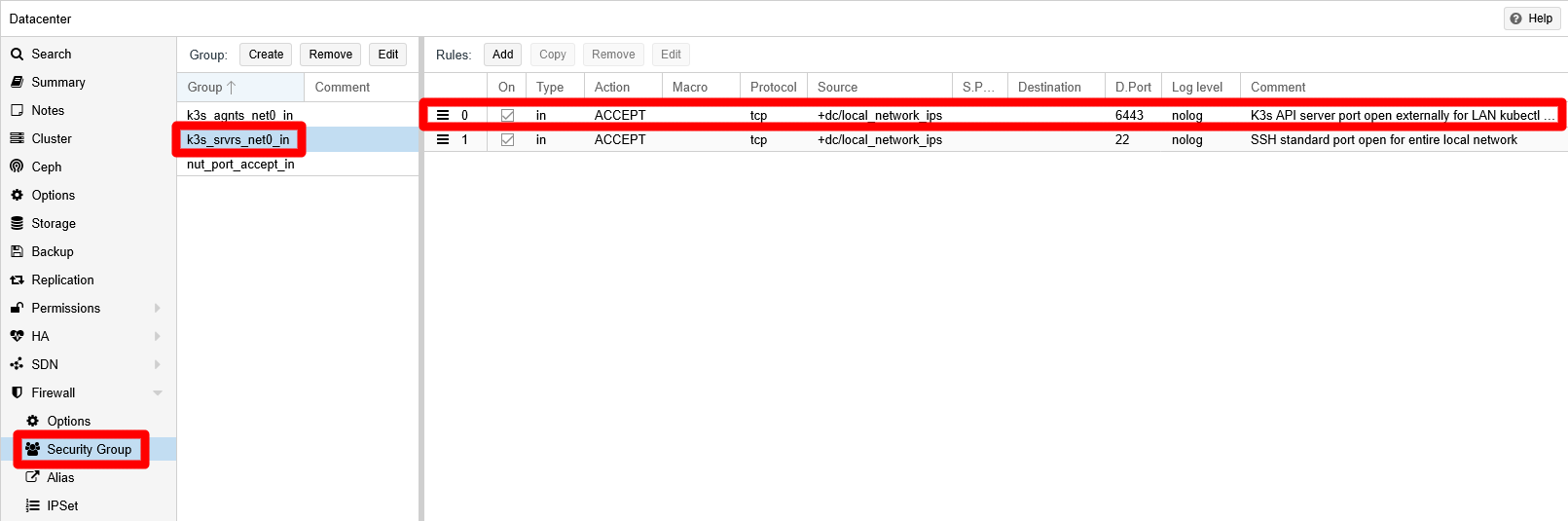
Rule added to security group Consider a more restrictive access to the
6443port by using static IPs in your local networkIf you only want a specific set of devices to be able to act as
kubectlclients, you will have to assign them static IPs in your LAN. Then, in your Proxmox VE system you should make an alias for each of those static IPs and put those alias all in the same IP set. Then, set that IP set as the source of the rule you have stablished in this step.- Type
To verify that you can connect to the cluster, try the
kubectl cluster-infocommand from your client:$ kubectl cluster-info Kubernetes control plane is running at https://10.4.1.1:6443 CoreDNS is running at https://10.4.1.1:6443/api/v1/namespaces/kube-system/services/kube-dns:dns/proxy To further debug and diagnose cluster problems, use 'kubectl cluster-info dump'.This output confirms that you can start managing your cluster remotely from your
kubectlclient.
Enabling bash autocompletion for kubectl
If you are using bash in your client system, you can enable the bash autocompletion for kubectl:
Open a terminal in your client system and do the following:
$ sudo touch /etc/bash_completion.d/kubectl
$ kubectl completion bash | sudo tee /etc/bash_completion.d/kubectl
Then, execute the following
sourcecommand to enable the new bash autocompletion rules:source ~/.bashrc
Validate Kubernetes configuration files with kubeconform
Since from now on you are going to deal with Kubernetes configuration files, you would like to know if they are valid before applying them in your K3s cluster. To help you with this task, there is a command line tool called kubeconform that you can install in your kubectl client system as follows.
Download the compressed package containing the executable in your
$HOME/bindirectory (which you created already during thekubectlsetup):$ cd $HOME/bin ; wget https://github.com/yannh/kubeconform/releases/download/v0.7.0/kubeconform-linux-amd64.tar.gzUnpack the
tar.gzfile:$ tar xvf kubeconform-linux-amd64.tar.gzThe
tarcommand will extract two files. One is thekubeconformcommand, the other is theLICENSEthat you can delete together with thetar.gz:$ rm kubeconform-linux-amd64.tar.gz LICENSEThe
kubeconformcommand already comes enabled for execution, but you might like to restrict its permission mode so only your user can execute it:$ chmod 700 kubeconformTest the command by getting its version:
$ kubeconform -v
v0.7.0
Relevant system paths
Folders in client system
$HOME$HOME/.kube$HOME/bin
Files in client system
$HOME/.kube/config$HOME/bin/kubectl$HOME/bin/kubeconform
Folder in K3s server node
/etc/rancher/k3s
File in K3s server node
/etc/rancher/k3s/k3s.yaml