Updating Proxmox VE
Start by updating Proxmox VE
Following the order suggested in the previous Considerations chapter, start by updating your homelab’s Proxmox VE server.
Examining your Proxmox VE system
To update Proxmox VE, you must be aware first of what version you are using and what updates are available for it. This also implies checking the changes or fixes that come with the updates, and see if anything has been modified dramatically.
Proxmox VE’s current version
To see what version of Proxmox VE you are currently running is really easy. Just get into the PVE web console and take a look at the top bar. There you can see the version number next to the software’s name:
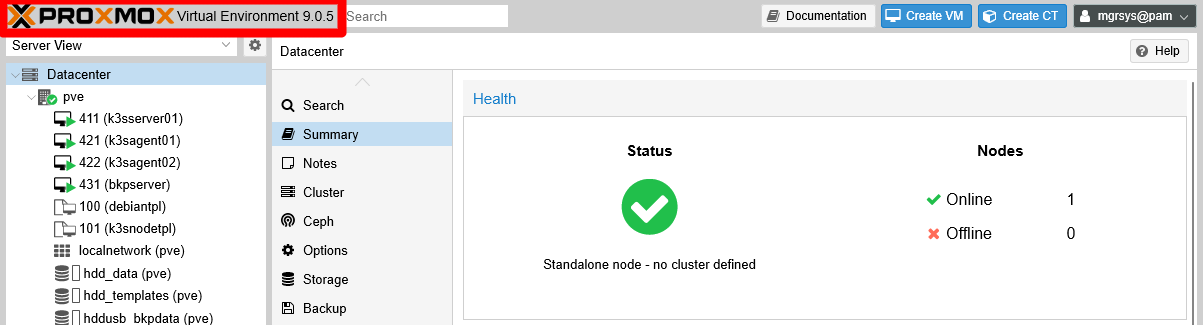
In this case, the version reported is 9.0.5. But you must remember that Proxmox VE is meant to work in a cluster configuration, and could happen that each node of a cluster could have a different version. This particularity means that an administrator must know what version of Proxmox VE is running on each node, and this can be seen in their Summary tab. Try it with your standalone pve node:
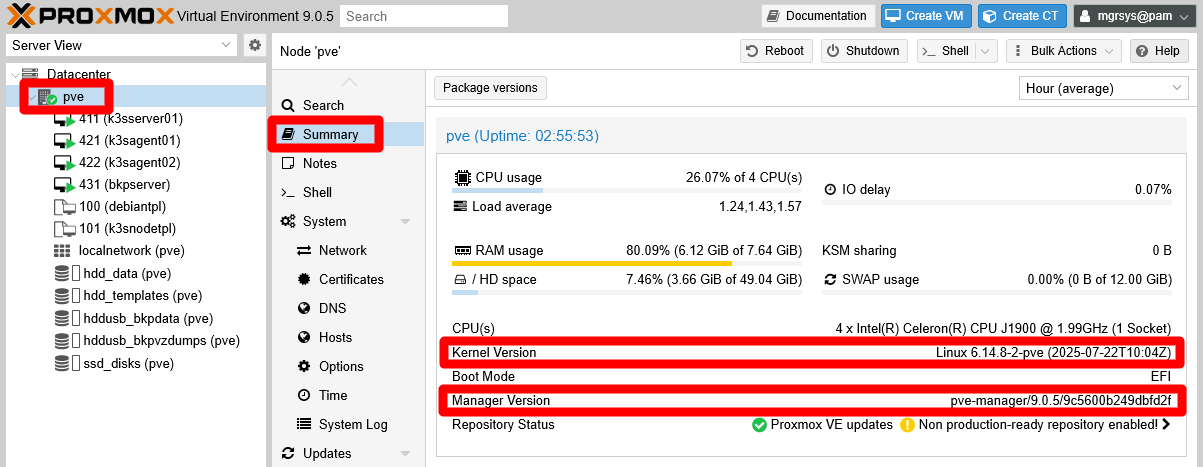
Notice the two highlighted fields:
Kernel version
Informs you of the Linux Kernel version you are running. Do not confuse this Kernel version with the release version of the Linux distribution used in the system, which in this case is Debian 13 “trixie”.PVE Manager Version
This value indicates the exact Proxmox VE version running in this node. In this case it not only indicates the same version you read in the top bar, but also some extra code (a git repository hexadecimal identifier) that you should not really worry about.
On the other hand, the Proxmox VE software is a collection of packages, each of which have their own version. At the top of the Summary page of your pve node, there is a Package versions button:
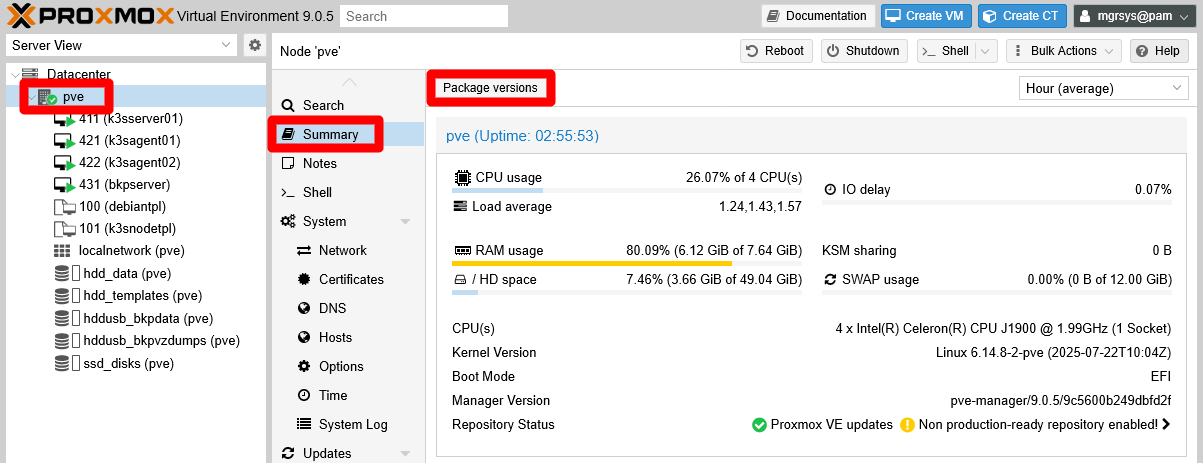
Click on this Package versions button, and first you are greeted by the warning about not having a “valid subscription” (a paid one) for enterprise updates:
The Package versions button does not work when the No valid subscription is disabled
Be aware of this if you disabled the warning.

Accept the warning so you can reach the next window:
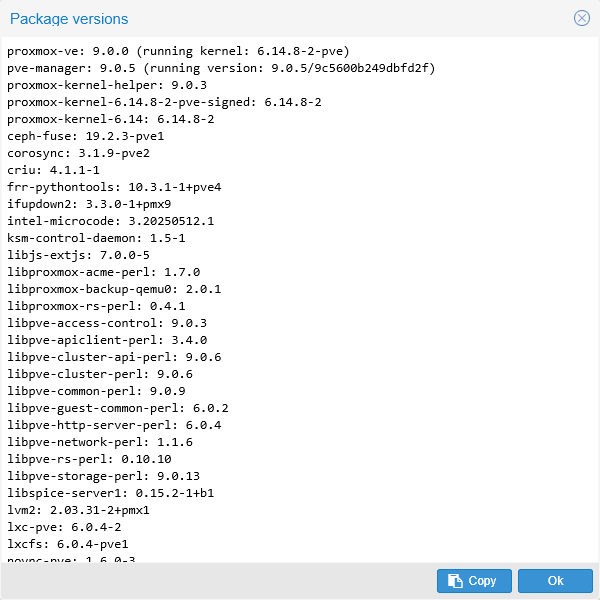
Here you can see the current versions of the packages directly or indirectly related to your Proxmox VE installation. In other words, this window only shows packages that have something to with the Proxmox VE software, filtering out the rest. In particular, notice that, at the top of the list, there’s a proxmox-ve package and right below it a pve-manager one. The pve-manager version is the value reported in the Summary tab of the pve node.
After all this analysis, you can conclude that, in this case, the system is running a Proxmox VE of the 9.0 family.
Debian packages’ current version
Since Proxmox VE is, after all, a custom Debian environment, you also want to know the versions of the rest of the packages installed in your system. To do so, just go to the Updates page of your pve node:
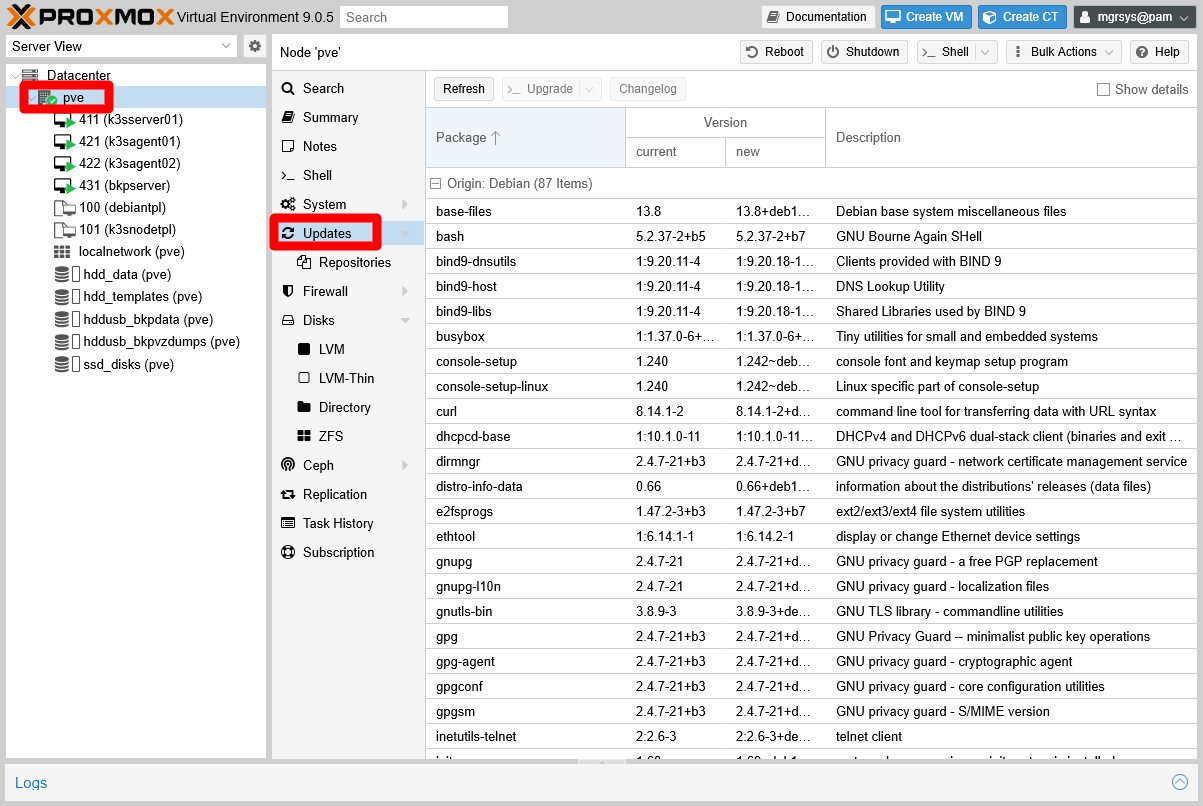
This view shows you all the packages pending of update, including the Proxmox VE ones. The packages in this view are separated in groups depending on which is their source repository, or Origin. You can see this better if you fold all the packages lists:
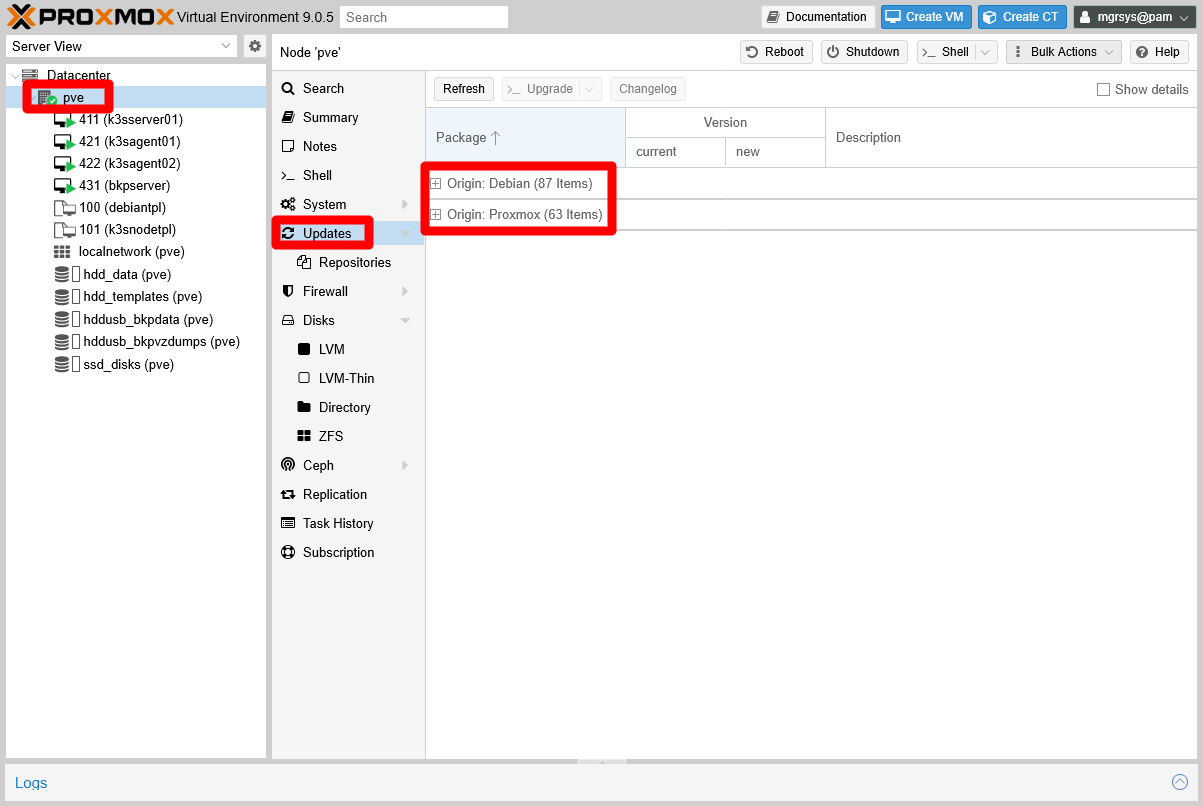
There are two origins or sources for the packages of this system, the official Debian one and the Proxmox repository.
Proxmox VE most recent version
You know that you have to update your Proxmox VE system, but to what version exactly? The web console does not notify you of upcoming new versions. You have to go to the official Proxmox page and check there if they have published a new version of Proxmox VE. You can see new versions announced both in their home page, in their Press Releases page, and in their Announcements forum.
For the Proxmox VE 9.0 system updated in this guide, there is a jump to a new minor version 9.1. In the corresponding announcements, you can see what improvements, fixes and changes bring the new minor version:
- About. Proxmox Virtual Environment 9.1 available
- Forum. Annoucements. Proxmox Virtual Environment 9.1 available!
Since this is a minor version part of the same major 9.x family, updating the Proxmox VE 9.0 system is quite straightforward.
Updating Proxmox VE
After learning what updates you have to apply, and what they bring, you can start the procedure of updating your Proxmox VE system.
Backup your system
Upgrading to a newer minor version is a relevant change to the system, in this case from Proxmox VE 9.0 to 9.1. To remain on the safe side, first you should do a complete host backup with Clonezilla.
Checking the activities on UrBackup
Check in your UrBackup server’s web interface, in the Activities tab, if there are backup tasks running. If so, wait for them to finish before you proceed with the rest of this update procedure.
Careful with the backup jobs in Proxmox VE
Likewise as with UrBackup, if they have started, wait for the backup jobs you may have scheduled in your Proxmox VE system.
Shutting down the VMs
Being sure that you do not need to use the services provided by the VMs running in your Proxmox VE while upgrading the system, shut them down in the following order:
- The UrBackup server (
bkpserver). - The K3s agent nodes (
k3sagent01andk3sagent02). - The K3s server node (
k3sserver01).
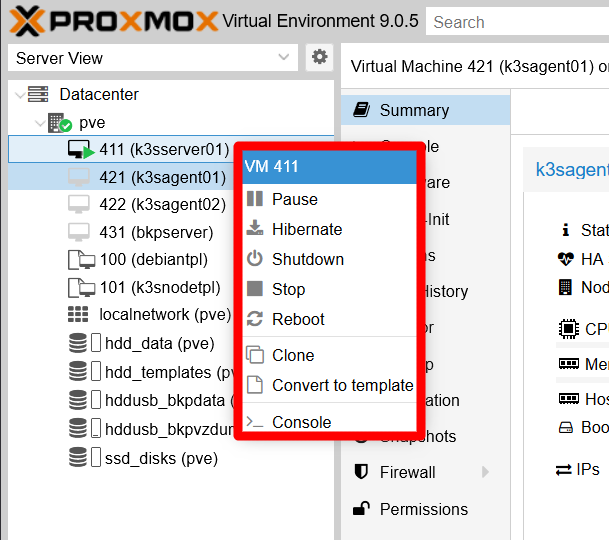
Know that you have the Shutdown action, and several others, in a contextual menu that appears when you click, with your right mouse button, on a VM at the tree on the left:
On the other hand, you do not know how many times you will need to reboot the Proxmox VE host during or after the update. This is relevant to consider because your VMs are configured to start automatically when the host does, and with a big update as the one posed in this guide, you might prefer to temporarily disable this capacity in all your VMs. Remember, this feature is the Start at boot parameter found in the Options page of your VMs.
Starting the masked spiceproxy service
Back when you hardened your host, you disabled certain Proxmox VE services that are not necessary in a standalone PVE node as the one used in this guide. You were also warned in the same chapter that some updates of Proxmox VE packages may expect certain services to be running and, if not, the update may warn of an error and not finish correctly.
In particular, the disabled spiceproxy service could raise a warning when updating the pve-manager package. If you do not want to risk unknown issues during or after the update, you can unmask and start it. Execute the following commands on a remote terminal opened on your Proxmox VE system as mgrsys:
$ sudo systemctl unmask spiceproxy.service
$ sudo systemctl start spiceproxy.service
Applying the updates
With all the previous steps covered, now you can start the update. First be aware that, although it a fully fledged administrative account, the mgrsys user has the upgrade button greyed out for some unknown reason in the web console of Proxmox VE 9.0. This forces you to use the root user to perform the update as this chapter explains. You can follow those instructions with the root user, or just use apt in a remote terminal opened with mgrsys as you would do with any Debian-based system:
$ sudo apt update
$ sudo apt upgrade
Since in this case there are a lot of packages to update, it takes some minutes to finish. Stay put for any questions the upgrade process may ask you:
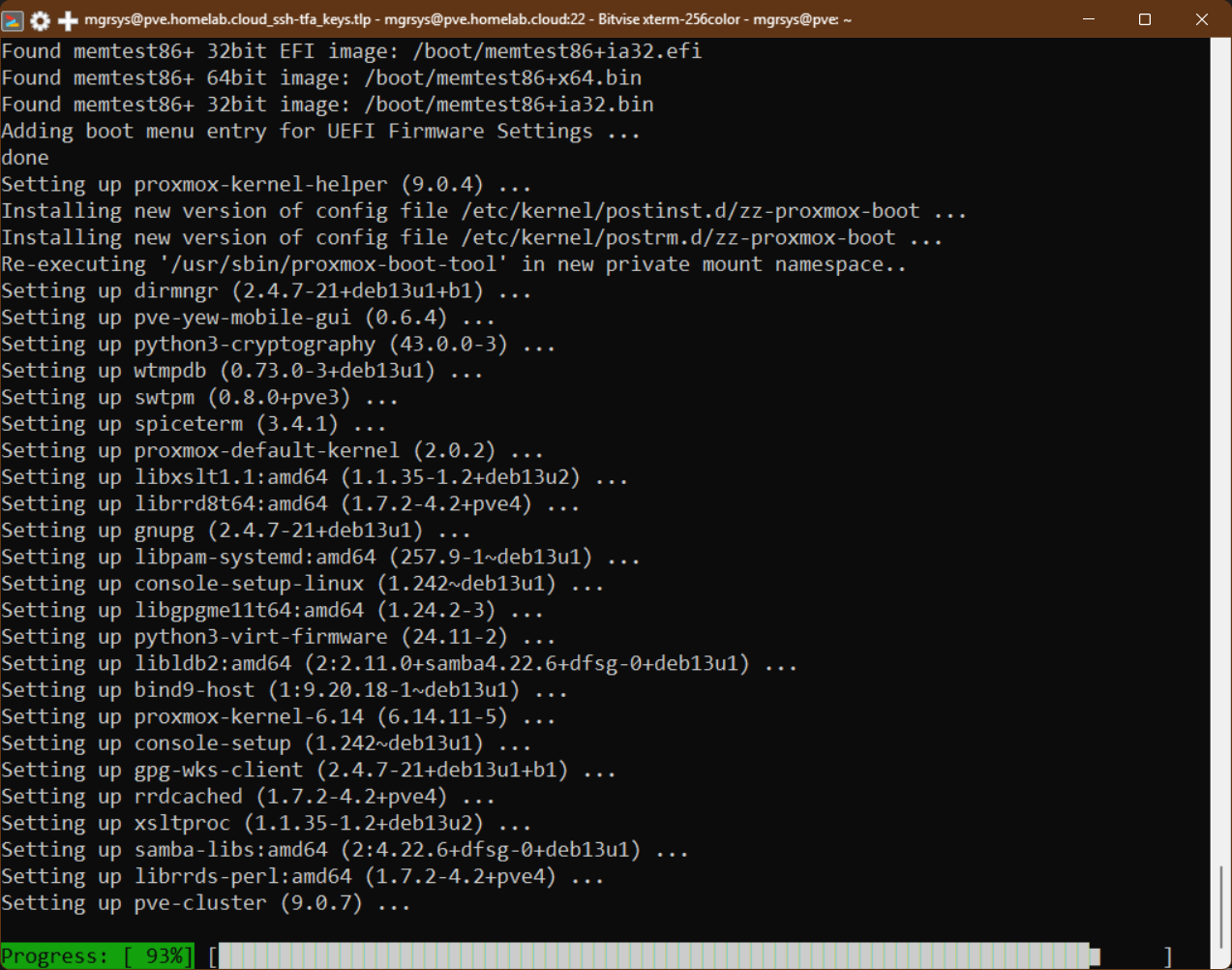
When the update process has finished, reboot the host. After restarting the system, browse back into the web console and go straight to the Summary page of your pve node:
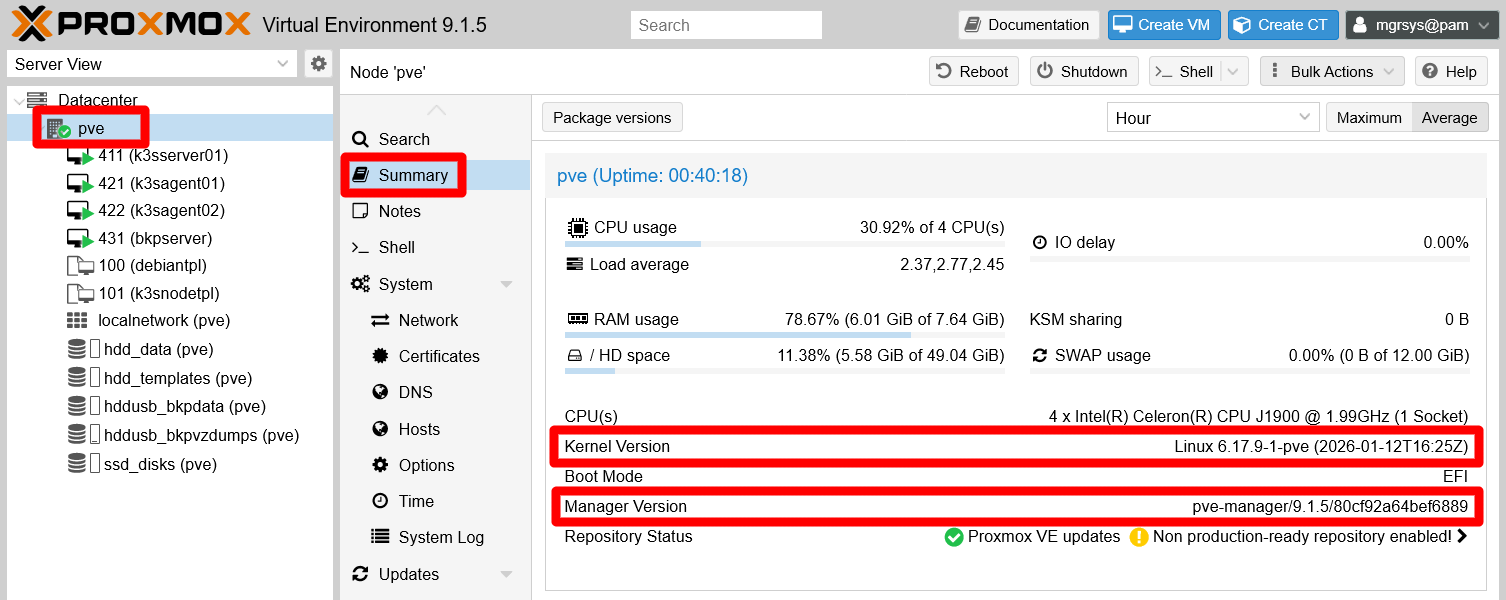
Notice that now the version is 9.1.5 both in the name at the top bar and in the Manager Version field, and that also the Kernel Version is newer. Still, check if there are more updates pending and apply them. Remember that you can see this directly in the web console, in the Updates page of your pve node.
Some updates cannot be applied immediately
Although you can see certain updates as available, apt can hold them back. Do not worry about them, it means that some other update must arrive at a later date to allow them to be installed in the system.
On the other hand, open a remote terminal with mgrsys on your Proxmox VE host and execute the following apt command:
$ sudo apt autoremoveThis cleans up any files, like old kernel ones, that apt detects as not necessary to keep any more in the system and can be deleted.
Checking disabled services
It is possible that an update could “resurrect” any of the services you disabled in the hardening of your host. Or maybe they have been changed or even eliminated. Either way you want to check them out to see if they remain disabled and stopped, and you can do that just by checking them with systemctl. Below you have a quick command rundown for checking all those services:
RPC services, all related to NFS storage access:
$ sudo systemctl status rpcbind.target rpcbind.socket rpcbind.serviceZFS and CEPH services
$ sudo systemctl status zfs-mount.service zfs-share.service zfs-volume-wait.service zfs-zed.service zfs-import.target zfs-volumes.target zfs.target ceph-fuse.targetSPICE proxy service
$ sudo systemctl status spiceproxy.serviceProxmox VE High-Availability (HA) services
$ sudo systemctl status pve-ha-crm pve-ha-lrm corosync
In this guide’s case, just the spiceproxy.service is enabled, done previously in purpose to avoid possible issues. You can disable it again by masking the service with systemctl:
$ sudo systemctl mask --now spiceproxyWhen you execute the command above, reboot your system and confirm again that the SPICE proxy and the other listed services remain disabled and inactive (dead).
Restarting the VMs
The last thing to do is to start your VMs if you disabled their Start at boot feature before. Boot them up in exactly the opposite order you followed when you shut them down:
- The K3s server node (
k3sserver01). - The K3s agent nodes (
k3sagent01andk3sagent02). - The UrBackup server (
bkpserver).
Also, do not forget to reenable the Start at boot feature found in the Options page of all your VMs.