Updating VMs and UrBackup
Updating the VMs means updating their OS
This chapter covers how to update the virtual machines and the UrBackup software. It is not difficult, but this procedure has its own particularities. Be aware that, where it says “update the VMs”, what it really means is to update the Debian operative system running in the VMs and the software packages installed in them.
Examining your VMs
Like you did with Proxmox VE, you need to know which version of Debian is currently running on each VM. Also, you have to check which version is the latest one of the Debian distribution used on your VMs and what changes brings.
All the VMs in your homelab setup should be in the same Debian release version
All the virtual machines created in the Proxmox VE system are clones from the same template. Therefore, at this point, you can safely assume that they are running the same Debian OS.
Still, it is good practice to be sure that your VMs are still aligned. This specially important when doing administrative tasks such as updates manually, it could happen that something gets forgotten.
Debian current version
To see what version of Debian you are currently running in your VMs, there is a number of ways to do it from the command line. The most useful ones are the following:
Opening the file
/etc/debian_version:$ cat /etc/debian_version 13.0This value tells you the major (
13) and minor (0) version of Debian installed, but nothing else.Executing the
unamecommand:$ uname -rsv Linux 6.12.41+deb13-amd64 #1 SMP PREEMPT_DYNAMIC Debian 6.12.41-1 (2025-08-12)This command only informs you of the Linux Kernel’s version running in the system. Good to know when updating a system nevertheless.
Using the
lsb_releasecommand:$ lsb_release -a No LSB modules are available. Distributor ID: Debian Description: Debian GNU/Linux 13 (trixie) Release: 13 Codename: trixieThis informs you explicitly about what major release of Debian running in the VM, including its codename. The problem is that it does not tell you what minor version is.
Opening the file
/etc/os-release:$ cat /etc/os-release PRETTY_NAME="Debian GNU/Linux 13 (trixie)" NAME="Debian GNU/Linux" VERSION_ID="13" VERSION="13 (trixie)" VERSION_CODENAME=trixie DEBIAN_VERSION_FULL=13.0 ID=debian HOME_URL="https://www.debian.org/" SUPPORT_URL="https://www.debian.org/support" BUG_REPORT_URL="https://bugs.debian.org/"This file has the full release version information of the Debian OS, plus some related links. Notice that this information is set as environment variables that are not loaded in the system.
In this guide’s homelab setup, it happened that the K3s node VMs were running with Debian 13.0, while the UrBackup server VM had its Debian already updated to 13.3.
Debian’s most recent version
Go to the official Debian website to discover the current version. In particular, check the latest news, either at the main page or in the News section. There you can find the announcements of new versions. At the time of writing this, Debian 13.3 is the most recent version of this distribution. This implied that, in this guide’s system, the oldest VMs were three minor versions behind the newest Debian: they had Debian 13.0, so the announcements for the 13.1, 13.2 and 13.3 versions also had to be checked:
In these announcements, the most common thing to see are bugfixes and security updates, but it may happen that particular packages get removed. There is an example of package removal in the announcement of the 13.1 release, published in the section called Removed packages. Therefore, do not forget to take a look to these announcements, to be ready for potential dependency conflicts such as removed or deprecated packages.
Updating Debian on your VMs
After learning how old the Debian systems are in your VMs, get on with their update.
Backup your VMs
Either wait for the backup job scheduled in your Proxmox VE to kick in, or launch it manually. Regardless, try to have a fresh backup before updating your VMs, the closest in time you can to the beginning of the update process.
Needless to say that you should not start your update process when a scheduled backup task that affect the VMs is already running, so do not forget to check it in your Proxmox VE web console (in Datacenter > Backup).
Also remember that, in this guide’s setup, the UrBackup VM is not included in the backup already scheduled in you Proxmox VE server.
Checking the activities on UrBackup
Check in your UrBackup server’s web interface, in the Activities tab, if there are backup tasks running. If there are, wait for them to finish before you proceed with the rest of this update procedure.
Stop the UrBackup services
If there is no backup activity in your UrBackup server, it is better to stop the service before executing an update in the system. This is because the UrBackup server software has a couple of package dependencies that might affect it badly if they change while the service is running. Then, open a shell on the bkpserver VM as mgrsys and stop the UrBackup server:
$ sudo systemctl stop urbackupsrv.serviceThe same reason apply to the UrBackup clients installed in the other VMs. Depending on the configuration used, they can have dependencies that could get their packages updated. So, open a shell as mgrsys on each of those VMs and stop the client service:
$ sudo systemctl stop urbackupclientbackend.serviceWhen you have applied the updates and rebooted, those services will be back online automatically.
About the K3s services
Since the K3s software does not have any direct dependency on the underlying Debian system, nor is even installed with apt, in theory you could leave the K3s services running in your VMs perfectly fine. Of course, that the system where those services are running gets updated somehow influences the K3s cluster, but it is something that you might notice only after rebooting the updated systems.
Either way, know that stopping the K3s services does not stop the containers themselves, and this is by design. The K3s services in Debian can be stopped like any other regular service:
Stopping the K3s server:
$ sudo systemctl stop k3s.service k3s-cleanup.serviceSee how the server has two services, the regular one and the other for cleaning up pods while gracefully shutting down the cluster.
Stopping the K3s agents:
$ sudo systemctl stop k3s-agent.serviceIf you execute this command, remember to do it in all of your K3s agent nodes.
Know that, in this guide’s case, the K3s services were not stopped before applying the updates with apt and they were done without any noticeable issue.
Executing the update with apt on your VMs
As you already know by now, in Debian you update your packages and, by extension, the system itself with the apt command:
$ sudo apt update
$ sudo apt upgrade
$ sudo reboot
Remember to be around, watching the progress of the apt upgrade process since it could throw you a question about some configuration detail affected by the update.
After the reboot, give your VMs a few minutes to boot up. Then, do not forget to run the apt autoremove command in each of them for cleaning up any old files still remaining, like older kernel files.
$ sudo apt autoremoveChecking the updated Debian version
Using the very same commands showed before, you can check what Debian release (and what Linux kernel) you have now in your VMs. In the case of this guide’s setup, all VMs have now the same Debian 13.3 operative system:
Seen in the file
/etc/debian_version:$ cat /etc/debian_version 13.3Kernel version checked with the
unamecommand:$ uname -rsv Linux 6.12.69+deb13-amd64 #1 SMP PREEMPT_DYNAMIC Debian 6.12.69-1 (2026-02-08)Using the
lsb_releasecommand:$ lsb_release -a No LSB modules are available. Distributor ID: Debian Description: Debian GNU/Linux 13 (trixie) Release: 13 Codename: trixieOpening the file
/etc/os-release:$ cat /etc/os-release PRETTY_NAME="Debian GNU/Linux 13 (trixie)" NAME="Debian GNU/Linux" VERSION_ID="13" VERSION="13 (trixie)" VERSION_CODENAME=trixie DEBIAN_VERSION_FULL=13.3 ID=debian HOME_URL="https://www.debian.org/" SUPPORT_URL="https://www.debian.org/support" BUG_REPORT_URL="https://bugs.debian.org/"
Updating the UrBackup software
Usually, it should not be a problem that the dependencies the UrBackup software has on Debian get updated. Still, the issue is perfectly possible and this circumstance would force you to upgrade the UrBackup software, although only if there is such update available.
On the other hand, those dependencies may limit when you can update your UrBackup software. This means that, although you could have available a new upgrade for the UrBackup server or client, they might require a newer version of their dependencies that is not available in your current Debian major release. Of course, you could fully upgrade your Debian to a new major version, for instance, going from Debian 13.y to Debian 14.y, and that would be it, but sometimes you cannot even do this for some odd reason.
Just be aware of those particular circumstances when dealing with updates of software that, like UrBackup, has direct dependencies installed in the underlying operative system.
On the other hand, updating UrBackup is rather simple although not without its own quirks.
Beware of the backups
As when dealing with the Debian updates, always check first if there are backup jobs running, either in the UrBackup server or the Proxmox VE system. Only when they are finished, proceed with the update of UrBackup.
Consider doing a backup of the UrBackup server
If you have storage space for it, make a backup of the VM either manually or by scheduling it. After you have done the update correctly, you can always remove that backup later.
Checking the version of UrBackup
Server version
To check your UrBackup server’s version is very simple, since you can see it right at the bottom of the login page:
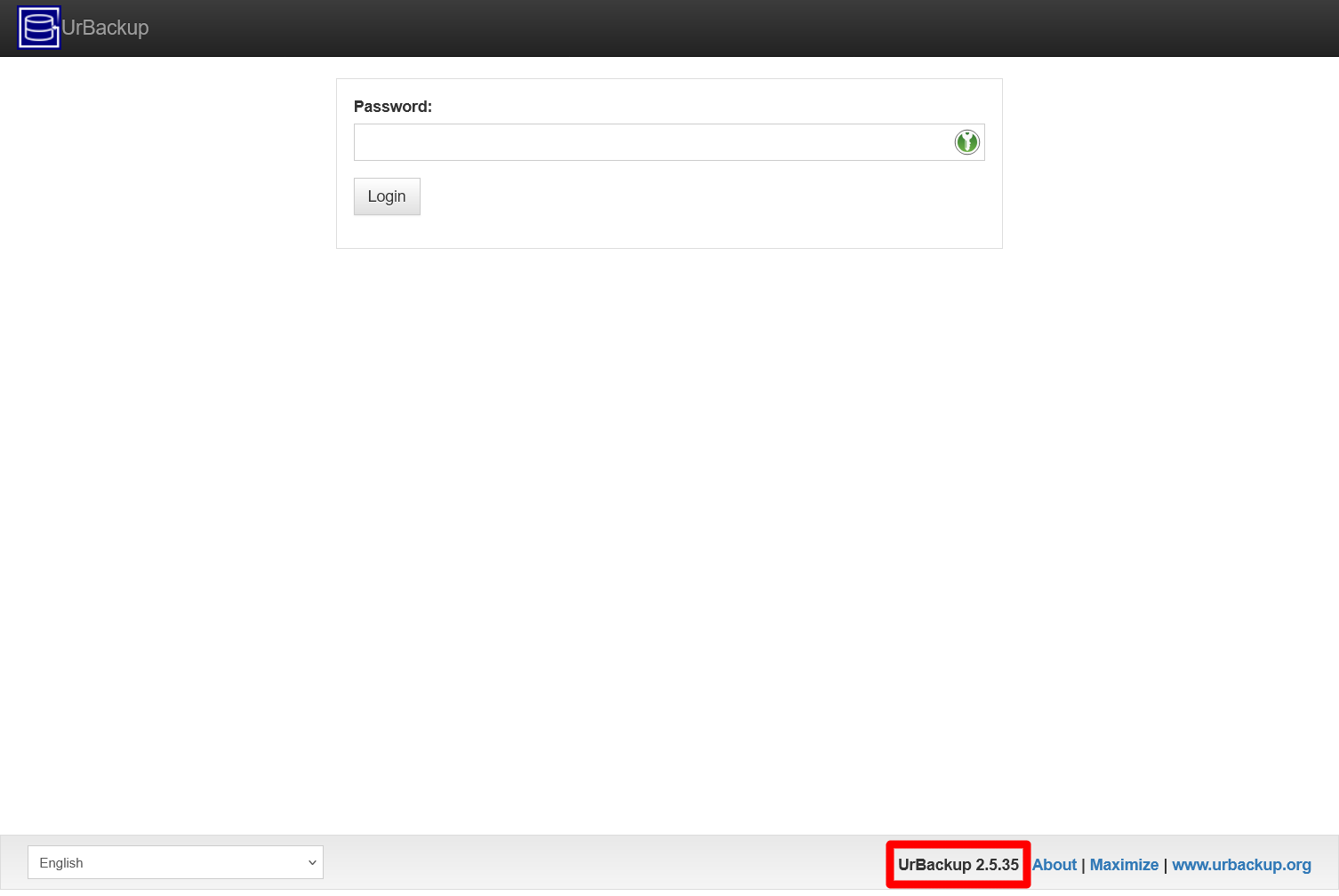
Above you can see that the UrBackup server is the 2.5.35 version, right the one you saw installed previously.
Client version
The UrBackup client, like any Linux command, has its own --version option:
$ urbackupclientctl --version
UrBackup Client Controller v2.5.29.0
Copyright (C) 2011-2019 Martin Raiber
This is free software; see the source for copying conditions. There is NO
warranty; not even for MERCHANTABILITY or FITNESS FOR A PARTICULAR PURPOSE.
In this case, the client is the 2.5.29 version, the one installed in all your K3s nodes.
UrBackup’s most recent version
To be up to date with the latest versions of UrBackup, go to its official site and:
- Look at the versions in the download links. Be aware that those links point to the Windows version of the software.
- Check the News section at the bottom of the page.
Updating UrBackup
UrBackup server update
The update is exactly the same procedure you used for installing the UrBackup server .deb package. And no, apt cannot find the new version automatically because UrBackup server does not have a source repository, forcing you to download the .deb file and executing the upgrade manually with dpkg.
On the other hand, it is not necessary to stop the UrBackup server service when updating it, like with other services when they are updated with apt (dpkg is the underlying command that executes the update).
UrBackup client update
According to the download page of the binary Linux client, this client is auto-updated by the UrBackup server when necessary. Therefore, you do not have to worry about updating the client since UrBackup takes care of it automatically.
Checking the new versions
After applying the updates, check the versions of your server and clients as you saw before. Bear in mind that the server may not reflect, in its Status page, the new version of the clients immediately.
References
Debian
Other Debian or apt related contents
Ask Ubuntu. Using dpkg to install upgrade and dist-upgrade packages
Unix. StackExchange. Upgrading/Updating package using dpkg only